
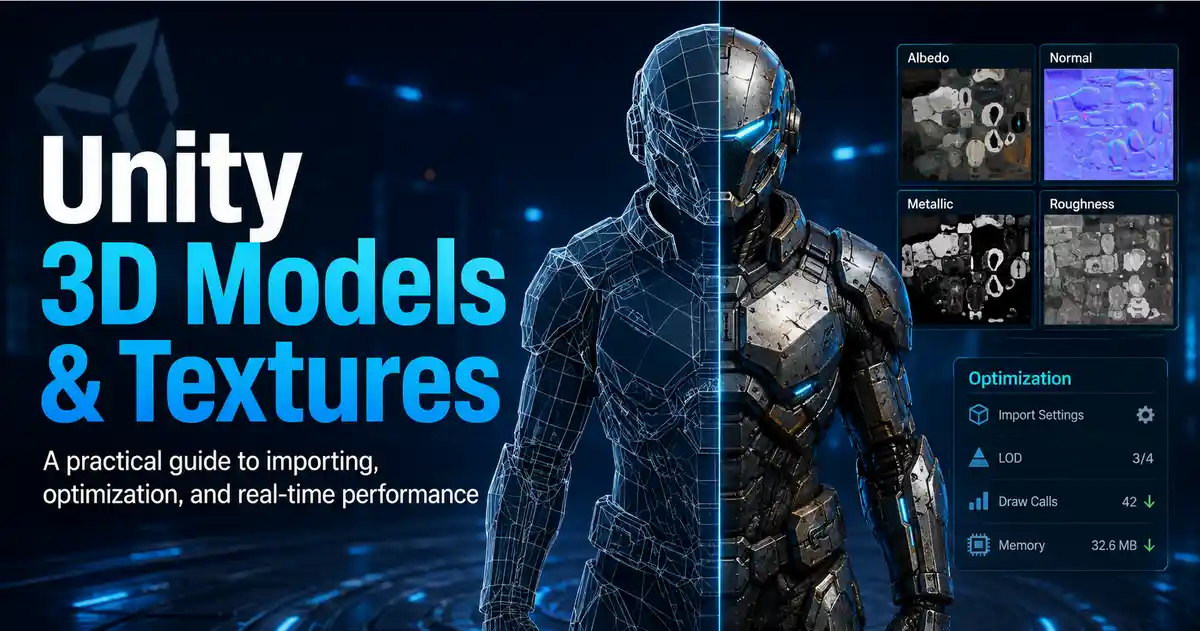
When building real-time interactive experiences in Unity—whether that’s a fast-paced first-person shooter, a immersive architectural walkthrough, or a interactive mobile AR app—3D models and textures are the foundation of everything your audience sees and interacts with. A stunning concept can fall flat if models are too high-poly for mobile devices, or textures look blurry on high-resolution displays. Mastering how to create, import, optimize, and integrate assets for real-time performance is what separates a buggy, unresponsive project from a seamless, engaging experience that works across PCs, consoles, and mobile devices. This guide breaks down everything you need to know to work with Unity 3D models and textures effectively for real-time projects.
Understanding Core Requirements for Real-Time Unity Assets
Real-time rendering differs drastically from pre-rendered CGI or offline animation. In pre-rendered work, artists can use thousands of polygons and 8K textures for every asset, because the computer has minutes or hours to render a single frame. For real-time projects, the engine has to draw every frame in under 33 milliseconds (for 30 frames per second) or 16 milliseconds (for 60 frames per second) to keep the experience responsive. Every polygon and every pixel of texture counts toward that budget, so asset creation has to balance visual quality with performance from the very start.
Polygon Count Budgets by Platform
Polygon count (or triangle count, the metric Unity actually uses) is the first limiting factor for real-time assets. A model that runs smoothly on a high-end gaming PC will bring a mobile phone to a crawl if it has too many triangles. General industry benchmarks for real-time assets break down by platform and asset type:
- Mobile (phones/tablets): Background props: 100–1,000 triangles; playable characters: 1,500–5,000 triangles; environment assets: 10,000–30,000 triangles for a full level. High-end modern flagships can handle more, but it’s best to stay conservative to reach the widest audience.
- Consoles (PlayStation 4/5, Xbox One/Series X|S, Switch): Background props: 500–5,000 triangles; playable characters: 5,000–15,000 triangles; open world environments can reach 100,000–500,000 triangles per chunk, with LOD systems to reduce load for distant objects.
- PC/High-End VR: Background props: 1,000–10,000 triangles; playable characters: 10,000–30,000 triangles; high-detail assets for cutscenes can go higher, but even AAA projects prioritize efficiency to leave performance budget for lighting, physics, and post-processing.
Texture Resolution Best Practices
Like polygon counts, texture resolution is limited by how much video RAM (VRAM) the target device has. A single 4K (4096×4096) uncompressed texture takes up almost 64MB of VRAM; a single level with 100 of these textures will use 6GB of VRAM before you even add models, shaders, or lighting. For most real-time projects, sticking to a power-of-two texture resolution (1024×1024, 2048×2048, 4096×4096) is a standard rule, because Unity’s compression systems work most efficiently with these dimensions. For mobile, most small to medium assets only need 1024×1024 resolution, while key assets like player characters can use 2048×2048. For PC and console, 2048×2048 is standard for most assets, with 4K reserved only for hero assets that players will examine up close.
Importing 3D Models into Unity: Key Settings for Real-Time Performance
Even if you create a perfectly optimized model in Blender, Maya, or ZBrush, incorrect import settings in Unity can erase all your efficiency gains. Unity has dozens of import settings for 3D models, and a few small tweaks can drastically improve performance and visual quality for real-time projects.
Mesh Compression and Optimization
One of the first settings to adjust is mesh compression. This setting reduces the file size of your mesh by lowering the precision of vertex positions, normals, and UV coordinates. For most background assets that aren’t close to the camera, medium or high mesh compression has little visible impact on quality but can cut mesh file sizes by 50% or more. For hero assets that players see up close, use low or no compression to preserve fine detail.
You should also enable Read/Write Enabled only if you plan to modify the mesh at runtime (for example, in a destructible environment or procedural generation tool). Disabling this setting reduces the memory Unity uses to store the mesh, because it keeps the mesh data only in VRAM rather than duplicating it in system memory. For 90% of static environment assets and non-destructible props, this setting can be turned off immediately to save memory.
Normals and Tangents
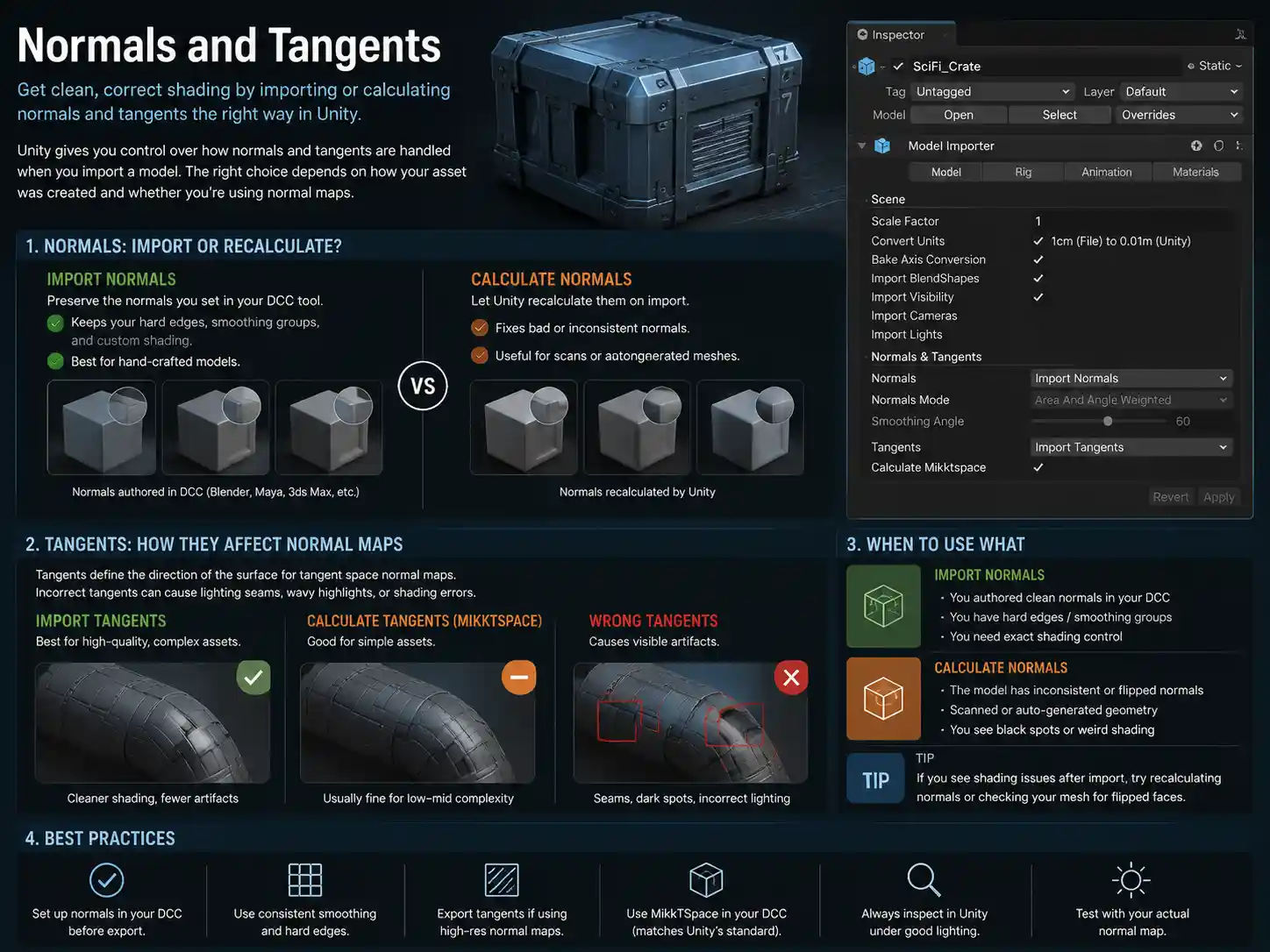
When importing models, Unity gives you the option to import normals from your 3D modeling software or recalculate them internally. If you’ve manually baked hard edges and smoothed normals in your DCC (digital content creation) tool, keep the Import Normals setting to preserve your work. If you’re working with a scanned or generated model that has inconsistent normals, letting Unity recalculate them can fix shading artifacts. For tangent space normals (required for normal mapping), Unity can calculate tangents automatically, but for complex assets with high-resolution normal maps, importing tangents from your DCC tool often gives cleaner results with fewer artifacts.
Handling Multiple Mesh Parts and Blend Shapes
If your model has multiple separate materials (for example, a character with a separate material for skin, hair, and clothes), Unity will split the mesh into multiple submeshes by default. Each submesh requires a separate draw call, which can hurt performance if you have dozens of objects with multiple submeshes in a single scene. For static objects, you can combine meshes with the same material into a single mesh to reduce draw calls. For animated characters, keep submeshes separate by material, but avoid unnecessary splits that add extra draw calls. For blend shapes (used for facial animations or soft body deformation), Unity imports them by default, but you can disable import for blend shapes you don’t need to save memory and reduce animation overhead.
Working with Textures in Unity: Compression, Import Settings, and Workflows
Textures are responsible for most of the visual detail in modern real-time projects, and they also use more VRAM than any other asset type. Getting texture import settings right is one of the most impactful steps you can take to optimize your real-time Unity project. Whether you’re using PBR (physically based rendering) workflows for realistic assets or stylized hand-painted textures for indie games, the right settings will balance quality and performance.
“The biggest mistake new Unity developers make is importing 4K textures for every tree and rock in a level, then wondering why their game won’t run on mobile. 90% of assets in a real-time scene will never be seen closer than a few meters from the camera—they don’t need 4K resolution.”
PBR Texture Workflows for Unity
Unity’s default rendering pipeline (as well as URP, the Universal Render Pipeline, and HDRP, the High Definition Render Pipeline) uses a standard PBR workflow that requires multiple texture maps to define an asset’s appearance. Most artists export separate maps for albedo, metallic, smoothness, normal, occlusion, and emission. For real-time projects, you can combine multiple maps into a single texture to save sampling time and VRAM. For example, the metallic, smoothness, and occlusion values can be packed into the R, G, and B channels of a single texture, rather than using three separate 1024×1024 textures. This cuts down on VRAM usage and reduces the number of texture samplers the shader has to use, which improves performance especially on mobile GPUs.
Texture Compression by Platform
Unity automatically offers platform-specific texture compression options, and using the right compression format is critical for balancing quality and VRAM usage. The wrong compression can make your textures look blocky or blurry, while no compression wastes valuable VRAM. Key platform-specific compression best practices include:
- Mobile (iOS/Android): Use ASTC compression for modern devices, which offers better quality at smaller file sizes than older formats like ETC2. For older Android devices that don’t support ASTC, fall back to ETC2. ASTC 4x4 compression gives almost uncompressed visual quality at a fraction of the VRAM usage, cutting a 4K texture from 64MB uncompressed to under 8MB compressed.
- PC/Console: Use BCn compression for PBR textures: BC1 for albedo maps with no transparency, BC3 for combined normal/roughness maps or maps with alpha, and BC5 for normal maps. BCn compression is supported by all modern GPUs and gives good quality with minimal VRAM usage.
- Editor/Standalone Development: Never use uncompressed textures for final builds—even high-end PCs will run out of VRAM quickly if all textures are uncompressed.
Mipmaps for Real-Time Projects
Mipmaps are smaller, downscaled versions of your texture that Unity uses when the texture is displayed far away from the camera. Enabling mipmaps is almost always a good idea for real-time projects: they improve performance by using smaller textures for distant objects, and they reduce aliasing (sparkling or jagged edges) on textures that are far away. The only time you should disable mipmaps is for UI textures, which are always drawn at the same size on the screen, or for sprite textures in 2D projects. For 3D assets, enabling mipmaps is a quick win that improves both performance and visual quality with no downsides.
Optimization Techniques for Real-Time Performance
Even with clean modeling and correct import settings, large or complex projects can still hit performance bottlenecks. There are several proven optimization techniques that Unity developers use to keep frame rates high across all platforms, and most of them focus on reducing the number of polygons and textures the engine has to process each frame.
Level of Detail (LOD) Systems
Level of Detail (LOD) is the most effective technique for reducing polygon count in large open scenes. LOD works by creating several versions of the same model with decreasing polygon counts: the highest-poly version is used when the model is close to the camera, and lower-poly versions are swapped in as the model moves further away. For example, a tree model might have a 1,500-triangle LOD0 for close-up, 500-triangle LOD1 for medium distance, 100-triangle LOD2 for far distance, and a billboard imposter for very long distances. This can reduce the total number of polygons in a full frame by 50% or more, with no visible loss of quality for distant objects.
Unity has a built-in LOD Group component that makes it easy to set up LODs for your assets. Most modern 3D modeling tools can also automatically generate LODs for you, or you can generate them in Unity using third-party tools like Simplygon. For environment assets like trees, rocks, and buildings, LODs are non-negotiable for good real-time performance.
Atlas Textures to Reduce Draw Calls
A texture atlas is a single large texture that contains multiple smaller textures from multiple assets. Instead of having 100 different small textures for 100 different props, you pack all 100 into a single 2048×2048 atlas. This lets you combine multiple meshes that use the atlas into a single draw call, which drastically reduces the CPU overhead of drawing the scene. For mobile projects in particular, reducing draw calls is one of the most effective ways to improve frame rates, because mobile CPUs are much less powerful than desktop CPUs.
There are a few things to keep in mind when using texture atlases: you need to adjust the UV coordinates of each mesh to match their position in the atlas, and you need to leave a small padding between textures to avoid bleeding (where one texture’s pixels leak into another at the edges). Unity has built-in tools for packing sprites into atlases, and third-party tools like TexturePacker work well for 3D texture atlases too. Atlases work best for small static props like rocks, plants, and architectural details that all share the same shader.
Occlusion Culling for Static Environments
Occlusion culling is a Unity feature that automatically disables rendering for objects that are completely hidden behind other objects (for example, a room on the other side of a solid wall). If your project is a static environment like an architectural walkthrough or an indoor level, occlusion culling can cut the number of objects rendered per frame by 50% or more. The setup process is straightforward:
- Mark all static environment objects as Occluder Static and Occludee Static in the Unity inspector.
- Bake the occlusion data for your scene in Unity’s Occlusion Culling window.
- Adjust the bias and smallest occlusion volume settings to avoid objects popping in incorrectly.
Occlusion culling doesn’t work well for fully dynamic open worlds with lots of moving objects, but for static and mostly static scenes it’s a powerful free tool that improves performance with minimal extra work.
Normal Mapping for High Detail Without Extra Polygons
Normal mapping is a technique that lets you add fine surface detail to a low-poly model using a high-poly version’s detail baked into a texture. For example, you can create a 500,000-polygon high-poly version of a brick wall with individual bricks and mortar lines, bake that detail into a 1024×1024 normal map, then apply it to a 100-polygon low-poly plane. The result looks almost as detailed as the high-poly version, but uses 99% fewer polygons. This technique is the foundation of modern real-time graphics, letting artists get incredibly detailed visuals while keeping polygon counts low enough for real-time rendering. Unity supports tangent-space normal maps out of the box, which are the most common and efficient format for real-time assets.
Sourcing and Managing Assets for Unity Projects
Not every team has the time or budget to create every 3D model and texture from scratch. There are thousands of high-quality pre-made assets available for Unity projects, but you need to know how to choose assets that are optimized for real-time use, and how to manage them efficiently to avoid bloat in your project.
Where to Find Optimized Real-Time Assets
Not all pre-made assets are created equal. Many free assets on sites like Sketchfab or TurboSquid are designed for pre-rendered work, not real-time, so they have far too many polygons and too high resolution textures to use in a real-time project. Some of the best sources for pre-optimized Unity-ready assets include:
- Unity Asset Store: The official store has thousands of assets tagged as “real-time” and “mobile-ready,” and most are already set up with correct import settings and PBR workflows. Look for assets that explicitly list polygon counts and texture sizes, and read user reviews to check for performance complaints.
- Poly Haven: A free resource for public domain PBR textures and models, all optimized for real-time use. Most textures are available in 1K, 2K, and 4K resolutions, so you can download the size you need for your project.
- Quixel Megascans: Now free for all Unity users, Quixel Megascans has thousands of scanned 3D assets and textures that are automatically optimized for Unity when imported via the Quixel Bridge plugin. They come with LODs set up and correct compression settings pre-configured, which saves a lot of time.
- CGTrader / TurboSquid: These marketplaces have both pre-rendered and real-time assets—just filter for “game-ready” assets to find assets that are already optimized for real-time use.
Cleaning Up Third-Party Assets
Even when you buy a game-ready asset, it’s almost always worth spending a few minutes optimizing it for your specific project. Many third-party assets come with extra textures, unused mesh parts, or higher resolution than you need. For example, a pine tree asset might come with a 4K albedo texture, but if it’s just a background tree in your open world, you can resize it to 1K and cut the VRAM usage by 75%. You can also remove any unused blend shapes, animation clips, or materials that you don’t need to reduce the asset’s file size and memory usage. Taking the time to clean up every third-party asset when you import it adds up to big performance savings in the final build.
Version Control and Asset Organization
For large projects with multiple team members, good organization of models and textures avoids wasted time and missing assets. A common folder structure that many Unity teams use is to separate models, textures, materials, and scripts into top-level folders, with subfolders for different scene or asset types. For example, Assets/Models/Environment/Rocks/ and Assets/Textures/Environment/Rocks/ keeps all related assets grouped together. Using version control like Git or Perforce also ensures you don’t lose changes to models or textures, and lets you roll back to older versions if an optimized asset doesn’t look as good as the original.
Conclusion
Working with 3D models and textures for real-time Unity projects is all about balancing visual quality and performance. The core principles are simple: start with a clear polygon and texture budget based on your target platform, use the right import settings to get the most out of your assets, leverage proven optimization techniques like LODs, texture compression, and occlusion culling to reduce overhead, and carefully curate any third-party assets to fit your project’s needs. Even small changes—like resampling a 4K texture to 1K for a background prop, or enabling LODs for every tree in a level—add up to a much smoother, more responsive experience for your audience. By keeping performance in mind from the first step of asset creation through the final build, you can create stunning real-time experiences that run well on every platform, from low-end mobile phones to high-end VR headsets.