
Whether you’re a hobbyist customizing a 3D print, a small business owner prototyping a product, or a designer adding 3D elements to a website or game, you don’t need a powerful desktop or expensive software to create a high-quality 3D model. Today, dozens of browser-based tools let you design, edit, and export 3D models directly from your laptop or even your tablet, no installation required. The best tool for you depends on your skill level, project goals, and budget — so we’ve broken down the top options, what they do best, and how to choose the right one for your next project.
Best Free Websites for Beginner 3D Modeling
If you’re new to 3D design and don’t want to invest money before learning the basics, there are dozens of free, browser-based tools built for beginners. These platforms prioritize intuitive interfaces and simplified tool sets, so you can focus on learning core concepts without being overwhelmed by advanced features you don’t need yet.
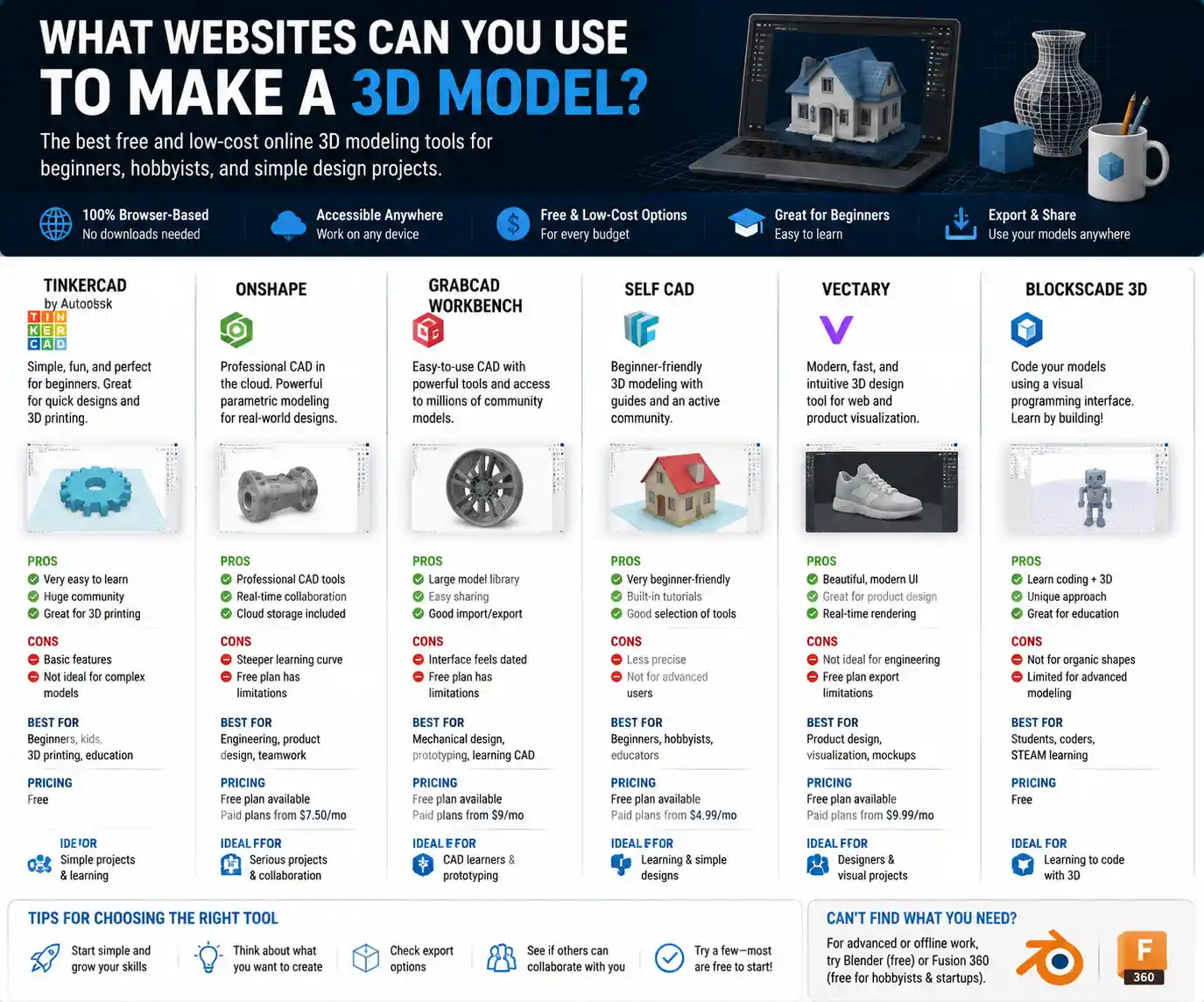
Tinkercad
Owned by Autodesk, the industry leader behind professional tools like AutoCAD and Maya, Tinkercad is universally recognized as the best starting point for new 3D modelers. It’s 100% free for personal use, runs entirely in your browser, and uses a simple “block building” system that works just like stacking digital Lego bricks. You combine basic shapes (cubes, spheres, cylinders, holes) to create complex models, and it supports direct export to STL files, the standard format for 3D printing.
Tinkercad also includes built-in learning resources that walk you through your first project step-by-step, making it a popular choice for K-12 and college STEM programs. It’s ideal for simple projects like keychains, phone stands, custom figurines, and basic architectural models. The biggest downside is its limited complexity: if you want to create curved organic shapes or detailed characters, you’ll quickly outgrow its tool set.
SketchUp Free
Trimble’s SketchUp Free is another leading free browser-based option, popular with hobbyists, interior designers, and amateur architects. Like Tinkercad, it uses a simplified push-pull system that lets you turn 2D shapes into 3D models with just a few clicks, making it much easier to learn than professional desktop software. It’s especially well-suited for architectural modeling, furniture design, and room layout planning, with a huge library of pre-made 3D objects (like doors, windows, and furniture) that you can drag and drop into your project.
The free version includes 10GB of cloud storage and exports to STL, OBJ, and PNG, so you can 3D print your models or use them in other design programs. The main limitation of the free version is that it doesn’t support advanced features like rendering or animation, and commercial use requires a paid upgrade to SketchUp Pro.
Vectary
Vectary offers a free forever plan that balances ease of use with more advanced features than Tinkercad or SketchUp Free. It supports both polygonal modeling (for hard-surface objects) and subdivision surface modeling (for organic shapes like characters), so you can grow with the tool as your skills improve. The free plan includes 1GB of cloud storage, access to a library of thousands of free 3D assets, and export to all common 3D formats including GLB, STL, and OBJ.
One of Vectary’s biggest strengths is its built-in augmented reality (AR) preview: you can view your 3D model on your phone directly through the browser, which is perfect for testing how a piece of furniture will look in your living room or how a custom 3D print will fit in your space. It’s also popular with web designers, because it lets you embed interactive 3D models directly into a website with a simple copy-paste code.
Best Websites for Professional 3D Modeling
If you’re a professional designer, engineer, or artist who needs advanced features without the hassle of downloading and updating desktop software, several browser-based tools offer professional-grade functionality that rivals traditional desktop programs. Many of these platforms work on a subscription model, which is often cheaper than buying a perpetual license for desktop software like Blender or Maya, and they let you access your projects from any device with an internet connection.
Autodesk Fusion 360
While Fusion 360 does have a desktop app, it also offers a fully functional browser-based version that makes it one of the most popular professional 3D modeling websites for product design, mechanical engineering, and prototyping. Fusion 360 supports parametric modeling, which means you can adjust the dimensions of your model at any time without starting over — a critical feature for iterative product design. It also includes built-in tools for simulation, CAM (computer-aided manufacturing), rendering, and team collaboration, so multiple designers can work on the same project in real time.
For hobbyists and small businesses making less than $100,000 in annual revenue, Fusion 360 is free for personal use, with a low-cost subscription starting at $60 per month for professional commercial use. It exports to all standard 3D formats, and integrates directly with 3D printing services and CNC cutters. The only downside for new users is a steeper learning curve than beginner tools, but Autodesk offers hundreds of free tutorials to help you get up to speed.
Spline
Spline is a browser-based 3D design tool built specifically for creating interactive 3D content for websites, apps, and marketing. It’s become extremely popular with UX designers and digital creators because it prioritizes real-time collaboration and easy web embedding, with a gentle learning curve compared to professional desktop 3D tools. Spline supports parametric modeling, texture painting, animation, and interactive events (like clicking or dragging an object to change its color or shape), so you can create fully interactive 3D experiences that run directly in a web browser without any plugins.
Spline offers a free forever plan for personal projects, with paid plans starting at $12 per month for unlimited projects and commercial use. It exports to GLB, GLTF, and OBJ, and lets you publish your interactive 3D model directly to the web with a shareable link or embed code. It’s not ideal for 3D printing or mechanical design, but it’s unmatched for web-based 3D content.
Clara.io
Clara.io is a fully featured cloud-based 3D modeling, animation, and rendering platform that works entirely in your browser. It supports polygonal modeling, subdivision surfaces, keyframe animation, and ray-traced rendering, with a interface that will feel familiar to anyone who’s used desktop software like Blender or 3ds Max. One of its biggest strengths is real-time collaboration: multiple users can edit the same 3D model at the same time, making it a great option for remote design teams.
Clara.io offers a free plan with 5GB of storage and limited rendering, with professional subscriptions starting at $14.99 per month for unlimited storage and advanced features. It supports import and export for more than 30 common 3D formats, so you can easily move projects between Clara.io and other tools.
Websites for Generating 3D Models With AI
AI 3D modeling is one of the fastest growing areas of 3D design, and several new browser-based tools let you generate a complete 3D model from a simple text prompt or a 2D image. These tools are perfect if you don’t have the time or skills to model from scratch, or if you just need a quick base model to edit and customize for your project.
AI won’t replace skilled 3D modelers any time soon, but it’s a powerful tool for speeding up your workflow. If you can describe what you want, you can get a starting model in 60 seconds, then tweak it to fit your needs instead of building from a blank canvas.
Luma AI
Luma AI is one of the leading AI 3D generation platforms, with a browser-based editor that lets you generate high-fidelity 3D models from text prompts or turn photos of real objects into 3D models using photogrammetry. Its text-to-3D tool produces models with detailed textures and accurate geometry that are good enough for 3D printing, game development, or AR applications. You can also edit your generated model directly in the browser, adjusting the shape, size, and textures to match your vision.
Luma AI offers a free trial for new users, with paid plans starting at $15 per month for commercial use and higher resolution exports. It exports to GLB, GLTF, and OBJ, so you can use your generated model in any other 3D tool or 3D printer.
3DFY.ai
3DFY.ai is another popular AI 3D generation website that specializes in creating high-quality 3D models ready for game development, 3D printing, and commercial use. It offers three core features: text-to-3D, image-to-3D, and text-to-texture, so you can generate a completely custom model from scratch or add detailed textures to an existing model you already have. Unlike many older AI 3D tools, 3DFY.ai produces models with clean geometry that don’t require a lot of post-processing to use.
3DFY.ai uses a pay-as-you-go pricing model, so you only pay for the models you generate instead of a monthly subscription. That makes it a great option if you only need to generate one or two models for a project. Prices start at $0.20 per credit, with each full 3D model costing between 3 and 10 credits depending on resolution.
Meshcapade
If you need 3D character models, Meshcapade is a browser-based AI tool that lets you generate fully rigged 3D human models from a single text prompt or photo. It’s perfect for game developers, animators, and fashion designers who need custom character models without the time or cost of modeling one by hand. All generated models come with automatic rigging, which means they’re ready to animate right away, and you can adjust body shape, clothing, and pose directly in the browser.
Here are the most common use cases for AI-generated 3D models that work well for most creators:
- Concept art and prototyping: Quickly generate multiple iterations of a product or character to test different ideas before committing to a final design
- Base models for customization: Generate a rough base model, then refine it in a more powerful editing tool to save hours of modeling from scratch
- Stock assets for websites and games: Get a unique custom 3D asset for less than the cost of purchasing a pre-made model from a stock site
- 3D models from real objects: Turn a photo of an existing object into a 3D model for 3D printing or digital archiving
Websites for Editing and Customizing Existing 3D Models
Many creators don’t need to build a 3D model from scratch — they just need to edit an existing free or paid 3D model to fit their project. For example, you might download a free model of a chair from a stock site and want to resize it to fit your 3D printer, or add a custom logo to a keychain design. There are several great browser-based tools that let you edit, repair, and customize 3D models without a full modeling workflow.
MeshMixer (Autodesk)
While Autodesk no longer updates the desktop version of MeshMixer, it offers a fully functional browser-based version that remains the gold standard for quick 3D model editing and repair. It’s designed specifically for working with STL files for 3D printing, with tools to resize models, hollow out models to save filament, repair broken geometry (like non-manifold edges that break 3D prints), and combine multiple models into one. It’s 100% free to use, and you don’t need to create an account to edit and download your model.
MeshMixer is perfect for anyone who works with 3D printing: if you’ve ever downloaded a free STL that won’t slice because of geometry errors, MeshMixer can fix it in a few clicks. It also supports basic sculpting, so you can add small details or adjust the shape of an existing model.
Sketchfab
Sketchfab is best known as the largest marketplace for free and paid pre-made 3D models, but it also includes a free browser-based 3D editor that lets you edit models directly on the site. You can resize, rotate, and crop models, adjust materials and textures, add annotations, and export the edited model in your preferred format. If you download a model from Sketchfab, you can edit it without leaving the site, which saves a lot of time compared to downloading it, opening it in another tool, editing, and re-uploading.
Sketchfab also lets you view any model in AR directly through your browser, so you can test it in your space before downloading. The basic editor is free for all users, with advanced features available for premium members starting at $15 per month.
3D Slash
3D Slash is a browser-based 3D editing tool designed specifically for 3D printing users, with a simple block-based interface that’s easy to use even for beginners. It includes tools for cutting, resizing, and combining models, as well as automatic mesh repair for broken STL files. It also integrates directly with 3D printing services like Shapeways, so you can design or edit your model and send it straight to be printed without leaving the site. The free plan lets you create and export models up to 10MB, with paid plans starting at $4 per month for larger files and advanced features.
When choosing an editing tool for your existing 3D model, keep these practical tips in mind to avoid common issues:
- Always check the export format: make sure the tool you choose can export in the format you need (usually STL for 3D printing, GLB for web, OBJ for games and animation)
- For 3D printing, prioritize tools with automatic mesh repair: even small geometry errors can ruin a 3D print, so having a tool that fixes these issues automatically saves hours of frustration
- Check the license: if you downloaded an existing model from a stock site, make sure your intended use (personal or commercial) is allowed under the model’s license before editing and distributing it
- Start with the simplest tool: you don’t need a full professional modeling tool just to resize a model or fix a small error — use a simple free editor instead of overcomplicating your workflow
How to Choose the Right Website for Your 3D Modeling Project
With so many options available, it can be hard to know which tool is right for your specific project. The best way to narrow down your choices is to start by answering three key questions about what you need, then eliminate options that don’t fit your requirements.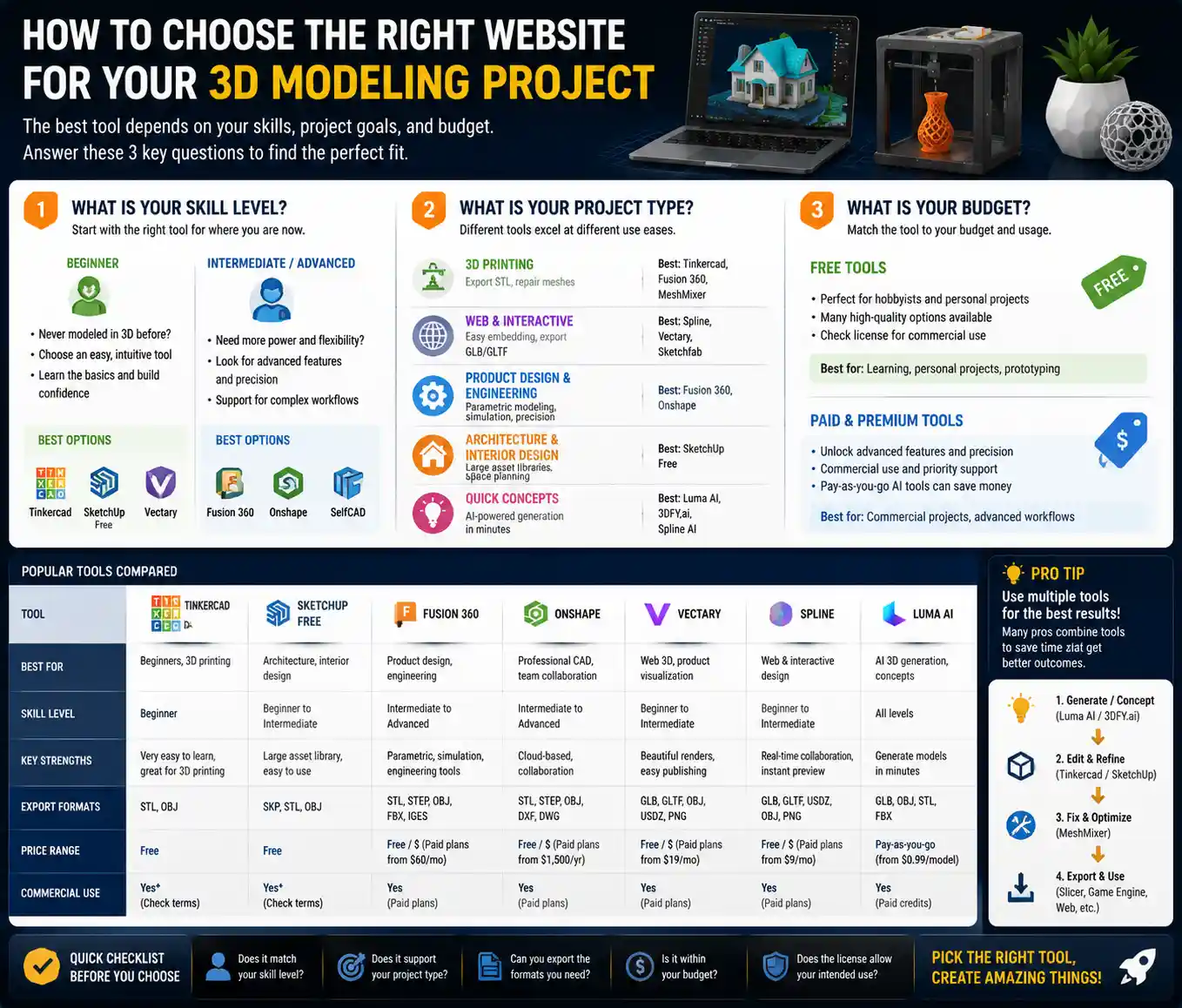
First, consider your skill level. If you’ve never created a 3D model before, don’t start with a professional tool like Fusion 360 that has a steep learning curve — you’ll just get frustrated and give up. Start with a beginner tool like Tinkercad or SketchUp Free to learn the basics, then move to more advanced tools as you need them. If you’re an experienced 3D modeler, you’ll want a tool that supports the advanced features you need, like parametric modeling or animation, without being limited by a simplified interface.
Second, think about your project type. Different tools are built for different use cases:
- 3D printing: Prioritize tools that export STL files and include mesh repair tools, like Tinkercad, Fusion 360, or MeshMixer
- Web and interactive content: Choose tools that support easy embedding and export to GLB/GLTF, like Spline or Vectary
- Product design and mechanical engineering: Look for parametric modeling and simulation tools, like Fusion 360
- Architecture and interior design: SketchUp Free is the industry standard for hobbyist and small professional projects, thanks to its large library of pre-made assets
- Quick concept models: AI tools like Luma AI or 3DFY.ai can generate a base model in minutes, which you can then edit in another tool
Third, consider your budget. If you’re just a hobbyist working on personal projects, there’s no need to pay for a subscription when there are dozens of high-quality free options available. For commercial use, make sure you check the license terms: many free tools only allow non-commercial use, so you’ll need a paid subscription to sell products made with your models. Pay-as-you-go AI tools are often a better deal than monthly subscriptions if you only need to generate one or two models a year.
One common mistake many new creators make is trying to find a single tool that does everything. In reality, most professional creators use multiple tools for different parts of their workflow: you might use an AI tool to generate a base model, edit it in Tinkercad to resize it for 3D printing, fix the geometry in MeshMixer, then send it to your slicer. Using multiple specialized tools gives you better results than trying to force everything into one tool that isn’t designed for the job.
Conclusion
There has never been a better time to create 3D models, regardless of your skill level or budget. From free beginner tools like Tinkercad and SketchUp Free that let you start designing in five minutes, to professional browser-based platforms like Fusion 360 and Spline that rival desktop software, to AI tools that can generate a custom 3D model from a text prompt in seconds, there’s a website for every type of 3D modeling project. The key is to match the tool to your specific needs: start simple if you’re new, prioritize the features that matter for your project type, and don’t be afraid to combine multiple tools to get the best result. Whether you’re 3D printing a custom gift, designing a new product, or adding interactive 3D elements to your website, the right tool is just a few clicks away.