
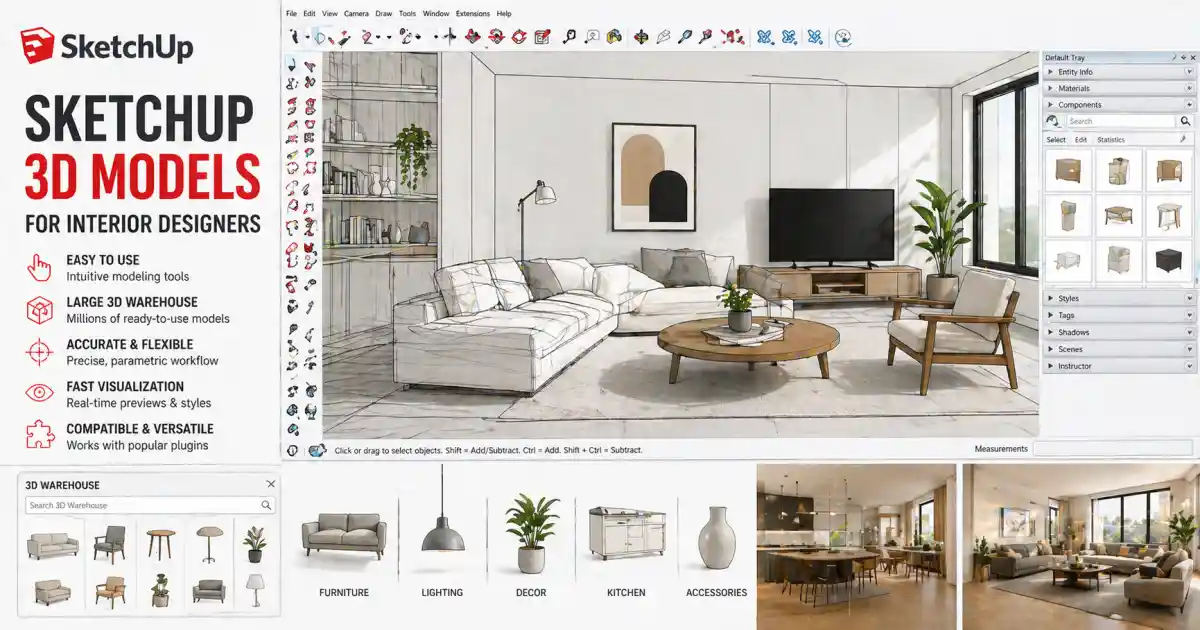
Every interior designer knows the feeling: you have the perfect layout in mind, but modeling every chair, lamp, and vase from scratch kills your momentum. That is where ready-to-use SketchUp 3D models come into play. By plugging pre-built assets into your scene, you shift focus from tedious geometry to composition, lighting, and client communication. In this article we will look at how SketchUp 3D models can transform your interior design workflow, what to look for when choosing models, and where platforms like Relebook fit into the picture.
Why SketchUp 3D Models Matter for Interior Design
SketchUp has long been a favorite among architects and interior designers because of its intuitive push-pull modeling and clean geometry. But even the best modeler saves time by using external assets. A well-made SketchUp furniture model can drop into a living room scene in seconds, giving you instant scale reference and visual context. The same goes for lighting fixtures, kitchen cabinets, or decorative items. Instead of spending hours on a single armchair, you can test five different styles in the same amount of time.
For client presentations, SketchUp 3D models also make walk-throughs and section cuts more believable. A space filled only with block shapes feels hollow; adding realistic furniture and decor helps clients imagine living or working in that environment. And because SketchUp handles component systems well, you can easily swap one model for another, adjust materials, or copy objects across multiple scenes without breaking your file.
Choosing the Right SketchUp 3D Models
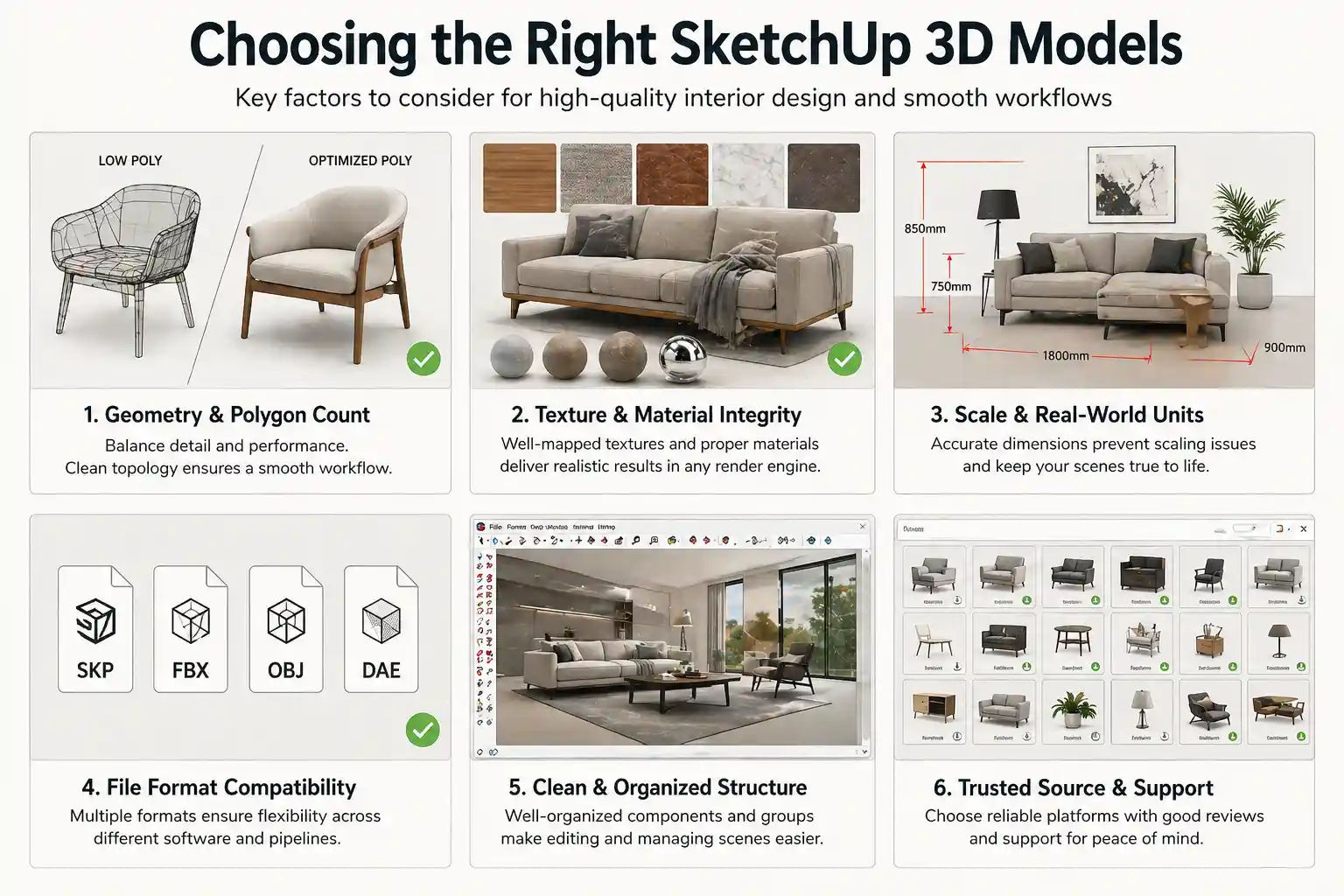
Not all SketchUp 3D models are created equal. Here are a few aspects to consider when browsing a library or marketplace.
Geometry and Polygon Count
Interior scenes often contain dozens of objects. If every model is extremely high-poly, your file size balloons and SketchUp may lag. On the other hand, models that are too low-poly look crude in close-up renders. The sweet spot depends on your final output: real-time walk-throughs favor moderate polygon counts, while still renders can tolerate higher detail. Check whether the model is built with clean geometry — inverted faces, stray edges, or non-manifold geometry can cause issues later.
Texture and Material Integrity
A SketchUp 3D model is only as good as its materials. Look for models that include properly assigned textures, ideally with UV mapping already done. Some models come with generic color swatches that require relinking; others embed full PBR textures inside the SKP file. If you plan to render with V-Ray, Thea, or Enscape, verify that the materials will translate correctly. Many premium SketchUp furniture models include layered materials that respond to light realistically.
Scale and Real-World Units
Nothing breaks a scene faster than a sofa that dwarfs a doorframe. Reliable model libraries provide assets built to real-world dimensions. Always check the unit settings when importing — a model designed in inches will look wrong in a meters-based scene unless you scale it. Reputable platforms list dimensions on the product page.
File Format Compatibility
While SKP is the native format, some vendors also supply FBX, OBJ, or Collada versions for cross‑platform flexibility. If you work with both SketchUp and other software like 3ds Max or Blender, having alternative formats saves conversion headaches. Relebook, for instance, provides a range of formats so that users can choose what fits their pipeline — though details vary per asset, so it is wise to review the listing.
Types of SketchUp 3D Models for Interior Work
Interior design is broad, so model libraries usually sort assets into categories. Here are the most relevant ones when building a scene.
SketchUp Furniture Models
Sofas, chairs, tables, beds, shelving, and storage units form the backbone of any interior. Whether you are designing a hotel lobby or a studio apartment, high-quality SketchUp furniture models let you experiment with layout quickly. Many designers keep a curated collection of go-to sofa and chair models that match their preferred style — mid-century modern, Scandinavian, industrial, or contemporary.
Lighting and Fixtures
Pendant lights, floor lamps, sconces, and chandeliers add atmosphere. Lighting models often include emissive materials or IES profiles when rendered, making them more than just geometry. A well-placed pendant light can anchor a dining area, while track lighting models help visualize practical setups.
Decor and Accessories
Cushions, rugs, plants, books, vases, artwork, and tableware fill the empty space and give your scene a lived-in feel. These small SketchUp 3D models are often the most detailed per polygon, since they need to hold up in close-ups. A cluttered coffee table or a potted plant in the corner can significantly improve realism.
Architectural Elements
Doors, windows, staircases, columns, and molding profiles are often used to build the shell itself. Architectural SketchUp 3D models save time drafting repetitive elements, especially in commercial projects where many identical office partitions or reception desks are needed.
Integrating SketchUp 3D Models into Your Workflow
Once you have gathered your assets, the next step is bringing them into your scene efficiently.
1. Set up your base scene first — walls, floor, ceiling, and fixed elements. Keep the SketchUp file organized with layers or tags.
2. Import models as components, not groups. Components allow you to edit one instance and update all copies globally, which is essential when repeating furniture across a hotel floor.
3. Check and adjust scale immediately. Use the Tape Measure tool to verify that the imported model matches your scene units. If not, scale it before placing it.
4. Update materials if needed. Sometimes the default textures look darker or lighter under your custom lighting. Use the Material editor to tweak color, reflectivity, or opacity. For rendered views, ensure the material type (e.g., glossy vs. matte) is set correctly.
5. Use the Outliner to manage large scenes. When your file includes dozens of SketchUp 3D models, the Outliner helps you find and hide or lock specific items without hunting through the viewport.
6. Test camera angles early. Place a few key furniture models, then set up your primary camera. This prevents you from filling the entire scene only to realize the viewpoint highlights an empty wall.
Where to Find SketchUp 3D Models
Several online platforms supply SketchUp 3D models, each with different licensing and quality bars. Relebook is one destination worth exploring. The site aggregates 3D models, textures, HDRI, and other CG resources for visualization workflows. While the exact library size and licensing terms vary by asset, you will find a mix of free and paid SketchUp furniture models, lighting assets, and architectural elements. Because Relebook focuses on design professionals, many models are curated for realism and clean geometry — a helpful signal for interior designers who value reliability.
When downloading from any source, always check the individual asset page for file format, polygon count, and license restrictions. Some models are royalty‑free and can be used in commercial projects; others are restricted to personal use or require attribution. Relebook lets you review these details before downloading, which saves guesswork later.
Practical Example: Furnishing a Small Apartment Living Room
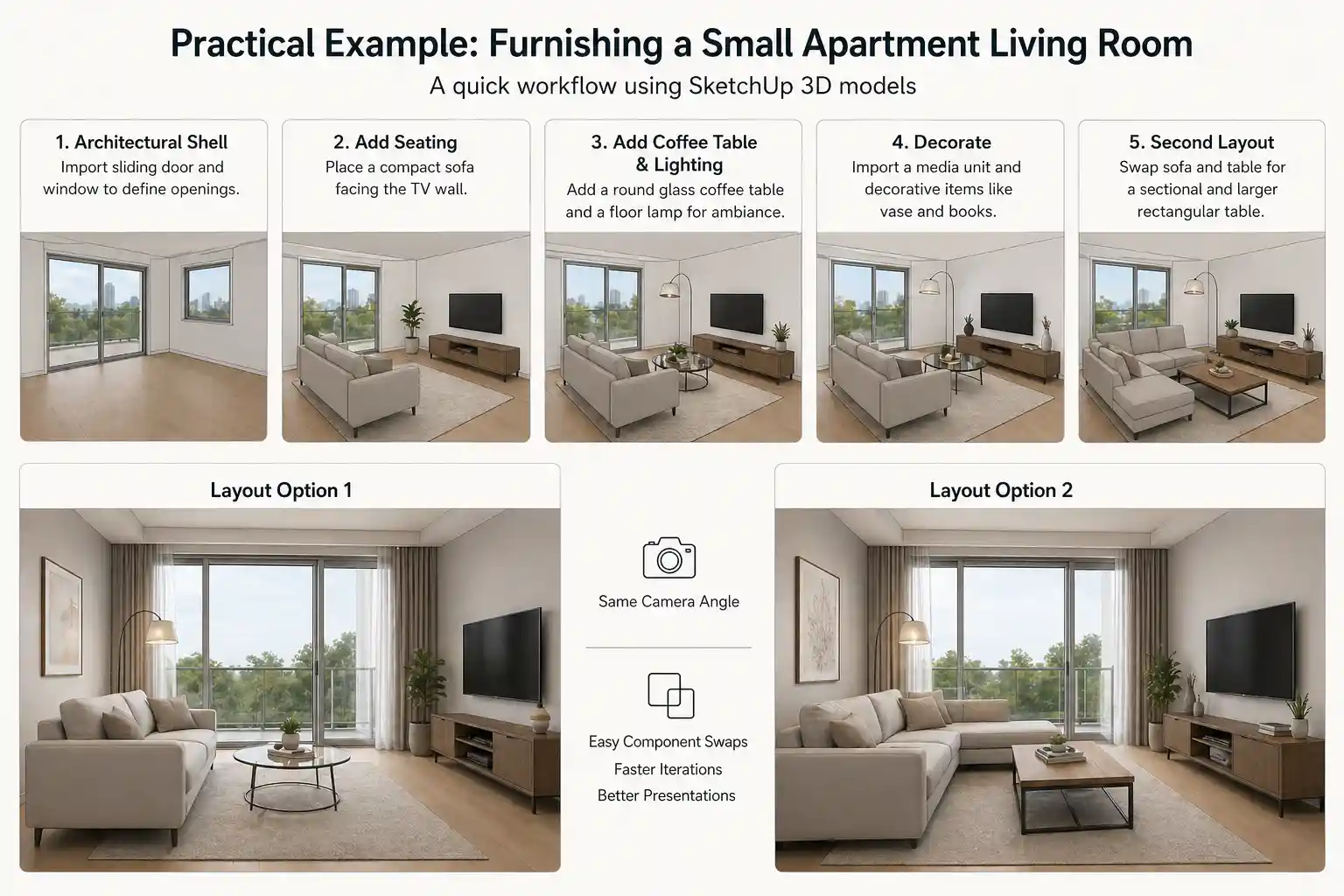
Let us walk through a quick scenario. You are designing a 40‑square‑meter apartment and need to present two layout options to a client.
Start with the architectural shell: import a SketchUp model of a sliding glass door and a basic window frame to establish the openings.
For seating, choose a compact two-seater sofa from your library. Drop it into the center of the room facing the TV wall.
Add a coffee table model — pick a round glass-top to keep the space airy. Then place a floor lamp behind the sofa for ambient lighting.
On the opposite wall, import a media unit model and a few decorative items like a vase and stack of books.
For the second layout, swap the sofa and coffee table for a sectional and a larger rectangular table. Because both are components, the swap takes seconds.
Render both versions with the same camera angle. The client can compare layouts side by side, and you have invested minimal modeling time.
This speed is precisely why interior designers keep a well‑organized library of SketchUp 3D models. The more high‑quality assets you have at hand, the faster you iterate and the better your presentations become.
Final Considerations
No matter how good a SketchUp 3D model looks in isolation, it should fit the overall mood and scale of your scene. Spend a few moments adjusting materials and positioning before you finalize. Also, remember that even the largest library cannot cover every project. Sometimes you will still model custom pieces — but for the 80% of standard furniture and decor, a good model collection is a real productivity boost.
If you are expanding your resource toolkit, Relebook offers a range of SketchUp 3D models and supporting textures. As with any asset platform, treat each download individually: verify the format, check the license, and test it in a simple scene before committing to a complex project. This approach keeps your workflow smooth and your results professional.
FAQ
Are SketchUp 3D models from Relebook free to download?
Relebook offers a mix of free and paid resources. Availability and licensing can vary per asset. We recommend checking the individual product page for download options, pricing, and usage rights before using a model in a commercial project.
Can I use SketchUp furniture models from Relebook in other 3D software?
Many SketchUp models on Relebook are provided in SKP format, and some also include FBX, OBJ, or other formats. File availability depends on the specific asset. Always review the listing to confirm which formats are included and whether they suit your software pipeline.
How do I know if a SketchUp 3D model is suitable for rendering?
Look for models with clean geometry, properly assigned materials, and real-world scale. On Relebook, each asset page usually describes polygon count and material details. If you plan to use a specific renderer like V-Ray or Enscape, check that the materials are compatible or easy to convert.
What should I do if a SketchUp 3D model looks too low-poly in close-up views?
Low-poly models are often designed for real-time visualization or large scenes. For close-up shots, you can either subdivide the geometry in SketchUp (with caution) or replace it with a higher-detailed asset. Some platforms, including Relebook, offer varying levels of detail in different product versions.
Do I need to credit Relebook when using a SketchUp model in my client work?
Licensing terms differ per download. Some assets are royalty-free with no attribution required, while others may require credit. Always read the license agreement on the download page. Relebook provides this information so you can comply with the terms.