
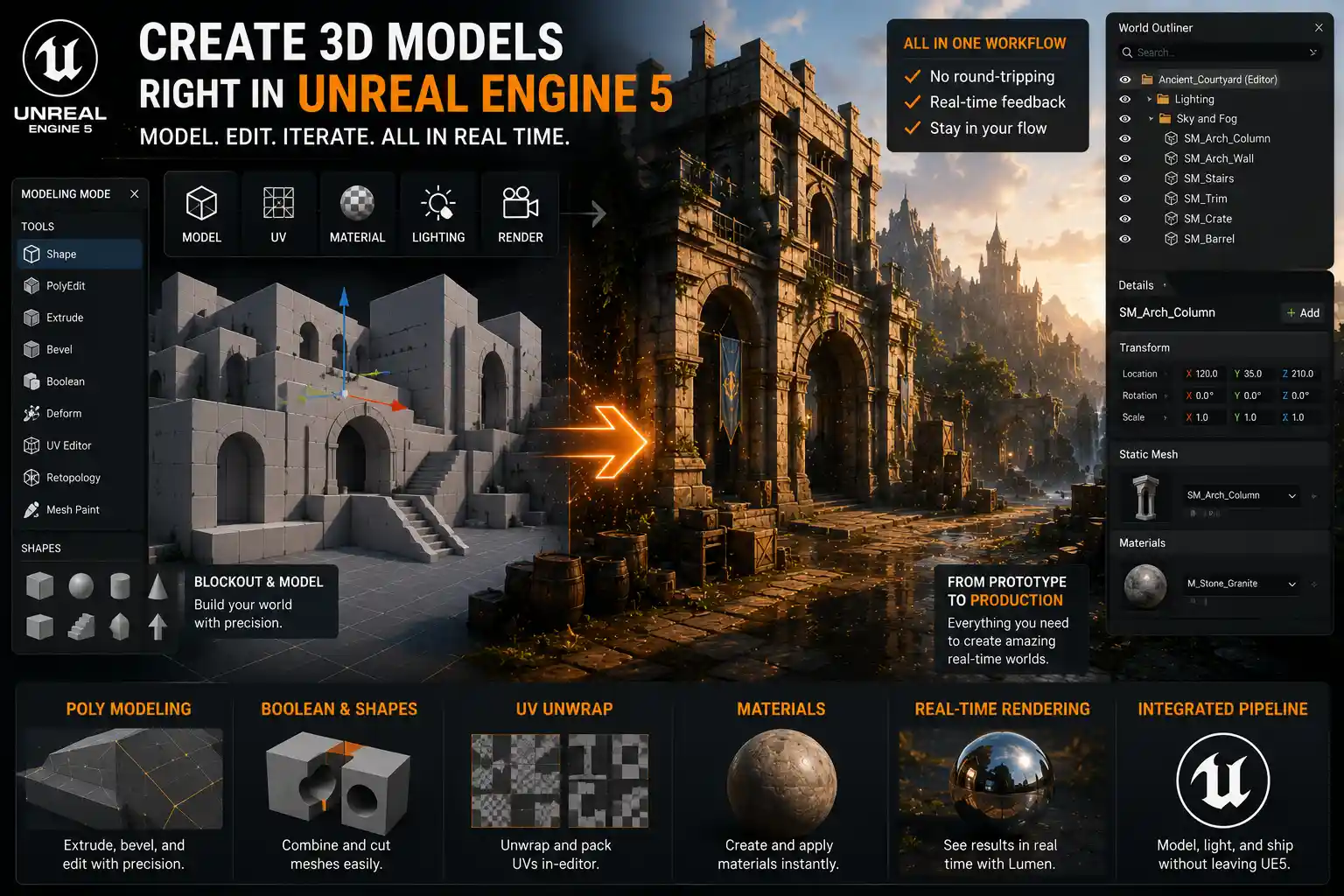
When most people think of Unreal Engine 5, they picture stunning real-time rendered games, immersive virtual production sets, and hyper-realistic architectural visualizations. What many new creators don’t realize is that UE5 isn’t just for assembling pre-made assets from other 3D tools like Blender or Maya—it also has a full suite of built-in modeling tools that let you create 3D models from scratch entirely inside the engine. The question isn’t whether you can make 3D models in Unreal Engine 5 anymore—it’s whether you should, and what limitations you can expect along the way. In this guide, we’ll break down everything you need to know about UE5’s modeling capabilities, what projects they’re best suited for, and when you might want to stick to a dedicated 3D modeling software.
Unreal Engine 5’s Built-In Modeling Toolset: What You Get Out of the Box
For years, Unreal Engine relied on users importing assets from external 3D software. That changed with the release of Unreal Engine 4.26, when Epic Games introduced a full-featured modeling mode to the engine, and it’s only gotten more powerful with every update to UE5. Today, the built-in Modeling Mode is a core component of Unreal Engine 5, available to all users for free with no additional subscriptions or downloads required. It’s designed to let creators prototype, edit, and even finish 3D models without ever leaving the editor, cutting down on the back-and-forth between external software and the engine that slows down many workflows.
The core modeling tools available in UE5
Unreal Engine 5’s Modeling Mode includes all the basic tools you need to create primitive shapes and build more complex models from scratch. These include:
- Shape creation tools for generating primitive assets like cubes, spheres, cylinders, planes, and more complex parametric shapes such as stairs, arches, and spiral ramps
- Polygon editing tools for extruding, beveling, cutting, sliding, and welding vertices, edges, and faces directly in the editor viewport
- Deformation tools for bending, twisting, tapering, and smoothing meshes to adjust their shape without manual point-by-point editing
- Boolean operations to combine, subtract, and intersect multiple meshes to create complex forms quickly
- UV editing and unwrapping tools to lay out UVs for texturing, which eliminates the need to export your model to an external tool for this step
- Retopology tools to clean up high-poly meshes and create optimized low-poly versions for real-time rendering
- Projection modeling to trace over reference images or photogrammetry scans to create clean, production-ready assets
Beyond these core modeling tools, UE5 also includes support for procedural modeling with the Procedural Modeling Framework, which lets you create parametric assets that can be adjusted dynamically. For example, you can build a modular door that automatically resizes to fit any doorway, or a procedural rock generator that creates unique variations with a single click. This is particularly useful for environment art and level design, where you need lots of consistent, adaptable assets.
What about high-poly modeling and sculpting?
While UE5’s Modeling Mode excels at hard-surface modeling for architecture, props, and environment assets, it doesn’t have native support for organic sculpting out of the box—at least not yet. If you want to sculpt high-poly characters or detailed terrain features, you’ll currently need to use an external tool like ZBrush or Blender, then import your sculpt into UE5. That said, Epic Games has added support for importing and working with high-poly meshes thanks to Nanite, UE5’s virtualized geometry system. Nanite lets you view and render high-poly sculpts with billions of polygons in real time, so you don’t need to optimize them manually before bringing them into the engine. You can also make edits to imported high-poly meshes directly in UE5’s Modeling Mode, even if you didn’t create them from scratch inside the engine.
What Kinds of 3D Models Can You Create Entirely in UE5?
Not all 3D models are created equal, and UE5’s modeling tools are better suited for some use cases than others. Understanding where UE5 shines can help you decide whether to build your assets in the engine or export them from a dedicated modeling tool.
Hard-surface props and environment assets
UE5’s Modeling Mode was built with hard-surface modeling in mind, and it’s more than capable of creating production-ready props, architectural elements, and environment assets. Many indie game developers and architectural visualizers now build entire levels blockouts and even finish assets entirely inside UE5. For example, if you’re creating a modular office environment, you can build walls, doors, desks, and shelves from scratch using primitive shapes and boolean operations, texture them directly in UE5 with the engine’s built-in material editor, and place them in your level without ever opening another program. This workflow is especially fast for iterative design, since you can see how your asset looks in the context of your full level with real-time lighting as you build it.
Prototypes and blockouts
Even if you plan to create your final assets in a dedicated 3D tool, UE5’s modeling tools are ideal for creating level blockouts and design prototypes. Blockouts are low-poly versions of a level that let you test gameplay flow, spatial arrangement, and scale before you spend time creating detailed assets. With UE5’s tools, you can block out an entire level in a few hours, adjust shapes and sizes on the fly, and test how it plays directly in the editor. This eliminates the extra step of exporting blockouts from another program, and it lets you iterate much faster.
"For level design and prototyping, modeling in Unreal Engine 5 is a game-changer. I can block out a full map, adjust assets, and test gameplay in the same session without switching between Blender and UE five times an hour. For hard-surface environment assets, I often just finish them in UE5 now because I can see exactly how they’ll look in my level the whole time."
Architectural and product visualizations
Architectural visualizers have been early adopters of in-UE5 modeling, because most architectural assets are hard-surface and require frequent adjustments to the design. If you’re creating a visualization of a new building, you can model the walls, floors, windows, and even furniture directly in UE5, adjust the layout in real time to match client feedback, and render a high-quality image or walkthrough without leaving the engine. The same applies to product visualization: if you’re creating a render of a new piece of furniture or electronics, you can model the product in UE5, adjust the shape and materials to meet requirements, and render it with UE5’s path tracer immediately.
Complex organic models and characters
When it comes to high-poly organic models like characters, creatures, or detailed natural assets like trees and plants, UE5’s current toolset falls short. Without native sculpting tools, it’s very difficult to create the detailed, organic shapes required for characters. You can technically build a simple character from primitive shapes in UE5, but it will be far more time-consuming and less precise than using a dedicated sculpting tool like ZBrush. For most organic work, you’ll still want to create your model in an external tool, then import it into UE5 for texturing, lighting, and rendering.
Advantages of Modeling 3D Assets Directly in Unreal Engine 5
Modeling inside UE5 isn’t just a novelty—it offers real workflow advantages that can speed up your process and improve your final results. For many creators, the benefits far outweigh the limitations, especially for certain types of projects.
No more export-import back-and-forth
The biggest advantage of modeling in UE5 is that you never have to leave the editor. If you’ve ever worked with external 3D software, you know how time-consuming it is to make a small change to a model, export it, reimport it to UE5, and check how it looks in your level. That process can add hours of work to a single project, especially when you’re iterating on a design. When you model directly in UE5, you can see every change you make in the context of your full level, with your final lighting, materials, and post-processing already applied. If you don’t like how a wall angle looks, you can adjust it in 10 seconds and immediately see how it affects the overall composition of the scene. This cuts out so much wasted time, especially for prototyping and iterative design.
Built-in real-time feedback with Nanite and Lumen
UE5’s core technologies Nanite and Lumen work seamlessly with in-engine models, giving you instant feedback on how your model will look in the final project. Nanite automatically handles polygon budgeting, so you don’t need to manually create low-poly versions of your high-poly assets for real-time rendering. If you create a high-detail wall with 100,000 polygons, Nanite will optimize it on the fly for different hardware, so it runs smoothly on everything from high-end PCs to mobile devices. Lumen, UE5’s dynamic global illumination system, updates lighting in real time as you edit your model. If you move a window or add a new overhang, you can immediately see how the shadows and lighting change across your entire level, which helps you make better design decisions as you model.
Full integration with other UE5 tools
When you create a model in UE5, it’s already integrated with all the other tools the engine offers. You can immediately apply materials from the Material Editor, add physics collision for game development, set up skeletal meshes for animation, and export your project to any platform UE5 supports—all without any extra file conversion. For creators working on games, virtual production, or interactive experiences, this integration is invaluable. If you’re creating a prop for a game, you can model it, texture it, add collision, set up its interaction logic, and test it in-game all in the same session.
Accessibility for new creators
One underdiscussed benefit of modeling in UE5 is that it makes 3D creation more accessible. Unreal Engine 5 is free for most creators to download and use, and the learning curve for its modeling tools is often less steep than learning a full dedicated 3D software like Maya or 3ds Max. If you’re a new game developer who already knows how to navigate the Unreal Engine editor, you don’t need to learn an entirely new program to start creating your own assets. You can learn basic modeling directly in the interface you already use, which lowers the barrier to entry for new creators who don’t have the time or money to invest in learning multiple complex tools.
Cost savings for independent creators
Dedicated 3D modeling software like Maya or 3ds Max can cost hundreds of dollars per year in subscription fees. Even Blender, which is free, requires a separate download and a lot of extra learning. For indie creators and small studios working on a tight budget, being able to model assets directly in UE5 eliminates the need for an additional paid software subscription. You can create all your hard-surface assets in UE5 for free, and only pay for external software if you need advanced sculpting or organic modeling tools.
Limitations You Need to Know Before Modeling in UE5
For all its advantages, modeling in Unreal Engine 5 isn’t a replacement for dedicated 3D modeling software for every project. There are some key limitations that you need to plan for before you decide to build your entire project in UE5.
No native organic sculpting
As we mentioned earlier, UE5 doesn’t have any built-in organic sculpting tools right now. That means if you want to create detailed characters, creatures, or natural assets like rocks or trees with complex organic shapes, you won’t be able to do that from scratch in UE5. While you can import sculpted models from ZBrush or Blender and edit them in UE5’s Modeling Mode, you can’t create the initial sculpt inside the engine. For projects that rely heavily on organic content, you’ll still need to use a dedicated sculpting tool for the core modeling work.
Less precision and advanced tooling for complex modeling
Even for hard-surface modeling, UE5’s tools are less precise and less full-featured than what you’ll find in dedicated software like Blender, Maya, or SolidWorks. For example, if you need to create a model with exact mechanical dimensions for manufacturing, or a complex curved surface for a product design, you’ll get more precision and better tools for that work in a dedicated 3D CAD or modeling program. UE5’s tools are great for real-time assets that don’t require sub-millimeter precision, but they’re not designed for industrial or product design that requires extremely accurate dimensions.
Some of the advanced tools that are missing from UE5’s Modeling Mode that are standard in other software include:
- Advanced NURBS modeling for creating smooth, precise curved surfaces
- Advanced sculpting brushes and dynamic topology for organic shape work
- Advanced UV unfolding and packing tools that can automatically pack UVs more efficiently than UE5’s current tools
- Animation and rigging tools for complex character deformation, which are still more robust in dedicated software
- Third-party plugin ecosystems that add thousands of specialized tools for everything from retopology to asset management
Steeper learning curve for experienced modelers
If you’ve been modeling for years in Blender or Maya, you’ll likely find UE5’s modeling workflow clunky and less intuitive at first. The toolset is organized differently, many common hotkeys don’t work the same way, and the workflow for complex modeling tasks is less streamlined. It takes time to adjust to modeling in UE5, and many experienced modelers prefer to stick with the tools they already know, even if it means dealing with the export-import process. For new creators, this isn’t as much of an issue, but it’s a common pain point for professionals switching to in-engine modeling.
File management and interoperability challenges
When you create models entirely inside UE5, they’re stored as part of your UE5 project, which can make it harder to reuse them across multiple projects or share them with other creators who use different software. If you want to use a UE5 model in a Blender project or sell it on an asset marketplace, you’ll need to export it from UE5 in a common file format like FBX or GLB, which can sometimes cause issues with normals, UVs, or polygon topology. While exporting works for most use cases, it’s not as seamless as saving your model as a native file from a dedicated modeling tool that can be opened anywhere.
Practical Tips for Getting Started With Modeling in UE5
If you’re ready to try making 3D models in Unreal Engine 5, these practical tips will help you get started and avoid common mistakes.
- Enable Modeling Mode first: Modeling Mode isn’t enabled by default in new UE5 projects. To turn it on, go to Edit > Plugins, search for "Modeling Tools Editor Mode", check the box to enable it, and restart the editor. Once you restart, you’ll see the Modeling Mode option in the dropdown menu at the top of the editor next to other modes like Edit and Animation.
- Start with simple blockouts and hard-surface assets: Don’t try to create a complex character or high-detail asset as your first project. Start with simple assets like walls, doors, tables, or stairs to get used to the workflow. Blocking out a small level is a great first project that will help you learn the core tools quickly.
- Learn the core keyboard shortcuts to speed up your workflow: UE5 has customizable hotkeys, but learning the default shortcuts for common tools like extrude, bevel, and loop cut will cut your modeling time in half. Epic’s official documentation has a full list of default hotkeys that you can print or save for reference.
- Use the Procedural Modeling tools for modular assets: Procedural assets are easy to adjust and reuse across multiple projects. If you’re creating modular environment assets, take the time to build them procedurally so you can change their size or shape later without rebuilding the entire model from scratch.
- Take advantage of Nanite to skip manual optimization: One of the biggest benefits of modeling in UE5 is that you don’t need to worry about polygon counts for real-time rendering. Nanite will handle optimization automatically, so you can add as much detail as you want to your model without worrying about it affecting performance.
- Don’t be afraid to mix workflows: You don’t have to choose between modeling in UE5 and modeling in external software. Most creators use a mixed workflow: create organic models and complex high-poly assets in ZBrush or Blender, then do final editing, assembly, and hard-surface detail work directly in UE5. This gives you the best of both worlds: the advanced tools of dedicated software and the seamless workflow of in-engine editing.
Many creators also find that the official Unreal Engine documentation and YouTube channel have excellent free tutorials for getting started with Modeling Mode. There’s also a large community of creators sharing tips and asset templates on sites like ArtStation and Reddit, so you can get help if you run into issues.
Conclusion
So, can you make 3D models in Unreal Engine 5? The answer is a resounding yes—for many use cases, it’s not only possible, it’s actually faster and more convenient than modeling in a separate external tool. UE5’s built-in Modeling Mode is powerful enough to create full hard-surface environment assets, level blockouts, architectural visualizations, and props entirely from scratch, and it offers major workflow benefits like no export-import back-and-forth, seamless integration with Nanite and Lumen, and free access for all creators.
That said, it’s not a complete replacement for dedicated 3D modeling software for every project. You’ll still need an external tool like Blender or ZBrush for organic sculpting, complex curved surface modeling, and projects that require extreme precision. The sweet spot for most creators is a mixed workflow: use UE5’s modeling tools for blockouts, hard-surface assets, and final in-context editing, and use dedicated software for organic and complex modeling work.
As Epic Games continues to update Unreal Engine 5, we can expect the built-in modeling toolset to only get more powerful, with more features for organic modeling and precision work on the roadmap. For now, whether you’re an indie game developer looking to speed up your workflow, a new creator who wants to avoid learning multiple programs, or an architectural visualizer who needs to iterate quickly on designs, modeling 3D assets directly in Unreal Engine 5 is well worth exploring.