
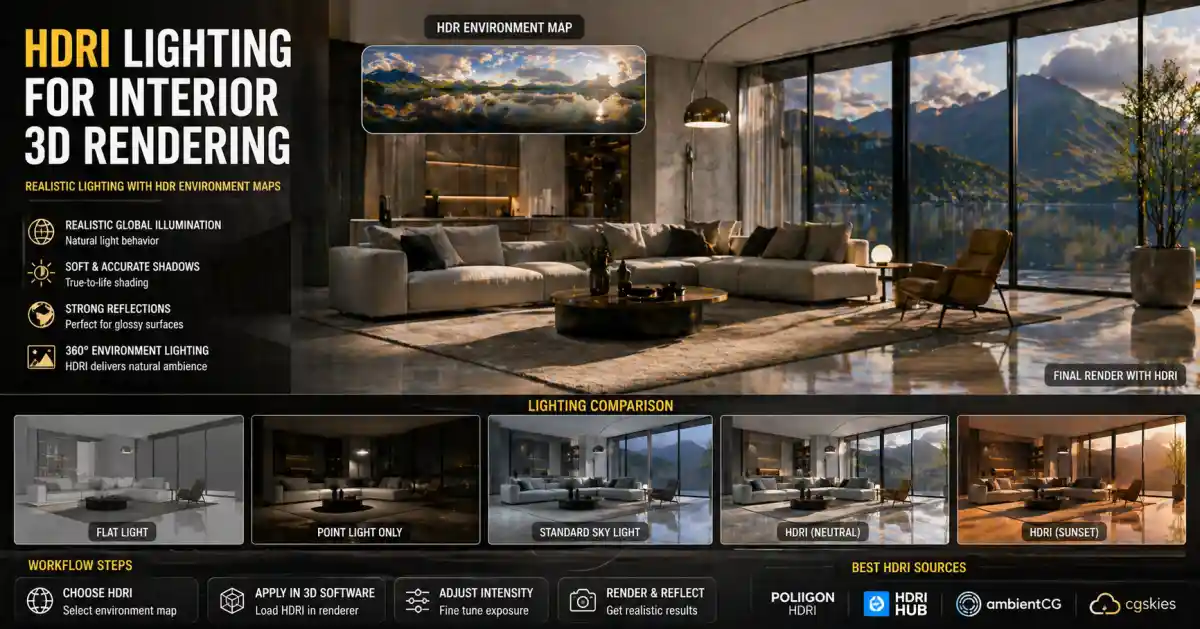
Why HDRI Lighting Matters for Interiors
For 3D artists and architects, lighting is rarely an afterthought. It shapes mood, reveals texture, and determines how convincing a render feels. In interior visualization, the challenge is often creating natural-looking illumination that behaves as it would in a real room – soft bounce light from walls, sharp window shadows, and subtle color bleeding from furnishings. That is where HDRI lighting comes in.
An HDRI (High Dynamic Range Image) contains far more brightness information than a standard photo. When used as a lighting source, it wraps an environment around the scene, emitting light from every direction based on the captured real-world data. For interiors, this means windows act as light panels, indirect light fills dark corners, and reflections on glossy surfaces take on convincing detail. Instead of guessing light positions or struggling with multiple area lights, you can open a single HDRI and let the image do the work.
Even for uncluttered scenes – a bedroom with a single bedside lamp or a minimalist kitchen – the nuance of an HDRI can make the difference between a flat render and one that feels livable. And when the camera moves inside, the environment map continues to light the space consistently, which is especially useful for walkthrough animations.
Choosing an HDRI for Interior Work
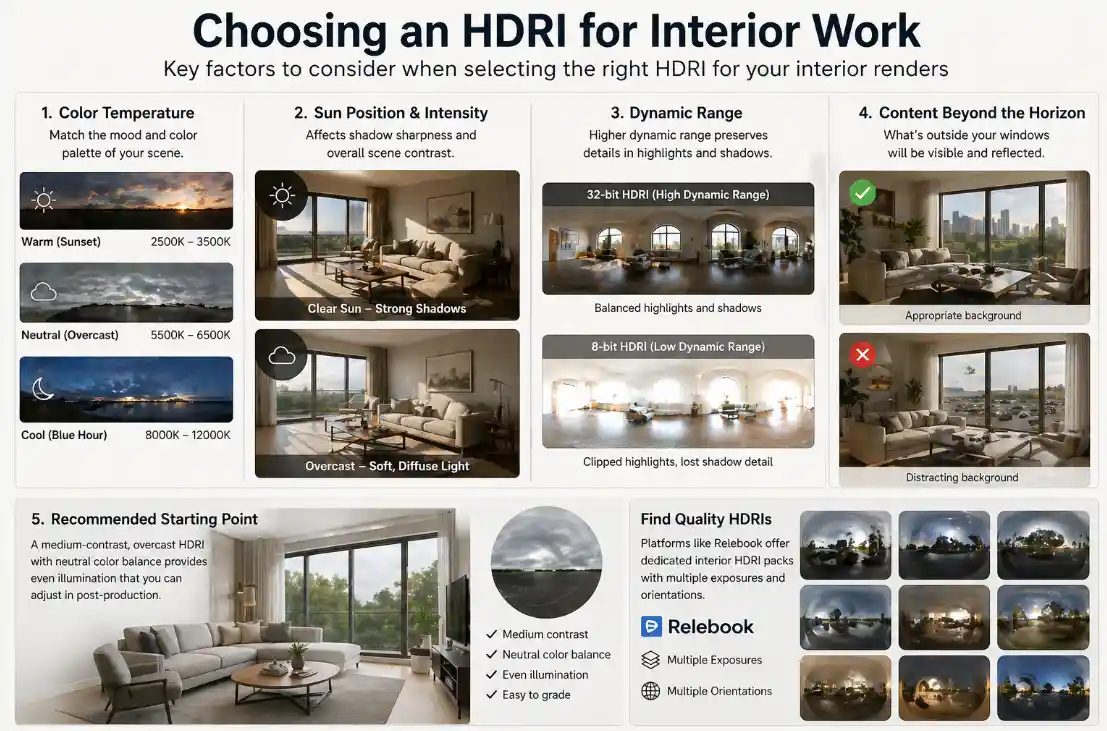
Not every HDRI is suitable for an interior scene. Exterior HDRIs that capture open skies work well for rooms with large windows, but they can wash out the scene with overly bright, desaturated light. For interiors, consider the following when selecting an HDRI:
Color temperature: Warm sunset tones create a cozy atmosphere; neutral overcast light works for bright, clean looks; and blue-hour skies can give a cold, moody feeling. Match the temperature to the intended mood and the room’s color palette.
Sun position and intensity: A visible sun in the HDRI will produce sharp shadows. If you want softer interior light, choose a cloudy or overcast HDRI where the sun is diffuse. For architectural renderings, a clear sun can add dramatic entry light through windows, but you may need to adjust its brightness so it doesn’t blow out nearby furniture.
Dynamic range: A 32-bit HDRI preserves details in both highlights and shadows. Lower dynamic range images might clip the sun or lose shadow information, creating noisy or banded results. Look for HDRIs that are at least 16-bit float, and ideally 32-bit.
Content beyond the horizon: For interiors, the area of the HDRI that is visible outside windows matters. An HDRI that shows trees, buildings, or a parking lot will be reflected in glossy materials and visible through glass. Check that the background looks appropriate from the camera angles you plan to use.
A good starting point is a medium-contrast, overcast HDRI with neutral color balance. It provides even illumination that you can tint or brighten in post-production. Many CG resources platforms, including Relebook, offer dedicated interior HDRI packs with multiple exposures and orientations, saving you from having to tweak the horizon line yourself.
Setting Up HDRI Lighting in Common 3D Software
The workflow for applying an HDRI varies slightly between applications, but the core idea remains the same. Here are quick guides for Blender and 3ds Max – two of the most common tools among the audience of this article.
Blender
1. Go to the World properties tab (globe icon).
2. Click on the yellow dot next to Color and choose Environment Texture.
3. Open your HDRI file. Cycles will now use it as the background and light source.
4. Adjust Strength in the World settings to control illumination level. For interiors, start around 0.5 to 1.0 and increase if needed.
5. To rotate the HDRI and control which part appears outside windows, add a Mapping node between the Texture Coordinate and Environment Texture nodes in the Shader Editor. Change the Z rotation value.
3ds Max
1. Open the Environment and Effects dialog (shortcut 8).
2. Under Environment Map, click None and choose Bitmap.
3. Select your HDRI file. In the Bitmap parameters, set the Map Channel to Explicit Map Channel if needed.
4. Go to the Rendering menu and open Exposure Control. Choose Physical Camera Exposure Control or mr Photographic Exposure Control and adjust the global EV value so the scene is properly exposed. A typical interior uses EV 6 to 8 for HDRIs with moderate brightness.
5. If using Corona or V-Ray, there may be dedicated HDRI map types (like VRayHDRI) that offer more convenient controls for gamma, rotation, and flipping.
Both workflows benefit from a subtle dome light or portal light at windows if the HDRI alone does not fill deep corners. But for many scenes, a single HDRI combined with a Sky portal in V-Ray or a Strength node in Blender is sufficient.
Practical Examples and Workflow Notes
Consider a simple living room scene: a sofa, coffee table, rug, and a large window on one wall. Without an HDRI, the usual approach is a direction light from outside plus an array of fill lights. Shadows often look artificial, and reflections on the coffee table or floor show only black with light spots. With an HDRI, the glass window is filled with a real sky, the sofa cushion receives a gentle gradient of warm sunlight, and the polished floor perfectly reflects the room and the view outside. The result requires less manual tuning.
For product visualization, HDRI lighting can highlight surface materials realistically. A brushed steel kettle on a kitchen counter, for example, will show the reflection of the HDRI across its curved surface, giving it a believable shiny finish. If you need to control exactly how the reflection looks, you can duplicate the HDRI into a reflection override slot in V-Ray or adjust roughness maps so that certain objects barely reflect the environment while others pick it up strongly.
Another note: always render with linear color space when using HDRI. Most modern render engines default to linear, but if you bring an HDRI into an older workflow without managing color transforms, the mid-tones may look muddy and the shadows might be too dark. Check that your render settings are set to sRGB output on a linear input, or use a tone-mapping operator such as Reinhard or Filmic.
Finding and Organizing HDRI Resources
Over time, you will amass a library of HDRIs for different lighting conditions. It helps to label them clearly: “cloudy_morning_strong_contrast.exr” or “sunset_warm_soft.exr”. Many providers offer packs grouped by time of day or climate. One place that consolidates assets for visualization work is Relebook. Alongside 3D models and textures, it includes HDRI maps crafted for common interior scenarios. The platform lets you search by tags like interior, studio, or outdoor, and you can review each asset’s format and license terms before downloading.
When using any free or paid HDRI resource – whether from Relebook or elsewhere – always check the license specifics. Some HDRIs are released under Creative Commons or commercial-friendly terms, but others restrict redistribution or high-traffic commercial use. Additionally, file formats vary: EXR and HDR are standard, but some platforms deliver PNG-based HDRIs, which have lower dynamic range and may introduce banding in gradients. Prefer EXR for critical renders.
Common Pitfalls and How to Avoid Them
Overly bright HDRIs: An HDRI that looks correctly exposed as a background may appear blown out when lighting a scene. Reduce its strength or adjust exposure compensation inside the render engine. Often the HDRI acts as indirect light; the primary direct light can be a separate sun if the HDRI’s sun is too weak.
Ignoring gamma: HDRI files should be used with a gamma of 1.0 (linear). Apply any color space adjustments after tone-mapping. Some HDRI packs mistakenly ship with incorrect gamma, so verify that a simple gray sphere in the scene appears neutral.
Forgetting to rotate for the best reflection: The same HDRI that lights the scene also determines every reflection. A slight rotation can change how highlights align with object curves. Compose your HDRI rotation while looking at a reflective sphere, not just the background.
Not using portals: In interior renders with small windows, the HDRI may not send enough light through the glass. Using a portal or a light dome at the window opening ensures 3ds Max (with V-Ray) or Blender (with Cycles) samples light efficiently, reducing noise and rendering time.
Final Thoughts
HDRI lighting has become a cornerstone of modern interior 3D rendering because it simplifies what used to be a tedious process of balancing multiple lights. It adds depth, realistic bounce, and detail to reflections that would be hard to fake manually. Whether you are working on architectural walkthroughs, product shots, or interior design proposals, dedicating a few minutes to selecting and placing the right HDRI will pay off in render quality.
Start building a small collection of well-curated interior HDRIs from sources you trust. Explore the options available on sites like Relebook, which also provide textures and 3D models that share the same lighting characteristics. With a consistent lighting environment across all assets, your scenes will look unified from the first test render.
The next time you open a blank interior file, skip the default point lights and drop an HDRI into the world slot first. Adjust. Tweak. Incrementally. You might be surprised how close you get to the final look with just that one step.
FAQ
What is the difference between an HDRI and a regular image for lighting?
A regular image (like JPEG) stores only 8 bits per channel, so bright areas clip to white and dark areas clip to black. An HDRI (usually EXR or HDR format) stores floating-point values across a wide dynamic range, capturing real-world brightness levels from direct sunlight to deep shadows. When used as a light source, an HDRI provides smooth, physically correct illumination and reflections that standard images cannot.
Can I use HDRI lighting for small interior scenes like a bathroom or closet?
Yes. HDRI works for any enclosed space that has at least one opening to the outside (window, skylight, door). For rooms with no windows, you can still use an interior-specific HDRI that simulates indirect artificial light – often these are captured from inside real rooms and provide soft ambient illumination suitable for small spaces.
Do I need a separate sun light if I already use an HDRI?
Not necessarily. Many HDRIs include a visible sun that will cast shadows. However, if the HDRI’s sun is not strong enough or you want more control over shadow sharpness, you can add a separate directional light and disable the sun contribution from the HDRI via a shadow-catcher or by using a dedicated HDRI with no sun. It’s a matter of preference and the specific look you want.
How do I choose the right HDRI for a warm cozy interior render?
Look for HDRIs labeled “sunset”, “golden hour”, or “warm overcast”. They usually have color temperatures around 3000–4500K. Also check that the reflected content outside windows (trees, sky, buildings) fits the scene context. If the room has warm wood tones, a sunset HDRI will enhance that color harmony.
Where can I find high-quality HDRI resources for interior visualization?
Several platforms offer interior HDRIs. Relebook, for example, provides a curated selection of HDRI maps alongside textures and 3D models. Other sources include Greg Zaal’s HDRI Haven (now Poly Haven) and commercial studios like Vis-All or TurboSquid. Always review file format, resolution, and licensing before downloading – especially for commercial work.
What file format should I choose for HDRI – HDR or EXR?
EXR is generally preferred because it supports 16-bit and 32-bit floating point with better compression, smaller file sizes, and extra channels like alpha or layers. HDR format is older but still widely supported. If your render engine handles both without issues, EXR is a safe choice. Avoid PNG-based HDRIs for lighting due to limited dynamic range.