
If you’re new to 3D modeling with Blender, or a seasoned artist working to a tight deadline, building every asset from scratch can feel like climbing a mountain without a rope. Whether you’re creating an animated short, designing a game level, visualizing an architectural project, or just experimenting with lighting and rendering, pre-made 3D models can save you hours of tedious work. The good news is you don’t need a big budget to access high-quality assets: there are hundreds of thousands of free 3D models available for Blender, created by artists around the world who share their work for free for personal and even commercial use. In this guide, we’ll break down where to find these models, how to use them in your Blender projects, and what you need to know about licensing to avoid legal issues.
Top Websites to Find Free 3D Models for Blender
The internet is full of 3D model repositories, but not all of them are created equal. Some sites offer low-quality, poorly optimized models, while others hide free assets behind mandatory sign-ups or aggressive paywalls. Below we’ve sorted the best platforms, organized by their strengths, so you can find what you need quickly.
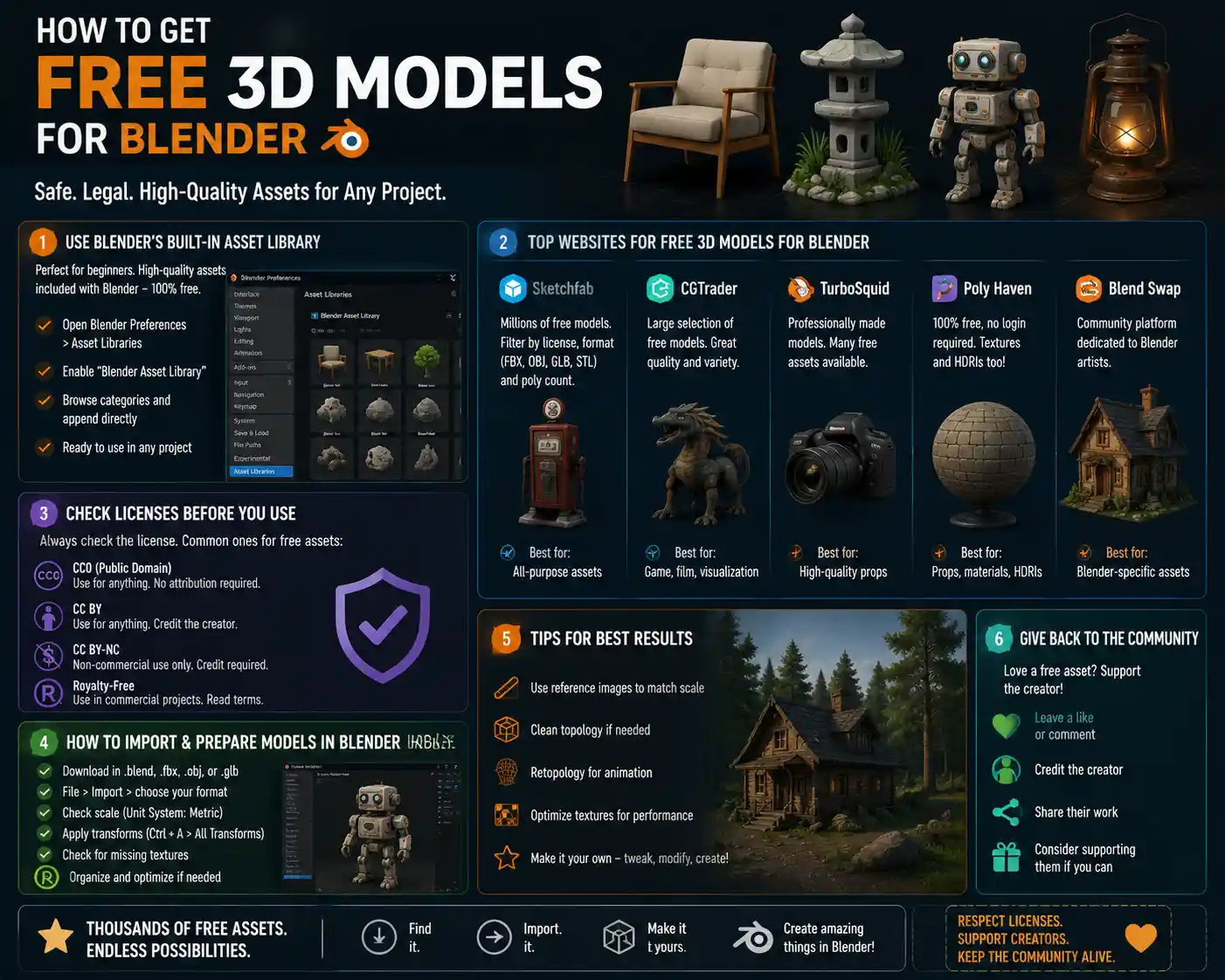
Blender’s Official Asset Library
One of the best kept secrets for free Blender assets is the official library built right into the software. Since the release of Blender 3.0, the application includes a built-in Asset Browser that gives you instant access to hundreds of free, pre-made models, materials, and scenes straight from the Blender developer community. All assets are optimized to work seamlessly with Blender, so you won’t have to deal with import errors or incompatible file formats. The collection includes everything from basic geometric shapes and furniture to full character models and environment assets, and it’s completely free with no attribution required for most use cases. To access it, just open the Asset Browser in Blender, select “Essentials” from the asset library dropdown, and start dragging and dropping assets into your scene.
Sketchfab
Sketchfab is one of the largest 3D model platforms on the web, with millions of free models available for download. The site has a powerful filtering system that lets you search specifically for models available for free download, compatible with Blender, and cleared for commercial use. Many artists upload their models in .blend format directly, so you don’t have to convert file types to get them working in your project. Sketchfab also offers a free Blender plugin that lets you browse and import models straight from your Blender interface, skipping the step of downloading and importing files manually. While the quality of free models varies, you can filter by vertex count, poly count, and user rating to find high-quality assets that fit your project. One thing to note: not all free models on Sketchfab are cleared for commercial use, so you’ll need to check the license before you use any asset in a public or commercial project.
TurboSquid
TurboSquid is best known for its premium 3D assets, but it also has a huge library of thousands of free models available for Blender. All free models on TurboSquid are vetted by the platform’s moderators, so you’re much less likely to run into broken or low-quality assets than on some other open repositories. The site lets you filter searches by file format, so you can search specifically for .blend files or other common formats like FBX or OBJ that import easily into Blender. Like Sketchfab, you’ll need to check the license for each free model: most free assets on TurboSquid are cleared for personal use, and many allow commercial use with attribution.
Other Notable Repositories
If you’re still searching for a specific model that you can’t find on the major platforms, these smaller sites have great curated collections of free assets:
- BlenderKit: BlenderKit offers a free tier that gives you access to thousands of free 3D models, materials, and brushes, all optimized for Blender. The free plugin integrates directly into Blender, so you can browse and import assets without leaving your project. The free tier includes ads and slower download speeds, but it’s more than enough for most hobbyist projects.
- Poly Haven: Formerly known as HDRI Haven, Poly Haven is a non-profit project that offers completely free 3D models, textures, and HDRIs with no attribution required. All assets are released into the public domain (CC0), so you can use them for any purpose, personal or commercial, without restriction. The collection is smaller than larger repositories, but every asset is high-quality and ready to use in Blender.
- CGTrader: Another major marketplace for premium 3D assets, CGTrader also has a large section of free models from independent artists. You can filter by license and file format to find assets that work for your Blender project.
- Open3DModel: This site has a huge collection of over 100,000 free 3D models in a wide range of formats, including .blend. It’s a good place to look for rare or niche models that aren’t available on larger platforms.
Understanding Licensing for Free Blender 3D Models
Finding a free 3D model doesn’t automatically mean you can use it for whatever you want. Licensing rules govern how you can use an artist’s work, and violating these rules can lead to copyright claims, legal fees, or having your work taken down. Taking two minutes to check the license before you use a model can save you a huge headache later.
Common License Types You’ll Encounter
Most free 3D models fall into one of a few common license categories:
- CC0 (Public Domain): This is the most permissive license available. Models released as CC0 are free to use for any purpose, personal or commercial, with no attribution required. You can modify them, sell them as part of your work, or even redistribute them as your own. Poly Haven and many Blender official assets use this license.
- CC BY (Attribution): This license allows you to use the model for personal or commercial use, as long as you give credit to the original artist. The exact requirements for attribution vary, but most artists just ask for a credit line in your project credits or a link back to their profile.
- CC BY-NC (Attribution Non-Commercial): This license allows you to use the model for free for personal projects, but you can’t use it in any work that you’re going to sell or monetize. This is one of the most common licenses for free models on community sites like Sketchfab, so it’s important to check if you plan to make money from your project.
- Royalty-Free: Royalty-free means you pay a one-time fee (or no fee, for free assets) to use the model, and you don’t have to pay ongoing royalties to the artist for commercial use. Most free royalty-free models allow you to use them in commercial projects as part of a larger work, but you can’t redistribute the model itself as a standalone asset.
- Personal Use Only: This license means you can only use the model for private, non-shared projects, like practicing your rendering skills. You can’t post it online, use it in a video, or use it for any commercial purpose.
How to Check Licenses on Major Platforms
Most reputable platforms make it easy to find the license for a model before you download it. On Sketchfab, the license is displayed prominently on the right side of the model page, and you can filter search results by license type to only show models that fit your needs. On TurboSquid and CGTrader, the license is listed in the model details. If you can’t find a license listed anywhere, assume that the model is all rights reserved and you can’t use it without contacting the artist for permission.
“A lot of new 3D artists don’t stop to check licenses because they’re excited to get their project done, but it’s the small creators who get hurt when someone uses unlicensed work. Taking 30 seconds to read the license respects the artist who gave away their work for free, and protects you from legal trouble down the line.”
How to Import and Prepare Free Models for Blender Projects
Even a high-quality free model will need some adjustment before it fits seamlessly into your Blender scene. Follow these steps to import, clean up, and optimize your downloaded models to get the best results.
Check the File Format Before You Download
Blender can import almost every common 3D file format, but some work better than others. If you have the option, download a model in .blend format first: this is Blender’s native file format, so all objects, materials, and textures will be set up correctly when you open it, and you won’t have to fix missing textures or reconnect materials. If a .blend file isn’t available, FBX and OBJ are the next best options. OBJ is best for static models, while FBX works better for animated models or models with multiple connected objects.
Step-by-Step Import Process
Importing a model into Blender is straightforward once you know the steps:
- Open your existing Blender project, or start a new one.
- Go to
File > Importand select the file format of your downloaded model. - Navigate to the folder where you saved the model, select the file, and check the import settings to make sure they match your needs. For example, if you’re importing an FBX file, you can choose whether to import animations, cameras, or lights along with the model.
- Click “Import” and wait for Blender to load the model into your scene.
If you’re using a plugin like BlenderKit or the Sketchfab Blender plugin, you can skip this entire process: just select the model you want, click import, and it will appear in your scene automatically.
Common Issues and How to Fix Them
It’s normal to run into a few issues when importing a free model from another artist. Here are the most common problems and how to fix them quickly:
- Missing Textures: This is the most common issue when importing models that aren’t in .blend format. Most downloaded models come with a separate folder of texture files. To fix this, go to the Shader Editor, find the texture node that’s showing a pink error color, click the file path box, and navigate to the corresponding texture file in your downloaded model folder. For multiple missing textures, you can use Blender’s “Find Missing Files” tool under
File > External Data > Find Missing Filesto automatically locate all textures in the folder. - Too Many Polygons: Some free models are high-poly and will slow down your Blender viewport, especially if you’re using an older computer. You can reduce the polygon count using Blender’s Decimate Modifier: add the Decimate Modifier to the model, adjust the Collapse ratio until you get a lower poly count that still looks good, and apply the modifier.
- Incorrect Scale: A common mistake with imported models is that they’re the wrong size for your scene. If a chair is the size of a building or a character is tiny, use the Measure tool to check the size of objects in your scene, then use the Scale tool to resize the imported model to match. A good rule of thumb is to make sure default Blender units equal 1 meter, so a standard door should be around 2 meters tall.
- Broken Geometry: Some models may have non-manifold geometry or overlapping faces that cause issues when rendering or 3D printing. Use Blender’s
Select > Select All by Trait > Non Manifoldtool to find problem areas, then use the Merge Vertices tool to fix overlapping points and close any open holes.
Organizing Your Free Model Library
If you download a lot of free models, it’s easy to end up with a messy folder of files that you can’t search through later. Spend a little time organizing your library to save time in future projects: create separate folders for categories like furniture, characters, vehicles, and environment assets, and name each file with a clear name that describes the model. You can also add frequently used models to your own custom Blender asset library, so you can drag and drop them into any future project straight from the Asset Browser.
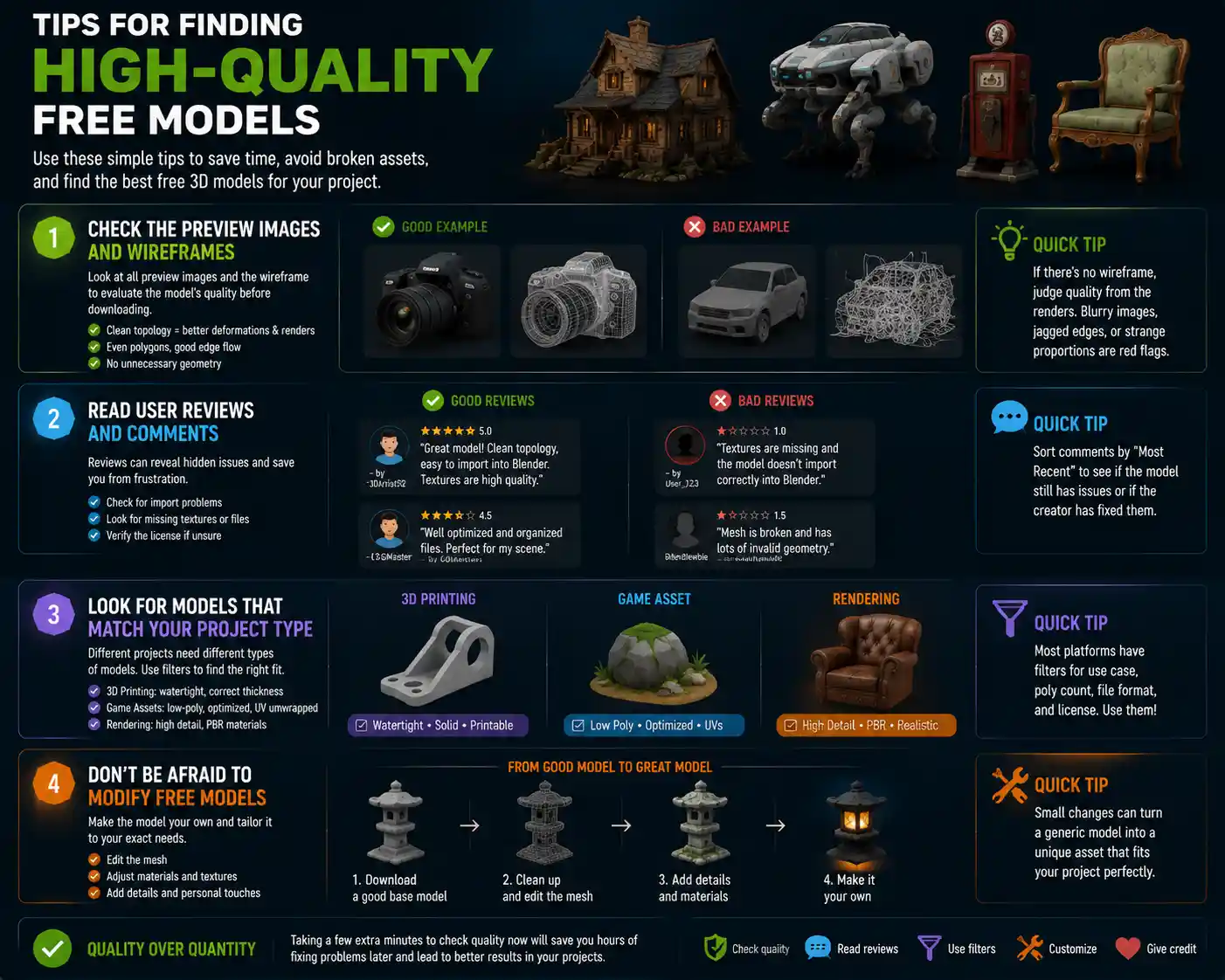
Not all free 3D models are created equal. A low-quality model can ruin an otherwise great render or animation, so it helps to know how to spot good assets when you’re browsing. These tips will help you filter out low-quality models and find the best free assets for your project.
Check the Preview Images and Wireframes
Any reputable artist uploading a free model will include multiple preview images and a wireframe preview that shows the model’s geometry. Look at the wireframe to see if the model has clean topology (the arrangement of polygons on the mesh). Avoid models with messy, uneven polygons or a lot of unnecessary geometry where it doesn’t matter. If there’s no wireframe preview, you can usually tell quality from the rendered previews: if the preview looks blurry, or the edges are jagged, the model is likely low quality.
Read User Reviews and Comments
On most major platforms, other users can leave reviews and comments about free models. Take a minute to read through them to see if other artists have reported issues like missing textures, broken geometry, or incorrect licensing. If multiple people say the model doesn’t import correctly into Blender, you can save yourself time by picking a different model.
Look for Models That Match Your Project Type
If you’re creating a model for 3D printing, you’ll need a model that’s watertight and has correct wall thickness, not just a model that looks good for rendering. If you’re creating a game asset, you’ll need a low-poly model with a clean texture map to keep your file size small. Most platforms let you filter models by use case, so you can search specifically for game-ready assets or 3D-printable models.
Don’t Be Afraid to Modify Free Models
One of the biggest advantages of using Blender is that you can modify any free model to fit your needs. If you find a model that’s almost perfect but has a few small flaws, you can edit the mesh, change the materials, or add details to make it your own. This is still much faster than building an entire model from scratch, and it helps you avoid having a generic model that looks exactly like thousands of other projects online.
Check the Preview Images and Wireframes
Any reputable artist uploading a free model will include multiple preview images and a wireframe preview that shows the model’s geometry. Look at the wireframe to see if the model has clean topology (the arrangement of polygons on the mesh). Avoid models with messy, uneven polygons or a lot of unnecessary geometry where it doesn’t matter. If there’s no wireframe preview, you can usually tell quality from the rendered previews: if the preview looks blurry, or the edges are jagged, the model is likely low quality.
Read User Reviews and Comments
On most major platforms, other users can leave reviews and comments about free models. Take a minute to read through them to see if other artists have reported issues like missing textures, broken geometry, or incorrect licensing. If multiple people say the model doesn’t import correctly into Blender, you can save yourself time by picking a different model.
Look for Models That Match Your Project Type
If you’re creating a model for 3D printing, you’ll need a model that’s watertight and has correct wall thickness, not just a model that looks good for rendering. If you’re creating a game asset, you’ll need a low-poly model with a clean texture map to keep your file size small. Most platforms let you filter models by use case, so you can search specifically for game-ready assets or 3D-printable models.
Don’t Be Afraid to Modify Free Models
One of the biggest advantages of using Blender is that you can modify any free model to fit your needs. If you find a model that’s almost perfect but has a few small flaws, you can edit the mesh, change the materials, or add details to make it your own. This is still much faster than building an entire model from scratch, and it helps you avoid having a generic model that looks exactly like thousands of other projects online.
How to Get Free Custom 3D Models From the Community
If you can’t find the exact model you need for your project, you might be able to get a custom free model from the Blender community, if you know where to look. Blender has one of the most generous, collaborative creative communities online, and many artists are willing to share custom work for free in the right circumstances.
Join Blender Community Groups
There are dozens of active Blender communities on platforms like Reddit, Discord, and Facebook. For example, the r/blender subreddit has over a million members, and many hobbyist artists are willing to take on small custom model requests for free, especially if it’s for a student project or a non-commercial work. Just make sure you read the group rules before posting a request, and be polite: artists don’t owe you free work, so frame your request as a question, not a demand.
Participate in 3D Model Swaps
Many Blender communities host regular model swaps, where artists exchange models with each other for free. You can swap a model you created for a custom model another artist created, so both sides get something they need for free. This is a great way to build connections in the community and get custom assets without spending money.
Commission Student Artists
If you can’t find a free model and don’t have a big budget, many Blender students and new artists will create custom models for very low cost or even free, to build their portfolio. Check art schools’ student portfolios, or post your request on Blender job boards looking for students who want to add work to their portfolio. Many are happy to create a custom model for free in exchange for a credit in your project, which helps them get more work in the future.
Conclusion
Free 3D models are an incredible resource for Blender artists of all skill levels, whether you’re a hobbyist just learning the ropes or a professional working to meet a tight deadline. By using reputable repositories, checking licenses before you use assets, and taking the time to prepare and modify models to fit your project, you can build amazing 3D work without spending a dime on assets. The key is to remember that these free assets are created by artists who share their work out of passion for the community, so respecting their license terms and giving credit where it’s due helps keep the ecosystem of free assets alive for everyone. Start with the built-in Blender asset library if you’re new, then branch out to community repositories to find exactly what you need, and don’t be afraid to tweak assets to make them your own. With thousands of high-quality free assets available at your fingertips, there’s no limit to what you can create in Blender on any budget.