
Introduction
Every 3D artist knows the feeling of downloading a promising model, only to find it bloated with messy geometry, missing textures, or a license that forbids commercial use. Whether you're an architect rendering a client's living room, a product visualizer composing a shot for a catalog, or a game developer building a scene in Blender, the quality of your 3D assets directly impacts your final output — and your timeline.
Blender has grown into a powerhouse for modeling, animation, and rendering. Its open ecosystem means you can import models from dozens of sources. But not all assets are created equal. A model that looks great in a preview render might fall apart once you bring it into your scene. This article walks through the practical criteria for choosing Blender 3D models that actually work in production — and points to platforms such as Relebook where you can find reliable resources for interior design, architecture, and CG projects.
Geometry and Polygon Count: What to Look For
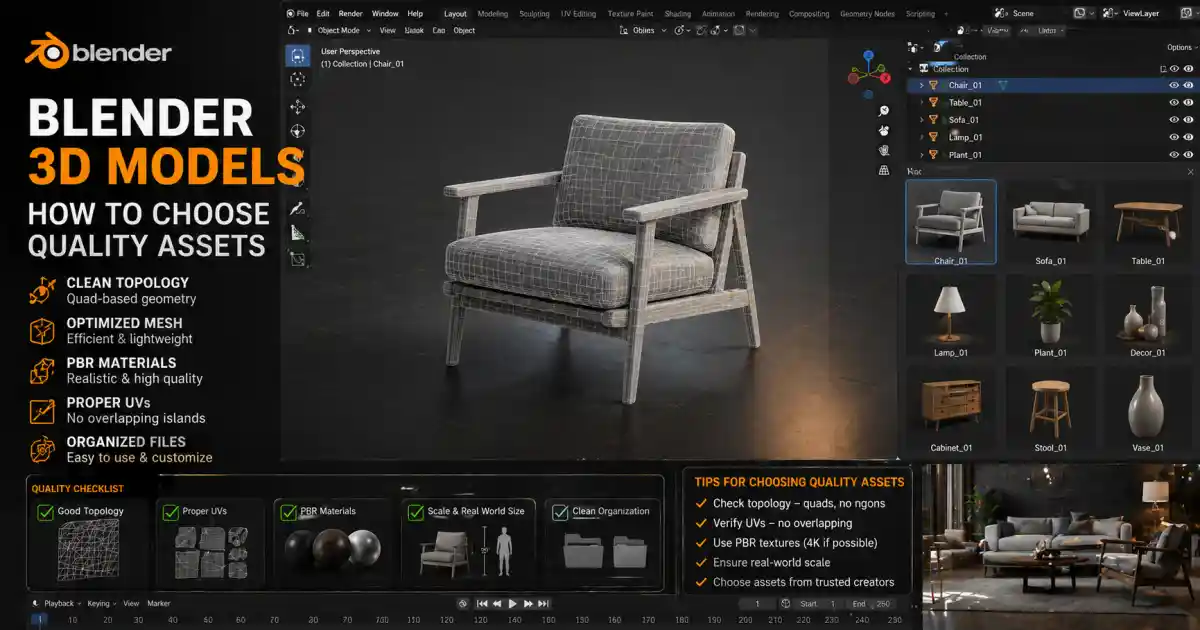
One of the first things to check when evaluating a Blender 3D model is its polygon count. A well-made asset balances detail with performance. For still renders, you might accept high-density meshes with millions of polygons. For animations or scenes with many objects, a lighter model saves rendering time and keeps your viewport responsive.
But polygon count alone isn't enough. You need to see how those polygons are distributed. A chair with a few thousand well-placed quads will look and deform better than one with fifty thousand uneven triangles. Look for models that use quads (four-sided polygons) rather than triangles or n-gons, especially if you plan to subdivide or animate the mesh. Quad-based topology ensures clean edge loops, smoother subdivision surfaces, and easier UV unwrapping.
Another red flag is non-manifold geometry — edges that don't form a closed volume. This can cause issues with Boolean operations, 3D printing, or rendering engines that rely on watertight meshes. Before committing to a model, check the wireframe. A quick glance at the edge flow often reveals whether the artist built the model with care or simply decimated a high-poly sculpt.
Textures and Materials: More Than Just a Pretty Preview
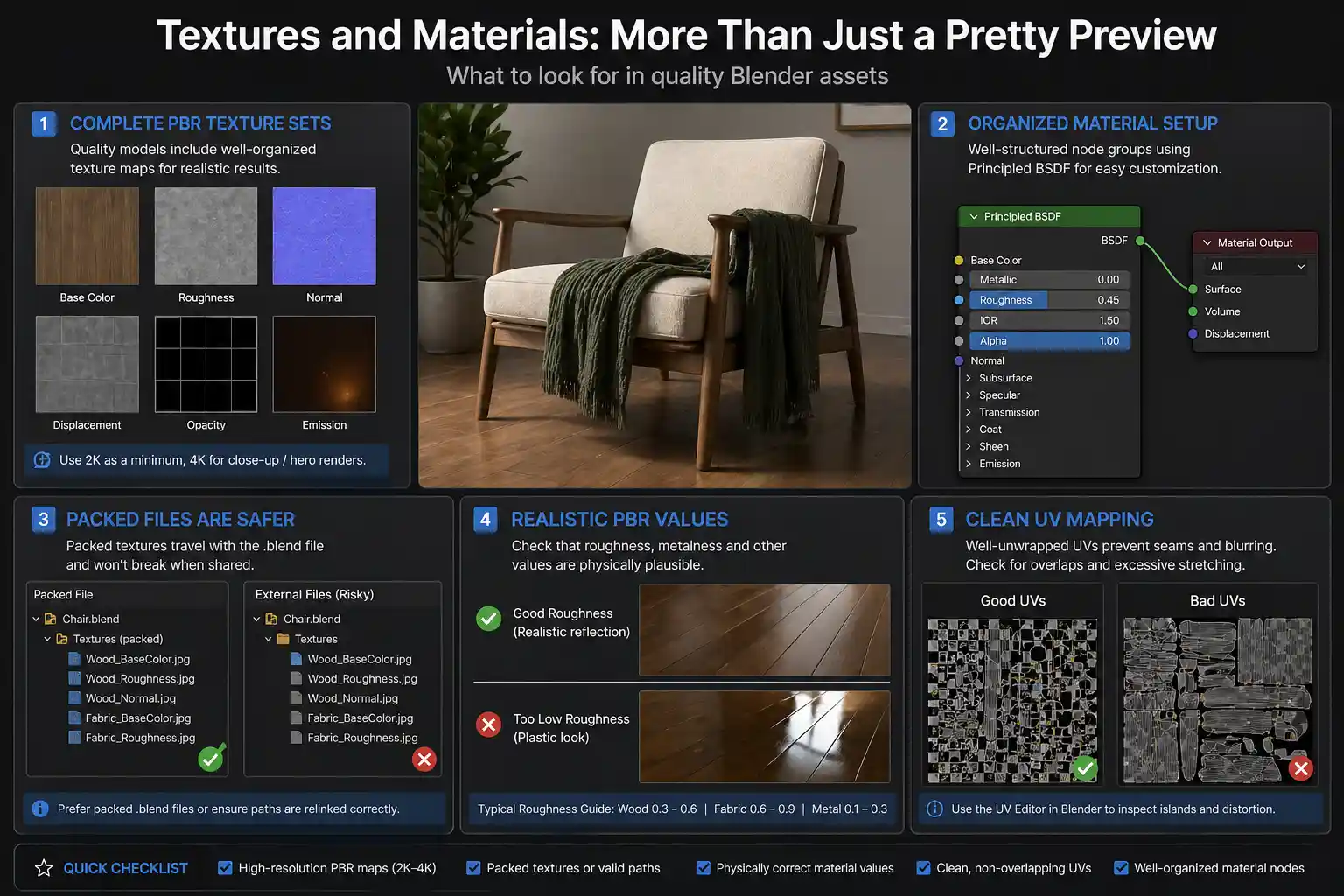
A model’s material setup is where many assets fall short. Blender supports both the Principled BSDF shader and node groups. Quality models typically come with well-organized texture maps: diffuse, roughness, normal, displacement, and sometimes opacity or emission. The maps should be high enough resolution for your intended use — 2K is a baseline for close-up architectural shots, 4K for hero product renders.
Check whether the textures are packed inside the Blender file or linked externally. A model that relies on external image files might fail when you move the .blend to another folder or share it with a collaborator. Some artists provide a packed .blend file that keeps everything together. If the asset uses PBR materials, verify that the roughness and metalness values are calibrated. A glossy floor with roughness set to 0.1 might look plastic rather than polished wood.
UV mapping is another hidden factor. Models with overlapping UVs or excessive stretching cause texture seams and blurring. In Blender, you can quickly check the UV editor for overlapping islands or distortion. A well-unwrapped model allows you to repurpose the textures for different looks.
Topology and Editability
Not every project uses a model exactly as downloaded. You might need to stretch a sofa for a custom floor plan, remap the UVs for a different material, or rig a lamp for an animation. That is where topology becomes critical.
A model with clean, all-quad topology gives you the freedom to edit. You can add loop cuts, sculpt details, or use modifiers like subdivision surface without destroying the shape. On the other hand, a model built from triangulated meshes or high-poly retopo remnants can be a nightmare to modify. Ask yourself: will you need to adjust this asset at all? If the answer is yes, avoid models that are heavily triangulated or lack edge flow.
Subdivision-friendly assets are especially valuable in Blender. They allow you to view a low-poly cage and a smoothed version simultaneously, which is useful for both viewport performance and final renders. Many professional asset libraries tag their models with subdivision levels or provide both low and high poly versions.
Licensing: Know What You Can and Cannot Do
Licensing is often the least exciting part of choosing 3D models, but it carries real legal weight. Blender 3D models from different sources come under various licenses: Creative Commons (CC0, CC BY), Royalty-Free, or custom terms. Some allow commercial use, others only personal projects. Some require attribution, some don’t.
Before you download, read the license statement on the asset page. Look for specifics: Are you allowed to include the model in a product you sell? Can you modify it and resell it as a derivative? Does the license cover usage in a client project? Platforms vary in their approach. For example, Relebook offers a range of free and paid resources; the licensing terms are clearly displayed per asset, so you know exactly what rights you’re getting. Always check the individual page, because policies can differ between free downloads and premium collections.
A conservative rule: if you plan to use a model commercially, choose assets that explicitly grant that right. Avoid models marked “editorial use only” or “non-commercial.” And if the license requires attribution, make sure you credit the creator in your project documentation as specified.
How to Evaluate Before You Download
Preview renders can be misleading. The artist may have used lighting, camera angles, and post-processing tricks that hide flaws. Here are a few practical checks you can do before importing the model into your scene:
1. Check the wireframe screenshot. If the seller provides one, you can instantly see the topology quality.
2. Look for a real-time viewport preview. Some platforms (or independent artists) include a Marmoset or Sketchfab viewer that lets you rotate and inspect the model.
3. Read the description carefully. Look for mentions of “game-ready,” “subdivision-ready,” “high poly,” “low poly,” “quad-based,” and “non-overlapping UVs.”
4. Verify the file format. Not all .blend files are created equal. A model made in Blender 2.79 may load with shader errors in 2.8+ if materials used deprecated nodes. Check the required Blender version.
5. Look at user reviews. If other artists mention missing textures, merged vertices, or broken materials, that’s a red flag.
Integrating Assets into Your Blender Workflow
Once you've chosen a quality model, proper integration saves time. Start by organizing your assets into a dedicated library folder. Many artists use Blender’s Asset Browser to catalog frequently used models, materials, and HDRIs. If you collect assets from different sources, keeping consistent naming conventions and metadata helps you find them later.
Platforms like Relebook provide a curated selection of 3D models, textures, HDRIs, and other CG resources that are ready to drop into your Blender scene. Rather than hunting across dozens of sites, you can browse a library where assets are already optimized for architecture and product visualization. For example, a modern furniture set from Relebook often includes properly named materials and subdivision-friendly geometry, which saves you from having to fix common issues.
When you import a model from an external source, consider these quick steps:
Append or link? If you plan to iterate on the asset, appending gives you full control. If the asset is a final piece that rarely changes, linking keeps the scene file small.
Check material slots. Sometimes unused material slots linger from the original file. Remove them to avoid confusion.
Run a geometry check. Use Blender’s “3D Print Toolbox” add-on to detect non-manifold edges or zero faces.
Scale and origin. Ensure the scale is applied (Ctrl+A > Scale) and the origin is set to a logical point (e.g., bottom of a chair leg).
Conclusion
Choosing high-quality Blender 3D models isn't just about aesthetics — it's about reliability. A model that loads cleanly, edits predictably, and renders without surprises is worth far more than a flashy preview that crashes your scene. By evaluating polygon flow, texture setup, topology, and licensing, you can build a stable library of assets that serve you across multiple projects.
Next time you need a set of plants, a mid-century sofa, or an HDRI environment, consider checking out Relebook’s collection. It offers a practical way to find curated resources that fit into your existing Blender pipeline. And remember: always read the license terms, test the model in your own scene, and keep your file library organized. Your future self — and your clients — will thank you.
FAQ
What is the most important factor when choosing a Blender 3D model for rendering?
For still renders, texture quality and material setup often matter most. For animation or scenes with many objects, polygon count and topology become critical. Always check whether the model uses properly mapped PBR textures and all-quad geometry if you anticipate editing it.
How can I tell if a Blender model has good topology without downloading it?
Look for wireframe screenshots or a real-time 3D viewer on the asset page. If the model is described as “subdivision-ready” or “quad-based,” it likely has clean topology. User reviews can also mention topology quality.
Can I use free Blender 3D models for commercial projects?
It depends on the license. Some free models are released under CC0 (no restrictions), while others are CC BY (require attribution) or non-commercial only. Always check the license terms on the asset page before using a model in a commercial project.
What file formats work best in Blender?
Native .blend files work best because they preserve materials, modifiers, and node setups. FBX, OBJ, and glTF are also common, but may require re-assigning textures and reconfiguring shaders. Always verify compatibility with your Blender version.
Where can I find curated Blender 3D models for architecture and interior design?
Platforms like Relebook offer collections of 3D models, textures, and HDRI specifically tailored for architectural and product visualization. They include both free and paid resources, with licensing details clearly displayed on each asset page.