
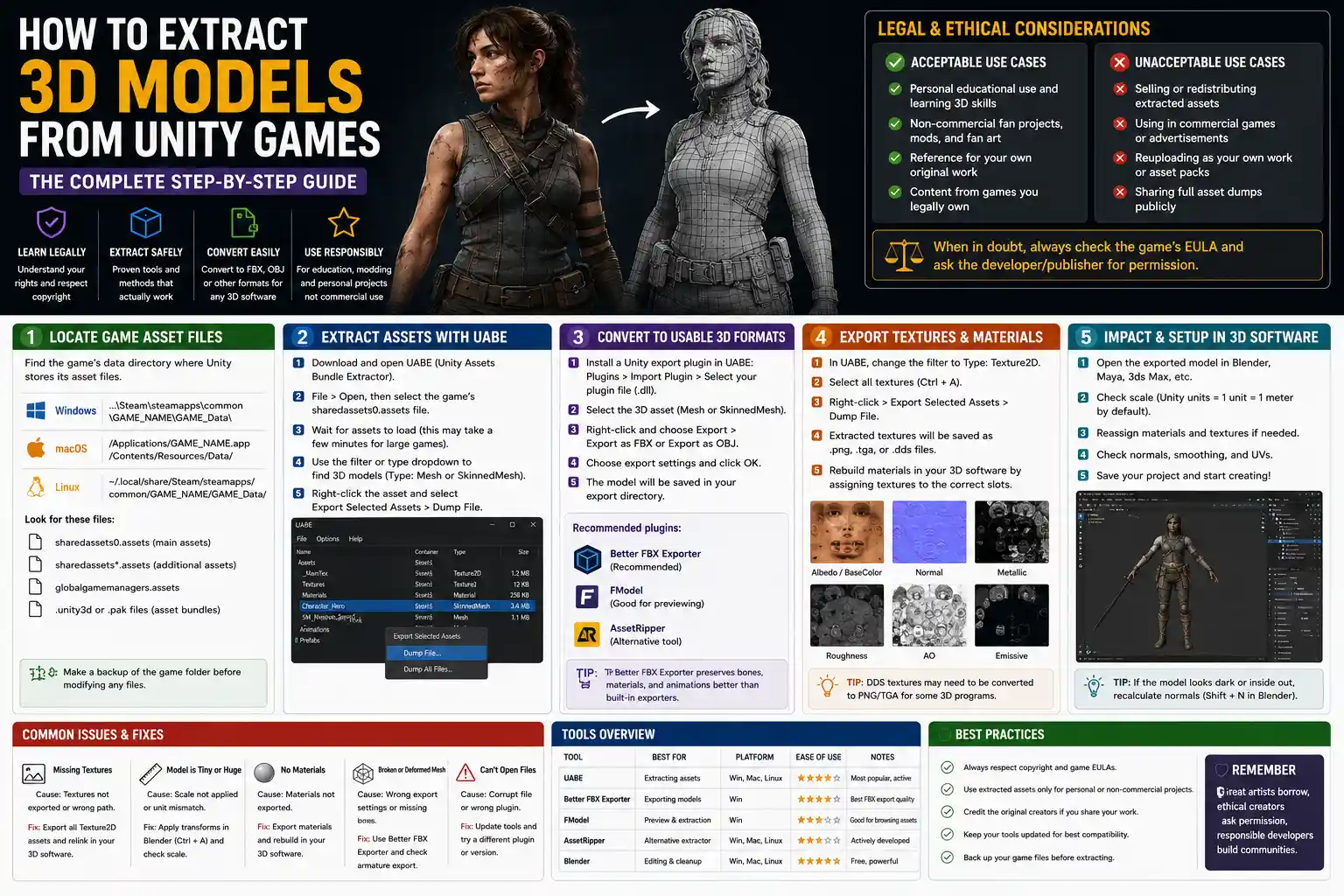
If you’ve ever played a modern Unity game and wondered how to get your hands on the detailed 3D models that bring its worlds to life, you’re not alone. Hobbyist 3D artists, game modders, and indie developers often want to extract models for reference, fan projects, or educational use—whether that’s pulling a iconic character from a indie hit or a beautifully textured environment asset from a AAA open-world title. While extracting 3D models from Unity games isn’t always straightforward, due to how Unity stores and compiles asset data, there are proven methods that work for most common use cases. This guide breaks down the process step-by-step, covering everything from legal considerations to the most reliable tools available, so you can get the models you need safely and effectively.
Key Legal and Ethical Pre-Considerations
Before you open a single extraction tool, it’s critical to address the legal and ethical implications of pulling 3D models from a commercial Unity game. Almost all video game content, including 3D models, textures, and animations, is protected by copyright law in the United States, the European Union, and most other countries. That means you don’t automatically have the right to reuse extracted assets for any purpose, even if you own a copy of the game.
Acceptable use cases for extracted models
There are several scenarios where extracting 3D models falls into a legal or ethical gray area that is generally accepted by the game development community. These include:
- Personal educational use: Practicing 3D editing, learning how professional artists build game assets, or studying topology for your own skill development
- Non-commercial fan projects: Modding the original game to add new content, creating fan art, or building non-profit fan games that are not distributed for sale
- Reference for original work: Using extracted models as a scale or anatomy reference when building your own original 3D assets from scratch
Unacceptable use cases to avoid
Any commercial use of extracted 3D models without explicit permission from the copyright holder is almost always illegal and unethical. This includes selling extracted assets on 3D marketplaces like TurboSquid or Sketchfab, using them in paid commercial games or advertisements, or reuploading them to public platforms as your own work. Even some non-commercial uses, such as distributing full extracted asset packs for other people to reuse, can lead to copyright strikes or legal action from game developers or publishers.
“Most game developers don’t mind modding or personal use of extracted assets for the game you already own—what causes issues is people taking our work and selling it or passing it off as their own. If you want to use assets for anything public or commercial, always reach out and ask for permission first.”
— Tim Sweeney, founder of Epic Games, in a 2022 community Q&A
Always check the End User License Agreement (EULA) for the game you’re working with, as some publishers explicitly allow modding and non-commercial asset extraction in their terms, while others ban any modification of game files entirely. When in doubt, err on the side of caution: contact the game’s developer or publisher to ask for permission before you share any extracted content publicly.
Understanding How Unity Stores 3D Assets
Before you start extracting, it helps to understand how Unity organizes and stores 3D models in a finished game. Unlike some older game engines that store individual assets as separate files in easily accessible folders, modern Unity builds bundle most assets into a small number of large archive files. The exact format of these archives depends on how the developer built the game, but there are a few common formats you’ll encounter.
Common Unity asset bundle formats
For most standalone Unity games (Windows, Mac, Linux), assets are stored in two main types of files: .assets files and .unity3d bundles. Shared assets, including 3D models, textures, materials, and scripts, are usually packed into a file called sharedassets0.assets or similar, while game-specific content is split into additional asset bundles. Some newer Unity games (built after 2020) also use the .pak format for asset archives, which requires unpacking before you can access individual assets.
The other key thing to understand is that 3D models in Unity are stored in a proprietary engine format, not as standard 3D files like FBX or OBJ. That means you can’t just copy a model file and import it directly into Blender or Maya—you need a specialized tool to convert the Unity format to a standard 3D file that your editor of choice can read. Some 3D models may also be compressed, encrypted, or streamed at different LOD (level of detail) versions, which can add extra steps to the extraction process.
What types of models can you extract?
Nearly any 3D asset in a Unity game can be extracted with the right tools, including:
- Character models and rigs, including bone weights and animation data
- Environment assets like terrain, architecture, props, and foliage
- UI elements, vfx assets, and even collision meshes
The main exceptions are games that use third-party DRM (digital rights management) to encrypt all asset files, or games that stream assets dynamically from a server during gameplay, rather than storing them locally on your device. In those cases, extraction is often not possible without breaking the DRM, which is illegal in most jurisdictions.
Step-by-Step Extraction for Standalone Unity Games
For most standard Unity games installed locally on your computer, the extraction process follows a similar general workflow. We’ll cover the most popular, reliable tools for this process, which are all free for non-commercial use.
Step 1: Locate the game’s asset files
The first step is to find where the game stores its asset archive files on your computer. For games installed via Steam, this is usually in C:\Program Files (x86)\Steam\steamapps\common\[Game Name] on Windows, or ~/Library/Application Support/Steam/steamapps/common/[Game Name] on Mac. Once you’re in the main game folder, look for a subfolder called Data (for example, GameName_Data)—that’s where almost all Unity asset files are stored.
Inside the Data folder, you’ll find the shared assets files and any individual unity3d bundles. If you’re working with a game that uses .pak archives (common in games built with Unity’s IL2CPP scripting backend), you’ll need to unpack those first using a tool like UnPak before moving to the next step.
Step 2: Use Asset Studio to browse and export models
Asset Studio is the most popular free tool for browsing and extracting 3D models from Unity assets files, and it works with most modern Unity versions (up to Unity 2022 at the time of writing). The process is straightforward:
- Download the latest version of Asset Studio from its official GitHub repository and extract it to a folder on your computer.
- Open Asset Studio and go to File > Load file, then select the shared assets file or unity3d bundle you want to open from the game’s Data folder. Wait for the tool to load the asset list—this can take a few minutes for large games with thousands of assets.
- Once assets are loaded, use the search bar to filter for “Mesh” or “Renderer” to find 3D models. Most models are listed by their original in-game name, so you can search for the character or prop name to find what you’re looking for faster.
- Select the model you want to export, then right-click and choose “Export selected objects”. Choose a folder to save the output, and Asset Studio will export the model as an FBX file, along with any associated textures and materials.
Asset Studio has a key advantage over older tools like UnityExporter: it automatically extracts associated textures and maps them to the model’s material, so you don’t have to manually reassign them in your 3D editor later. It also supports extracting animation clips and rig data, which is critical if you want to use a extracted character model for animation.
Alternative: Unity Asset Bundle Extractor (UABE)
If Asset Studio doesn’t work for your specific game (for example, if the assets are compressed with a newer format that Asset Studio doesn’t support), the next best tool is UABE (Unity Asset Bundle Extractor). UABE is a more advanced tool that works with a wider range of Unity versions and compression formats, but it has a steeper learning curve. To export a model with UABE, you open the asset bundle, select the mesh asset, export it as a .obj or FBX, then export the textures separately and reassign them manually in your 3D editor.
Step 3: Fix common issues after extraction
Even with the best tools, extracted 3D models often have small issues that need fixing before you can use them. The most common problems include:
- Missing or misassigned textures: This happens when textures are stored in a different asset bundle than the model. You can fix this by searching for the texture files in Asset Studio, exporting them, then manually assigning them to the model’s material in Blender or Maya.
- Broken rigs or animations: Some games compress animation data in a way that extraction tools don’t parse correctly. You may need to reweight the model or adjust bone positions manually if you plan to animate it.
- Reverse-facing or inverted normals: This is a common quirk of how Unity stores mesh data, and it makes parts of the model look transparent in your 3D editor. You can fix this easily by recalculating normals in Blender (Normals > Recalculate Outside).
- Split mesh parts: Large environment assets are often split into multiple smaller mesh files for performance. You can combine them into a single model using the join or merge function in your 3D editor.
Extracting Models from Unity WebGL Games
Extracting 3D models from Unity WebGL games (games that run directly in your web browser) is a little different than extracting from standalone games, but it’s still achievable with the right approach. WebGL games stream all their asset bundles to your browser’s cache when you load the game, so you can access those bundles directly from your cache and extract models from them just like you would from a standalone game.
Step 1: Download the asset bundles from your browser cache
First, load the Unity WebGL game in your browser and wait for it to fully load all content. This ensures all asset bundles are downloaded to your cache. Next, access your browser’s cache to find the Unity files:
- In Chrome or Edge: go to
chrome://cache/oredge://cache/, then search for files ending in .unity3d or .data. Download any files that match the expected size of asset bundles. - In Firefox: use the free “Cache Viewer” extension to search for and export Unity asset files from the cache.
Some WebGL games split assets into multiple small bundles, so you may need to download several files to get the full model you’re looking for.
Step 2: Extract models from the downloaded bundles
Once you have the asset bundle files saved to your computer, the extraction process is exactly the same as it is for standalone games. You can open the .unity3d files directly in Asset Studio or UABE, browse for the 3D model you want, and export it as an FBX or OBJ file.
There are a few caveats to keep in mind for WebGL extraction, though. First, many WebGL games only stream the assets needed for the current level or screen, so you’ll need to navigate to the part of the game that has the model you want before you check the cache. Second, some developers use custom encryption for WebGL asset bundles to prevent extraction, so if your tool can’t open the bundle, it’s likely encrypted and can’t be extracted without bypassing the encryption, which is illegal.
Cleaning Up and Preparing Extracted Models for Use
Once you’ve successfully exported your 3D model, you’ll almost always need to do a bit of clean-up before you can use it for your project. This step is especially important if you plan to use the model in a new game or 3D render, as game assets are optimized for real-time performance and often have extra data that isn’t needed for your use case.
Retopologize if needed
High-end AAA game models often have very high polygon counts, even after LOD optimization. If you’re planning to use the model in a game or real-time project, you may want to retopologize it to reduce the polygon count and clean up messy topology. This also makes it easier to edit the model later if you want to make changes to its shape.
Reuvwrap and resize textures
Extracted textures are often the original high-resolution versions used by the game, which can be several gigabytes in size for high-end models. You can resize textures to a smaller resolution to fit your project’s needs, and if the model’s UV map is messy or overlapping, you can re-uvwrap it to get better texture quality.
Fix rigs and animations
If you extracted a rigged character model, check that all bone weights are assigned correctly and that the rig deforms the model properly when you move bones. It’s common for extraction tools to miss small bone weight assignments, so you may need to touch up weights manually to fix deformation issues. If you want to use the original animations from the game, you can export them alongside the model and retarget them to your rig if needed.
Check for third-party content
It’s not uncommon for Unity games to include assets bought from the Unity Asset Store or other 3D marketplaces. If you extracted a model that turns out to be a commercial asset originally sold by a third-party creator, you’ll need to check the original asset’s license to see if you’re allowed to use it. Many Asset Store assets allow reuse if you buy a license directly from the creator, even if they’re included in a commercial game.
Conclusion
Extracting 3D models from Unity games is a accessible process for anyone willing to learn the basics of how Unity stores assets, and the right free tools make the process straightforward for most common use cases. The most important takeaway is to always start with legal and ethical considerations: extracting for personal learning or non-commercial fan work is generally accepted, but using extracted assets for commercial purposes without permission is both illegal and unfair to the original artists who created the content.
Whether you’re a new 3D artist learning from professional work, a modder expanding your favorite game, or an indie developer looking for reference assets, following the steps in this guide will help you extract the models you need while avoiding common pitfalls like broken meshes, missing textures, or legal issues. With a bit of practice, you’ll be able to pull models from most Unity games quickly and clean them up for use in your own projects.