
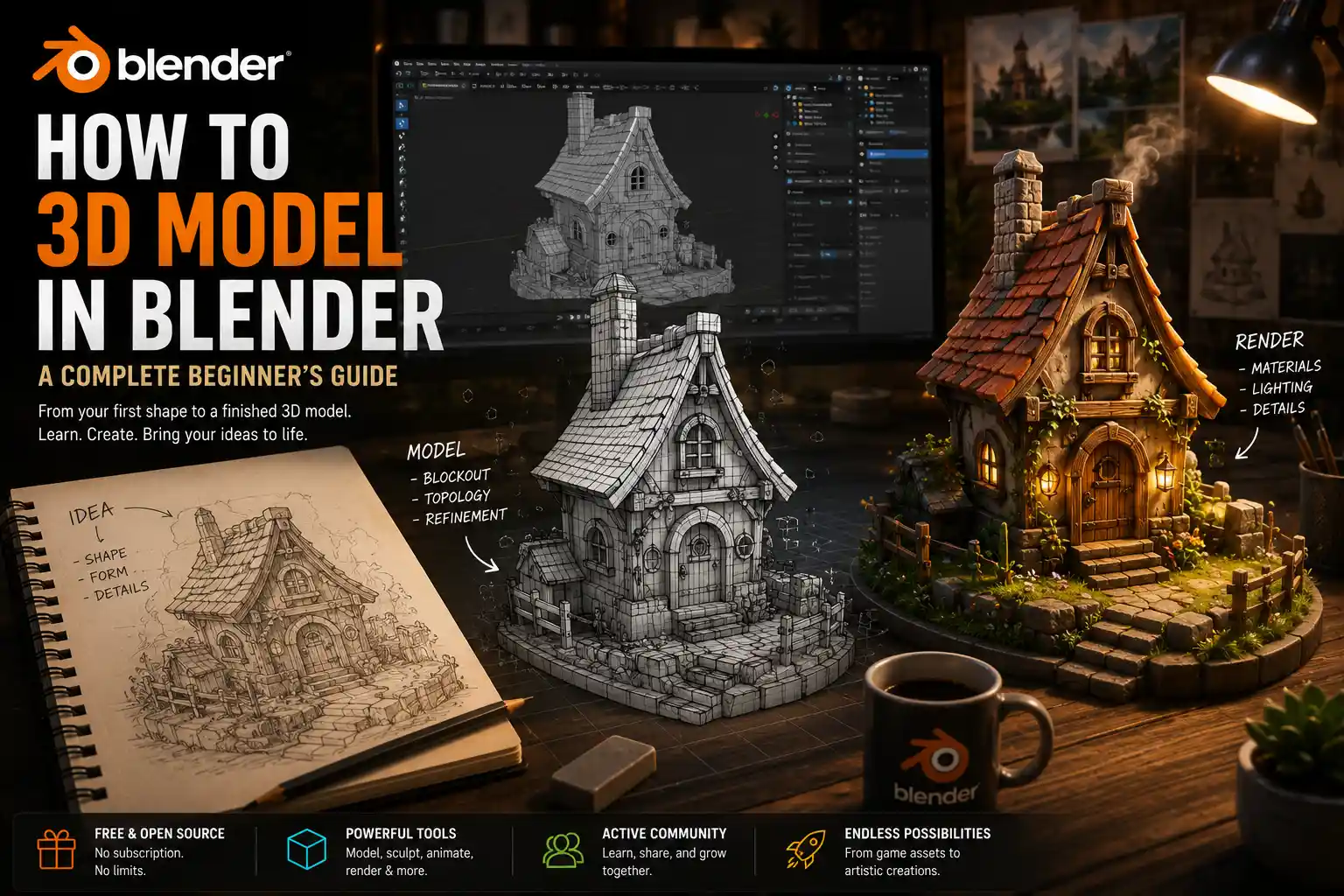
If you’ve ever scrolled through 3D animated short films, custom 3D printed figurines, or immersive video game environments and wondered how creators bring those ideas to life, Blender is the perfect starting point. This free, open-source 3D creation suite has exploded in popularity over the last decade, offering professional-grade modeling, rendering, animation, and simulation tools without the thousands of dollar price tag of industry alternatives like Maya or 3ds Max. Whether you want to design 3D printable art, build assets for indie games, or experiment with digital sculpture, learning to 3D model in Blender is more accessible than ever, even for total beginners. This step-by-step guide breaks down the entire process from first launch to finishing your first complete model.
Getting Set Up: Preparing Blender for First-Time Modeling
Before you start drawing your first mesh, you’ll need to get Blender installed and configured to fit your workflow. Unlike paid software, Blender is completely free to download and use for any purpose—personal or commercial—so you won’t have to worry about subscription fees or trial expirations.
Downloading and Installing Blender
Head to the official Blender website (blender.org) to download the latest stable version for your operating system—Blender works seamlessly on Windows, macOS, and Linux. Avoid third-party download sites, as they often bundle unwanted software with the installer. Once downloaded, run the installer and follow the on-screen prompts; the default settings work perfectly for most new users. If you have limited hard drive space, you can uncheck optional language packs to reduce the installation size.
Customizing the Default Layout
When you first open Blender, you’ll see the default startup layout: a 3D viewport in the center, an outliner listing your objects on the top right, a properties panel on the bottom right, and a timeline along the bottom. For new modelers, this layout works well, but a few small tweaks can make your workflow much smoother.
- Enable Wireframe Overlay by clicking the arrow icon in the top-right corner of the viewport and checking the Wireframe option. This lets you see the edges of your mesh even when you’re in solid view, making it easier to spot geometry errors.
- Adjust the Split View if you want to work on multiple angles at once. Hover your cursor over the top-left corner of the viewport, click and drag to split the screen into two separate views, so you can edit in perspective and check proportions in orthographic view at the same time.
- Set your origin point preferences to place new objects at the 3D cursor, which makes it easier to place geometry exactly where you want it. You can change this in Edit > Preferences > Edit > New Objects.
It’s also a good idea to save your custom layout once you’re happy with it: click the “+” icon next to the default Modeling tab at the top of the screen and name your new layout to access it anytime.
Core Blender Modeling Concepts Every Beginner Needs to Learn
Blender uses a unique set of tools and terminology that can feel overwhelming at first, but mastering a few core concepts will cut your learning curve in half. You don’t need to memorize every shortcut or tool on day one—focus on these foundational ideas first.
Understanding Object Mode vs. Edit Mode
Blender has two primary working modes for modeling, and knowing when to use each is critical. Object Mode is where you move, rotate, scale, and organize entire objects in your scene. If you want to move a whole cube across the screen or delete an entire shape, you do that in Object Mode. Edit Mode, by contrast, is where you edit the actual geometry of the mesh—moving individual vertices, dragging edges, or pulling entire faces to shape your model. You can switch between modes quickly by pressing Tab, one of the most useful shortcuts you’ll use.
Within Edit Mode, you can select three different types of mesh components: vertices (the individual points that make up a mesh), edges (the lines between two vertices), and faces (the flat surfaces between three or more edges). You can switch between selection modes by clicking the corresponding icons in the top-left of the viewport, or by pressing 1, 2, or 3 on your number pad for vertex, edge, and face selection respectively.
Basic Navigation Shortcuts
Navigating the 3D viewport is one of the first skills new users struggle with, but a few simple shortcuts make it intuitive:
- Middle mouse button + drag: Orbit the camera around your model
- Shift + middle mouse button + drag: Pan the camera across the scene
- Scroll wheel: Zoom in and out
- Number pad 1: Jump to front orthographic view; number pad 3 jumps to side view, 7 jumps to top view
- Z: Toggle wireframe view to see through your model and check hidden geometry
Take 5 minutes to practice these shortcuts before you start modeling—muscle memory here will save you hours of frustration later.
Common Modeling Tools to Know
Blender has dozens of modeling tools, but you only need a handful to create 90% of beginner models:
- Extrude: Pull a face or edge outward to add new geometry. This is the tool you’ll use more than any other—press E to extrude after selecting a face or edge.
- Loop Cut: Add a new edge loop (a continuous line of edges) across your mesh to add more detail where you need it. Press Ctrl + R to activate loop cut.
- Bevel: Round off sharp edges to make your model look more realistic. Select an edge, press Ctrl + B, and drag to adjust the bevel size.
- Subdivision Surface: A modifier that smooths your low-poly base mesh into a high-resolution curved shape. This is the go-to tool for organic modeling like characters or plants.
The biggest mistake new 3D modelers make is trying to add too much detail too early. Start with a simple low-poly base shape, get the big proportions right, then add detail gradually. Blender doesn’t reward rushed work.
Two Beginner-Friendly Modeling Workflows
Blender supports several different modeling methods, but the two most common for beginners are box modeling for organic shapes and hard-surface modeling for man-made objects. We’ll walk through a simple example for each to help you get hands-on practice.
Box Modeling: Create a Simple Mug
Box modeling starts with a basic primitive shape (like a cube or sphere) and builds up detail by extruding, cutting, and shaping the mesh. It’s the most intuitive workflow for new modelers, so let’s start here with a coffee mug, a classic first project:
- Delete the default cube that appears when you open a new Blender file by pressing X and confirming. Add a new cylinder by pressing Shift + A > Mesh > Cylinder. In the bottom-left properties panel, set the number of vertices to 24—this gives you enough sides for a smooth round shape without excess geometry.
- Scale the cylinder up to make it taller: press Tab to enter Edit Mode, select the top face, then press S to scale it in slightly to make the opening of the mug wider than the base. Press Enter to confirm the scale.
- Extrude the opening inward to make the hollow interior: with the top face still selected, press E to extrude, then press S to scale the new face in slightly, then move it down along the Z axis by dragging with G + Z. Don’t extrude all the way to the bottom—leave a small gap for the base of the mug.
- Add the handle: exit Edit Mode, add a new cube with Shift + A, move it to the side of the mug with G, then scale it to match the size you want for your handle. Enter Edit Mode, pull the ends of the cube to round it slightly, then use the Weld tool to attach it to the side of the mug. You can also use the Boolean modifier to merge the two objects automatically if you run into geometry issues.
- Add a bevel to all the sharp edges: go back to Object Mode, add a Bevel modifier, adjust the width to around 0.1 units (depending on the size of your mug) to soften the edges. If you want a smoother result, add a Subdivision Surface modifier on top.
This entire process takes less than 15 minutes for a beginner, and it teaches you all the core skills you’ll use for more complex models later.
Hard-Surface Modeling: Create a Computer Keyboard Key
Hard-surface modeling focuses on creating sharp, clean man-made objects like furniture, cars, or electronics. It relies more on precise measurements and Boolean operations than organic box modeling. Let’s walk through making a simple keyboard key:
- Start with a rounded cube: Shift + A > Mesh > Cube, then add a Bevel modifier immediately to round the edges. Set the bevel width to around 5% of the cube size to get that soft rounded top shape of a keyboard key.
- Add the letter indent: create a new text object with Shift + A > Text, type the letter you want (e.g., “A”), then adjust the font and size to fit the top of your cube. Convert the text to a mesh by going to Object > Convert > Mesh.
- Use a Boolean modifier to cut the indent into the key: select the cube key base, add a Boolean modifier, set the operation to Difference, and select the text mesh as the target. Apply the modifier, and you’ll have a clean indent of the letter on the top of your key.
- Add the stem on the bottom that connects to the keyboard: exit Edit Mode, add a small cylinder, scale it thin, move it to the center of the bottom of the key, and merge it with the Boolean tool.
- Clean up any geometry errors by going into Edit Mode and merging any loose vertices or deleting hidden faces.
Hard-surface modeling takes practice to get clean, error-free results, but starting with small, simple objects like this helps you build that skill gradually.
Refining Your Model: Topology, UV Unwrapping, and Materials
Once you’ve shaped your base model, the next step is refining it to prepare it for rendering, animation, or 3D printing. This stage is what separates amateur-looking models from professional ones, and it only takes a few extra steps.
Checking and Fixing Bad Topology
Topology refers to how the vertices, edges, and faces of your mesh are arranged. Bad topology can cause smoothing errors, rendering glitches, and issues when 3D printing. For most beginner models, follow these simple topology rules:
- Avoid n-gons (faces with more than 4 sides) whenever possible. Triangles (3 sides) and quads (4 sides) subdivide and smooth much more cleanly.
- Don’t let poles (points where more than 4 edges meet) appear on curved surfaces—keep them in flat or hidden areas of your model where they won’t affect smoothing.
- Add more edge loops around areas that need sharp detail, like the crease between a mug handle and the body, to keep the edge sharp when you apply subdivision.
Blender has a built-in tool to check for common topology errors: go to Edit Mode > Select > Select All by Trait > Non-Manifold Geometry. This will highlight any vertices or faces that have errors like overlapping edges or holes, so you can fix them easily.
UV Unwrapping for Texturing
If you want to add a color or texture to your model (like a logo on your mug or a key texture on your keyboard key), you need to create a UV map. UV unwrapping is the process of flattening your 3D mesh into a 2D image so you can map a texture onto it correctly. For beginners, Blender’s automatic unwrapping tool works surprisingly well for simple models:
- Go into Edit Mode, select all the faces of your model, then press U > Smart UV Project. Leave the default settings as they are, and click OK. Blender will automatically flatten your mesh and arrange the UV islands in the 2D texture space.
- Open the UV Editor in a separate viewport to check your unwrap. Make sure no UV islands are overlapping, and that they fill most of the 2D space to avoid blurry textures.
- Export your UV layout if you want to draw your texture in an external program like Photoshop or Procreate, or use Blender’s built-in texture painting tools to add color directly to your model.
Adding Materials and Lighting
Once your UV map is done, adding materials makes your model come to life. Blender’s real-time Eevee renderer makes it easy to preview materials as you work. For a coffee mug, you can add a simple ceramic material by setting the base color to white, increasing the roughness to around 0.2 to get that slightly glossy ceramic finish. For a plastic keyboard key, set the roughness higher, around 0.5, for a matte plastic look.
Don’t forget to add simple lighting to your scene before rendering. A good default setup for beginner renders is one main sun light at a 45-degree angle to your model, plus a soft fill light to brighten the shadows. Add a plain background in the World properties tab to avoid distracting from your model.
Troubleshooting Common Beginner Problems
Even experienced Blender users run into issues when modeling, so don’t get discouraged if your first attempt doesn’t turn out perfect. Here are the most common problems new users face, and how to fix them quickly:
My mesh looks jagged after adding Subdivision Surface
This is almost always caused by bad topology or not enough edge loops around sharp edges. Add a loop cut close to the sharp edge you want to keep, and press Shift + E to crease the edge to hold its shape when subdividing. If you have n-gons in your mesh, split them into quads to fix the jagged smoothing.
The Boolean modifier isn’t working correctly
Boolean operations (merging or cutting objects) fail when the meshes you’re working with have overlapping faces or non-manifold geometry. Go back into Edit Mode, check for non-manifold geometry, fix any errors, and make sure both meshes are completely solid with no holes. You can also try recalculating the normals (the direction the faces are facing) by pressing Shift + N in Edit Mode—flipped normals are a common cause of Boolean errors.
My model has weird dark spots when I render
Dark spots on the surface of a model are almost always caused by flipped normals or overlapping faces. Select all your faces in Edit Mode, press Shift + N to recalculate normals outside, and that will fix most dark spot issues. If you still see spots, check for overlapping faces that are sitting on top of each other and delete the extra ones.
Blender is running slow when I edit my model
If your viewport is laggy, you probably have too much geometry in your model. As a rule of thumb, don’t add more vertices than you need. For example, a 32-vertex cylinder is more than enough for most small objects—you don’t need 128 vertices unless you’re making a high-poly render. You can also turn off Subdivision Surface preview in the viewport by clicking the eye icon on the modifier, so you work with a low-poly base and only see the smooth version when you render.
Conclusion
Learning to 3D model in Blender is a rewarding skill that opens up endless creative possibilities, from 3D printing your own designs to building assets for video games or animated films. The key to progressing is to start small: master the core navigation and tools with simple projects like a mug or keyboard key before moving on to complex models like characters or full environments. Don’t get overwhelmed by the number of tools available—you can create almost anything with just the handful of core tools we covered here. As you practice, you’ll develop your own workflow and learn new tools organically, and what felt confusing on day one will become second nature. The best thing you can do right now is open Blender and start shaping your first model—every professional Blender artist started exactly where you are now.