
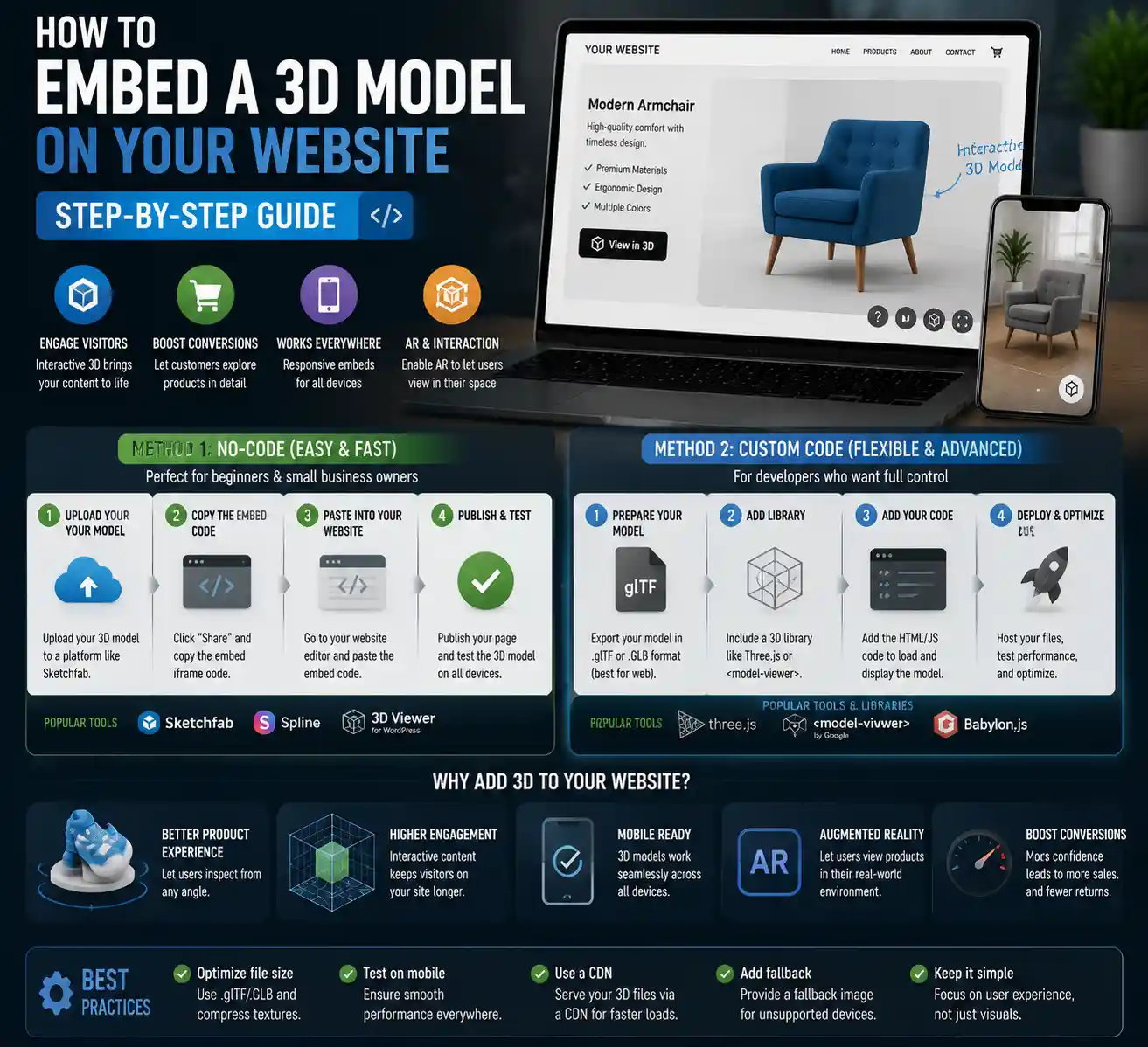
Three-dimensional models are no longer exclusive to high-end gaming platforms or professional architecture studios. Today, any website owner can embed interactive 3D content to engage visitors, showcase products, and create immersive experiences that static images and 2D videos simply can’t match. From furniture retailers letting customers spin a new sofa to check the fabric from every angle, to universities sharing 3D scans of ancient artifacts for online research, embedded 3D is changing how audiences interact with web content. If you’ve ever wondered how to add this cutting-edge feature to your own site, this step-by-step guide breaks down every option, from no-code tools for beginners to custom coding for advanced users.
Choose the Right 3D Model Format for Web Embedding
Before you can embed a 3D model on your website, you need to make sure your file is in a format optimized for web use. Not all 3D file types work well in browsers, and using the wrong format can lead to slow load times, broken interactions, or incompatibility with mobile devices. Understanding the most common web-friendly formats will help you avoid common headaches down the line.
Common Web-Friendly 3D Formats
Several 3D file formats have become standard for web embedding, each with its own strengths and use cases:
- glTF (GL Transmission Format): Widely considered the gold standard for web 3D, glTF is a lightweight, open format that preserves model geometry, materials, textures, and animations while keeping file sizes small. It’s supported by all major 3D tools and web embedding platforms, and works seamlessly on both desktop and mobile.
- GLB (Binary glTF): A single-file version of glTF that bundles all model data (textures, materials, and geometry) into one compressed file. GLB is even easier to work with for web embedding, since you don’t have to manage multiple separate files, and it’s the preferred format for most modern use cases.
- USDZ: Developed by Apple, USDZ is optimized for augmented reality (AR) experiences on iOS devices. It’s often used alongside glTF/GLB to enable AR previews of products, letting users place a 3D model of a chair or vase in their own home before buying.
- OBJ/MTL: An older format that’s still widely supported by 3D software, but less ideal for web use because it tends to produce larger file sizes and doesn’t support advanced materials or animations as well as glTF/GLB.
- FBX: A common format for 3D animation, but like OBJ, it’s usually too large for efficient web delivery and requires extra processing to embed correctly.
How to Convert Your Model to a Web-Friendly Format
If your 3D model is currently in an older format like OBJ or FBX, converting it to GLB is simple with free tools. Blender, the popular open-source 3D editing software, natively supports exporting to GLB and glTF, with options to compress textures and reduce polygon count to shrink file size. For users who don’t have a 3D editor installed, online tools like Convertio or 3D Convertio let you upload almost any 3D file and download a converted GLB in seconds. If you plan to add AR functionality to your embedded model, you can also convert GLB to USDZ for free with Apple’s online USDZ converter.
One critical step many beginners skip is optimizing the model size before embedding. Even a GLB file can be too large if your model has millions of polygons or high-resolution 4K textures that don’t need to be that detailed for web viewing. As a general rule, keep your 3D model file size under 10MB for most websites — smaller than 5MB is ideal for mobile users on slow data connections. You can reduce file size by simplifying the model mesh, compressing textures to 1K or 2K resolution, and removing unused vertices or materials that don’t affect the final visual output.
No-Code Options to Embed 3D Models
You don’t need to know how to write code to add interactive 3D models to your website. A growing number of no-code and low-code platforms make it possible to upload your 3D model, customize the viewer, and copy a single line of embed code to paste into your site. These tools are perfect for small business owners, bloggers, and creators who want to add 3D content without hiring a developer.
Embed via Sketchfab
Sketchfab is the largest community platform for sharing 3D models, and it offers a free, easy-to-use embedding tool that works with any website. You can upload your own private or public 3D model to Sketchfab, customize the viewer settings (enable auto-rotation, turn on AR, adjust background color), and copy the generated embed code to paste directly into your website’s HTML. Even if your website is built on WordPress, Squarespace, Wix, or Shopify, you just need to paste the code into a custom HTML block, and the 3D viewer will work automatically.
Sketchfab’s free plan supports up to 10 private models with a maximum file size of 50MB per model, which is more than enough for most small to medium 3D products. Paid plans start at $15 per month and offer more storage, removed Sketchfab branding, and advanced analytics to track how many visitors interact with your model. One major advantage of Sketchfab is that it automatically converts your uploaded model to web-friendly formats and optimizes it for mobile, so you don’t have to do any extra formatting work.
Embed via Google Poly (And Threekit Alternative)
While Google Poly was discontinued in 2021, many users still look for similar simple enterprise-focused no-code tools, and Threekit has emerged as a leading replacement. Threekit is designed specifically for e-commerce brands that want to embed interactive 3D product models, with built-in support for AR and product customization. It offers a drag-and-drop embed tool that works with all major e-commerce platforms, including Shopify, BigCommerce, and Magento. Threekit’s free trial lets you test embedding up to 5 products, and paid plans scale based on the number of models and monthly visitors.
Website Builder-Specific Tools
If you use a popular website builder like Wix, Squarespace, or WordPress, there are built-in or plugin options to embed 3D models without third-party platforms:
- Wix: Wix has a native 3D Model app that lets you upload GLB files directly to your site and embed them into any page. No external hosting required, and you can customize the viewer size and interaction settings directly in the Wix editor.
- WordPress: Plugins like Embed 3D Model and WP 3D Model Viewer let you upload GLB files directly to your WordPress media library and add them to posts or pages with a shortcode. For users of the Gutenberg block editor, there’s even a native custom block for 3D models.
- Squarespace: Squarespace doesn’t have native 3D support, but you can easily embed a Sketchfab or Threekit 3D viewer by adding a custom code block to your page.
- Shopify: Shopify has several dedicated 3D product viewer apps in the Shopify App Store, including Threekit, 3D Warehouse, and Modelory, all of which let you add 3D models to product pages in a few clicks.
For most beginners, no-code tools are the best starting point. They handle all the technical heavy lifting like hosting, format conversion, and cross-browser compatibility, so you can focus on creating great content instead of debugging code. The only major downside of no-code tools is that you have limited control over the viewer’s design and functionality, and you may have to pay a monthly subscription for large numbers of models or removed branding.
Custom Code Embedding With Three.js
If you want full control over your 3D model’s appearance, interactions, and hosting, embedding a custom 3D model with Three.js is the most flexible option. Three.js is a free, open-source JavaScript library that makes it easy to render and display interactive 3D graphics in any web browser. It’s used by large companies like Google, Meta, and Nike to build immersive 3D web experiences, and it’s accessible to developers with basic JavaScript knowledge.
Step-by-Step Guide to Embedding a GLB Model With Three.js
Follow these steps to embed your optimized GLB model on your website with Three.js:
- First, include the Three.js library in your HTML file. You can download it from the official Three.js website or link directly to the content delivery network (CDN) version, which is faster for visitors to load. Add this line to the
<head>section of your HTML:<script src="https://cdn.jsdelivr.net/npm/three@0.158.0/build/three.min.js"></script>. You’ll also need the GLB loader extension, which you can add with a second script tag:<script src="https://cdn.jsdelivr.net/npm/three@0.158.0/examples/js/loaders/GLTFLoader.js"></script>. - Create a container
<div>in your HTML where you want the 3D model to appear. Give it an ID so you can target it with JavaScript, like this:<div id="3d-container" style="width: 100%; height: 500px;"></div>. You can adjust the width and height to fit your page layout. - Set up the Three.js scene, camera, and renderer. The scene is the container that holds your 3D model, the camera defines what visitors see, and the renderer draws the scene onto the HTML page. You’ll also add lighting to make sure your model’s materials and textures are visible.
- Load your GLB file using the GLTFLoader. Once the file is loaded, add the model to your scene, add orbit controls so visitors can drag to spin and zoom the model, and start the animation loop that updates the view as visitors interact with it.
- Upload your GLB file to your website’s hosting, test the page on both desktop and mobile to make sure the model loads correctly, and adjust the lighting, starting rotation, and zoom level to get the look you want.
A basic working Three.js embed only takes around 50 lines of JavaScript, and there are thousands of free code templates on GitHub and CodePen that you can copy and modify for your own use. You can also add custom features like animation triggers, clickable hotspots on your model (great for product tours), and custom branding that matches your website, which you can’t do with most no-code embedding tools.
Adding Orbit Controls for Interaction
One of the most important features of an embedded 3D model is letting visitors interact with it: spinning it around, zooming in to see details, and panning to view different angles. Three.js has a built-in OrbitControls extension that adds this functionality with just a few lines of code. Just link to the OrbitControls JavaScript file from the CDN, initialize it with your camera and renderer, and visitors can immediately interact with your model. You can also customize settings like minimum and maximum zoom levels, auto-rotation speed, and whether users can pan the camera to fit your needs.
Three.js has democratized 3D on the web to an extraordinary degree. What once required custom graphics engine work and expensive hardware can now be built by a single developer in a day, and run on any device from a phone to a desktop.
The main downside of custom Three.js embedding is that you need basic JavaScript knowledge to set it up, and you’re responsible for optimizing the model, hosting the file, and troubleshooting compatibility issues. But for developers or website owners who want full control, it’s the most powerful and cost-effective option available. Hosting your own 3D files also means you don’t have to pay a monthly subscription to a third-party embedding platform, and you don’t have to rely on their servers staying online.
Adding Augmented Reality (AR) to Your Embedded 3D Model
One of the biggest benefits of embedding 3D models on e-commerce websites is adding augmented reality functionality that lets visitors view the product in their own space. Studies show that 3D and AR product previews reduce return rates by up to 30%, because customers have a much better idea of what the product will look like before they buy. Adding AR to your embedded 3D model is simpler than you might think, regardless of whether you’re using a no-code tool or custom code.

AR for No-Code Embeds
Most popular no-code 3D embedding platforms support AR out of the box. Sketchfab automatically enables AR for all embedded models that are in GLB or USDZ format, and adds a "View in Your Space" button to the viewer that works on both iOS and Android. Threekit and Shopify’s native 3D viewer also add AR functionality automatically, so you don’t have to do any extra work to enable it. For iOS, the model just needs to be in USDZ format, which most platforms convert automatically when you upload a GLB. For Android, AR uses the glTF format and Google’s Scene Viewer, which is also handled automatically by most embedding tools.
AR for Custom Three.js Embeds
If you embedded your 3D model with custom Three.js code, you can still add AR functionality with relatively little extra work. Apple provides a quick way to add an AR button for USDZ models on iOS: you just add a simple link tag that points to your USDZ file, and iOS automatically opens the model in AR when the user taps the link. For Android, you can add a similar link that opens the model in Google’s Scene Viewer. Many developers choose to use the model-viewer open-source library from Google, which simplifies adding both 3D viewing and AR functionality to any website with a single HTML tag.
The model-viewer library is a great middle ground between no-code embedding and full custom Three.js development. It lets you embed a 3D model with just one line of HTML: <model-viewer src="your-model.glb" ar alt="A 3D model of a wooden chair" auto-rotate camera-controls></model-viewer>. It automatically adds AR support for both iOS and Android, includes orbit controls for interaction, and is completely free and open-source. You can host the GLB file on your own server, customize the viewer’s styling to match your website, and avoid paying subscription fees to third-party platforms. It’s perfect for developers who want a simple, lightweight solution without the complexity of full Three.js custom code.
Best Practices for AR-Enabled 3D Models
To get the most out of AR functionality, follow these simple best practices:
- Make sure your model has real-world scale. If you’re embedding a 3D model of a dining chair, set the model’s dimensions to match the actual size of the physical product so it displays correctly in AR. Most 3D tools and embedding platforms let you adjust the scale easily.
- Add a clear "View in AR" button to your 3D viewer. Most users know what AR is now, but a clear call-to-action makes it more likely they’ll try the feature.
- Test the AR experience on both iOS and Android devices to make sure the model loads and displays correctly. The different AR systems for iOS and Android can behave differently, so testing is important.
Best Practices for Performance and User Experience
Even if you’ve successfully embedded your 3D model, poor performance or a confusing user experience can drive visitors away. Follow these best practices to make sure your embedded 3D model is fast, accessible, and enjoyable for all visitors, regardless of what device they’re using.
Optimize File Size for Fast Loading
Large 3D model files can slow down your entire website, especially for mobile users on limited data plans. As a general rule, keep your 3D model file size under 10MB, and aim for under 5MB if possible. To reduce file size, simplify the model mesh to reduce the number of polygons: most 3D models don’t need millions of polygons for web viewing, and you can usually reduce polygon count by 50-70% without any visible loss of quality. Compress textures to 1K or 2K resolution (1024x1024 or 2048x2048 pixels) — 4K textures look great but add unnecessary file size for web viewing. You can also use texture compression tools like Basis Universal to reduce texture file size by up to 50% without visible quality loss.
Add a Loading Indicator
Even with a well-optimized file, 3D models can take a few seconds to load, especially on slow connections. Always add a loading spinner or progress bar to let visitors know that the content is loading, instead of leaving an empty space that looks broken. Most no-code embedding tools add a loading indicator automatically, but if you’re building a custom embed, make sure to include one to improve the user experience.
Make It Mobile-Friendly
More than 60% of web traffic comes from mobile devices, so your embedded 3D model needs to work well on phones and tablets. Test touch controls to make sure spinning and zooming works smoothly on touchscreens. Make sure the 3D viewer doesn’t overflow the page on small screens, and add responsive CSS so the viewer resizes automatically to fit the screen width. Avoid adding too many small, hard-to-tap buttons, and make sure the AR button is large enough for users to tap easily on mobile.
Optimize for Search Engines
3D content can help your website rank higher in search results, but only if you optimize it correctly. Add descriptive alt text to your 3D model that describes what it is, just like you would for a static image. If you’re embedding a 3D product model, add the product name and relevant keywords to the alt text. Embed the model on a page with relevant text content that describes the model, so search engines can understand what the content is about. Some search engines like Google can now index 3D content directly, so having correctly formatted GLB or USDZ files helps your content show up in relevant search results.
Test Across Browsers
Modern browsers all support web 3D content, but older versions of some browsers may have compatibility issues. Test your embedded 3D model on Chrome, Firefox, Safari, and Edge to make sure it works correctly across all major browsers. If you’re using a no-code embedding tool, they handle cross-browser compatibility automatically, but it’s still a good idea to test to make sure.
Conclusion
Embedding a 3D model on a website is more accessible than it’s ever been, with options for every skill level and use case. Beginners and small business owners can use no-code tools like Sketchfab or website builder plugins to add interactive 3D models in less than 10 minutes, no coding required. Developers who want full control can use Three.js or Google’s model-viewer library to build custom embeds hosted on their own servers, with complete control over styling and functionality. Adding AR functionality is now supported by almost all embedding tools, letting customers view products in their own space to reduce returns and increase conversion rates.
The most important steps to a successful 3D embed are optimizing your model for web use (keeping file sizes small and using the right format), testing the experience on mobile, and choosing the embedding method that matches your skill level and goals. Whether you’re a product designer showcasing your latest work, an e-commerce brand improving product pages, or an educator creating interactive learning content, embedded 3D can help you create a more engaging, memorable experience for your visitors. With the tools and best practices outlined in this guide, you can add interactive 3D content to your website today.