
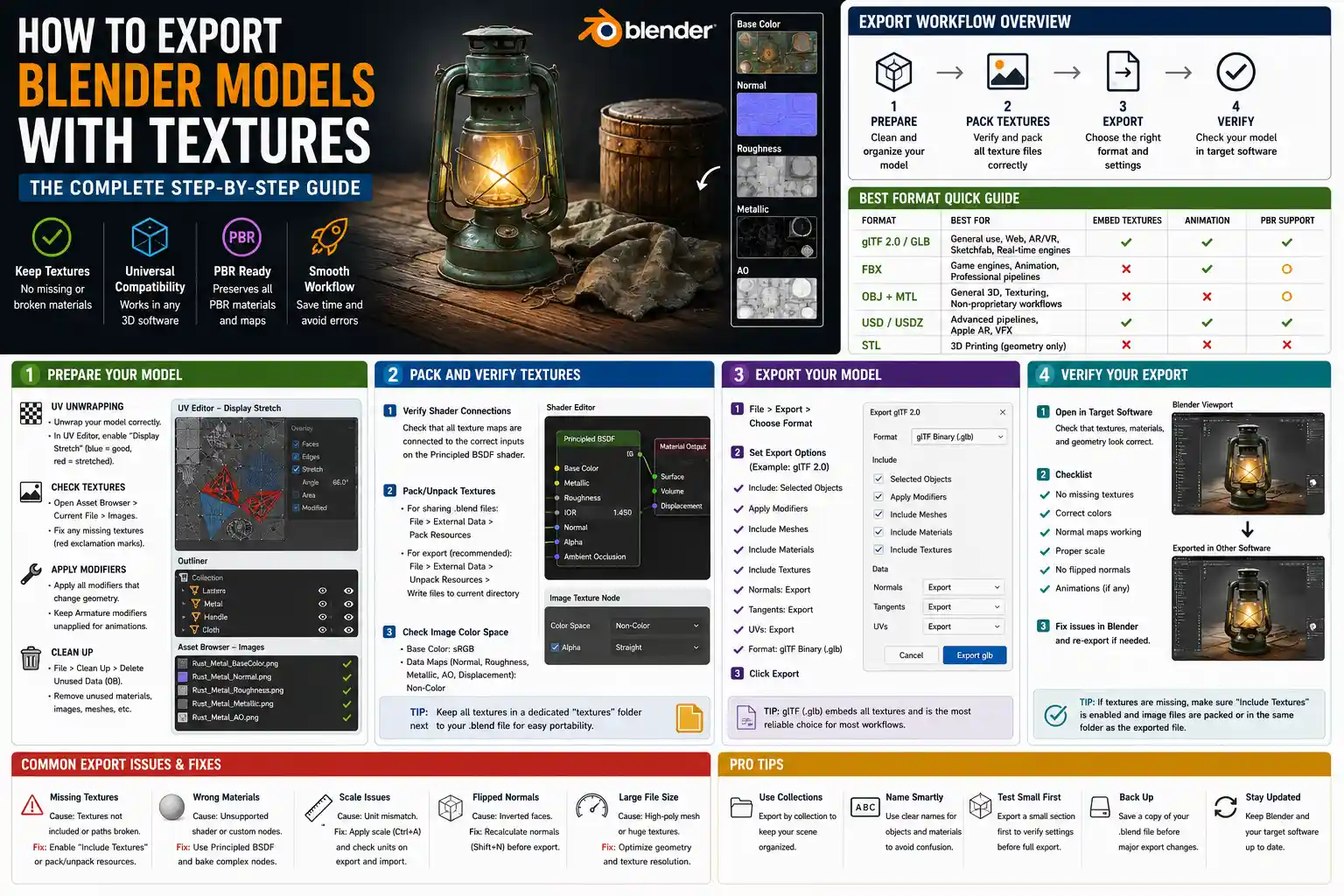
Whether you’re building 3D assets for a video game, an architectural visualization, a 3D print, or a client presentation, exporting a 3D model with intact textures from Blender can make or break your final project. There are few things more frustrating than spending hours refining a detailed wood grain, a weathered paint finish, or a custom PBR material, only to open your exported file in another program and find a plain gray model staring back at you. Blender’s flexible export tools support every common 3D file format, but each format has its own rules for handling texture data, and a single missed setting can leave your materials disconnected. This step-by-step guide will walk you through every stage of preparing, checking, and exporting your textured 3D models from Blender, no matter your end use case.
Preparing Your Model and Textures Before Export
Before you even open Blender’s export menu, taking 10 minutes to organize your project will save you hours of troubleshooting later. Textures break during export most often because of missing files, incorrect packing, or unapplied modifiers that alter your model’s geometry. Starting with a clean, organized project ensures your export goes smoothly the first time.
Organize Your UV Unwrapping
Even the highest-resolution texture will look broken or low-quality if your model’s UV map is messy. UV unwrapping is the process of unfolding your 3D model’s surface into a 2D plane so Blender can map your 2D texture image to the 3D geometry correctly. If your UVs have overlapping faces or stretched proportions, your texture will look distorted even after a successful export.
To check your UV unwrapping before export, go to the UV Editing workspace and select your model. Turn on the Display Stretch option in the UV Editor’s sidebar: blue faces mean healthy UVs, while red faces indicate stretched areas that will distort your texture. Fix any stretched or overlapping UVs before you move on, as this issue won’t resolve itself during export. For complex models with multiple texture sets, consider using UV tiles to keep texture resolution high without file size bloat.
Check for Missing or Unpacked Texture Files
Blender stores references to texture files on your local drive, so if you move a texture image after adding it to your project, Blender will lose the link and export a gray material. To confirm all your textures are correctly linked, open the Asset Browser and navigate to the Current File > Images section. Any image with a red exclamation mark next to it is missing – you’ll need to relink it by clicking the exclamation mark and selecting the correct file from your drive.
For portability, Blender offers two ways to store texture data with your project: packing textures into the .blend file, or unpacking them to a local folder. Packing is useful if you’re sharing the .blend file with another artist, but most export formats require textures to be saved as separate image files. If you plan to export your model for use outside Blender, unpack your textures to a dedicated project folder first. You can do this by going to File > External Data > Unpack Resources and selecting Write files to current directory. This creates a textures folder in your project directory with all your image files, making it easy to keep them linked when you move the project to another computer.
Apply All Necessary Modifiers
Blender’s non-destructive workflow lets you keep modifiers active for editing, but some export tools don’t recognize active modifiers like Subdivision Surface, Solidify, or Decimate. If you leave these modifiers unapplied, your exported model may be the wrong resolution or even missing geometry entirely. Always apply any modifiers that change your model’s base geometry before export, unless you intentionally want to export the low-poly base mesh (for example, when exporting a game-ready LOD mesh).
To apply a modifier, go to the Modifiers tab in the Properties panel, select the modifier you want to apply, and click the Apply button. Leave only rigging or armature modifiers unapplied if you’re exporting a rigged animated model, as other software will need that data intact.
Packing Textures for Export
Once your model and textures are organized, the next step is to make sure Blender includes texture data in your export. Most modern 3D workflows use PBR (Physically Based Rendering) textures, which include multiple maps: albedo (base color), normal, roughness, metallic, ambient occlusion, and displacement. Each of these maps needs to be correctly linked in Blender’s Shader Editor and included in your export for materials to look right in other programs.
Verify Shader Connections
Blender’s default Principled BSDF shader is compatible with almost all export formats and external programs, but custom node setups can sometimes confuse export scripts. Before packing your textures, confirm that each texture map is connected to the correct input on the Principled BSDF shader:
- Base Color (Albedo) texture connected to the Base Color input
- Normal texture connected to a Normal Map node, which is then connected to the Normal input
- Roughness texture connected to the Roughness input
- Metallic texture connected to the Metallic input
- Ambient Occlusion texture connected to the Base Color’s Strength input (via a multiply node) for correct light interaction
If you’re using a custom node group for a special effect, bake that effect down to a texture before export. Most external programs don’t recognize Blender-specific node setups, so any custom effects will be lost if they aren’t baked into a texture map.
Embed vs. External Textures: When to Use Which
Most export formats give you the option to embed texture data directly into the exported 3D file, or save textures as separate external image files. The right choice depends on where you’re sending the model:
- Embedded textures: Best for single-file sharing, simple models, or archiving. Embedding packs all texture image data into the 3D file itself, so you only have one file to send. The downside is that it increases file size significantly, and most game engines or 3D editing tools don’t support embedded textures for large projects.
- External textures: Best for game development, architectural visualization, and professional client work. External textures are saved as separate image files in a folder next to your 3D model, which makes them easy to edit later and keeps your 3D file size small. Most industry workflows expect external textures, so this is the default option you should use 90% of the time.
Blender makes it easy to export external textures by automatically copying all used texture images to a subfolder next to your exported file, as long as you check the correct box in the export settings. Always keep your 3D file and texture folder in the same root directory when sharing or moving the project, to keep the file paths intact.
The biggest mistake new artists make when exporting textured models from Blender is skipping the 5-minute check to confirm all texture paths are correct and all UVs are unwrapped properly. A clean project exports cleanly – that’s a rule I’ve learned after 10 years of fixing bad exports for clients.
Step-by-Step Export for Common File Formats
Different use cases require different 3D file formats, and each format has unique settings for exporting textures. Below we’ll cover the four most common formats used today, with step-by-step settings for each.
Exporting as GLB/GLTF (Game Development, Web, AR/VR)
GLB (binary GLTF) and GLTF are the most widely used formats for real-time 3D, game development, augmented reality (AR), virtual reality (VR), and 3D web content. They support PBR textures, animation, rigging, and are compatible with every modern game engine including Unity, Unreal Engine, and Godot. GLB is a single-file format that embeds all textures, making it perfect for sharing or AR use, while GLTF uses separate files for geometry and textures.
To export a textured GLB/GLTF from Blender:
- Select your model in Object Mode. If you’re exporting multiple objects, select all of them or enable the Selection Only export option.
- Go to File > Export > glTF 2.0 (.glb/.gltf).
- In the right-hand export settings panel, under the Data heading:
- For GLB (single file): Set the Format dropdown to glTF Binary (.glb). Textures are automatically embedded, so no extra steps are needed for textures. This is the best option for AR filters or single-file sharing.
- For GLTF (separate textures): Set Format to glTF Separate (.gltf + .bin + textures). Check the Copy Images box to automatically copy all texture images to an images subfolder next to your export.
- Under the Materials heading, make sure Export Materials and Export Vertex Colors (if you use them) are checked. Blender automatically maps Principled BSDF inputs to the GLTF PBR standard, so no manual adjustment is needed for most materials.
- Click Export glTF to save your file.
Exporting as FBX (Game Engines, Animation, 3D Modeling Workflows)
FBX is a legacy but still widely used format for exchanging 3D models between programs, especially for animated and rigged models. It’s the standard format for many older game engines and architectural visualization workflows. Unlike GLTF, FBX always uses external textures, so you’ll need to keep your texture folder organized.
To export a textured FBX from Blender:
- Select your model in Object Mode and apply all geometry modifiers (leave armature modifiers unapplied for rigged models).
- Go to File > Export > FBX (.fbx).
- In the export settings, under Main, set Forward to -Z Forward and Up to Y Up to match the coordinate system used by most external programs (this avoids your model importing upside down or rotated).
- Under the Geometry heading, check Apply Modifiers to ensure your final geometry is exported. Uncheck smoothed shading if you want to keep your original sharp edges.
- Under the Embed Textures heading, check the box only if you need to embed textures into the FBX file for single-file sharing. For most use cases, leave it unchecked and make sure your textures are unpacked to a project folder. When you import the FBX into another program, you’ll just need to point it to your texture folder.
- Click Export FBX to save your file.
One common issue with FBX export from Blender is that normal maps sometimes import with inverted green channels. If your normal maps look bumpy or incorrect after importing, you can fix this by inverting the green channel of your normal map in an image editor like GIMP or Photoshop before export, or adjust the setting in your target program.
Exporting as OBJ (Simple Models, 3D Printing, Static Assets)
OBJ is one of the oldest 3D formats, and it’s still commonly used for static models, 3D printing, and simple exchange between 3D programs. OBJ supports textures via separate MTL (material) files that link to external texture images.
To export a textured OBJ from Blender:
- Select your model in Object Mode.
- Go to File > Export > Wavefront (.obj).
- In the export settings, check Write Materials to generate the MTL file that stores material and texture references.
- Check Copy Images to automatically copy all used textures to a subfolder in your export location. This ensures the MTL file can find the textures when you import the OBJ into another program.
- Leave the coordinate system settings at the default, or adjust to -Z Forward / Y Up if you’re exporting to a program that uses that standard.
- Click Export OBJ to save your files. You’ll get three items: the .obj geometry file, the .mtl material file, and a folder with your texture images. Keep all three in the same directory to keep textures linked.
Exporting as STL with Texture (Full Color 3D Printing)
Most people think STL files only store geometry for 3D printing, but modern full-color 3D printers support textured STL exports (or the related 3MF format) for full-color prints. Blender supports exporting textured STL for 3D printing by using vertex colors to store texture data.
To export a textured STL for full-color 3D printing:
- Bake your texture to vertex colors first. Go to Object Data Properties > Vertex Colors and create a new vertex color layer.
- Use the Bake tool in the Render Properties tab to bake your texture from the Principled BSDF shader to the vertex color layer.
- Go to File > Export > Stanford (.ply) or 3D Manufacturing Format (.3mf) (most full-color 3D printing services prefer PLY or 3MF over STL for textured models).
- Check Export Vertex Colors in the export settings, then export your file.
If you absolutely need to use STL, note that STL itself doesn’t support texture data, so you’ll need to provide your 3D printing service with your separate texture file along with the STL geometry.
Troubleshooting Common Texture Export Issues
Even with careful preparation, textures can sometimes go missing or look wrong after export. Most issues have simple fixes, and the most common problems are easy to resolve in a few minutes.
Textures Are Missing / Model Is Gray After Import
This is the most common issue, and it almost always comes down to broken file paths. If you exported your model with external textures, the target program can’t find your texture images if you moved the 3D file without moving the texture folder. Always move the entire root project folder (including your 3D file and the texture subfolder) together when transferring the file between computers or sharing with others.
If you’re sure the file paths are correct, double-check that you checked the Export Materials box in your export settings. It’s easy to miss this setting when you’re rushing through export, and without it Blender won’t export any material or texture data at all.
Textures Look Stretched or Distorted
Stretched or distorted textures almost always come from bad UV unwrapping, not export settings. Go back to Blender’s UV Editing workspace and check for stretched or overlapping UVs, as we covered earlier. If your UVs look good, confirm that your texture image’s aspect ratio matches the UV map – if you resized the texture image without updating the UVs, you may get distortion.
Normal Maps Look Wrong After Import
Normal map issues are almost always caused by different color channel conventions between Blender and your target program. Blender uses the OpenGL standard for normal maps, which has a green channel pointing in one direction, while many programs like Unreal Engine use DirectX, which inverts the green channel. To fix this, open your normal map in an image editor, invert the green channel, and re-export your model. Most game engines also have a setting to invert the green channel on import, so you can fix it there instead if you prefer.
PBR Roughness/Metallic Maps Don’t Work
If your base color imports correctly but roughness and metallic maps look wrong, double-check that you connected the maps to the correct inputs in Blender’s Principled BSDF shader. Most export formats map the Principled BSDF inputs directly to their own PBR standard, so if you connected roughness to the metallic input by accident, it will look wrong after export. Also confirm that your roughness and metallic maps are imported as grayscale images in your target program – if they’re imported as sRGB color images, you’ll get incorrect brightness values.
File Size Is Too Large
If your exported file is too large for sharing or upload, you can reduce it by downscaling your texture resolution. Most game assets use 2K (2048x2048) or 4K (4096x4096) textures, which are more than enough for most use cases. If you don’t need high resolution, downscaling to 1K (1024x1024) will cut your file size by 75% with almost no noticeable quality loss. You can also reduce polygon count by using the Decimate modifier to remove unnecessary geometry before export, which will reduce the overall file size as well.
Best Practices for Consistent, Production-Ready Exports
Adopting a few simple best practices will ensure your textured exports work every time, no matter where you’re using them. These habits take almost no extra time but eliminate most common issues before they start.
First, use consistent folder structure for every project. Create a root project folder with subfolders for blend files, textures, exports, and reference images. When you unpack textures, save them to the textures subfolder, and when you export, save your exports to the exports subfolder. This makes it easy to find files, keep paths correct, and share the entire project with others without missing textures.
Second, always test your export after you finish. Open the exported file in your target program (whether that’s Unity, Unreal, Photoshop, or a 3D viewer like Blender’s own 3D Viewport) before you share it with a client or use it in a final project. This only takes 30 seconds, and it catches any issues before they cause problems later. Blender even has a built-in import feature, so you can re-import your exported file directly into a new Blender project to check that all textures are intact before sharing.
Third, use the right format for your use case. Don’t export a 100MB FBX for an AR filter when a 10MB GLB will work just as well. Don’t export a GLB for a full-color 3D print when a PLY with vertex colors is what your printing service needs. Matching your format to your end goal simplifies the workflow and avoids compatibility issues.
Finally, pack textures into your .blend file when you’re archiving the project. Even if you use external textures for export, packing all textures into the .blend file for archiving ensures you won’t lose any texture files if you move the project years later. You can do this by going to File > External Data > Pack All into .blend before saving the final archive version.
Conclusion
Exporting a 3D model with intact textures from Blender doesn’t have to be a frustrating process. The key is to prepare your project before you open the export menu: check your UV unwrapping, organize your texture files, apply necessary modifiers, and confirm your shader connections are correct. From there, matching your export settings to your chosen file format – whether that’s GLB for AR, FBX for game development, OBJ for static assets, or PLY for 3D printing – ensures your textures will look exactly as they did in Blender when you open them in another program. By following the step-by-step steps and troubleshooting tips in this guide, you’ll be able to consistently export production-ready textured 3D models that work for any use case, from game development to 3D printing to client presentations.