
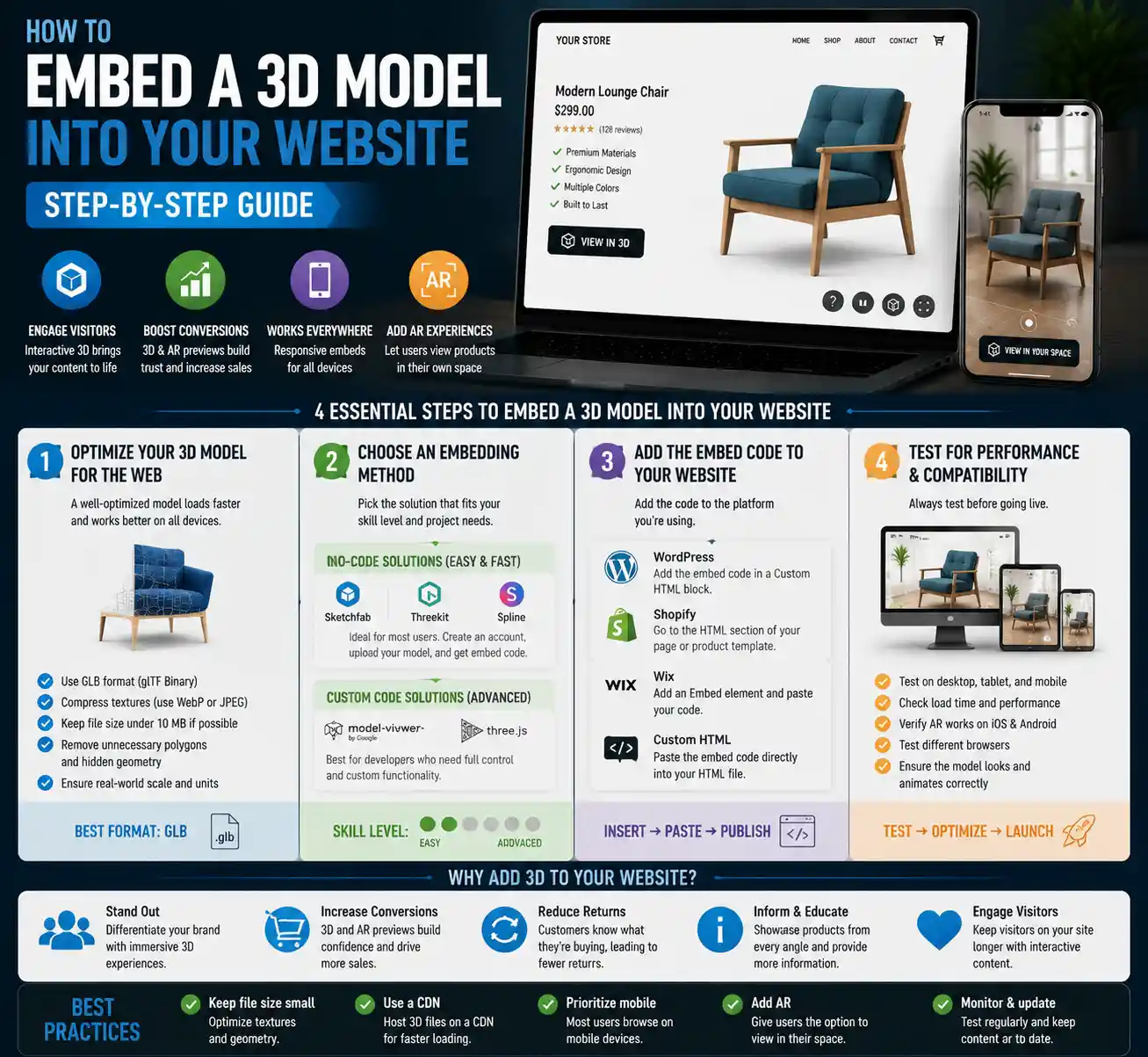
Three-dimensional models are no longer exclusive to industrial designers, video game developers, or Hollywood animators. Today, any small business owner, creative professional, or hobbyist can embed an interactive 3D model into their website to showcase products, engage visitors, and stand out from flat, 2D image-based competitors. Whether you sell custom furniture online, share 3D printable art designs, or want to give prospective customers a 360-degree view of a new car prototype, adding 3D content improves user engagement, reduces return rates for physical goods, and helps visitors understand complex products better. This guide breaks down every step of the process, from preparing your 3D model to choosing the right embedding method for your skill level and website platform.
Preparing Your 3D Model for Web Use
Before you can embed a 3D model into a website, you need to prepare the file correctly. 3D modeling tools like Blender, Maya, or SketchUp export large, complex files that can slow down your website, cause long load times, or break entirely on mobile devices. The preparation stage is just as important as the embedding process itself, so taking the time to optimize your model will save you hours of troubleshooting later.
Choose the Right File Format
Not all 3D file formats work on the web. Some are designed for 3D printing or professional rendering, and others are too heavy to load in a browser. The most widely supported web-friendly 3D formats today are:
- glTF (GL Transmission Format): Widely considered the industry standard for web 3D. glTF is a compact, efficient format that supports textures, animations, and materials, and works with every major embedding tool. Most developers refer to it as "the JPEG of 3D" for its balance of quality and small file size.
- GLB: A binary version of glTF that stores all model data (textures, materials, and geometry) in a single file. This makes it easier to manage than glTF, which stores data in separate files, so GLB is the most popular choice for most web embedding projects.
- USDZ: Developed by Apple, USDZ is optimized for augmented reality (AR) experiences on iOS and macOS. It works seamlessly with Apple's AR Quick Look feature, so if you want visitors to be able to place your 3D model in their own space via their phone camera, you'll want to export a USDZ copy alongside your GLB.
- FBX and OBJ: These older formats are still supported by some embedding tools, but they tend to be much larger than GLB or glTF, so they are not recommended for web use unless you have a specific reason to use them.
When exporting your model from your 3D editing software, prioritize GLB as your primary format. Add a USDZ export if you plan to support AR, which most product-based websites benefit from.
Optimize File Size for Web Performance
Large 3D files will hurt your website's search engine rankings and drive visitors away before the model even loads. A 2023 study found that 53% of mobile users leave websites that take longer than three seconds to load, and 3D models can easily hit 10MB or more if unoptimized. Follow these optimization steps to keep your file size under 3MB (the recommended maximum for most web use):
- Reduce polygon count: Most high-poly models (used for rendering or 3D printing) have millions of polygons that web users will never notice. Use a decimation tool in Blender or an online optimizer to reduce polygon count to between 50,000 and 100,000 for most consumer products. High-detail models can go up to 200,000, but avoid going any higher unless absolutely necessary.
- Compress textures: Textures often make up 70% or more of a 3D model's total file size. Resize textures to no larger than 2048x2048 pixels (1024x1024 is enough for most small products) and use compression tools like TinyPNG to reduce image file size before baking them into your GLB file.
- Remove unnecessary data: Delete hidden geometry, unused materials, and extra animation frames that don't appear in the final model. Many 3D tools retain hidden data from the editing process that adds unnecessary bloat to your export.
If you don't have experience optimizing 3D models, free online tools like Model Optimizer by Three.js or Pixyz Review can automatically reduce file size while preserving most of the visual quality for you. For most use cases, automatic optimization is more than enough.
Choose Your Embedding Method
There is no one-size-fits-all approach to embedding 3D models. The right method depends on your technical skill, your website platform, your budget, and what features you need (like AR support or custom interactivity). Below are the most common methods, broken down by use case.
No-Code Embedding Platforms
If you don't have any coding experience or just want a quick, reliable solution, no-code 3D embedding platforms are the best choice. These tools handle hosting, optimization, and embedding for you, so all you need to do is upload your model and copy a single line of embed code to paste into your website. Popular options include:
- SketchFab: The largest community platform for 3D models, and it offers free embedding for public models. Paid plans start at $15 per month for private, unbranded embeds. SketchFab supports all major 3D formats, includes AR support for iOS and Android, and lets you customize the embedded viewer's background, controls, and auto-rotation.
- Google Model Viewer: A free open-source tool from Google designed specifically for product 3D models. It supports GLB and USDZ, includes built-in AR support, and you can host the file on your own server or use Google's hosting for small files. While it requires a tiny bit of code to set up, most website builders have plugins that make it no-code.
- Threekit: A enterprise-focused platform that lets you create 3D product configurators and AR experiences. It's more expensive (starting at $49 per month for small businesses) but it's ideal if you want to let visitors customize colors, materials, or features directly in the 3D viewer.
- Vectary: A browser-based 3D design tool with built-in embedding. You can build your model directly in Vectary or upload an existing GLB, then copy the embed code to your website. Free plans include a Vectary watermark, paid plans start at $29 per month for unbranded embeds.
No-code platforms are ideal for most small business owners, creators, and beginners. They handle all the updates, browser compatibility, and mobile optimization automatically, so you don't have to worry about your model breaking when browsers update.
Code-Forward Methods for Custom Implementation
If you have some basic web development experience and want full control over your 3D model (and avoid paying monthly hosting fees), you can embed the model directly using open-source tools. The most popular option is Three.js, a JavaScript library for rendering 3D content in the browser. Three.js is free, open-source, and gives you full control over every aspect of the viewer, from custom animations to interactive hotspots.
Another simple code-based option is using Google's Model Viewer as a web component. All you need to do is add a single script tag to your website's head, then use a simple <model-viewer> tag to embed your model, which you host on your own server. This method is lighter than no-code embeds, gives you full control over file hosting, and still includes AR support out of the box.
"The biggest mistake new users make when adding 3D to their website is overcomplicating the process. For 90% of use cases, a well-optimized GLB embedded via a no-code platform will deliver a better user experience than a custom-built solution that takes weeks to launch."
— Sarah Chen, Web 3D Developer and author of 3D for the Modern Web
When choosing between no-code and custom methods, consider your long-term goals. If you only need to embed one or two 3D models, a no-code platform is almost always faster and more reliable. If you plan to add dozens of 3D models or need custom functionality like product configurators, a custom implementation with Three.js or Model Viewer may be more cost-effective long-term.
Embedding on Common Website Platforms: Step-by-Step
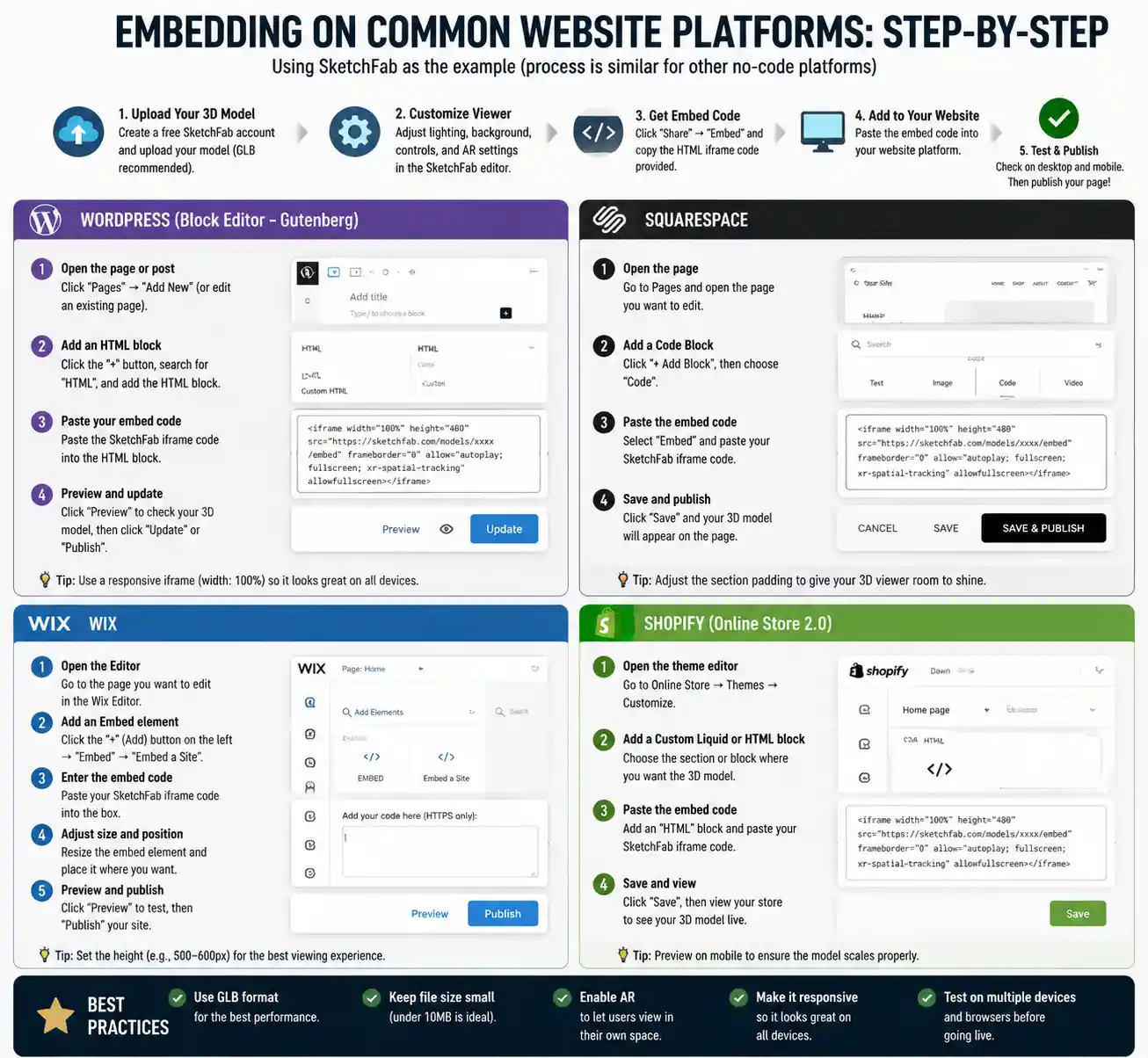
Most people build their websites on popular platforms like WordPress, Squarespace, Wix, or Shopify, and each has its own process for adding 3D embeds. Below is a step-by-step guide for the most common platforms, using SketchFab as the example no-code tool (the process is nearly identical for other no-code platforms).
WordPress (Self-Hosted)
WordPress is the most flexible platform for 3D embedding, and it works with both no-code and custom methods. For no-code embedding:
- Upload your optimized GLB model to your SketchFab account, set the visibility to "Unlisted" or "Public" depending on your preference.
- Click the "Embed" button on the model page, then copy the provided embed code.
- In your WordPress page or post editor, add a "Custom HTML" block.
- Paste the copied embed code into the block, then update or publish your page.
If you prefer to host the model yourself and use Google Model Viewer, you can upload the GLB file directly to your WordPress media library, then add the Model Viewer script and <model-viewer> tag to a custom HTML block. WordPress supports custom HTML out of the box, so no extra plugins are required.
Squarespace
Squarespace makes embedding 3D models simple, even for beginners. The process is very similar to WordPress:
- Upload your 3D model to your chosen embedding platform (SketchFab, Vectary, etc.) and copy the embed code.
- In the Squarespace page editor, add a "Code" block to the section where you want the 3D model to appear.
- Paste the embed code into the Code block, then save your changes.
- Preview the page to confirm the model loads correctly, and adjust the width and height in the code if needed to fit your page layout.
Note that Squarespace's Code block is only available on Business and Commerce plans. If you have a Personal plan, you'll need to upgrade to add custom embed code.
Shopify
Adding 3D models to Shopify product pages is one of the best ways to reduce return rates, as customers can see exactly what they're buying from every angle. Shopify has built-in support for 3D models on all paid plans:
- Go to your Shopify Products panel and select the product you want to add the 3D model to.
- Under "Media", click "Add file" and select your optimized GLB file. Shopify supports GLB natively, so no third-party platform is required if you only need a basic viewer.
- Save the product, then check your live product page. Shopify will automatically add the 3D model to your product image gallery, and includes built-in AR support for mobile users.
If you want more customization options (like auto-rotation or a full-page viewer), you can still use a no-code platform like SketchFab and embed the code into your product page template, but for most product use cases, Shopify's native 3D support is more than enough.
Wix
Wix has a dedicated app for 3D embedding that simplifies the process for beginners:
- Go to the Wix App Market and search for "3D Viewer" or the specific platform you're using (like "SketchFab").
- Add the app to your site, then connect your account or upload your 3D file directly through the app.
- Resize the 3D viewer block to fit your page layout, then publish your site.
If you prefer to use custom embed code, Wix also supports adding a Custom HTML block, just like WordPress and Squarespace.
Adding Interactive Features and AR Support
One of the biggest advantages of embedding a 3D model instead of using static images is the ability to add interactive features that engage visitors. The most popular feature today is augmented reality support, which lets visitors place the 3D model in their own physical space using their smartphone camera. This is particularly valuable for furniture, home decor, jewelry, and any product that customers want to visualize before buying.
How to Add AR Support
Adding AR doesn't require extra work if you use a modern embedding tool. Most no-code platforms and open-source tools support AR out of the box if you provide the right file formats: for Apple iOS, you need a USDZ file, and for Android, you need a GLB file with AR metadata. If you exported both formats during preparation, your embedding tool will automatically handle the rest.
For example, Shopify's native 3D support automatically adds an "AR View" button to mobile product pages if you upload a GLB file, and Google Model Viewer adds the AR button automatically when you include your USDZ file in the tag. If you use SketchFab, AR is enabled by default for all embedded models that are in a compatible format.
A 2022 study of furniture e-commerce websites found that product pages with AR 3D previews had a 32% higher conversion rate and 21% lower return rate than pages with only static images. The small extra step of exporting a USDZ file delivers a significant return on investment for product-based businesses.
Other Popular Interactive Features
Beyond AR, there are several interactive features you can add to your embedded 3D model to improve the user experience:
- Auto-rotation: Most viewers let you enable auto-rotation, which slowly spins the model when a visitor lands on the page. This immediately signals that the model is interactive, and encourages visitors to engage with it. Just avoid setting the rotation speed too fast, which can be distracting.
- Hotspots: Hotspots are clickable markers on the model that pull up extra information, like material details or product specifications. This is great for complex products like machinery or custom electronics, where you want to highlight specific features.
- Color and material switching: If you sell a product that comes in multiple colors or materials, you can add a toggle that lets visitors switch between options directly in the 3D viewer. This is much more engaging than showing separate 2D images for each option, and it reduces clutter on your product page. Most enterprise 3D platforms like Threekit and Inker offer this as a built-in feature.
- Animation: If your model is animated (for example, a folding chair that shows how it opens, or a mechanical part that demonstrates how it moves), you can set the animation to play automatically or on click. This helps visitors understand how your product works far better than static images or text descriptions.
When adding interactive features, remember that less is more. Don't add hotspots, animations, or toggles just because you can. Only include features that add real value for your visitor, and keep the interface simple so new users don't get confused.
Testing and Optimizing Performance
After you embed your 3D model, you need to test it across devices and optimize its performance to make sure it works for all visitors. Even a perfectly embedded model can cause problems on slow mobile connections or older browsers, so testing is a critical final step.
Test Across Devices and Browsers
Start by testing the model on desktop, iOS, and Android devices. Check that:
- The model loads within 3 seconds on a 4G mobile connection. If it takes longer, you need to go back and optimize the file size further, or enable lazy loading so the model only loads when it scrolls into view.
- Interactive controls (pan, zoom, rotate) work correctly on both touch screens and desktop mouse inputs.
- The AR button appears correctly on mobile devices, and the AR experience loads without errors.
- The model doesn't break your page layout, and it resizes correctly on different screen sizes (from small phones to large desktop monitors).
You can use cross-browser testing tools like BrowserStack to check compatibility on older browsers, but for most use cases, testing on your own phone and desktop is enough. All modern browsers (Chrome, Firefox, Safari, Edge) support WebGL, the technology that renders 3D content in the browser, so compatibility issues are rare today.
Optimize Performance for Better User Experience
There are a few simple tweaks you can make to improve your 3D model's performance without sacrificing visual quality:
- Enable lazy loading: Lazy loading delays loading the 3D model until it scrolls into view, which improves your page's initial load time for visitors who don't scroll down to the model. Most no-code embedding platforms enable this by default, but if you're hosting the model yourself, you can add lazy loading attributes to your embed code.
- Use a low-quality placeholder: Add a static 2D thumbnail image of the model that displays while the 3D file loads. This gives visitors something to see immediately, and reduces perceived load time. Most embedding platforms add this automatically, but you can upload a custom thumbnail that matches your site's design.
- Use a CDN if self-hosting: If you're hosting the 3D file on your own server, use a content delivery network (CDN) to serve the file from a server close to the visitor, which reduces load times for international visitors.
- Compress your GLB file: Tools like glTF Transform can compress GLB files further without noticeable quality loss, often reducing file size by 30-50% compared to a standard export.
It's also a good idea to check your website's page speed score using Google PageSpeed Insights after adding the 3D model. If your score drops below 80 for mobile, you'll need to optimize further to avoid hurting your search engine rankings.
Conclusion
Embedding a 3D model into your website is more accessible today than it has ever been. Whether you're a beginner looking for a quick no-code solution or a developer building a custom product configurator, the process boils down to four core steps: optimize your 3D model for the web, choose an embedding method that matches your skill level and goals, add the embed code to your website platform, and test for performance and compatibility across devices. For most users, a well-optimized GLB embedded via a no-code platform like SketchFab will give you professional results in less than 15 minutes, with no coding required. Adding 3D content to your website helps you stand out from competitors, improves conversion rates, and gives your visitors a more engaging, informative experience that static images can't match. As web 3D technology becomes more widespread, adding interactive 3D content is quickly moving from a unique differentiator to a standard expectation for many product categories, so now is the perfect time to add it to your site.