
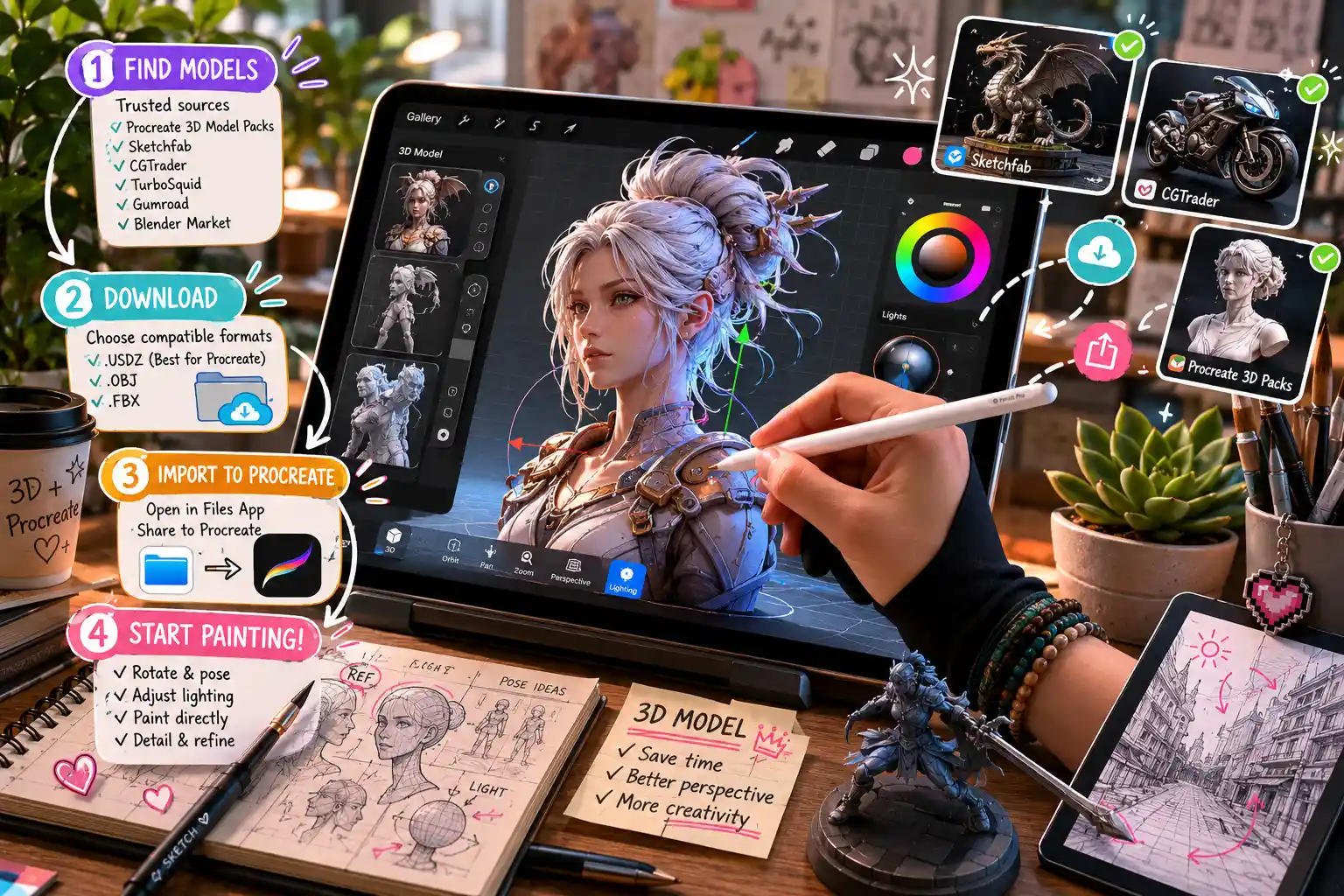
Since Procreate 5.2 introduced native 3D model painting in 2021, digital artists around the world have turned the app into a go-to tool for concept art, character design, product mockups, and even custom 3D printable projects. One of the biggest draws of working with 3D in Procreate is that you don’t need to master complex 3D modeling software to start painting—you can download ready-made 3D models from a range of trusted sources and dive straight into creating. But if you’re new to the 3D side of Procreate, figuring out where to find high-quality models, how to format them correctly, and how to import them into the app can feel overwhelming. This step-by-step guide breaks down everything you need to know to download and use 3D models in Procreate, from finding free and paid assets to troubleshooting common issues.
Understanding Which 3D Model Formats Work in Procreate
Before you start searching for 3D models to download, it’s critical to understand which file formats Procreate supports. Not all 3D models will work natively in the app, and downloading the wrong format will leave you with a file you can’t open or edit. Knowing Procreate’s requirements upfront saves you time and frustration, especially when downloading models from third-party sites that host a range of different file types.
The Only Supported Format: USDZ
Procreate for iPad exclusively supports the USDZ 3D file format. Developed by Apple in partnership with Pixar, USDZ is a universal, royalty-free format optimized for AR (augmented reality) and iOS apps, which makes it perfect for Procreate’s 3D painting tools. Unlike other common formats like OBJ, FBX, or STL, USDZ packages all of a model’s geometry, texture data, and materials into a single compact file, which simplifies importing and editing in Procreate.
That doesn’t mean you can’t use models downloaded in other formats, though. If you find a model you love that’s available as an OBJ or FBX, you can convert it to USDZ for free using Apple’s built-in tools or online converters, which we’ll cover later in this guide.
What to Look for in a Procreate 3D Model
Beyond the file format, there are a few key factors to consider when downloading 3D models for Procreate to ensure a smooth editing experience:
- Polygon count: Procreate works best with models that have fewer than 200,000 polygons. High-poly models with millions of faces will slow down your iPad, cause lag, or even crash the app. If you’re new to 3D in Procreate, stick to low-poly or mid-poly models under 100,000 polygons while you get used to the workflow.
- Licensing: Always check the usage license before downloading a model. Some models are free for personal use only, while others allow commercial use for projects you plan to sell. Many creators require attribution, so make sure you follow the terms to avoid copyright issues.
- UV unwrapping: A good 3D model for Procreate will come with a clean, non-overlapping UV unwrap. UV unwrapping is the process of flattening a 3D model’s surface into a 2D map, which lets Procreate apply your paint strokes correctly across the model’s surface. Messy UVs will result in stretched or distorted paint when you start working.
Where to Download 3D Models for Procreate
There are dozens of online marketplaces and free resources that host 3D models optimized for Procreate, ranging from completely free assets for beginners to premium professional-quality models for commercial projects. Whether you’re looking for character bases, product mockups, environmental assets, or abstract shapes, you’ll find what you need in one of these trusted sources.
Free 3D Model Sources for Procreate
If you’re just experimenting with 3D painting in Procreate and don’t want to invest money upfront, these free resources offer high-quality USDZ models ready to download:
- Procreate’s Official Free 3D Model Pack: The first place to check is Procreate’s own website, where they offer a free pack of 10 ready-to-use 3D models including a human head, a coffee mug, a sneaker, a sphere, and more. All are already optimized for Procreate with clean UVs and the correct USDZ format, so they’re perfect for beginners to practice with.
- Sketchfab: Sketchfab is one of the largest 3D model libraries in the world, and it has a huge collection of free USDZ models you can filter by license and format. Most free models are available for personal use, and many allow commercial use with attribution. You can download USDZ directly from the site without converting, and the search tools let you filter by polygon count to find models that work well on iPad.
- Poly Haven: Poly Haven offers completely free, 100% CC0 (public domain) 3D models, meaning you can use them for any personal or commercial project with no attribution required. While most models are available as FBX or OBJ, converting them to USDZ is quick and easy, and all models come with clean topology and UVs.
- Google Poly: Though Google Poly is no longer accepting new uploads, the existing library of thousands of free low-poly 3D models is still available for download, and many can be exported directly as USDZ for use in Procreate.
Premium 3D Model Sources for Procreate
If you need professional-quality models for commercial projects or want more unique, niche assets, these premium marketplaces offer pre-optimized USDZ models for a range of prices:
- Gumroad: Many independent 3D artists sell custom 3D model packs for Procreate on Gumroad, ranging from $5 character base packs to $50+ complete scene sets. Most artists format models as USDZ upfront, so you can download and import them immediately. Gumroad is also a great place to find niche models, like fantasy creature bases, product mockups for apparel designers, or architectural assets.
- CGTrader: CGTrader is a large 3D marketplace that lets you filter search results by USDZ format, so you can find thousands of pre-converted models for everything from product design to game art. Many models come with commercial licenses, and you can even commission custom models from artists if you need something specific.
- TurboSquid: TurboSquid, owned by Shutterstock, is another major marketplace that offers a wide selection of USDZ models optimized for iOS and Procreate. They have a dedicated section for AR and iPad-ready models, and most high-quality models are pre-checked for clean topology and correct UV mapping.
- Etsy: Etsy has become a popular spot for independent creators to sell 3D models for Procreate, especially custom models for small business owners. For example, you can find pre-made 3D mug mockups, jewelry models, or canvas wrap models that let you showcase your 2D art on a 3D product in Procreate.
One of the biggest mistakes new Procreate 3D artists make is downloading huge high-poly models from generic 3D sites without checking the polygon count first. A model that works in a desktop 3D program like Blender will bring an iPad to its knees. Always start small, and stick to pre-optimized USDZ models when you’re first learning.
How to Convert Non-USDZ 3D Models to Procreate
Many of the best free 3D models online are available as OBJ, FBX, or STL files, not USDZ. That doesn’t mean you can’t use them in Procreate—converting a 3D model to USDZ is a straightforward process, and most methods are completely free. Whether you’re working on your iPad or your desktop, you can convert a model in just a few steps.
Converting Models on iPhone or iPad with Reality Converter
The easiest free way to convert 3D models to USDZ directly on your iPad is using Apple’s free Reality Converter app, available exclusively on the App Store. The app is made by Apple specifically for converting 3D models to USDZ for AR and iOS apps, and it works seamlessly with Procreate. Here’s the step-by-step process:
- Download Reality Converter from the App Store to your iPad. It’s completely free and doesn’t require any in-app purchases.
- Import your OBJ, FBX, or STL file into Reality Converter. You can open the file from the Files app, AirDrop it from your computer, or import it from iCloud directly.
- Adjust the model if needed. Reality Converter lets you resize the model, rotate it, and adjust basic materials to make sure it’s ready for Procreate. You can also simplify the polygon count if the model is too high-resolution for your iPad.
- Export the file as USDZ. Once you’re happy with the model, just export it to your Files app or save it directly to iCloud. From there, you can import it straight into Procreate.
Converting Models on Desktop with Online Tools
If you’re downloading models to your Mac or Windows PC first, there are a few free online tools that can convert common 3D formats to USDZ without you needing to download any software. Popular options include Convertio, 3D Convertio, and Apple’s own Reality Composer web tool. To convert a model online:
- Upload your OBJ, FBX, or GLB file to the converter tool
- Select USDZ as the output format
- Process the conversion and download the new USDZ file
- AirDrop or transfer the file to your iPad’s Files app to import into Procreate
Most free online converters work well for small to medium-sized models, but you may need a paid account for very large files over 100MB. Keep in mind that uploading models with a commercial license to a third-party online tool is generally fine, but always check the tool’s terms of service to make sure you’re not giving up rights to your work.
Advanced Conversion with Blender
If you already use Blender (the free open-source 3D modeling software) for 3D work, you can add the USDZ export add-on to export models directly as USDZ from Blender. This is a great option if you want to edit the model first—for example, reducing the polygon count, fixing UVs, or combining multiple models into one file before exporting for Procreate. The Blender USD export plugin is free and built into newer versions of Blender, so you just need to enable it in your preferences to start exporting USDZ files directly.
How to Import Downloaded 3D Models Into Procreate
Once you’ve downloaded or converted your 3D model to USDZ, importing it into Procreate is a quick process that only takes a few taps. The exact method depends on where you saved your file, but all workflows are straightforward even for beginners.
Importing from the Files App or iCloud
Most downloaded 3D models will be saved to your iPad’s Files app or iCloud Drive, which is the easiest place to import them from directly within Procreate. Follow these steps:
- Open Procreate and create a new canvas. You can choose any custom canvas size you prefer—Procreate will automatically adjust the canvas to fit your 3D model when you import it.
- Tap the wrench icon in the top left corner to open the Actions menu.
- Select Add from the top menu bar, then tap Insert 3D Model.
- Navigate to where you saved your USDZ file in the Files app or iCloud. Tap the file, and it will automatically import into your Procreate canvas.
Once imported, you can move, rotate, and resize the 3D model using Procreate’s touch gestures, just like you would with a 2D layer. You can also access the 3D painting tools to start painting directly on the model’s surface right away.
Alternative Import Methods
If you downloaded a model directly in Safari on your iPad, or received it via AirDrop or email, you can import it directly without opening Procreate first. Here’s how:
- Find the USDZ file in your downloads folder, email, or AirDrop notification
- Tap the share icon (the square with an upward arrow)
- Scroll through the share sheet and select "Open in Procreate"
- Procreate will automatically open and create a new canvas with your 3D model imported and ready to edit
This method is especially useful if you’re downloading models directly to your iPad while you’re on the go, as it cuts out the step of navigating to the file from within Procreate.
Organizing Your Downloaded 3D Models
If you download a lot of 3D models for Procreate, organizing them will save you time when you’re looking for a specific asset for a project. A good system is to create a dedicated "Procreate 3D Models" folder in your iCloud Drive, sorted into subfolders by category (for example, characters, products, environment, abstract). This makes it easy to find the model you want when you’re importing from within Procreate. It also backs up your models automatically, so you won’t lose them if you get a new iPad.
Many artists also like to save a thumbnail screenshot of each model next to the USDZ file in their folder, so you can see what the model looks like without importing it into Procreate first. That’s a small step that makes browsing your collection much faster.
Troubleshooting Common Issues With Downloaded 3D Models
Even when you follow all the steps correctly, you may run into issues with downloaded 3D models in Procreate. Most problems are easy to fix with a few simple adjustments, and we’ve outlined the most common issues and their solutions below.
Procreate Won’t Import My Model
If Procreate isn’t recognizing your file or throws an error when you try to import it, the most common cause is the wrong file format. Double-check that your file is a USDZ file—sometimes when you download a model from a marketplace, it will be zipped to reduce file size. You’ll need to unzip the file first in the Files app (just tap the zip file, and iOS will automatically unzip it for you) to get the USDZ file you can import.
If the file is already USDZ, it may be corrupted. Try downloading it again from the original source, or re-convert it from the original OBJ/FBX file if you converted it yourself. That fixes most corrupted file issues.
Procreate Is Lagging Or Crashing When I Use My Model
If Procreate lags, stutters, or crashes when you’re working with a downloaded model, the most likely issue is a polygon count that’s too high for your iPad’s processing power. Older iPads (pre-2018) and entry-level iPads have less RAM than Pro models, so they struggle with large high-poly models.
To fix this, open the model in Blender or Reality Converter and simplify the polygon count to under 200,000 faces (or under 100,000 for older iPads). You can usually reduce the polygon count significantly without losing any noticeable detail in the model, and that will make it run smoothly in Procreate.
My Paint Is Stretched Or Distorted On The Model
If your paint strokes look stretched, warped, or duplicated across the model, the issue is almost always bad UV unwrapping. When you download a model from an untrusted source, it may not have a clean UV map, which causes this distortion. To fix it, you’ll need to re-unwrap the UVs in a 3D program like Blender before converting it to USDZ and importing it again. If you’re not comfortable editing UVs yourself, the best solution is to download a different version of the model from a source that checks UVs before publishing.
The Model Is Too Big Or Too Small In My Canvas
Procreate automatically scales models when you import them, but sometimes models come in wrong sizes that make them too big to work with or too small to see. Fixing this is easy: just use two fingers to pinch the model to scale it down or spread your fingers to scale it up. You can also move the model around the canvas with one finger, or rotate it by twisting two fingers on the screen. Once you have it positioned the way you want, you can start painting.
Conclusion
Downloading 3D models for Procreate opens up a whole new world of creative possibilities, from painting custom character concepts to creating photorealistic product mockups for your small business. Once you know what file format to look for, where to find trusted high-quality models, and how to import them into the app, it becomes a simple, seamless process that lets you focus on creating instead of troubleshooting.
Start with Procreate’s free official model pack to practice your 3D painting skills, then experiment with free models from Sketchfab or Poly Haven before investing in premium assets. If you find a model you love that’s not in USDZ format, you can convert it for free in just a few minutes with Reality Converter on your iPad. By starting small and organizing your downloaded models, you’ll build a library of assets that you can use again and again for all kinds of Procreate projects.
Whether you’re a traditional artist making the jump to digital, a product designer looking for a quick way to visualize new designs, or a concept artist experimenting with new workflows, working with downloaded 3D models in Procreate is a flexible, accessible way to explore 3D art without needing to master complex desktop 3D software.