
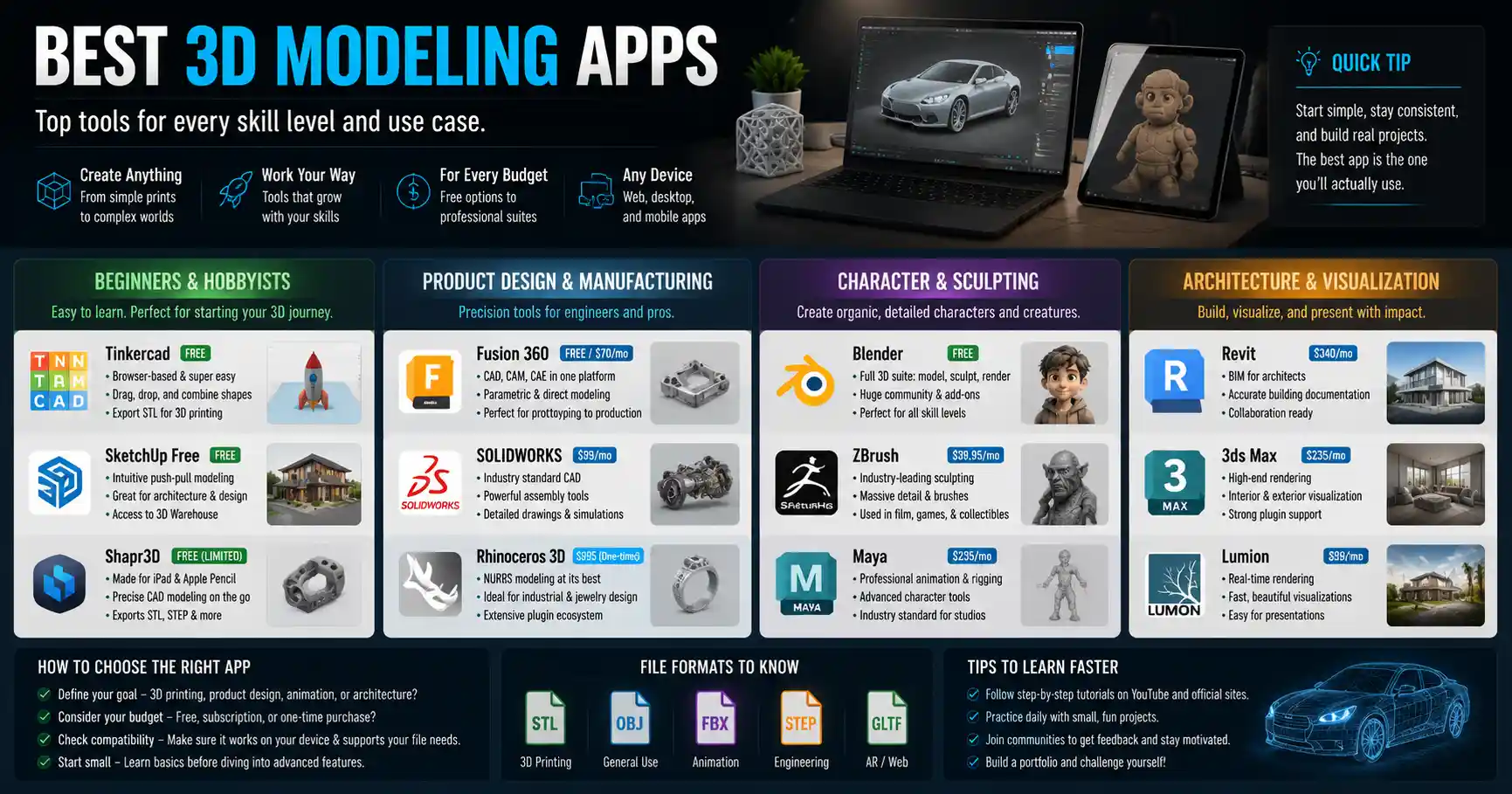
Whether you’re a hobbyist 3D printing a custom phone stand, a product designer prototyping a new invention, or a game developer building immersive environments, the right 3D modeling app can turn a vague idea into a tangible, usable design. Gone are the days when professional-grade 3D tools cost thousands of dollars and required a powerful dedicated workstation to run. Today, a wide range of apps cater to every skill level, budget, and use case—from free mobile apps you can use on your commute to desktop suites that rival industry-standard tools. This guide breaks down the best 3D modeling apps available right now, organized by use case and skill level, to help you pick the right tool for your next project.
Best 3D Modeling Apps for Beginners & Hobbyists
If you’re new to 3D modeling, the last thing you want is to navigate a convoluted interface with hundreds of unlabeled tools and a steep learning curve that takes months to master. Beginners need apps that prioritize intuitive design, guided tutorials, and low (or no) cost to experiment without pressure. Many hobbyists also use 3D modeling for 3D printing, personal projects, or small custom designs, so tools tailored to these needs rise to the top.
Tinkercad
Developed by Autodesk, the same company behind industry-leading tools like AutoCAD and Maya, Tinkercad is widely considered the gold standard for 3D modeling beginners. It’s a browser-based app, so you don’t need to download any large files or worry about system requirements—you just create a free account and start designing in minutes. The core interface uses a simple “block-based” system: you drag and drop basic shapes (cubes, cylinders, spheres) onto a workplane, resize them, and combine or cut them apart to create more complex designs.
This approach teaches fundamental 3D modeling concepts like the difference between additive and subtractive modeling without overwhelming new users. Tinkercad also includes built-in tutorials, a community gallery of shared designs to remix, and direct export to STL files—the standard format for 3D printing. The entire platform is free for personal use, with a low-cost education plan for schools that includes extra classroom tools. The only major downside is that it’s too limited for complex professional projects, which makes it perfect for learning but not a long-term solution for most designers.
SketchUp Free
Originally launched as a consumer-friendly alternative to complicated architectural CAD tools, SketchUp has grown into a staple for beginners and professionals alike. The free web version, SketchUp Free, offers a much more flexible approach than Tinkercad for beginners who want to move beyond basic block modeling. It uses a push-pull system that lets you draw a 2D outline and extrude it into 3D space, which feels incredibly intuitive for anyone interested in architecture, interior design, or furniture modeling.
Like Tinkercad, it’s browser-based, so you can access your designs from any device, and it exports STL for 3D printing. The free version includes 10GB of cloud storage and access to a huge library of pre-made models (called the 3D Warehouse) that you can drop into your own designs. SketchUp Free is ideal for beginners who want to create larger designs like room layouts, backyard sheds, or custom furniture, and the paid Pro upgrade offers more advanced features if you outgrow the free version.
Shapr3D (Mobile/Tablet)
For beginners who prefer working on an iPad or tablet with an Apple Pencil, Shapr3D is a game-changer. It brings professional-grade parametric modeling to a touch interface, with a free tier that lets beginners learn and create small projects without paying. Shapr3D is designed specifically for pen input, so drawing 2D sketches and turning them into 3D objects feels natural, far more intuitive than trying to tap and drag with your finger on a small screen. The free tier includes all the core tools for basic modeling, and exports STL, STEP, and other common formats, making it perfect for hobbyists who want to design on the go.
- Beginner-friendly tip: Start with Tinkercad if you’re completely new to 3D concepts, then move to SketchUp Free or Shapr3D once you’re comfortable with the basics.
- All three options on this list support STL export, which means you can directly send your designs to any consumer 3D printer.
- None require a powerful desktop computer—Tinkercad and SketchUp Free run on any laptop, and Shapr3D runs on most modern iPads.
Best Professional 3D Modeling Apps for Product Design & Manufacturing
If you’re a professional product designer, engineer, or manufacturer, you need 3D modeling tools that support precise measurements, parametric design, and compatibility with CNC machining, injection molding, and other industrial production processes. Unlike hobbyist tools, professional apps for product design need to handle complex assemblies, generate technical drawings, and work with industry-standard file formats like STEP and IGES. Here are the top options for professional product design work today.
Fusion 360
Autodesk Fusion 360 has revolutionized professional 3D modeling over the past decade, bringing integrated CAD, CAM, and CAE tools to a single cloud-based platform at a fraction of the cost of older industrial tools. It combines parametric modeling (where you can edit earlier features to update the entire design) with freeform modeling, assembly modeling, and even built-in tools for simulating stress, heat, and movement. It also includes integrated CAM for generating toolpaths for CNC milling and 3D printing, so you don’t need to export your design to a separate program to prepare it for production.
For freelancers and small businesses, Fusion 360’s pricing model is incredibly accessible: it’s free for individual users who make less than $100,000 a year in revenue, with a $70 monthly subscription for larger teams. The cloud-based platform means you can access your designs from any device, and it automatically saves versions so you don’t lose work if your computer crashes. It also has a huge community of users, thousands of free tutorials, and integration with most 3D printing and manufacturing services. The main criticism of Fusion 360 in recent years has been its shift to a subscription-only model and occasional performance issues with very large assemblies, but for most product designers, it’s still the best value on the market.
SolidWorks
For decades, SolidWorks has been the industry standard for product design and mechanical engineering, and it still dominates in large manufacturing and enterprise settings. It’s a desktop-only app that offers incredibly powerful parametric modeling, advanced assembly tools, and a huge ecosystem of third-party plugins for everything from simulation to sustainable design analysis. SolidWorks is known for its reliability and accuracy, which makes it the go-to choice for companies designing complex products like medical devices, automotive parts, and heavy machinery.
The downside is cost: a single license of SolidWorks costs thousands of dollars up front, plus annual maintenance fees, so it’s out of reach for most freelancers and small startups. It also requires a powerful workstation to run smoothly, especially with large assemblies. But for large teams that need the reliability and ecosystem SolidWorks offers, it’s still the top choice.
Onshape
Onshape is a cloud-native alternative to SolidWorks and Fusion 360, designed specifically for professional teams working on complex product designs. Like Fusion 360, it’s accessible from any device with a web browser, but it offers more advanced version control and collaboration tools that make it easy for multiple designers to work on the same assembly at the same time. Onshape never locks your files, so you don’t have to wait for a teammate to check out a part to edit it, and it keeps a full history of every change ever made to the design, which is critical for compliance in regulated industries like medical and aerospace.
Pricing starts at $1500 a year per user, which is cheaper than SolidWorks but more expensive than Fusion 360. It’s an excellent choice for professional teams that prioritize cloud collaboration and don’t want the overhead of managing desktop software installations and licenses.
“The biggest shift in 3D modeling over the last 10 years hasn’t been better graphics—it’s democratization. What used to cost a small company $50,000 in software and hardware can now be done for free with a laptop and an internet connection. That’s opened up product design to a whole new generation of creators that would have never been able to participate before.”
Best 3D Modeling Apps for Animation, Game Design & VFX
3D modeling for animation, game development, and visual effects is a very different process than modeling for manufacturing. Instead of prioritizing precise measurements and technical drawings, creators in these fields need tools that handle organic shapes, high-poly details, and integration with animation and rendering pipelines. Whether you’re building character models for an indie game, creating assets for a short film, or designing VFX for a commercial project, these are the best apps to use.
Blender
There’s a reason Blender is the most popular free 3D app in the world for artists and animators. It’s a completely open-source, full-featured 3D creation suite that includes modeling, sculpting, animation, rigging, rendering, VFX, and even video editing—all for free, with no subscription fees or usage limits. Blender started as a hobbyist project in the 90s, but today it’s backed by a massive global community of developers and artists, and it’s used for everything from indie games to big-budget Hollywood films (Spider-Man: Across the Spider-Verse used Blender extensively for many of its scenes).
For modeling, Blender offers both polygon modeling for hard-surface assets like weapons and vehicles, and advanced sculpting tools for organic shapes like characters, plants, and creatures. It supports high-poly modeling with millions of polygons, and it integrates with all popular rendering engines, including Cycles (Blender’s own built-in physically based renderer) and Eevee for real-time previews. The learning curve is steeper than beginner tools, but there are thousands of free high-quality tutorials available online, and the community is incredibly welcoming to new users. For independent game developers, animators, and VFX artists on a budget, Blender is unbeatable—it’s just as powerful as many paid professional tools in this category.
Autodesk Maya
Maya has been the industry standard for 3D animation and VFX for decades, and it’s still the top choice for large studios working on feature films and AAA games. It offers incredibly powerful modeling, animation, rigging, and rendering tools, with a huge range of advanced features for complex VFX work like fluid simulation, cloth simulation, and particle effects. Maya’s modeling tools are particularly strong for character modeling and hard-surface asset creation for games, and it integrates seamlessly with other industry-standard tools like Adobe Photoshop, Substance Painter, and Unreal Engine.
Pricing for Maya is $225 a month per user, which makes it a big investment for independent creators, but it’s the standard expected by most large studios, so many artists learn it early in their careers. For freelancers working with big clients, having Maya proficiency is often a requirement.
ZBrush
If you need to create highly detailed organic models—like character faces, creatures, or intricate sculptural details—ZBrush is the industry standard. It’s a digital sculpting app that uses a unique brush-based system that lets you sculpt high-poly details with millions of polygons, far more than most other 3D apps can handle. ZBrush feels more like traditional sculpting with clay than traditional 3D modeling, which makes it a favorite of character artists and sculptors.
You can buy ZBrush for a one-time fee of $499, or subscribe for $14.95 a month, which makes it accessible for most professional artists. It’s often used in combination with other apps: many artists sculpt the high-poly details in ZBrush, then retopologize the model and add textures in Blender or Maya before exporting it to a game engine or renderer.
- Start with Blender if you’re new to 3D for games or animation—you can learn all the core skills without spending any money.
- For detailed sculpting, add ZBrush to your workflow once you outgrow Blender’s built-in sculpting tools.
- If you’re pursuing a career at a major studio, learn Maya early to meet industry job requirements.
- All three apps export common file formats like FBX that work with every popular game engine, including Unity and Unreal Engine.
Best Mobile 3D Modeling Apps for On-the-Go Creation
Mobile 3D modeling has come a long way in the past five years, with modern smartphones and tablets offering enough processing power to handle basic to intermediate 3D designs. Mobile apps are perfect for sketching out ideas when you’re away from your desk, making quick edits to existing designs, or even creating full models for 3D printing if you prefer working with a touch screen. Here are the best options for iOS and Android.
uMake (iOS)
uMake is one of the most polished mobile 3D modeling apps available, designed exclusively for iPad and Apple Pencil. It combines 2D sketching with 3D modeling, letting you draw freehand sketches and automatically convert them into editable 3D objects. The interface is optimized for touch and pen input, so you don’t have to struggle with tiny buttons or complicated keyboard shortcuts. uMake supports import and export of all common 3D formats, including STL, IGES, and OBJ, so you can start a design on your iPad and finish it on your desktop in a professional app, or export it directly to 3D print.
uMake offers a free tier with limited features, and a $12 monthly subscription for full access to all tools. It’s ideal for designers who want to sketch out ideas on the go, or for beginners who want to learn 3D modeling with an iPad.
Prisma3D (Android/iOS)
For animators and game artists who want to create simple 3D models on their phone, Prisma3D is a free, ad-supported option that offers surprisingly powerful tools. It includes polygon modeling, basic sculpting, rigging, and animation, all designed to work on mobile devices. You can export models as OBJ or FBX to use in other apps, or render them directly on your phone. The free version has ads, but you can remove them with a one-time $15 in-app purchase. It’s not as powerful as desktop apps, but it’s perfect for quick concepting or small mobile projects.
SculptGL (Free, Cross-Platform)
If you’re into digital sculpting and want to do it on the go, SculptGL is a completely free, browser-based sculpting app that works on mobile and desktop. It offers a range of brushes for sculpting organic shapes, supports dynamic tessellation to add detail where you need it, and exports OBJ files that you can use in other 3D apps. It’s completely free with no ads or in-app purchases, and it doesn’t require an account to use. It’s a great option for hobbyist sculptors who want to experiment without investing in a paid app like ZBrush.
It’s important to manage expectations for mobile 3D modeling: even the best mobile apps can’t match the power and feature set of desktop tools, especially for complex projects. But for concepting, quick edits, and small designs, they’re incredibly useful, and they make it easy to work on your ideas wherever you are.
Conclusion
The best 3D modeling app for you depends entirely on your skill level, your use case, and your budget. If you’re a complete beginner or hobbyist, you can’t go wrong starting with Tinkercad or SketchUp Free—both are free, easy to learn, and perfect for learning the basics of 3D design for 3D printing or personal projects. If you’re a professional product designer or engineer, Fusion 360 offers unbeatable value for freelancers and small teams, while SolidWorks or Onshape are better choices for large enterprise teams that need advanced collaboration and industry-standard reliability. For artists, animators, and game developers, Blender is an incredible free option that can handle almost any project, while Maya and ZBrush are the industry standards for large studio work. And if you want to create on the go, Shapr3D and uMake bring powerful 3D modeling to your tablet.
One of the biggest advantages of the current 3D modeling landscape is that you don’t have to invest hundreds or thousands of dollars to try out a tool. Most of the apps on this list offer free tiers or free trials, so you can test out a few options to see which one fits your workflow before committing. Whether you’re just starting out or you’re a seasoned professional looking for a better tool, there’s never been a better time to get into 3D modeling—with more accessible, powerful, and affordable options than ever before, all you need is an idea to get started.