
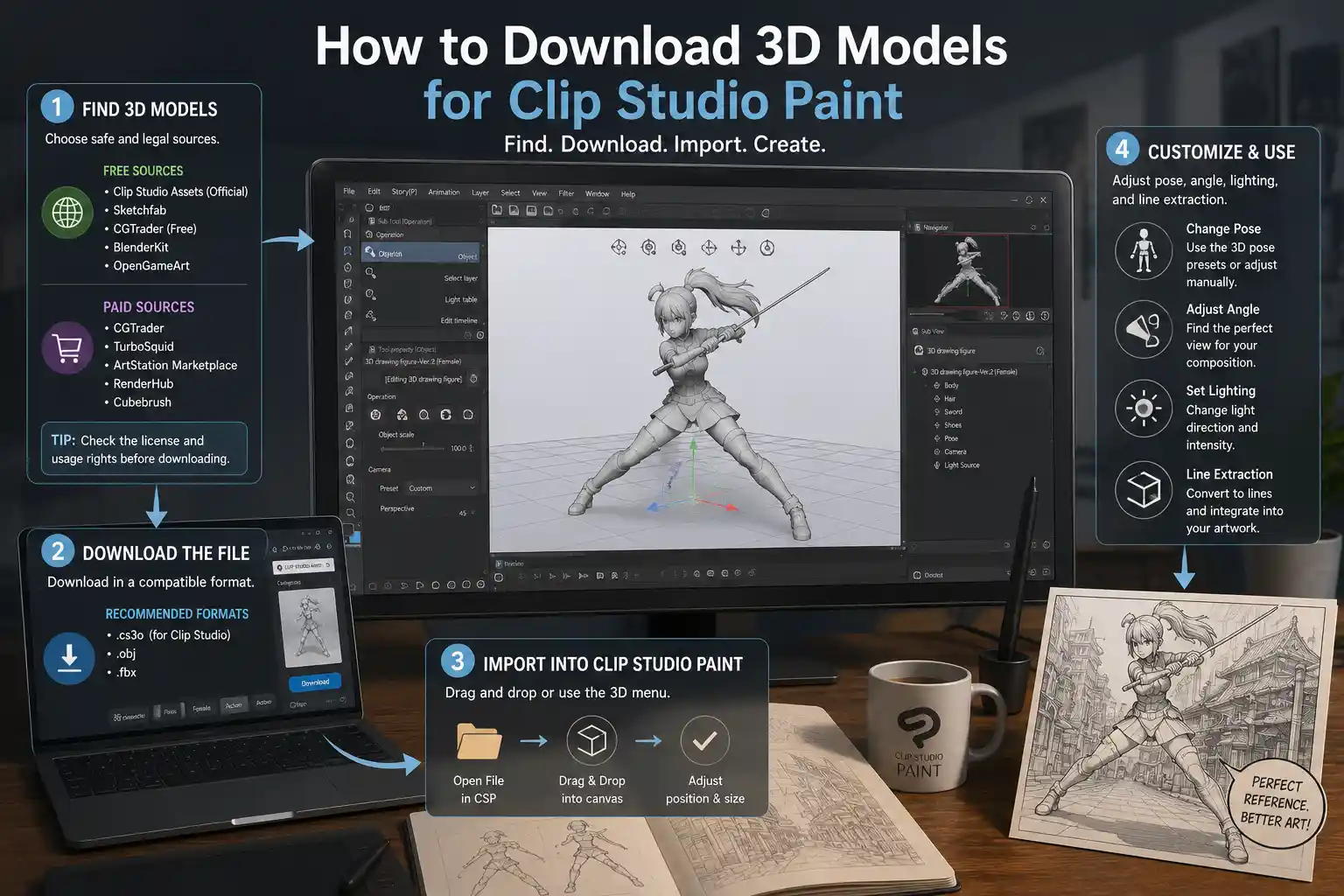
If you’ve ever struggled to get perspective right on a complex character pose or struggled to draw a detailed background environment from scratch, 3D models in Clip Studio Paint are a total game-changer. Unlike drawing every element freehand, these pre-made 3D assets let you adjust poses, angles, and lighting to use as a precise reference or even integrate directly into your finished art. Whether you’re a hobbyist comic artist, a professional illustrator, or a concept artist exploring new workflows, knowing where to find high-quality 3D models and how to add them to your Clip Studio Paint library saves hours of work and elevates the consistency of your art. This guide breaks down every step of the process, from finding safe, legal assets to importing and customizing them for your projects.
Where to Find Legal, High-Quality 3D Models for Clip Studio Paint
Before you start downloading, it’s critical to source 3D models from platforms that offer clear usage rights, whether you’re creating personal art or commercial projects. Many beginner artists accidentally download unlicensed assets that can lead to copyright claims down the line, so sticking to reputable marketplaces and official sources eliminates that risk. Below are the most reliable options, sorted by use case and budget.
Official Clip Studio Asset Store
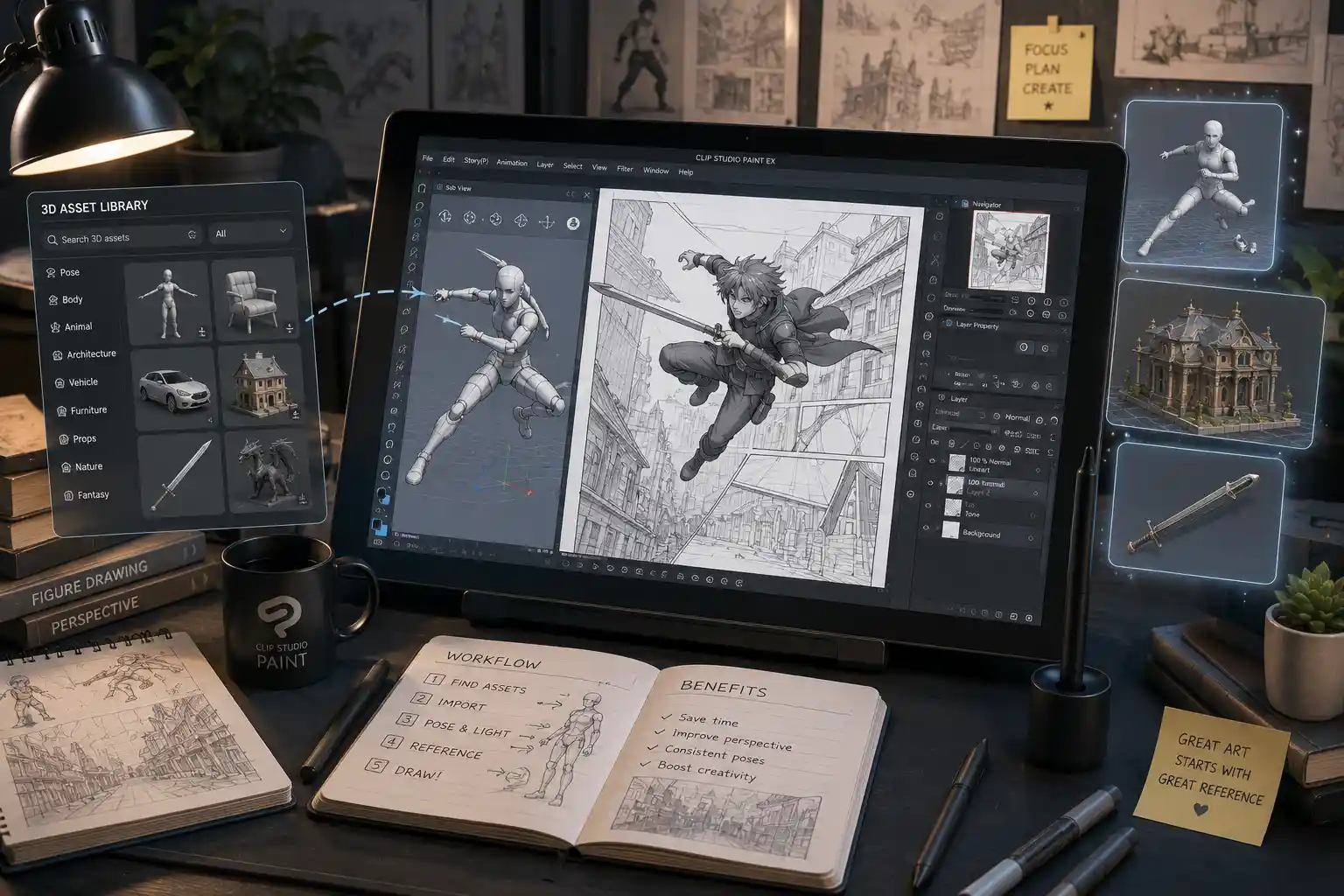
The first and most convenient place to find 3D models for Clip Studio Paint is the official Clip Studio Asset Store, built directly into the software. Because all assets on this platform are formatted specifically for Clip Studio Paint, you won’t have to worry about file compatibility issues or complicated conversion processes. The store has a huge range of free and paid assets: from basic human and animal character bases to detailed furniture, vehicles, architecture, and even fantasy creatures. Most assets uploaded by creators come with clear usage licenses, and free models are almost always allowed for both personal and commercial use with simple attribution. To access it, you just need a free Clip Studio account, which you already have if you’ve activated your copy of the software.
Third-Party Marketplaces
If you’re looking for more specialized or unique 3D models that aren’t available on the official Asset Store, reputable third-party marketplaces offer thousands of options that work with Clip Studio Paint. The most popular options for artists include:
- TurboSquid: One of the largest 3D model marketplaces online, with options ranging from free low-poly assets to high-poly professional models. All models come with clear license terms, and most common 3D file formats (like OBJ and FBX) are fully compatible with Clip Studio Paint.
- CGTrader: Similar to TurboSquid, CGTrader has a large library of free and paid 3D assets, with a big focus on fantasy, sci-fi, and character assets that are popular with comic and concept artists. Many creators also offer custom model commissions if you need something specific for your project.
- Blender Market: If you’re looking for stylized or art-focused 3D models, Blender Market is a great option. Most creators upload models in universal formats that work seamlessly with Clip Studio Paint, and licenses are clear for commercial use.
- Sketchfab: Sketchfab has a massive library of user-uploaded 3D models, with a robust filter to show only assets that allow download and commercial use. Many models are free, and you can export them in OBJ or FBX format directly from the site for use in Clip Studio Paint.
Official Clip Studio Asset Store
The first and most convenient place to find 3D models for Clip Studio Paint is the official Clip Studio Asset Store, built directly into the software. Because all assets on this platform are formatted specifically for Clip Studio Paint, you won’t have to worry about file compatibility issues or complicated conversion processes. The store has a huge range of free and paid assets: from basic human and animal character bases to detailed furniture, vehicles, architecture, and even fantasy creatures. Most assets uploaded by creators come with clear usage licenses, and free models are almost always allowed for both personal and commercial use with simple attribution. To access it, you just need a free Clip Studio account, which you already have if you’ve activated your copy of the software.
Third-Party Marketplaces
If you’re looking for more specialized or unique 3D models that aren’t available on the official Asset Store, reputable third-party marketplaces offer thousands of options that work with Clip Studio Paint. The most popular options for artists include:
- TurboSquid: One of the largest 3D model marketplaces online, with options ranging from free low-poly assets to high-poly professional models. All models come with clear license terms, and most common 3D file formats (like OBJ and FBX) are fully compatible with Clip Studio Paint.
- CGTrader: Similar to TurboSquid, CGTrader has a large library of free and paid 3D assets, with a big focus on fantasy, sci-fi, and character assets that are popular with comic and concept artists. Many creators also offer custom model commissions if you need something specific for your project.
- Blender Market: If you’re looking for stylized or art-focused 3D models, Blender Market is a great option. Most creators upload models in universal formats that work seamlessly with Clip Studio Paint, and licenses are clear for commercial use.
- Sketchfab: Sketchfab has a massive library of user-uploaded 3D models, with a robust filter to show only assets that allow download and commercial use. Many models are free, and you can export them in OBJ or FBX format directly from the site for use in Clip Studio Paint.
Free Community and Open-Source Sources
For artists on a budget, there are several community-run platforms that offer free, legally licensed 3D models for personal and commercial use. Poly Haven is a popular open-source platform that offers high-quality 3D environment models and textures that are 100% free for any use. Open3DModel has a large library of user-uploaded free models, though you should always check the license terms before using them commercially. Many independent artists also share free 3D models on platforms like Gumroad, DeviantArt, and Twitter/X in exchange for following their account or joining their mailing list, which is a great way to get unique assets from creators you love.
How to Download 3D Models (Step-by-Step Guide)
The download process varies slightly depending on where you get your 3D model, so we’ve broken it down into the two most common scenarios: downloading from the official Clip Studio Asset Store, and downloading from third-party sources.
Downloading from the Official Clip Studio Asset Store
This is the simplest method, because assets are automatically added to your Clip Studio Paint library once downloaded. Follow these step-by-step instructions:
- Open Clip Studio Paint on your computer, and make sure you’re connected to the internet. From the main Clip Studio welcome screen, click the Asset tab in the left sidebar. If you’re already in a canvas, you can also open the Asset window by going to Window > Asset in the top menu bar.
- Use the search bar to find the type of 3D model you need. You can filter results by price (free vs paid), file type (select "3D" to narrow results to only 3D assets), and popularity to find the highest quality options.
- Once you find a model you want, click on the asset thumbnail to open its detail page. Read the license terms to confirm you can use it for your project, then click the blue Add to Downloads button. For paid assets, you’ll complete the checkout process first before the download begins.
- Wait for the download to complete. Clip Studio Paint will automatically import the 3D model into your Material library, so you don’t need to do any manual file handling.
After the download finishes, you can find your new 3D model in the Material palette, usually sorted under the 3D folder or the tag the creator assigned to it. If you can’t find it immediately, use the search bar in the Material palette to search by the asset name.
Downloading from Third-Party Sources
When you download 3D models from outside the Clip Studio Asset Store, you’ll need to save the file to your computer first before importing it into Clip Studio Paint. The process is still straightforward, and these steps work for almost any 3D file type:
- After purchasing or downloading the 3D model from your chosen third-party platform, extract the files from the ZIP or RAR archive to a folder you can easily find on your computer. Most 3D downloads come packaged as compressed files to reduce download size, so you’ll need a tool like WinZip, 7-Zip, or the built-in extraction tool on Windows or macOS to open them.
- Check what file format the 3D model is in. Clip Studio Paint supports the most common universal 3D formats: OBJ, FBX, LWO, and 3DS. If your model is in a Blender-specific (.blend) or other proprietary format, you’ll need to open it in a 3D modeling tool like Blender (which is free) and export it as an OBJ or FBX first.
- Make note of where you saved the extracted 3D file on your computer. Many artists create a dedicated "3D Models for CSP" folder to keep assets organized, which saves time searching for files later.
One important note when downloading from third-party sources: always scan downloaded files with an up-to-date antivirus program before opening them, especially if you’re downloading from a smaller creator or community platform. Reputable marketplaces like TurboSquid and CGTrader scan all files for malware, but it’s always a good habit to be cautious.
How to Import and Organize Downloaded 3D Models in Clip Studio Paint
Once you’ve downloaded your 3D model, the next step is to import it into your project or add it to your permanent Clip Studio Paint material library for future use. We’ll cover both workflows below.
Importing a 3D Model Directly Into Your Current Project
If you just want to use a downloaded 3D model for your current canvas and don’t need to save it to your library, you can import it directly in a few clicks:
- Open your existing Clip Studio Paint canvas, or create a new one.
- Go to the top menu bar and select File > Import > 3D data.
- Navigate to the folder where you saved your extracted 3D model, select the OBJ, FBX, or other compatible file, and click Open.
- Clip Studio Paint will process the 3D model and add it to your canvas as a new 3D layer. You can immediately start adjusting it to fit your needs.
Adding Third-Party 3D Models to Your Clip Studio Paint Material Library
If you want to reuse the 3D model in future projects, it’s much more efficient to add it to your Clip Studio Paint material library so you can access it any time, just like assets from the official store. Here’s how to do it:
- Open the Material palette by going to Window > Material if it’s not already open. Select the folder where you want to store your new 3D model. You can create a new custom folder for your downloaded third-party assets to keep them separate from default Clip Studio materials.
- Click the small menu button (three horizontal lines) in the top right corner of the Material palette, then select Import Material > 3D.
- Navigate to your saved 3D file, select it, and click Open.
- A window will pop up that lets you add a name, tags, and a thumbnail for your new material. Adding descriptive tags (like "male character base" or "medieval table") makes it much easier to search for later. Check the box that says "Save to material" and click OK.
The 3D model will now be permanently saved in your Material library, ready to drag and drop into any future project. If you ever reinstall Clip Studio Paint or switch computers, you can back up your custom materials using Clip Studio’s cloud sync feature to avoid losing your downloaded assets.
Organizing Your 3D Model Library
As you download more 3D models, a disorganized library can waste time when you’re looking for a specific asset. A few simple organizational habits will keep your library easy to navigate:
- Create custom folders sorted by type: e.g., "Character Bases", "Furniture", "Vehicles", "Buildings", "Fantasy Creatures" to keep similar assets together
- Add relevant tags during the import process, so you can search for assets by keyword even if you forget which folder you put them in
- Delete any assets you don’t use to keep your library from getting cluttered – you can always re-download them later if you need them
- Use Clip Studio’s cloud sync to back up your custom materials, so you never lose your collection if your computer crashes
Tips for Working With Downloaded 3D Models in Clip Studio Paint
Once you’ve imported your downloaded 3D model, there are a few tips and tricks to get the most out of it, whether you’re using it as a reference or integrating it into your finished art. Many new artists don’t take advantage of the full range of 3D editing tools Clip Studio Paint offers, so these tweaks can make a huge difference in your final result.
3D models aren’t meant to be a crutch – they’re a tool to speed up your workflow and help you fix mistakes that would take hours to correct freehand. The best artists use 3D as a foundation, then add their own style and detail on top.
Adjusting Poses and Angles for Character Models
One of the biggest benefits of 3D character models is that you can adjust any pose to match exactly what you need, instead of being stuck with the default pose the model came with. Clip Studio Paint has a built-in pose tool that makes this easy even for beginners. Once you select your 3D model layer, the Object tool will bring up pose manipulation options: you can drag individual body parts to reposition them, use the pose presets built into Clip Studio Paint to quickly select a common standing or sitting pose, and even adjust the camera angle to get the exact perspective you need. For more complex poses, you can import full pose files from the Clip Studio Asset Store and apply them to your 3D base in one click.
Fixing Common Import Issues
Sometimes, third-party 3D models don’t import perfectly into Clip Studio Paint, but most common issues have simple fixes:
- Model is missing textures: If your 3D model imports without its color or texture, check if the texture files were included in the download zip. You can manually add textures to the model in the Sub Tool Detail palette when the 3D layer is selected, by navigating to the texture file on your computer.
- Model is too big or too small: When you import a 3D model, it may come in at the wrong scale for your canvas. Just use the scale handles on the Object tool to resize it to fit, or enter a specific scale value in the Object property panel.
- Model won’t import at all: If Clip Studio Paint won’t open your 3D file, check the file format. If it’s a format Clip Studio doesn’t support (like .blend or .stl), open it in a free tool like Blender and export it as an OBJ or FBX, then try importing again. Some very high-poly models can also crash Clip Studio if your computer doesn’t have enough RAM, so you may need to reduce the polygon count in a 3D editing tool before importing.
Optimizing 3D Models for Performance
If you have multiple high-poly 3D models in one project, Clip Studio Paint can start to run slower, especially on older computers. To keep your workflow smooth, you can reduce the display resolution of your 3D models while you work, then increase it when you’re ready to export. You can also turn off unnecessary texture details while you’re adjusting poses and perspective, then turn them back on when you start tracing or painting over the model. If you’re just using the 3D model as a reference for perspective, you can lower the opacity of the 3D layer and lock it once you have your pose right, which frees up processing power for your other layers.
Commercial Use Best Practices
If you’re creating art that you plan to sell, it’s extra important to follow the license terms of any 3D model you download. Most free models allow commercial use, but some require attribution to the original creator, and a few only allow non-commercial personal use. Always read the license terms before you use a downloaded 3D model in a commercial project. If you’re unsure, you can reach out to the original creator to ask for permission, or choose a different model with a clear commercial license. For paid models from major marketplaces, the license almost always allows commercial use in finished art, but you usually can’t redistribute the 3D model file itself – that’s standard across most platforms.
Common Mistakes to Avoid When Downloading 3D Models
Even experienced artists make small mistakes when downloading 3D models that can cause frustration later. Avoiding these common pitfalls will save you time and stress:
First, the biggest mistake is downloading unlicensed models from untrusted sources. Many sites offer free 3D models that were uploaded without the original creator’s permission, which means using them in your art can lead to copyright strikes or takedown requests, even if you didn’t know the model was stolen. Sticking to the reputable sources we listed earlier eliminates this risk entirely.
Second, many new artists forget to back up their custom downloaded 3D models. If you only save the files to your computer and don’t back them up to the cloud or an external drive, you can lose your entire collection if your computer crashes or you get a new device. Clip Studio Paint’s built-in cloud sync works for custom materials, or you can keep a copy of your original downloaded files in a cloud storage service like Google Drive or Dropbox for extra security.
Third, downloading overly high-poly models that your computer can’t handle. A 3D model with millions of polygons might look great, but if your computer doesn’t have enough RAM or processing power, it will slow down Clip Studio Paint or even crash the program. For most illustration and comic use cases, a low or medium-poly model is more than enough – you’re going to be drawing over it anyway, so you don’t need extra detail that you can’t even see in your final art.
Fourth, not organizing your library as you go. If you download dozens of 3D models and just dump them all into the default 3D folder without adding tags or sorting them into folders, you’ll end up wasting 10 minutes searching for the specific model you need every time you start a new project. Spending 2 minutes to add a tag and sort a new model into the right folder when you import it saves hours of time later.
Conclusion
Downloading 3D models for Clip Studio Paint is a straightforward process once you know where to source safe assets and how to import them into your library. Starting with the official Clip Studio Asset Store is the best option for beginners, thanks to its built-in compatibility and clear licensing, while third-party marketplaces offer more variety for artists looking for specialized assets. By following best practices for licensing, organization, and performance, you can build a collection of 3D models that speed up your workflow and help you create more consistent, polished art. Whether you use 3D models as a reference for perspective and pose, or integrate them directly into your finished work, they’re a powerful tool that takes the frustration out of drawing complex elements, leaving you more time to focus on the creative part of your art.