
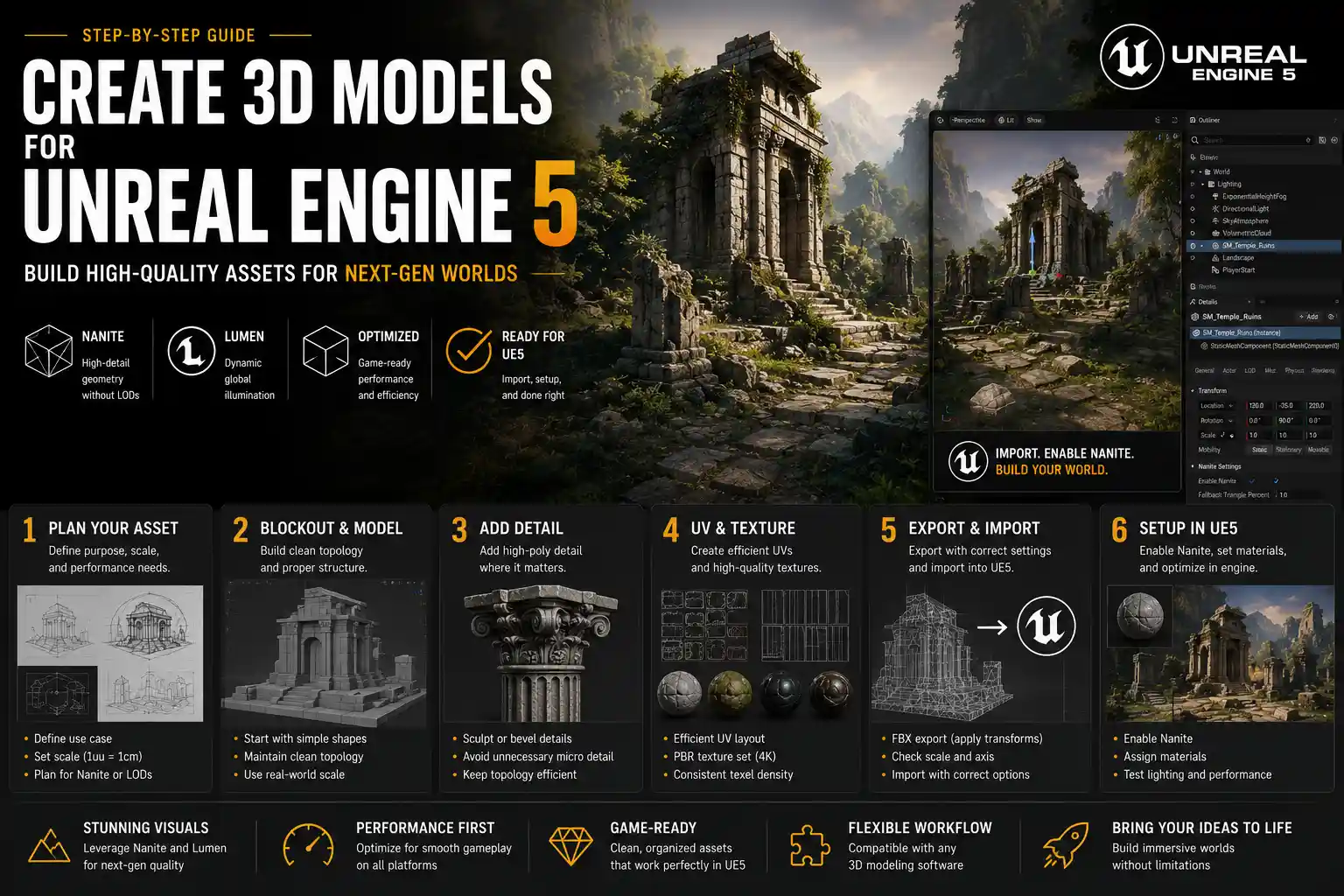
Unreal Engine 5 has redefined what real-time 3D graphics can do, with features like Nanite’s unlimited geometry and Lumen’s dynamic global illumination turning once-impossible cinematic experiences into playable interactive content. Whether you’re building an open-world game, a architectural visualization, a virtual production set, or an immersive metaverse experience, the quality of your 3D models directly determines how well you can leverage UE5’s groundbreaking tools. Creating 3D models optimized for Unreal Engine 5 isn’t just about making something that looks good—it’s about understanding the engine’s unique capabilities and building assets that work with its systems, not against them. This guide will walk you through every step of the process, from planning your model to exporting and importing it correctly into UE5.
Planning Your 3D Model for Unreal Engine 5
Before you open a 3D modeling application, you need to plan your asset around how it will be used in Unreal Engine 5. UE5’s core features change the rules of 3D modeling, so generic modeling workflows you may have used for older engines or offline rendering won’t always apply. Taking the time to plan at this stage will save you hours of rework later.
Define Asset Purpose and Scope
Not all 3D models are created equal, and their use case in UE5 will dictate every decision you make from poly count to texture resolution. A tiny prop scattered across an open world has very different requirements than a hero asset that will be seen up close in a cutscene. Ask yourself three key questions before you start modeling: Will this asset be viewed from far away only, or up close? How many copies of this asset will appear in a single level? Is this asset a static object, or will it need to be animated?
For example, a rock placed in the background of a mountain scene can be a relatively low-poly asset with a 2K texture. But a character’s weapon that stays on screen for most of the game is a hero asset that can take full advantage of Nanite’s high-poly capabilities. Defining this upfront helps you avoid two common mistakes: wasting time modeling unnecessary detail for background assets, or under-building detail for assets that will be seen up close.
Leverage Nanite’s Core Rules
One of the biggest changes UE5 brought to 3D modeling is Nanite virtualized geometry, which allows the engine to stream high-poly assets dynamically without manual level-of-detail (LOD) creation. That means you don’t have to simplify high-poly models for real-time rendering the way you did in Unreal Engine 4 or other engines. But that doesn’t mean you can import a 100-million-poly scanned object without any consideration for performance.
There are a few key rules to remember when planning for Nanite:
- Nanite works best for static meshes. While Unreal 5.1 and later added limited Nanite support for skeletal meshes used in animations and characters, it’s still not recommended for fully animated assets in most cases, so you’ll still need to optimize poly counts for those the traditional way.
- Extremely small triangles (smaller than a pixel on screen at typical viewing distances) still waste memory and processing power. You don’t need to keep every tiny polygon if it doesn’t contribute to the model’s visible shape.
- Nanite does not replace manual LODs for very large assets like terrain or entire buildings. For assets that span thousands of Unreal units, you’ll still need to split the model into smaller chunks and use manual LODs for the best performance.
If you’re working on a project that targets lower-end hardware like mobile consoles or smartphones, you may need to disable Nanite for some assets to maintain frame rates, so plan for that constraint early in your process.
Organize Your Workflow for UE5 Compatibility
Before you start modeling, set up your project in your 3D software with UE5’s units and scale in mind. Unreal Engine 5 uses 1 unit = 1 centimeter by default, which matches the standard for most real-world scale work. If you model a door that’s 3 units tall in your 3D software, it will be 3 centimeters tall in UE5—far too small for a human character to walk through. Setting your scene scale correctly from the start avoids frustrating rescaling issues after import.
It’s also good practice to name your objects and materials clearly, matching the naming convention you use in your UE5 project. For example, name your material MAT_Wood_Oak_Dark instead of “Material 1” to make it easier to organize assets after import. This small habit saves hours of sorting through unnamed assets later.
Modeling Best Practices for Unreal Engine 5
Once you’ve planned your asset, it’s time to start modeling. Your workflow will vary slightly depending on whether you’re creating a high-poly asset for Nanite, a low-poly animated asset, or a procedural asset, but there are core best practices that apply to all models for UE5.
Modeling for Nanite
For static hero assets and props that can take advantage of Nanite, the workflow is far more forgiving than traditional real-time modeling. You can keep all the fine detail you’d add for offline rendering—scuffs on metal, wood grain texture in the geometry, carvings, and more—without having to bake that detail down to a normal map. That means you can focus on making the model look good instead of spending hours optimizing polygon counts.
“Nanite doesn’t mean you should be wasteful with geometry. It means you can now put detail where it matters, instead of spending all your time saving polygons where no one will see them.”
Even with Nanite, there are a few modeling mistakes to avoid:
- Avoid overlapping faces or non-manifold geometry. While Nanite can handle many issues that would break traditional meshes, overlapping faces can cause unexpected shadows and rendering artifacts, so clean up your mesh before export.
- Remove unseen geometry. If the back of a cabinet is pressed against a wall and will never be seen, you can delete that face to reduce the total polygon count without any visual downside. Nanite still has to process all geometry, even if it’s never visible, so removing unseen faces improves performance.
- Split large models into logical chunks. A 1-kilometer long castle shouldn’t be a single mesh—split it into walls, towers, roofs, and individual props so UE5 can stream only the parts that are visible to the player. This also makes it easier to modify the level later without reimporting the entire model.
Modeling for Non-Nanite Assets
If you’re working on animated skeletal meshes (characters, weapons with moving parts, animated machinery) or assets for hardware that doesn’t support Nanite, you’ll still need to follow traditional real-time modeling optimization rules. For these assets, your goal is to get the highest possible visual quality with the lowest possible polygon count.
Start with a high-poly sculpt to capture all the fine detail, then retopologize it to create a clean low-poly base mesh. The detail from the high-poly sculpt will be baked down to normal, roughness, and ambient occlusion maps that you’ll apply to the low-poly mesh in UE5. For most animated assets, aim for a triangle count between 10,000 and 50,000 triangles for main characters on high-end platforms, and under 10,000 triangles for mobile. Small props can be as low as 100 to 1,000 triangles depending on their size and how close they get to the camera.
When retopologizing, focus polygon density areas where it matters: more polygons around joints that bend a lot (like knees and elbows) and fewer polygons on flat, flat surfaces like a character’s torso. This ensures you get smooth deformations when animating without wasting polygons on areas that don’t need them.
UV Unwrapping for UE5
No matter what kind of model you’re creating, you’ll need to unwrap UVs for texturing. UV unwrapping is the process of flattening a 3D mesh into a 2D space so you can apply 2D texture maps to it. Even for Nanite assets, you still need clean UVs for texturing—Nanite only handles geometry, not texture mapping.
Follow these UV best practices for UE5:
- Maximize your use of the UV space. Pack your UV islands so they fill as much of the 0-1 texture space as possible. This gives you the highest possible texture resolution for your asset, which makes it look sharper in UE5.
- Avoid overlapping UV islands unless you’re intentionally tiling a texture. Overlapping UVs will cause texture stretching and artifacts when you import your model.
- Add at least a 4-6 pixel padding between UV islands. This prevents bleeding from one texture to another when mipmaps are generated in UE5. If you’re using 4K textures, you can increase this padding to 8-10 pixels to avoid bleeding.
- Use UV tiles for large assets. If you have a large asset that needs more texture resolution than a single 4K map can provide, you can split the UVs into multiple UV tiles (for example, UDIMs) which UE5 supports natively.
For tiling assets like walls or floors that will use a repeating texture, you don’t need to worry about packing unique UVs—just ensure the UVs are set up to tile the texture correctly without stretching.
Texturing and Exporting Your Model
After you finish modeling and unwrapping UVs, the next step is texturing and exporting your model for UE5. UE5 supports almost every common 3D file format and texturing workflow, but there are specific settings that will help you get the best results and avoid import errors.
Texturing Workflows for UE5
Unreal Engine 5 uses the physically based rendering (PBR) workflow by default, which means your textures should follow the standard PBR format: albedo (base color), normal, metallic, roughness, and ambient occlusion. Some workflows also add a clear coat map for materials like car paint or lacquered wood, or an emissive map for glowing materials like neon signs.
What texture resolution should you use? For most hero assets, 4K (4096x4096) resolution is the sweet spot for high-end platforms like PC, PlayStation 5, and Xbox Series X/S. Small props can use 2K (2048x2048) or even 1K (1024x1024) resolution to save memory. Background assets that are viewed from far away can use 1K resolution with no noticeable loss of quality. If you’re building for mobile, stick to 2K or lower for most assets to avoid running out of video memory.
One common mistake new artists make is using 8K textures for every asset. While 8K textures do look slightly sharper up close, they use four times more memory than 4K textures, which can quickly drag down performance in levels with dozens of assets. Only use 8K textures for hero assets that will be seen extremely close to the camera.
If you’re using a texturing tool like Substance Painter or Blender, you can export your textures as PNG or TGA files with 16-bit color depth for the best quality. UE5 supports both PNG and TGA, so use whichever format you prefer. Substance Painter also has a built-in export preset for Unreal Engine that automatically names your textures correctly, which saves you time when importing.
Choosing the Right Export Format
UE5 supports almost every common 3D export format, but the two most popular and reliable options are FBX and glTF/GLB. Which one you choose depends on your workflow:
FBX is the most widely used format for Unreal Engine, and it’s compatible with all 3D modeling software (Blender, Maya, 3ds Max, ZBrush, etc.). FBX supports static meshes, skeletal meshes, animations, and embedded materials, so it’s a good all-around choice for most projects. When exporting FBX, there are a few key settings to get right: check the box to export UVs, uncheck the box to export normals if you want UE5 to generate normals automatically (this avoids issues with inconsistent normal mapping), and set the scale to match your 3D software’s units (if your 3D software is set to centimeters, set the export scale to 1.0).
glTF/GLB is a modern open-source format that’s becoming more popular for UE5, especially for projects that need to share assets across multiple platforms. GLB is a single-file format that includes both the model and all its textures, which makes it easier to organize and import assets. UE5 added full native support for glTF in version 5.0, so it’s a reliable option if your 3D software supports exporting it.
If you’re working with high-poly Nanite assets from ZBrush, you can also export your model as a ZPR file and import it directly into UE5 using the ZBrush to Unreal plugin, which automates the process and avoids any export-related geometry errors. For scanned assets, you can export as an OBJ, which UE5 also supports, though OBJ doesn’t support animations or multiple UV sets, so it’s only good for static meshes.
Common Export Mistakes to Avoid
Even if you follow all the steps above, small export settings mistakes can cause big problems when you import your model into UE5. The most common mistake is incorrect scale. If your 3D software uses meters instead of centimeters, you need to set your export scale to 100 (1 meter = 100 centimeters) so the model imports at the correct size in UE5. Always check the size of your model after import—if a 2-meter tall human is 200 meters tall in UE5, you know your scale is off.
Another common mistake is not triangulating your model before export, or triangulating when you shouldn’t. If you’re exporting a quad-based mesh from Blender or Maya, UE5 will automatically triangulate it when importing, which is fine for most cases. If you’re exporting a high-poly sculpt from ZBrush that’s already triangulated, leave it as is. Avoid exporting non-manifold geometry, which can cause import errors or rendering artifacts in UE5. Most 3D software has a built-in tool to check for non-manifold geometry, so run that check before you export.
Importing and Optimizing in Unreal Engine 5
Once you’ve exported your model from your 3D software, the next step is importing it into UE5 and setting it up correctly to work with the engine’s systems. This step is just as important as modeling correctly—even a perfect model will look bad or perform poorly if you don’t adjust the import settings correctly.
Correct Import Settings
When you drag your FBX or GLB file into your UE5 content browser, the import settings window will pop up. The settings you choose here depend on whether your asset is a static mesh or a skeletal mesh.
For static meshes (the most common asset type for props and environment art):
- Check Auto Generate Collision if the asset needs to collide with the player or other objects (most environment assets and props do). You can adjust or replace the auto-generated collision later if it’s not accurate enough.
- Check Build Nanite if you want to enable Nanite for the asset. This is checked by default in UE5 for new imports, which is what you want for most static assets.
- Set Normal Import Method to Import Normals if you’ve already generated normals in your 3D software, or Compute Normals From Tangents if you want UE5 to generate them for you. For most cases, letting UE5 compute normals gives better results.
- Check Import Textures if your file includes embedded textures (like GLB) or if you want UE5 to import the textures automatically from the export location. If you’ve already exported your textures separately, you can uncheck this and assign them manually after import.
For skeletal meshes (characters, animated assets):
- Check Import Skeleton and Import Animations if you’re importing the skeleton and animations along with the mesh. If you’re importing a mesh that will use an existing skeleton, you can assign the existing skeleton in the import settings.
- Leave Build Nanite unchecked unless you’re using UE5.1 or later and your project specifically enables Nanite for skeletal meshes. For most animated assets, Nanite is still not recommended for performance reasons.
- Check Add to Bind Pose to ensure the skeleton is correctly bound to the mesh when imported.
After import, double-check the scale of your model in the static mesh editor. Spawn a copy of the model into a level and compare it to a default UE5 mannequin, which is 180 centimeters (180 Unreal units) tall. If your model is the wrong size, adjust the import scale and reimport it, or adjust the scale of the asset in the details panel.
Setting Up Materials
Once your mesh is imported correctly, the next step is setting up materials. UE5 uses the material editor to create PBR materials, and for most cases you can use a master material that’s already set up with all the required PBR nodes, and just create an instance of it and plug in your texture maps. This is much faster than creating a new material from scratch for every asset.
If you’re using Lumen (UE5’s dynamic global illumination system), there’s one important setting to enable on your materials: check the Use Subsurface Profile box for materials like skin, leaves, or wax that need subsurface scattering to look realistic. Lumen works with subsurface scattering automatically if you enable this setting. For emissive materials, check the Emissive Color setting and enable Use Emissive for Static Lighting if you want the emissive glow to contribute to the scene’s baked lighting.
For Nanite assets, you don’t need to change any material settings—Nanite works with all standard UE5 materials out of the box. One thing to note: Nanite doesn’t support two-sided materials by default, so if you need a two-sided material (for things like leaves or paper), you’ll need to enable a console variable r.Nanite.TwoSided 1 in your project settings for it to work correctly.
Optimizing Performance
Even with Nanite doing most of the work for you, there are a few optimization steps you should take to ensure your assets run smoothly in UE5:
For static mesh assets, you need to set up collision correctly. Auto-generated collision works fine for simple shapes, but for complex shapes like a chair with thin legs, auto-generated collision can create too many polygons, which wastes processing power. For these assets, create a simple collision shape using primitive shapes (boxes, spheres, capsules) that approximate the shape of the model. You don’t need collision to match the shape of the mesh exactly—players will never notice the difference, and simple collision is much faster for the engine to process.
For texture optimization, enable texture streaming in your texture settings, which is enabled by default in UE5. Texture streaming allows UE5 to stream lower-resolution mipmaps for textures that are far away from the camera, which saves a lot of video memory. You can adjust the LOD bias for textures if you want to force lower resolution on lower-end hardware.
If you have a lot of the same asset placed in a level (like trees or street lamps), use UE5’s instanced static mesh tool to render all copies of the asset in a single draw call, which drastically improves performance. Instanced static meshes tell the engine that all the assets are identical, so it doesn’t have to process each one separately.
Testing and Iterating on Your Assets
After you set up your model and materials in UE5, the final step before using it in your project is testing it to make sure it looks good and performs well across all your target hardware. Testing early and often helps you catch issues before you place dozens of copies of the asset in your level.
First, test your asset at all possible viewing distances. Walk up close to it to check for texture blurriness or geometry artifacts, then walk far away to make sure it LODs correctly (or that Nanite streams it properly) and doesn’t pop in or out of view unexpectedly. If you’re using Nanite, you can check the Nanite visualization mode in UE5 (under the View Mode menu) to see how many triangles the engine is rendering at different distances. If you see that the engine is still rendering millions of triangles when the asset is on the other side of the level, you can adjust the Nanite cluster size in the static mesh settings to fix that.
Next, test your asset with different lighting conditions. UE5’s Lumen dynamic lighting changes how materials look based on the surrounding environment, so place your asset in different parts of your level to see how it looks in bright sunlight, in shadow, and in indoor lighting. Check that your PBR values are correct: a metal material should reflect the environment correctly, and a rough material should have a diffuse, non-shiny look. Common PBR mistakes include making metals too rough or non-metals too shiny, so take the time to compare your material to reference photos of the real material.
Finally, test your asset’s performance. Use UE5’s built-in Stat Unit and Stat RHI commands to check how much processing time and memory your asset uses when it’s visible. If you notice that the frame rate drops when your asset is visible, you can optimize it by reducing texture resolution, removing unnecessary geometry, or splitting large assets into smaller chunks that stream in only when they’re visible.
If you’re building your project for multiple platforms (PC, console, mobile), be sure to test your assets on the lowest-end hardware you’re targeting. An asset that runs fine on a high-end gaming PC may cause frame drops on a mobile phone or last-generation console, so you may need to create lower-poly or lower-resolution versions of the asset for lower-end platforms. UE5 supports platform-specific LODs and texture streaming, so you can set up different quality settings for different platforms without having to create separate assets.
Conclusion
Creating 3D models for Unreal Engine 5 is a mix of learning the engine’s unique capabilities (like Nanite and Lumen) and following core 3D modeling best practices that have been around for years. The biggest advantage UE5 brings is that it frees you from many of the old constraints of real-time modeling: you can now focus on adding detail where it matters instead of spending hours optimizing polygon counts for static assets. But that freedom doesn’t mean you can ignore basic optimization and planning—understanding how your asset will be used, setting correct scale and UVs, and using the right import and export settings will still make the difference between a smooth, great-looking project and one that struggles with performance and rendering artifacts.
Whether you’re a beginner just starting out with 3D for UE5 or an experienced artist transitioning from older engines, the key to success is to test your assets early and iterate often. By following the steps in this guide—planning your asset around its use case, modeling correctly for Nanite or traditional workflows, texturing and exporting with the right settings, and optimizing after import—you’ll create 3D assets that take full advantage of everything Unreal Engine 5 has to offer, and deliver smooth, stunning interactive experiences for your audience.