
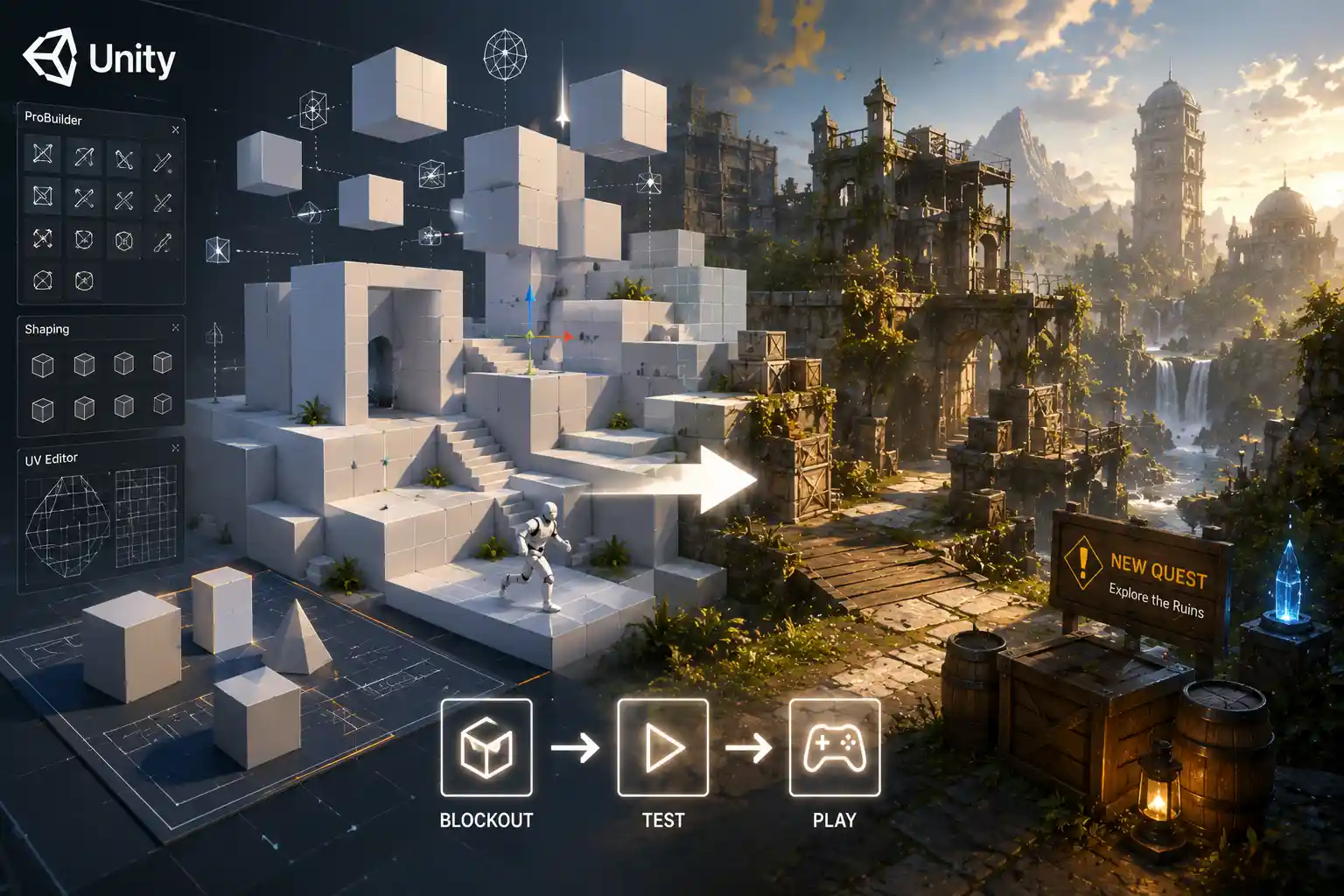
When most people hear the name Unity, they think of a powerful game engine for building and deploying interactive 3D experiences across consoles, mobile devices, and the web. But what if you need a simple 3D model for your project, and you don’t have access to dedicated 3D modeling software like Blender, Maya, or ZBrush? Can you skip the external tools and create usable 3D models directly inside Unity itself? The short answer is yes – but with some important caveats. Unity is first and foremost an engine for assembling, simulating, and rendering content, not a full replacement for dedicated 3D modeling software. Still, for prototyping, simple assets, and last-minute edits, Unity’s built-in tools can save you time and streamline your workflow. This guide breaks down exactly what you can (and can’t) do when creating 3D models in Unity, the tools you’ll use, and when it makes sense to switch to an external program.
What 3D Modeling Capabilities Does Unity Include?
Unity has evolved far beyond its early days as a simple scene assembly tool. Modern versions of Unity (both the free Unity Personal and paid Pro tiers) include a suite of built-in tools for creating, editing, and modifying 3D geometry directly in the editor. You won’t get the advanced sculpting, retopology, or texture painting tools found in dedicated software, but for many common use cases, Unity’s native tools are more than enough.
Primitive Shapes: The Foundation of In-Editor 3D Modeling
The most basic way to create 3D models in Unity is by generating primitive shapes, which are pre-built, low-polygon geometry objects that you can spawn into your scene with one click. Unity comes with 8 standard primitives out of the box: Cube, Sphere, Capsule, Cylinder, Plane, Quad, Sphere, and Torus. These primitives are perfect for blocking out level layouts, creating placeholder assets, or building simple models like walls, crates, or platforms without ever leaving the editor.
Once you spawn a primitive, you can scale it, rotate it, move it, and even combine multiple primitives into a single asset to create more complex shapes. For example, you can combine a cube and a cylinder to make a simple chair, or multiple cubes to block out an entire building layout for prototyping.
ProBuilder: Unity’s Native 3D Modeling Tool
The most powerful tool for creating custom 3D models in Unity is ProBuilder, a built-in parametric modeling tool that was acquired by Unity and integrated directly into the engine in 2018. Unlike basic primitives, ProBuilder allows you to create custom geometry from scratch, edit vertex positions, extrude faces, cut holes, and add detail to existing models all within the Unity editor.
ProBuilder is included for free with all versions of Unity, and it’s activated by default in new projects. It bridges the gap between basic primitive assembly and full-featured external 3D modeling, making it ideal for creating custom level geometry, simple props, and prototyping unique shapes that can’t be built from basic primitives. For example, if you need a custom curved ramp for a racing game prototype or a unique wall shape for an architectural visualization, ProBuilder lets you build it directly in your scene without exporting or importing files.
Other Native Tools for Editing 3D Models
Beyond ProBuilder and primitives, Unity includes several other tools for modifying 3D models you create or import:
- Vertex Editing: Even without ProBuilder, you can access and adjust individual vertices on any mesh in Unity through the Mesh component API, though ProBuilder makes this process much more user-friendly.
- Mesh Combiner: This tool lets you merge multiple separate meshes into a single 3D model, which is useful for optimizing performance or turning a collection of primitives into a single reusable asset.
- Scriptable Mesh Generation: For users comfortable with C#, Unity allows you to generate custom 3D meshes entirely through code. This is how many procedural generation tools (like infinite terrain or custom voxel systems) are built in Unity.
- UV Unwrapping: ProBuilder includes basic UV unwrapping tools to map textures to your custom models, so you don’t have to export your model to an external program just to add basic texturing.
Common Use Cases for Creating 3D Models Directly in Unity
Creating 3D models in Unity isn’t the right choice for every project, but it excels in specific scenarios where speed and context matter more than high-polygon detail or complex art. Here are some of the most common use cases where working in-editor makes sense:
Level Blocking and Prototyping
Before a game or interactive experience goes into full production, artists and designers almost always create a low-detail greybox (or whitebox) layout to test gameplay, scale, and flow. Creating these blockouts directly in Unity with primitives or ProBuilder is far faster than building them in an external program and importing them. You can adjust wall sizes, move platforms, and tweak collision volumes all in the context of your actual gameplay, eliminating the back-and-forth between modeling software and the game engine.
Custom Level Geometry for Static Environments
For many 3D games and architectural visualizations, most of the environment geometry is static – it doesn’t move, and it doesn’t need high-poly detail. Things like custom wall shapes, stairs, ramps, and floor planes can be created directly in Unity with ProBuilder, saving you the trouble of exporting files from Blender or Maya. This is especially common for indie developers working alone or with small teams, where time is limited and every step of the workflow matters.
Simple Props and Placeholder Assets
If you’re waiting on a final art asset from a 3D artist, or you need a simple prop like a crate, table, or sign that doesn’t require detailed modeling, creating it directly in Unity is a huge time saver. Even if you end up replacing the model later, a quick in-editor model lets you keep working on gameplay or scene composition without waiting. For smaller indie projects or casual experiences, these simple models can even be used in the final release if stylized art fits the project’s aesthetic.
Procedural and Runtime-Generated 3D Content
One of the biggest advantages of creating 3D models in Unity is the ability to generate them dynamically at runtime. Games with procedural generation (like Minecraft, No Man’s Sky, or rogue-like dungeon crawlers) generate 3D terrain and structures on the fly using Unity’s mesh generation API. This is only possible because Unity can create and modify 3D meshes from scratch while the game is running. Even for static projects, script-based mesh generation lets you create hundreds of unique variations of a model automatically, without modeling each one by hand in an external program.
“For prototyping and level design, ProBuilder inside Unity is a game-changer. I can block out an entire level in an afternoon, test it in-engine the second it’s done, and iterate much faster than I ever could exporting models from Blender every time I need to change a wall size. It doesn’t replace my art workflow, but it makes the design process infinitely smoother.”
— Sarah Chen, independent game developer
A Step-by-Step Guide to Creating Your First Custom 3D Model in Unity
If you’re new to in-editor 3D modeling in Unity, this step-by-step guide will walk you through creating a simple custom table with ProBuilder, the most common tool for the job. All you need is a current installation of Unity (2020 or newer is recommended) and a new 3D project.
- Enable ProBuilder (if required)
ProBuilder is enabled by default in new Unity projects, but if you don’t see it in your toolbar, go to Window > Package Manager, search for “ProBuilder”, and click Install. Once it’s installed, you’ll see a ProBuilder tab in the top toolbar.
- Create a new mesh
Open the ProBuilder menu and select New Mesh. This will create an empty editable mesh in your scene. Name it “SimpleTable” in the Hierarchy panel to keep your project organized.
- Build the tabletop
With your new mesh selected, enter ProBuilder’s Edit mode by clicking the “Open in Scene View” button. Select the Create Shape tool and choose a Cube. Drag to draw a wide, flat rectangle on the XZ plane to form your tabletop. Scale it to 100cm x 100cm x 5cm to match standard table dimensions.
- Add the legs
Exit the Create Shape tool, then select the bottom face of your tabletop. Click the Extrude button in the ProBuilder toolbar to pull the face down, creating the first leg. Repeat this process on the three other corners of the tabletop to add three more legs. Adjust the length of each leg by moving the bottom vertices down until they’re 75cm long, which is standard dining table height.
- Apply materials and UVs
Open the ProBuilder UV editor to unwrap your model so textures display correctly. You can use the Auto-Unwrap button for simple shapes like this. Then, assign a wood material to your table from the Project panel to give it a finished look.
- Export or save your model as an asset
Once you’re happy with your table, you can either leave it in the scene or export it as a reusable .fbx or .obj asset to use in other projects. To export, select your mesh, go to the ProBuilder menu, and select Export > Export Asset. Choose your file format and save it to your project folder.
As you can see, the process is straightforward for simple models. ProBuilder’s interface is designed to be intuitive for users who already know how to navigate the Unity editor, so you don’t have to learn an entirely new software just to create basic 3D assets.
For users who want to generate 3D models via code instead of manual modeling, the process is a bit different, but just as accessible. You’ll create a C# script that defines vertex positions, triangles (which connect vertices to form faces), and normals (which control how light reflects off the mesh), then attach the script to a GameObject to generate the mesh at runtime or in edit mode. This approach is ideal for creating parametric shapes like curved roads, terrain, or grid-based structures that would be time-consuming to build by hand.
Limitations of Creating 3D Models in Unity
While Unity’s built-in tools are incredibly useful for many tasks, they can’t replace dedicated 3D modeling software for complex art or high-poly assets. It’s important to understand these limitations before you commit to building all your models in-editor.
Lack of Advanced Sculpting and High-Poly Detail
The biggest limitation is that Unity doesn’t have any native sculpting tools. Dedicated software like ZBrush or Blender lets you sculpt high-poly models with millions of polygons, adding fine detail like skin texture, wood grain, or facial features. ProBuilder is limited to polygonal modeling, and it starts to slow down with meshes that have more than a few thousand polygons. If you’re creating detailed character models, high-end assets for AAA games, or photorealistic architectural visualizations, you’ll need to use an external sculpting and modeling tool.
Limited UV Unwrapping and Retopology Tools
While ProBuilder includes basic auto-unwrapping for simple models, it doesn’t have the advanced UV editing tools found in Blender or Maya. For complex models that require clean, organized UV layouts to avoid texture stretching, you’ll still need to export your model to an external program to finalize the UVs. Similarly, ProBuilder doesn’t include retopology tools for cleaning up high-poly sculpts and converting them to low-poly game-ready meshes – a critical step for most game art workflows.
Steeper Learning Curve for Complex Work
For simple shapes and prototyping, ProBuilder is easier to learn than a full 3D modeling tool if you already know Unity. But if you try to build complex models with many separate parts and detailed geometry entirely in Unity, you’ll quickly find that the workflow is clunky compared to dedicated software. Dedicated 3D modeling tools are built from the ground up for modeling, with hundreds of shortcuts and tools specifically designed for that work. Trying to replicate that workflow in Unity is like trying to cut a piece of wood with a hammer – it works for small jobs, but it’s not the right tool for large, complex projects.
Performance Issues with Complex Meshes
Unity is optimized for rendering and simulating meshes, not for editing them. When you’re editing a large mesh with thousands of polygons in ProBuilder, you’ll notice slower viewport performance than you would in Blender or Maya. This is because Unity’s editor is prioritizing scene rendering and gameplay preview over mesh editing performance, which makes complex editing sessions frustrating and slow.
- When to create 3D models in Unity: Level blockouts, prototyping, simple static environment geometry, placeholder assets, procedural runtime generation, small simple props
- When to use an external 3D modeling tool: High-poly characters, detailed props, complex organic shapes, assets requiring advanced UV unwrapping or retopology, photorealistic art, large environmental assets that need detailed texturing
Best Practices for Working With In-Editor 3D Models in Unity
If you decide to create 3D models directly in Unity, following these best practices will help you keep your workflow smooth and your project performant.
Combine Meshes for Performance: When you create a model from multiple separate primitives or ProBuilder shapes, combine them into a single mesh before building your project. This reduces the number of draw calls Unity has to make, which improves frame rate, especially on mobile platforms. You can use ProBuilder’s “Merge Objects” tool or Unity’s built-in Mesh Combiner to do this in one click.
Export Finished Models as Assets: Even if you built your model entirely in Unity, export it as an .fbx file and save it to your project assets. This makes it easier to reuse the model across multiple scenes or projects, and it reduces the amount of real-time editing Unity has to do in the editor. It also gives you a backup copy you can import into other software if you need to edit it later.
Keep Poly Counts Low: ProBuilder can handle higher poly counts than basic primitives, but remember that any model you create in Unity still has to render at runtime. Keep poly counts as low as possible for in-editor models, especially for assets that will be instanced multiple times across your scene. For reference, most small props in games should have between 100 and 1500 triangles, while large environment pieces should stay under 10,000 triangles unless they’re very close to the camera.
Use External Tools for Final Texture Baking: If you’ve created a custom model in ProBuilder that you’re going to use in your final project, export it to Blender or Substance Painter to bake lightmaps and add detailed textures if needed. Unity’s built-in texture editing tools are very limited, so you’ll get much better results doing this step in a dedicated program.
Leverage the Unity Asset Store for Pre-Made Assets: If you don’t want to model from scratch in Unity or pay for an external 3D modeling tool, the Unity Asset Store has thousands of free and paid 3D models ready to import directly into your project. This is a great middle ground for indie developers who don’t have the skills or time to model every asset from scratch.
Conclusion
So, can you create 3D models in Unity? The answer is a resounding yes – but it depends on what kind of models you need. For prototyping, level blocking, simple static geometry, placeholder assets, and procedural content, Unity’s built-in tools (especially ProBuilder) are more than capable of creating high-quality, usable 3D models. They eliminate the back-and-forth between external software and the engine, speed up iteration, and make it easy for designers and developers without advanced 3D modeling skills to build content directly in their project. For complex organic models, high-poly art, detailed characters, or assets that require advanced UV editing or sculpting, you’ll still need to use a dedicated 3D modeling tool like Blender, Maya, or ZBrush. The key is to use the right tool for the job: leverage Unity’s in-editor modeling tools for what they’re good for, and rely on external software for the complex work they can’t handle. For indie developers, game designers, and anyone working on a tight timeline, this hybrid approach gives you the best of both worlds: speed and flexibility when you need it, and power when you need it.