
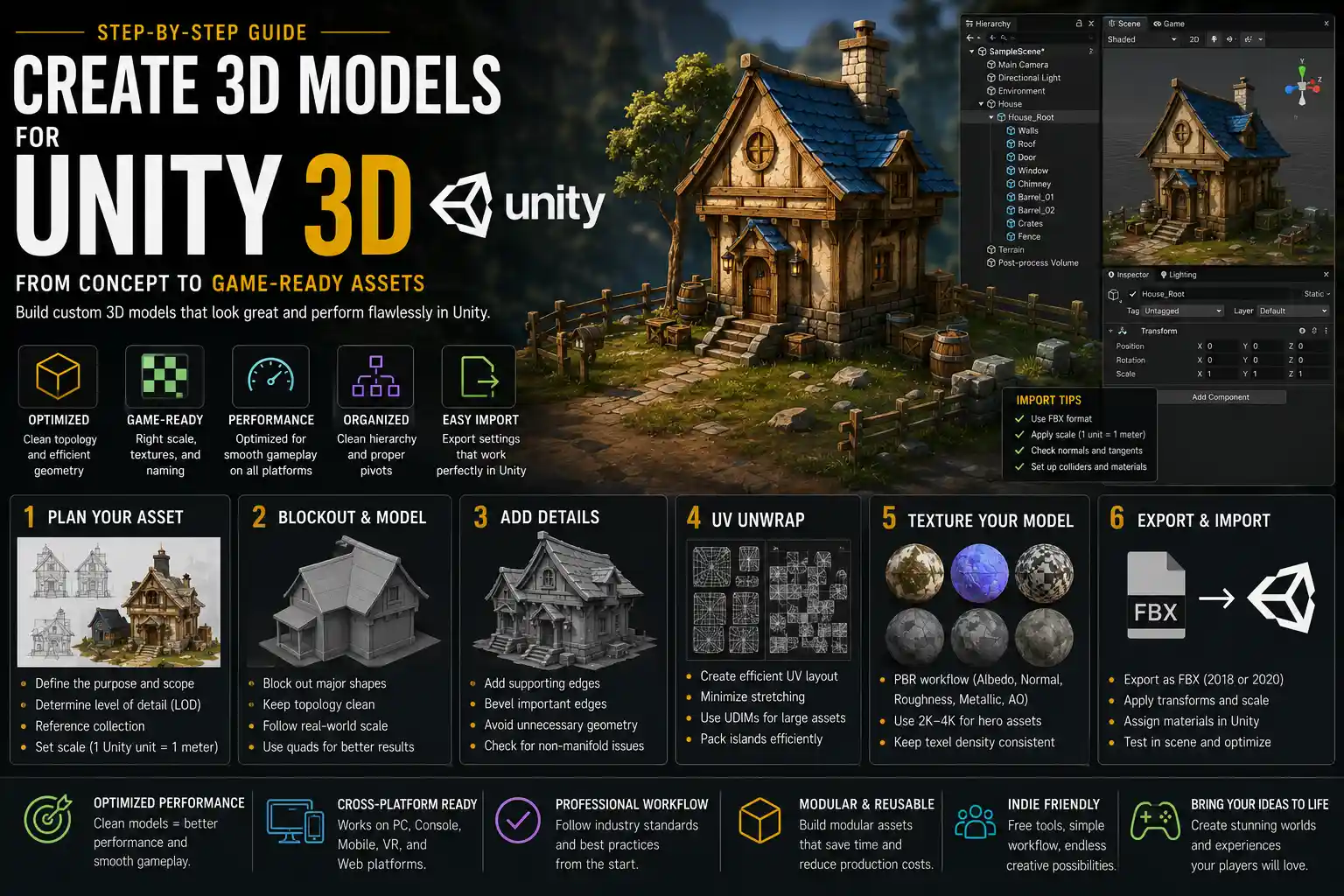
If you’ve ever opened the Unity game engine and stared at a blank scene wondering how to get custom 3D assets into your project, you’re not alone. Whether you’re building an indie horror game, a product visualization for a client, or an interactive AR experience, custom 3D models bring your vision to life in a way that free stock assets never can. The good news is you don’t need a Hollywood-level VFX degree or a six-figure workstation to create production-ready models for Unity. With the right tools, a clear workflow, and a few key best practices, anyone can go from a blank canvas to a perfectly optimized model working smoothly in-engine. This guide breaks down every step of the process, from initial planning to final in-game testing, so you can create 3D models that fit your project’s needs without technical headaches.
Planning Your 3D Model for Unity
Before you open a 3D modeling program or drop a single polygon, planning your model will save you hours of rework later. Unity supports almost any 3D file format and geometry type, but your model’s purpose will dictate every design decision you make, from poly count to texture resolution. A tiny rock prop for a background forest has far different requirements than a playable character that will be seen up close in every cutscene.
Define the model’s role and level of detail
Start by answering one simple question: where will this model appear in your Unity project? A first-person player weapon that fills a third of the screen needs high resolution and fine detail, while a street lamp 100 meters away from the player can get away with a fraction of the polygons. This concept is called level of detail (LOD), and it’s the foundation of good performance in Unity. If you ignore LOD planning early on, you’ll end up with a model that slows down your frame rate or looks blurry up close.
As a general rule of thumb for real-time projects:
- Hero assets (playable characters, main environment pieces, UI elements): 1,000–10,000 polygons (depending on target platform; PC/console can handle more, mobile less)
- Medium props (furniture, small environment objects): 100–1,000 polygons
- Background assets (distant trees, buildings, debris): 10–500 polygons
If you’re building for mobile or VR, cut these numbers roughly in half to maintain a consistent 60+ frames per second, which is required for comfortable user experience.
Choose your modeling software
One of the most common questions new creators ask is which program to use to make models for Unity. The good news is Unity imports files from almost every major 3D tool, so you can pick one that fits your budget and skill level:
- Blender: Free, open-source, and packed with every feature most creators will ever need. It’s the most popular choice for indie developers, and there are thousands of free tutorials focused specifically on making Unity assets.
- Autodesk Maya/3ds Max: Industry-standard tools used by major studios, with subscription pricing starting around $20/month. Great if you already know the workflow or plan to work in a professional studio later.
- Modo: A popular mid-range option known for its intuitive modeling tools, with a one-time purchase option instead of a subscription.
- Procreate: For iPad users, Procreate’s 3D modeling tool is perfect for quick, low-poly concepts that work great in casual mobile games.
For most new creators, we recommend starting with Blender. It’s 100% free, has massive community support, and exports files in a format Unity natively understands.
Modeling Best Practices for Unity Compatibility
Once you’ve planned your model and chosen your software, it’s time to start building geometry. While you can technically import almost any mesh into Unity, following a few simple modeling best practices will prevent weird bugs, broken normals, and import errors down the line. These rules are easy to follow and make your entire workflow much smoother.
Keep your geometry clean
Clean geometry is non-negotiable for Unity. Messy geometry with overlapping faces, non-manifold edges, or extra vertices increases your file size, causes rendering glitches, and makes texturing harder. Non-manifold geometry—geometry that doesn’t have a clear inside and outside—is one of the most common causes of broken lighting and shading in Unity. To avoid this, always check for non-manifold edges in your modeling software before exporting. In Blender, this is as simple as going into Edit Mode, selecting all geometry, and using the "Find Non-Manifold" tool to fix any issues.
Also, remove any hidden or duplicate faces that don’t contribute to the final shape. For example, if you’re modeling a chair, you don’t need a face on the bottom of the leg that will never be seen by the player. Removing these extra faces cuts down your poly count and improves performance without any visible downside.
Use logical naming and hierarchy
Unity pulls the object hierarchy and naming from your original 3D file, so getting this right before export saves you time rearranging objects in the Unity editor later. If you’re modeling a table with four separate legs and a table top, name each object something like "Table_Leg_01" instead of the default "Cube.001". This makes it easy to find and adjust parts of your model later, especially if you need to animate individual pieces or add colliders.
For complex models with multiple moving parts, like a door with a handle and hinges, keep related parts grouped under a parent empty object. That way, when you import it into Unity, you can move the entire door as one unit without moving each piece individually. This is also critical for animation, as Unity uses the parent-child hierarchy you set up in your modeling software to map bone weights and movement.
Set up your origin correctly
Your model’s origin point (also called the pivot point) is the point around which the model rotates and scales in Unity. For example, if you’re modeling a door, the origin should be at the center of the hinge line, so it rotates open correctly in-engine. If you leave the origin at the center of the door panel, your door will rotate around the wrong point when you animate it, requiring you to adjust it again in Unity.
As a general rule, your origin should be at (0,0,0) in your modeling software before export. This makes it easy to align your model correctly when you place it in a Unity scene. If you’re working on multiple models that are part of a larger set, keeping the origin consistent across all assets ensures they line up correctly when you import them.
80% of the performance issues people blame on Unity are actually bad modeling habits that could have been fixed before export. A clean model with a reasonable poly count will run smoothly in Unity every time.
Texturing and UV Unwrapping for Real-Time Rendering
After you finish modeling, the next step is UV unwrapping and texturing. Textures add color, detail, and personality to your model, and Unity’s render pipeline (whether you’re using the built-in render pipeline, URP, or HDRP) has specific requirements for how you set up your textures and UVs.
UV unwrapping basics
UV unwrapping is the process of flattening your 3D mesh into a 2D plane so you can apply a 2D texture to it. Bad UVs cause stretched or blurry textures, even if you have a high-resolution image. For Unity, there are two key rules for good UVs: maximize the use of your texture space, and minimize stretching.
You don’t have to manually unwrap every single model. Many 3D modeling programs have auto-unwrap tools that work great for simple props. For complex hero assets, though, manual unwrapping will give you better results. If you’re using the same texture for multiple identical objects (like four chair legs), you can overlap their UVs to save texture space. This is called UV tiling, and it’s a common trick to keep your texture files small without losing quality.
Texture types and resolutions
Unity uses multiple texture maps to render your model correctly. For most real-time assets, you’ll need at least four core maps:
- Albedo (Base Color): The base color of your model, with no lighting information added. This is what most people think of when they think of a texture.
- Normal Map: Adds fine surface detail (like scratches, bumps, or fabric weave) without adding extra polygons. This is a staple of real-time rendering.
- Metallic/Smoothness Map (or Roughness Map, depending on your workflow): Defines how reflective or rough the surface is. Metal gets a white value in the metallic channel, while wood or fabric gets a dark value.
- Ambient Occlusion Map: Adds subtle shadowing in crevices and seams to make your model look more realistic. This is a quick way to add depth without affecting performance.
Texture resolution is another key consideration. Like poly count, the right resolution depends on where your model will be used. A 4K (4096x4096) texture looks great for a hero character, but it’s overkill for a small background prop that will never be seen close up. 4K textures take up more memory and can slow down performance, especially on mobile. Common resolutions for Unity assets are:
- Hero assets: 2048x2048 or 4096x4096
- Medium props: 1024x1024 or 2048x2048
- Background assets: 512x512 or 1024x1024
Always use power-of-two resolutions (512, 1024, 2048, etc.) for your textures. Unity compresses non-power-of-two textures less efficiently, which can hurt performance and increase file size.
Prepare your textures for Unity
If you’re using a physically based rendering (PBR) workflow—and you should, because Unity’s render pipelines are built for PBR—make sure your textures match the pipeline you’re using. For example, if you’re using Unity’s Universal Render Pipeline (URP, the most common choice for indie projects), you’ll use the metallic/roughness workflow by default, while HD Render Pipeline (HDRP) supports both metallic/roughness and specular/glossiness. Double-check your texture format before exporting to avoid having to reimport them later.
Also, save your textures in a lossless format like PNG or TIFF before importing them into Unity. JPG compression adds artifacts that will be visible in-engine, so avoid using JPG for anything except background photos that don’t need fine detail.
Exporting and Importing Your Model Into Unity
Once your model is finished, textured, and ready to go, the next step is exporting it from your modeling software and importing it into Unity. This step is straightforward if you follow the right settings, but a single wrong export setting can break your model in-engine.
Choose the right export format
Unity natively supports many 3D file formats, but the two most common are FBX and GLB/GLTF. For most use cases, FBX is the industry standard and works flawlessly with Unity. It supports meshes, UVs, normals, textures, animations, and rigs, so it’s a good choice for almost any asset. If you want to include your textures in a single file (great for sharing assets), GLB is a good option that Unity supports natively in recent versions.
Avoid exporting to proprietary formats like .blend or .ma directly into Unity. While Unity can technically read .blend files, it requires Blender to be installed on every machine that opens the project, which causes compatibility issues for team projects. Always export an FBX from your source file instead of importing the .blend directly.
Correct export settings
When you export your FBX, there are a few key settings to check to make sure your model imports correctly into Unity:
- Scale: Set the export scale to match Unity’s units. Unity uses 1 unit = 1 meter by default, so make sure your export scale is set to 1 (or 100% if your software uses centimeters) to avoid importing a model that’s too big or too small.
- Origin: Check "Export Origin at (0,0,0)" if your software has that option, to ensure your pivot point is correct.
- Normals: Check "Export Normals" to bring your custom normals into Unity. If you’ve smoothed your model, this ensures the shading looks correct in-engine.
- Textures: You don’t need to embed textures into the FBX file. Export your textures as separate files and organize them in your Unity project folder instead—it makes management easier.
For animated or rigged models, also check "Export Bones" and "Export Deformations" to bring your rig and animation data into Unity correctly.
Configure import settings in Unity
When you drag your FBX into Unity’s Project window, Unity will automatically import it and generate a mesh, materials, and a prefab. But the default import settings are rarely perfect, so you’ll need to adjust them in the Inspector window to match your needs.
The most important import settings to check are:Mesh Tab: Check that the scale factor is correct. If your model imported too big or too small, adjust the scale factor here. You can also check "Generate Colliders" if you’re making a static prop that doesn’t move—this automatically creates a collision mesh for you, though for complex moving models you’ll want to make a custom collider later. Make sure "Normals" is set to "Import" if you’re using custom normals from your modeling software.
Materials Tab: By default, Unity will generate a new material for your model and extract your textures. If you want to use your own material setup (which you almost always do), change the "Location" dropdown to "Use External Materials (Legacy)" or leave it as "None" and assign materials manually. This prevents Unity from cluttering your project folder with extra generated materials.
Texture Import Settings: For each texture you import, select the correct type (Albedo, Normal Map, etc.) in the Inspector. Set the compression to match your target platform: for mobile, use low or medium compression to save memory, while for PC/console you can use higher quality compression. Always click "Apply" after changing import settings to save your changes.
Optimization and Final Testing in Unity
Once your model is imported, the next step is optimizing it for performance and testing it in your scene. Optimization is especially important if you’re building for mobile, VR, or web, where resources are limited. Even if you’re building for PC, a well-optimized model will keep your project running smoothly and reduce your final build size.
Add level of detail (LOD) groups
One of the easiest and most effective optimization tools in Unity is LOD groups. An LOD group lets you use multiple versions of your model at different distances from the camera: a high-poly version when the player is close, and a lower-poly version when the player is far away. This cuts down the number of polygons Unity has to render every frame, which directly improves your frame rate.
Most 3D modeling software lets you generate LODs before export, but Unity can also generate them automatically for you after import. To set up an LOD group, select your model in the scene, go to Component > LOD Group, and add 2-4 LOD levels. The highest LOD (closest to the camera) uses your full-poly model, and each subsequent LOD uses a lower-poly version. Unity automatically switches between LODs based on how much of the screen the model takes up, so you don’t have to do anything after setting it up.
Optimize polygon count and mesh data
If your model is still too heavy after adding LODs, you can reduce the polygon count in Unity or go back to your modeling software to remove extra geometry. Unity has a built-in decimation tool that can reduce poly count automatically, but for best results, do it manually in your modeling software to preserve important detail.
Another easy optimization is to combine multiple static meshes into a single mesh if they’re part of the same environment set. For example, if you have 100 small rocks scattered on a hill, combining them into a single mesh reduces the number of draw calls Unity has to make, which improves performance. Unity’s Static Batching does this automatically for static objects, but combining meshes manually can give you even better results for large environment sets.
Test lighting, shading, and performance
Before you finalize your model, place it in your actual Unity scene and test it under the lighting conditions it will be used in. A model that looks great in your modeling software’s viewport might look too dark, too shiny, or blurry under your game’s actual lighting. Check for common issues like weird shading on smooth surfaces (which usually means your normals are wrong), stretched textures (which means your UVs need adjustment), and visible seams where two parts of the model meet.
Also, test the performance impact of your model. Open Unity’s Stats window or the Profiler to see how many triangles and draw calls your model contributes. If you’re adding multiple copies of the model (like trees or grass), check the frame rate when you spawn 100 copies to make sure it doesn’t drop below your target. For VR and mobile, aim to keep your total scene triangle count under 1 million to maintain 60 frames per second.
Conclusion
Creating a 3D model for Unity doesn’t have to be overwhelming. By breaking the process down into clear steps—planning your model around its intended role, following clean modeling practices, setting up UVs and textures for real-time rendering, configuring your import settings correctly, and optimizing for performance—you can create custom assets that look great and run smoothly in any Unity project.
The most important thing to remember is that your model exists to serve your project, not the other way around. You don’t need a 10,000 poly model for a background rock, and you don’t need a 4K texture for a small prop that’s never seen close up. Start small, practice with simple props first, and refine your workflow as you go. Over time, you’ll develop habits that work for you and your project’s needs, and creating production-ready 3D models for Unity will become second nature.