
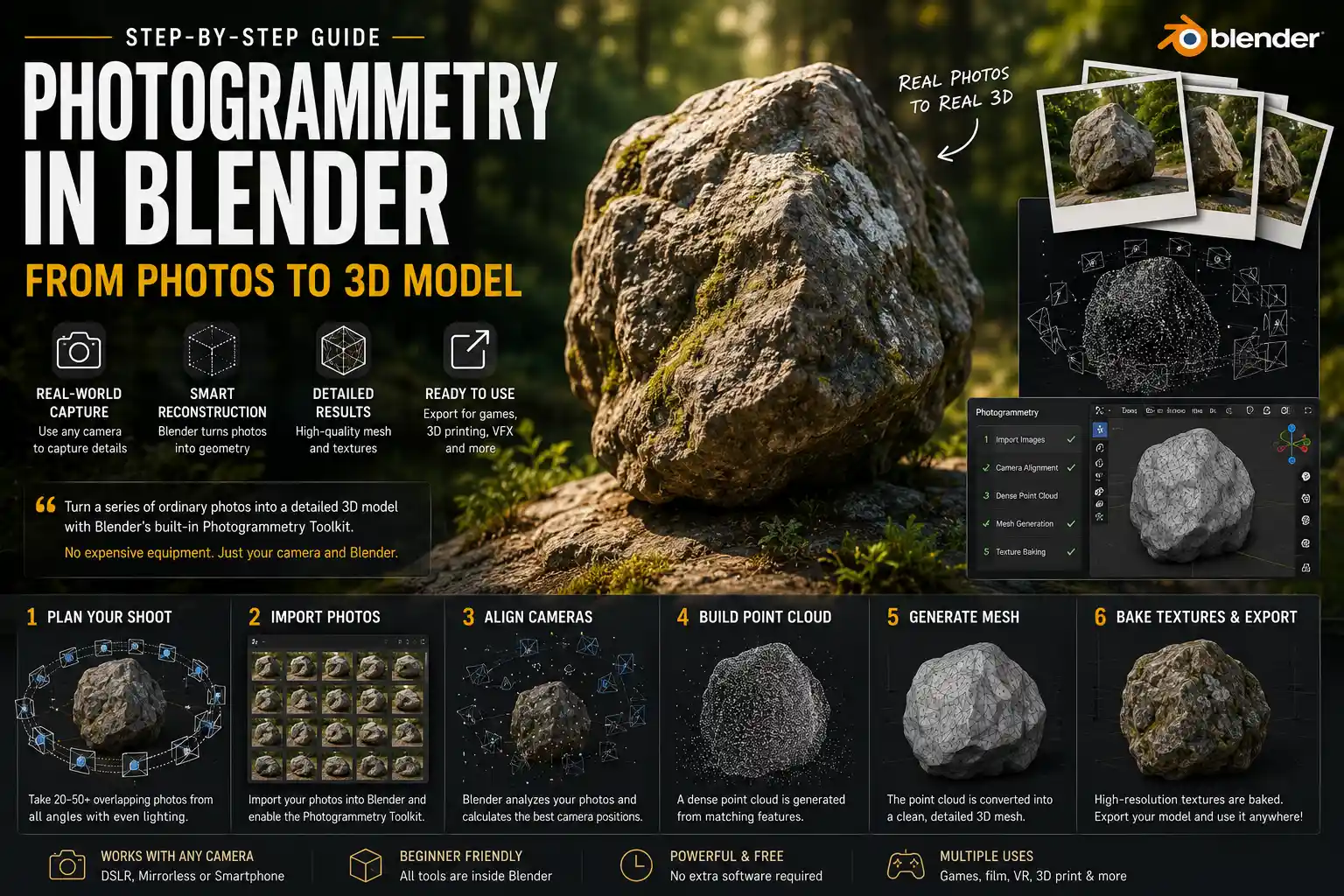
Not long ago, creating a 3D model required painstaking manual modeling, expensive scanning equipment, or a team of specialized artists. Today, anyone with a decent camera and the free open-source software Blender can turn a series of ordinary photos into a detailed 3D model, using a process called photogrammetry. Whether you’re an indie game developer looking to capture real-world textures for your environment, a 3D printing enthusiast wanting to replicate a favorite object, or a hobbyist curious about how photogrammetry works, this step-by-step guide will walk you through every stage of the process, from planning your photos to refining your final model in Blender.
Preparing for Your Photoshoot: Planning the Perfect Capture
The quality of your final 3D model depends almost entirely on the quality of your source photos. Even the most advanced processing tools can’t fix a poorly planned photoshoot, so taking the time to get this step right will save you hours of frustration later. Photogrammetry works by finding common points across multiple photos of the same object from different angles, so your goal is to capture every surface of your subject with plenty of overlapping detail.
Choosing the Right Subject for Beginners
If you’re new to photogrammetry, start small and simple. Complex objects with transparent, reflective, or completely smooth surfaces are notoriously difficult to reconstruct, because they don’t have enough unique texture for Blender to track between photos. Good beginner subjects include:
- A textured rock or piece of driftwood from a local park
- A potted plant with distinct, detailed leaves
- A worn pair of sneakers or a textured backpack
- A small wooden sculpture or decorative figurine
As a rule of thumb, avoid shiny metal, clear glass, plain white walls, or moving subjects like people or animals for your first attempt. Static, textured objects between 10cm and 1m in size are the easiest to work with when you’re learning.
Setting Up Your Camera and Environment
You don’t need a professional DSLR to get good results – most modern smartphone cameras take high-enough resolution photos for photogrammetry. The most important thing is to use a consistent setting for every photo: turn off autofocus and auto-exposure, so your lighting and focus don’t change between shots. If you’re using a phone, you can lock exposure and focus by tapping and holding on your subject in the camera app.
Natural diffuse light is ideal. Avoid harsh direct sunlight, which creates hard shadows and overexposed highlights that can confuse tracking. Overcast days or shooting in open shade give you the most even lighting. Avoid using on-camera flash, which creates uneven lighting and reflections on many surfaces. If you’re shooting indoors, use multiple soft light sources to minimize shadows.
Tips for Taking Good Photos
How many photos do you need? For a small object, 20 to 50 photos is usually enough, but more photos will give you a more detailed model. The key is overlap: every part of your subject should appear in at least three different photos from different angles. Follow this process to get consistent coverage:
- Place your subject on a stable surface, and make sure there’s plenty of empty space around it for you to move. If your object is small, you can put it on a lazy Susan to rotate it easily, but make sure the background behind it stays consistent.
- Take your first set of photos at waist height, walking slowly around the object in a circle, taking a photo every 10 to 15 degrees. Stop when you’ve gone all the way around.
- Change your angle: kneel down and take a second full circle of photos from a low angle, capturing the bottom edges of the object that you missed from waist height.
- Change your angle again: stand on a chair or step and take a third full circle from a high angle, capturing the top surface of the object.
- If your object has deep crevices or hidden details, take a few extra close-up photos of those areas, making sure each close-up still overlaps with the surrounding area you already captured.
Keep your camera focused on the subject the entire time, and avoid distorting the perspective by zooming in or out between photos. It’s better to crop your photos later than to change focal length mid-shoot.
Importing and Processing Photos in Blender
Blender added built-in photogrammetry processing with the release of Blender 3.0, through the Photogrammetry Toolkit add-on that comes pre-installed with the software. Before you start processing, you just need to enable the add-on and import your photos.
Enabling the Photogrammetry Toolkit Add-On
Open Blender and create a new General project. Go to Edit > Preferences (Blender > Settings on Mac) and select the Add-ons tab. Search for “Photogrammetry Toolkit” and check the box next to the result to enable it. Save your preferences and close the preferences window. You’ll now see a new Photogrammetry tab in the sidebar on the right side of the 3D Viewport.
Importing Your Photos
Before importing, transfer all your photos to your computer, and delete any blurry or out-of-focus shots. Blurring is the number one cause of failed reconstructions, so it’s better to remove bad photos upfront than to deal with errors later. Once you’ve curated your photos, go to the Photogrammetry sidebar and click Import Images. Navigate to the folder with your photos, select all of them, and click Import Images.
Blender will import all your photos and automatically match them to the lens distortion profile of your camera if it recognizes the model. If you’re using a smartphone, it may not find the profile automatically, but this usually doesn’t cause major issues for small to medium models. If you notice distorted geometry later, you can adjust the lens settings manually in the add-on preferences.
Running the 3D Reconstruction
Once your photos are imported, you’ll run two main steps to generate your raw point cloud and mesh: camera matching, then reconstruction. Camera matching tells Blender where your camera was positioned for each photo, which allows it to triangulate the 3D position of every common point across your photos.
Click the Match Cameras button. This process can take anywhere from a minute to 10 minutes, depending on how many photos you have and how fast your computer is. Blender will detect common features in your photos, match them across images, and calculate the position of each camera. When it’s done, you’ll see a visual preview of all your camera positions arranged in a circle around your subject in the 3D Viewport.
“The biggest mistake new users make is trying to reconstruct with bad camera alignment. If your cameras are arranged in a messy line or clustered on one side of your object instead of a clean circle around it, stop and retake your photos. A bad alignment will never give you a good model.”
Once your camera alignment looks correct, the next step is to generate a dense point cloud. A point cloud is a collection of thousands of individual 3D points, each representing a point on the surface of your object. Click Generate Dense Point Cloud and wait for the process to complete. When it’s done, you’ll see a rough 3D shape of your object made up of millions of points.
The final step in this stage is to turn the point cloud into a solid 3D mesh. Click Generate Mesh. Blender will connect the points in your point cloud to create a continuous surface. For most subjects, this takes just a few minutes, and you’ll end up with a raw, unrefined 3D model of your object.
Cleaning Up Your Raw 3D Model
The raw mesh you get from photogrammetry reconstruction is rarely ready to use right away. It will almost always have extra floating geometry, messy noise, and holes that need to be filled before you can use the model. Cleaning up the model is the most time-consuming part of the process, but it’s also where your raw capture turns into a clean, usable asset.
Removing Extra Geometry and Noise
Most reconstructions will include extra points and mesh geometry from the background behind your subject, not just the object you want to model. The first step is to delete all this extra stuff. Blender makes this easy with selection tools: start by switching to Object Mode, then go into Edit Mode and select the extra geometry.
For large chunks of background geometry, you can use the Box Select or Lasso tool to select everything outside your subject and delete it. For smaller floating bits of noise scattered around your model, use the Decimate Geometry modifier or the Remove Doubles tool to get rid of extra overlapping vertices. You can also use the Clean Up > Delete Loose tool to automatically delete any disconnected small bits of geometry that aren’t attached to your main model.
Filling Holes and Fixing Missing Geometry
It’s common to have holes in your model where your photos didn’t capture enough detail of a surface. This often happens on the bottom of an object, where it touches the table it’s sitting on, or in deep crevices that your camera couldn’t reach. There are a few easy ways to fix these holes in Blender:
- For small holes: Select all the border vertices around the hole, then use the Fill tool (Shift + F) to automatically generate a new surface to close the hole. You can then use the Smooth tool to blend the new surface with the surrounding geometry.
- For large holes: Use the Grid Fill tool to create a clean polygonal surface that matches the shape of the hole, then use sculpting tools to shape it to match the surrounding form.
- For completely missing sections: If you have a large section of the model that wasn’t captured, you can use the Clay Strips sculpting brush to build up the missing geometry manually, blending it into the existing model.
If you’re planning to 3D print your model, it’s especially important to make sure all holes are closed and your model is a single solid mesh. You can check for this using the 3D Print Toolbox add-on that comes pre-installed with Blender, which will highlight any non-manifold geometry or open edges that need to be fixed.
Retopologizing for Clean Topology
The raw mesh you get from photogrammetry is usually very high-poly, meaning it has millions of polygons. This makes it too heavy to use for most applications like game development or 3D rendering. Retopology is the process of creating a new, clean low-poly mesh over the top of your high-poly raw model, so it’s more efficient and easier to work with.
Blender has built-in tools that make retopology easier than ever. The easiest way for beginners is to use the Remesh modifier, which automatically generates a clean uniform mesh over your existing model. For more control, you can use the Poly Build tool to manually draw new polygons over the surface of your high-poly model. If you need a really clean mesh for animation or 3D printing, manual retopology will give you the best results, but automatic remeshing is more than enough for most hobby projects.
UV Unwrapping and Baking Texture Details
One of the biggest advantages of creating a 3D model from photos is that you get a realistic, high-resolution texture that exactly matches the real object. To get that texture onto your clean 3D model, you need to unwrap your model’s UVs and bake the detail from your raw photogrammetry model.
What is UV Unwrapping?
UV unwrapping is the process of flattening your 3D mesh into a 2D plane, so you can apply a 2D texture image to it. Think of it like unwrapping a cardboard box to lay it flat: every point on the 3D mesh corresponds to a point on the 2D texture image. Blender has automatic UV unwrapping tools that work well for most photogrammetry models.
Once you have your clean retopologized mesh, select it and switch to Edit Mode. Press A to select all vertices, then go to UV > Smart UV Project. Leave the default settings as they are and click OK. Blender will automatically unwrap your mesh and arrange the UV islands to minimize stretching and wasted space. You can check for stretching by enabling the Stretching display in the UV Editor – if you see a lot of red, you can adjust the island margin and re-unwrap.
Baking Your Texture from the Raw Model
After UV unwrapping, you need to transfer the color and detail from your high-poly raw photogrammetry model to your new clean low-poly model. This process is called texture baking. Blender’s baking tools make this straightforward if you follow these steps:
- Create a new image texture in the Image Editor. Set the resolution to 4096x4096 for most small to medium objects – this gives you enough detail for most uses without being too large.
- Select your clean low-poly mesh, then go to the Render Properties tab and select Cycles as your render engine (Cycles has the most reliable baking tools for this process).
- Go to the Bake tab, set the bake type to Diffuse, and check the Selected to Active box. This tells Blender to bake the texture from the selected high-poly model to your active low-poly model.
- Hold Shift and select your raw high-poly photogrammetry model, so both the low-poly (active) and high-poly (selected) are selected.
- Click Bake. Blender will generate a complete color texture for your low-poly model, transferring all the detail from your original photos.
Once the bake is done, you can see the texture applied to your model in the 3D Viewport if you switch to Texture Preview mode. You can touch up any small blemishes or missing spots in the texture using an external image editor like GIMP or Photoshop, then import the edited texture back into Blender.
Adding Normals and Displacement for Extra Detail
If you want even more detail, you can bake not just color, but also normal maps and displacement maps from your high-poly model. A normal map adds fine surface detail like bumps, scratches, and texture to your low-poly model without adding extra polygons. This is perfect for game assets, where performance is important. To bake a normal map, just change the bake type to Normal and repeat the baking process, then add the normal map to your model’s material in the Shader Editor.
Refining and Exporting Your Final Model
Once you have your clean mesh and baked texture, you just need to do a final check and export your model for whatever use you have planned. A few small tweaks can make a big difference in how your model looks and works.
Final Mesh Checks
Before exporting, go through this quick checklist to catch any common issues:
- Check for non-manifold geometry: Go to Edit Mode > Select > Select Non Manifold. Any selected edges need to be fixed by merging vertices or closing holes.
- Check texture stretching: Switch to Texture Preview mode and look for any areas where the texture looks stretched or blurry. You can fix this by adjusting the UVs for those areas in the UV Editor.
- Adjust scale: Measure your object in the real world, then adjust the scale of your model in Blender so it matches the real dimensions. This is especially important if you’re going to 3D print it.
Adjusting Materials and Lighting
Blender automatically creates a basic material for your model after baking, but you can adjust it to get more realistic results. If your object is shiny, like a ceramic mug, you can increase the Roughness value in the Principled BSDF shader to make it reflect light correctly. If it’s porous like wood or stone, you can leave the Roughness value high to get a matte finish. Add a few soft lights to your scene and do a test render to make sure your model looks the way you expect.
Exporting for Different Uses
The export format you choose depends on what you’re going to do with your model:
- 3D Printing: Export as an STL or OBJ file. STL is the standard format for 3D printing, and it works with almost all slicer software. Make sure your model is solid and all holes are closed before exporting.
- Game Development: Export as FBX or GLB. GLB is a modern format that includes your model and texture in a single file, which is perfect for use in Unity, Unreal Engine, or web-based 3D projects.
- 3D Rendering or Animation: Export as OBJ or FBX, or just keep the file as a Blender project if you’re working entirely in Blender.
Conclusion
Creating a 3D model from photos in Blender is a powerful skill that opens up endless possibilities for 3D printing, game development, art, and hobby projects. What once required thousands of dollars in equipment and specialized training can now be done with a smartphone and free software, as long as you follow the right process. The key steps are simple: plan your photoshoot carefully to get enough overlapping detail, let Blender do the heavy lifting of reconstruction, clean up the raw mesh to remove extra noise and fill holes, then bake your texture to get that realistic real-world detail onto your clean model.
Your first model probably won’t be perfect – don’t get discouraged if your first reconstruction fails or your model has a lot of errors. Photogrammetry takes a little practice to get right, and every object teaches you something new about how to plan your photos and fix common issues. Start with a simple small subject, work through each step slowly, and you’ll be surprised how quickly you can turn a collection of ordinary photos into a high-quality 3D model you can use for almost anything.