
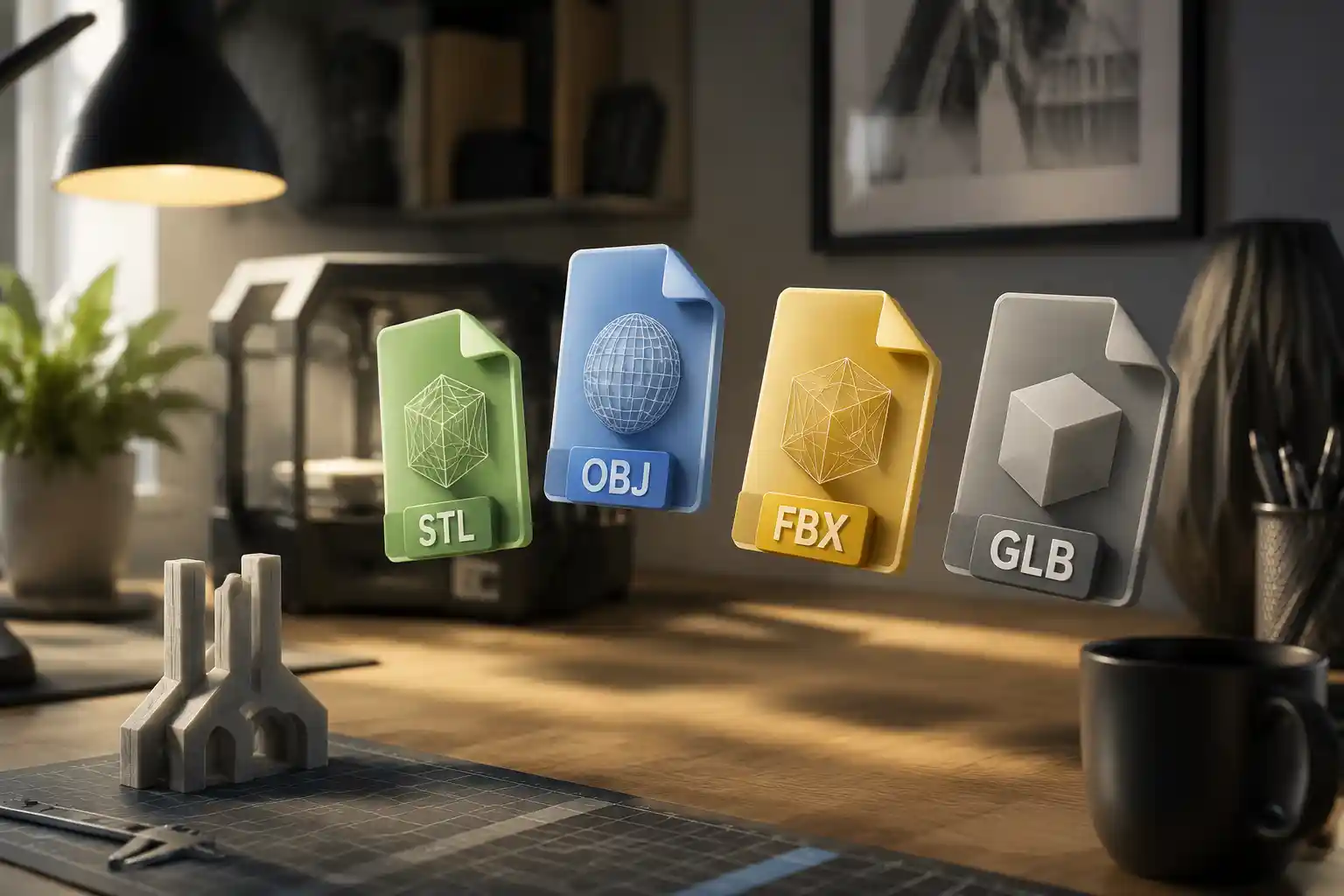
If you’ve ever worked with 3D models for 3D printing, game development, AR/VR projects, or 3D animation, you’ve almost certainly encountered the most common 3D file formats: STL, OBJ, FBX, and GLB. Each format was built for a specific use case, so a model that works perfectly for one application may be unusable for another. An STL designed for 3D printing won’t retain the color and texture data you need for a mobile AR filter, just as a high-poly FBX from a 3D modeling suite will be too large and unwieldy for a web-based 3D product configurator. Learning how to convert between these four popular formats is a foundational skill for any 3D creator, maker, or developer, and it can save you hours of rework when you need to repurpose a 3D asset across different projects.
Understanding the Four Core 3D File Formats
Before diving into conversion workflows, it’s important to understand what each format was designed for, and why you might need to convert between them. Every 3D file stores different types of data, from basic geometry to complex textures, animation, and material properties. Choosing the right format, and converting correctly, preserves the data you need and eliminates unnecessary bloat for your end use case.
STL (Standard Tessellation Language)STL is the oldest and most widely used format for 3D printing, developed in the 1980s alongside the first stereolithography 3D printers. It only stores one type of data: the raw surface geometry of a 3D model, represented as a mesh of interconnected triangles. STL files do not support textures, colors, materials, multiple objects, or animation, which makes them extremely simple and reliable for 3D printing, where only the shape of the object matters. The tradeoff is that they are useless for most digital 3D applications like games or AR that require visual customization or dynamic content.
OBJ (Wavefront Object)OBJ is a plain-text 3D format that emerged as a standard for exchanging static 3D models between different modeling programs. Unlike STL, OBJ can store not just geometry, but also texture coordinates, vertex colors, and multiple objects in a single file. It is still widely used for static models in design, architecture, and 3D rendering because it is simple, open, and supported by nearly every 3D tool on the market. OBJ does not natively support animation, rigging, or complex material libraries, however, so it is rarely used for interactive or animated content.
FBX (Filmbox)Developed by Autodesk, FBX is a proprietary binary format designed for professional animation and game development workflows. It supports every type of 3D data you could need: geometry, textures, materials, rigging, skinning, skeletal animation, blend shapes, and even camera and light data. FBX is the standard for exchanging animated assets between 3D modeling tools like Maya or Blender and game engines like Unity or Unreal Engine. Its main downsides are that it is a closed format, files can get very large for complex assets, and it is not optimized for web or mobile use.
GLB (GL Transmission Format Binary)GLB is the modern binary version of the glTF (GL Transmission Format) standard, often called the “JPEG of 3D” because it is optimized for fast transmission and rendering of 3D content over the web. It stores full PBR (physically based rendering) materials, textures, animation, and even light data in a single compact file that loads and renders quickly in browsers, mobile apps, AR frameworks, and game engines. GLB has become the default format for web 3D, AR try-on experiences, product configurators, and metaverse platforms, thanks to its small file size and broad industry support from companies like Google, Microsoft, and Khronos Group.
Common Conversion Scenarios and Why They Matter
Most 3D projects require repurposing assets across different tools and platforms, which means conversion is not just a nice-to-have—it’s a required step. Understanding when you need to convert which format to which helps you avoid common pitfalls like lost data, broken 3D prints, or slow-loading interactive content. Below are the most common conversion scenarios that 3D creators and developers encounter regularly:
- STL to OBJ/FBX/GLB: You have a 3D model designed for 3D printing that you want to use in a digital render, game, or AR experience. Since STL only contains raw geometry, you’ll need to convert it to a format that supports adding textures, materials, and other data.
- OBJ to FBX/GLB: You have a static model created in a program like Blender or SketchUp that you want to animate or import into a game engine. OBJ doesn’t support animation, so conversion to FBX or GLB is required to add rigging and movement data.
- FBX to GLB: You have an animated or textured asset created for a game that you want to publish to the web or use in a mobile AR experience. FBX files are often much larger than they need to be for web use, and converting to GLB reduces file size while retaining all required visual and animation data.
- GLB/FBX/OBJ to STL: You have a digital 3D model you created for a product render or game that you want to 3D print. All other formats need to be converted to STL (or repaired after conversion) to work with consumer 3D printers, which almost universally rely on STL files.
One of the most common mistakes new 3D creators make is assuming that any conversion will work perfectly out of the box. For example, converting a high-poly 50MB FBX of a character model directly to GLB without optimizing the mesh will result in a GLB that is still too large to load on mobile devices. Similarly, converting an STL with non-manifold geometry to OBJ will carry over those geometry errors that can ruin your render or 3D print. The conversion process is only as good as the source file and the settings you choose, which is why understanding the workflow matters more than just picking a converter tool.
“The biggest mistake new 3D creators make when converting files is treating conversion like a black box. You can’t just click ‘convert’ and expect a perfect result—you need to know what data you need to keep, what you can throw away, and what errors you need to fix before you ever start the conversion process.”
Another common pain point is compatibility. A CAD program that exports STEP files for engineering may not export GLB natively, so you’ll need to convert through intermediate formats like OBJ or FBX to get to the final format you need. Even native exporters can introduce errors if they are not configured correctly, so it pays to understand the step-by-step process for the most popular conversion routes.
Step-by-Step Conversion Workflows for Popular Tools
Whether you prefer using free open-source tools like Blender, browser-based converters for quick one-off files, or professional software for bulk conversions, there is a workflow that fits your needs. Below are the most reliable step-by-step workflows for all common conversion combinations, using the most popular free tools available today.
Conversion in Blender (Free, Open-Source, All Formats)Blender is the most popular free 3D creation suite, and it supports importing and exporting all four of these formats natively (with GLB support built in since version 2.8). This makes it the best tool for most conversion tasks, because you can also fix geometry errors, add textures, and optimize your model all in one place. The workflow is straightforward:
- Open Blender and delete the default cube that loads with a new project.
- Go to File > Import and select your source format: STL, OBJ, FBX, or GLB. Adjust import settings as needed: for STL, check the “Import Edges” box to ensure geometry is imported correctly; for FBX, enable “Import Animation” if you want to retain animation data.
- Once your model is imported, inspect it for errors: check for non-manifold geometry, missing faces, or inverted normals. Use Blender’s Edit Mode and the Remesh or Decimate tools to fix geometry errors and optimize poly count if needed.
- Add or adjust materials, textures, or animation as needed for your end use case.
- Go to File > Export and select your target format. Adjust export settings based on your format:
- For STL: Check “Selection Only” if you only want to export a specific object, and enable “Apply Modifiers” to export the final edited geometry.
- For OBJ: Enable “Copy Images” to export texture files alongside the OBJ so textures don’t get lost.
- For FBX: Enable “Export Animation” and “Bake Space Transform” to ensure compatibility with game engines.
- For GLB: Enable “Export PBR Core Materials” and compress textures to reduce file size for web use.
- Click Export, and your converted file will be saved to your selected location.
Blender works for every conversion combination you can think of: STL to GLB, FBX to STL, OBJ to FBX, you name it. The only downside is that you need to download and learn the basics of Blender, which can be intimidating for beginners who just need a quick one-off conversion.
Browser-Based Converters for Quick One-Off ConversionsIf you don’t want to download or learn a full 3D modeling tool, there are dozens of free browser-based converters that can handle most simple conversion tasks in seconds. Sites like Convertio, Online 3D Converter, and Blender Cloud let you upload a source file and download the converted format directly in your browser. This workflow is ideal for beginners or people who only need to convert a file once in a while:
- Navigate to a reputable browser-based 3D converter (avoid untrusted sites that may inject malware into downloaded files).
- Upload your source file (most tools support files up to 100MB for free, with larger files available for paid upgrades).
- Select your target output format from the dropdown menu.
- Click “Convert” and wait for the tool to process your file. This usually takes 10-30 seconds for most simple models.
- Download the converted file to your computer.
The main downside of browser-based converters is that they don’t let you fix geometry errors or optimize your model before conversion. They also often have file size limits, and may compress your model too aggressively, leading to loss of detail. For simple, error-free models, however, they are fast and convenient.
Bulk Conversion for Professional WorkflowsIf you are a game developer or 3D asset manager who needs to convert hundreds of assets from FBX to GLB for a web project, or from OBJ to STL for a batch of 3D prints, manual conversion one file at a time is too time-consuming. For bulk conversion, there are two reliable options:
- Blender’s command-line exporter: You can write a simple Python script to batch import and export multiple files automatically, without opening the Blender GUI. This is free and fully customizable to your needs.
- Commercial tools like Autodesk 3ds Max, Simplygon, or Adobe Substance 3D: These tools have built-in bulk conversion features that let you process hundreds of assets at once, with advanced options for optimization and error correction.
Bulk conversion workflows save hours of manual work for professional teams, but they require some basic setup to get right. It’s always a good idea to test the conversion settings on one or two sample assets before processing an entire batch, to make sure the output meets your requirements.
Common Conversion Problems and How to Fix Them
Even with the right tools and workflow, conversion can go wrong. The most common problems stem from incompatible data between formats, geometry errors in the source file, or incorrect export settings. Below are the most frequent issues you’ll encounter, and simple fixes for each:
Lost Textures or Material DataThis is one of the most common problems when converting from OBJ or FBX to GLB or STL. When you open your converted file, the model is plain gray instead of retaining its original colors and textures. For formats that don’t support textures (like STL), this is expected—STL can’t store texture data, so you shouldn’t expect it to be retained. For other formats, the problem is usually that texture files were not included with the original export, or the file paths to textures are broken.
To fix this, always enable “copy textures” or “embed textures” in your export settings when converting from OBJ or FBX. For GLB, the format natively embeds all texture data into the single GLB file, so as long as your textures are correctly assigned in the source file before export, they will be retained in the converted GLB. If you are converting from a separate OBJ and MTL file, make sure both files are in the same folder when you import them into your conversion tool, so the tool can find the texture references.
Geometry Errors That Break 3D Prints or RendersSTL files are particularly prone to geometry errors like non-manifold edges, overlapping faces, and flipped normals, and these errors are often carried over when you convert STL to other formats, or when you convert other formats to STL. For 3D printing, these errors can cause your slicer software to crash or produce a flawed print. For digital renders, they can cause weird black patches or holes in your model.
The easiest fix for this is to use a 3D repair tool before or after conversion. Blender has built-in tools to find and fix non-manifold geometry, and free tools like MeshMixer or Meshlab can automatically repair most common geometry errors with one click. For STL conversion for 3D printing, always run your converted STL through a repair tool before sending it to your slicer. Most modern slicers like Cura have basic built-in repair tools, but it’s better to fix errors before conversion to avoid unexpected issues.
File Size Is Too Large for Web or MobileThis is a common problem when converting FBX to GLB for web or AR use. FBX files are often unoptimized, with far more polygons than you need for real-time rendering, so a direct conversion can result in a GLB that is 100MB or more, which takes minutes to load on a mobile connection.
The fix here is to optimize your model before conversion. Use a decimation tool to reduce the polygon count while retaining the detail you need, compress textures to 1K or 2K resolution (instead of 4K for mobile), and remove any unused data like hidden objects or unused animation tracks. Blender’s Decimate modifier can reduce polygon count by 50-70% in most cases without any visible loss of detail, and tools like Simplygon can automatically optimize high-poly models for real-time use. When exporting GLB, enable texture compression to further reduce file size without noticeable quality loss.
Animation or Rigging Data Is Lost After ConversionIf you are converting an animated FBX to GLB for an interactive project, and the animation doesn’t play after conversion, the problem is almost always incorrect export settings. Most converters disable animation export by default, so you need to manually enable it before exporting.
To fix this, make sure you check the “Export Animation” box in your export settings, regardless of whether you are exporting to FBX or GLB. For GLB, make sure your animations are properly baked and weighted to your armature before export, and test the converted file in a GLB viewer like the one on Sketchfab to confirm the animation plays correctly before publishing it.
Best Practices for High-Quality Conversions Every Time
Beyond fixing common problems, there are a few simple best practices that will help you get perfect conversions every time, regardless of the source or target format:
- Start with a clean source file: Fix any geometry errors, remove unused objects, and organize your layers or collections before you start conversion. This prevents errors from being carried over to the converted file.
- Only retain the data you need: If you are converting to STL for 3D printing, you don’t need to keep textures, materials, or animation. Stripping out unnecessary data reduces file size and avoids compatibility issues. If you are converting to GLB for web, remove any hidden polygons or unused animation tracks to keep file size small.
- Test your converted file in the target application: Don’t assume the conversion worked—open the file in the tool or platform you will be using it for to confirm everything looks and works as expected. For example, if you converted a model to STL for 3D printing, open it in your slicer first to confirm it slices correctly. If you converted to GLB for web, open it in a GLB viewer to confirm textures and animation work.
- Use the right level of detail for your end use: A 3D print that will be 10cm tall doesn’t need the same 10 million polygon count as a high-resolution render. Reduce polygon count for 3D printing to reduce file size and make slicing faster, and optimize polygon count for web to keep load times low.
- Keep a backup of your source file: Always keep the original source file in its native format before conversion. If the conversion doesn’t work out, you can go back and adjust settings or fix errors without starting over from scratch.
Another important best practice is to choose the right target format for your end use case. It’s easy to default to the most popular format, but that isn’t always the best choice. For example, if you are sharing a static 3D model with another designer, OBJ is more universally compatible than GLB for most CAD and modeling tools. If you are publishing an interactive 3D model to the web, GLB is almost always better than FBX, because it loads faster and works in all modern browsers. Matching the format to your use case eliminates most conversion problems before they even start.
Conclusion
Converting between STL, OBJ, FBX, and GLB is a core skill for anyone working with 3D content, from hobbyist 3D printing makers to professional game developers and AR creators. The key to successful conversion is understanding what each format is designed for, what data you need to retain for your end use case, and how to use the right tools and settings to get the result you want. Whether you use a free tool like Blender for full control over your conversion, a browser-based converter for quick one-off files, or a bulk workflow for processing hundreds of assets at once, following simple best practices like starting with a clean source file, optimizing for your end use case, and testing your converted file will help you avoid the most common problems.
As 3D content becomes more ubiquitous across web, mobile, AR, and manufacturing, the ability to move assets seamlessly between different formats will only become more important. With the workflows and tips outlined in this article, you can convert any 3D model between these four common formats confidently, and repurpose your 3D assets across any project you can imagine.