
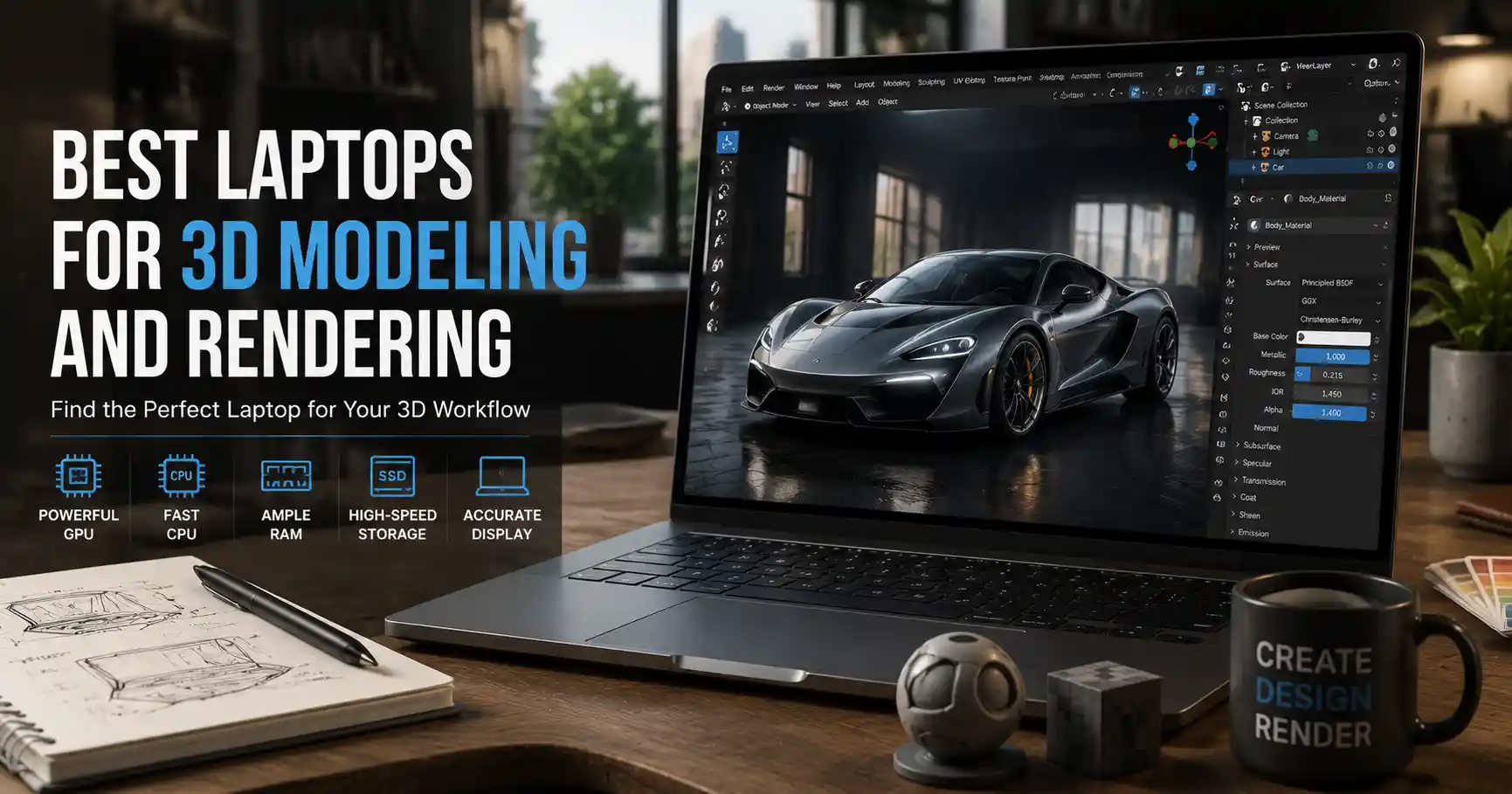
Whether you’re a freelance character artist designing assets for the next AAA game, an architect visualizing a new skyscraper, or a product designer prototyping a consumer gadget, 3D modeling and rendering demand more from your laptop than almost any other creative workflow. Unlike browsing the web or writing emails, 3D work pushes every component of your device to its limit: processing millions of polygons, calculating complex lighting simulations, and exporting high-resolution final files can turn a mid-range laptop into a slow, frustrating paperweight. Choosing the right device doesn’t have to mean dropping $5,000 on a flagship workstation, but it does require understanding which components matter most for your specific use case. This guide breaks down everything you need to know to pick a laptop that fits your workflow and your budget.
Understanding Core Components: What Actually Matters for 3D Work
Every 3D workflow has two key stages: modeling (building and manipulating 3D objects in real time) and rendering (calculating the final image or animation from your model). These two stages put different demands on your laptop’s hardware, so it’s important to balance your investment based on which stage you spend the most time on. Let’s break down each component and its role in 3D work.
Graphics Processing Unit (GPU): The Backbone of 3D Work
For most modern 3D tools, the GPU is the most important component you’ll choose. Nearly all popular 3D software—including Blender, Autodesk Maya, 3ds Max, Cinema 4D, and SolidWorks—now supports GPU acceleration for both viewport manipulation and final rendering. A powerful GPU lets you rotate, zoom, and edit complex models with millions of polygons in real time without lag, and it cuts render times from hours down to minutes.
When it comes to GPUs, there are two main players for laptops: NVIDIA and AMD. NVIDIA has long been the industry standard for 3D work, thanks to its wide software compatibility and CUDA cores, which are used by most rendering engines like V-Ray, Arnold, and Cycles. AMD has closed the gap in recent years with its RDNA architecture and OpenCL support, but it still lags behind in compatibility with some professional 3D tools.
VRAM (video RAM) is just as important as the number of cores. For 3D work, you’ll need enough VRAM to store your entire model, textures, and rendering data without swapping to slower system RAM. As a general rule of thumb:
- Entry-level work (small models, basic textures, product visualization under 1 million polygons): 8GB VRAM minimum
- Mid-range work (medium environment models, game assets, 4K textures): 12GB–16GB VRAM
- High-end work (feature film assets, large architectural visualizations, 8K textures): 16GB–24GB+ VRAM
For professional work, NVIDIA’s RTX A-series mobile workstation cards (like the RTX A2000, A3000, and A5000) are optimized for stability and driver support for 3D software, though consumer RTX cards (RTX 4060, 4070, 4080, 4090) also work extremely well for most users and often offer better performance for the price.
Central Processing Unit (CPU): How Much Power Do You Really Need?
While the GPU handles most of the heavy lifting in modern 3D work, the CPU still plays a critical role. The CPU manages viewport calculations for very complex scenes, handles simulation work (like cloth, fluid, or hair dynamics), and supports CPU-based rendering when you need it. Some rendering engines, like Pixar’s Arnold, still default to CPU rendering, so having a capable CPU is non-negotiable.
For entry to mid-level 3D work, a 6-core or 8-core modern CPU is more than enough. Intel’s Core i5 or i7 (12th, 13th, or 14th generation) and AMD’s Ryzen 5 or 7 (7000 series) offer excellent performance for most users. If you regularly work with heavy simulations or CPU rendering, step up to a 12-core or 16-core CPU—Intel Core i9 or Ryzen 9. Avoid going overboard with 24+ core chips for laptop use, however; more cores generate more heat, which leads to thermal throttling in a compact laptop chassis, and the extra cost rarely translates to noticeable real-world performance gains for most 3D artists.
System RAM and Storage: Don’t Cut Corners Here
Even if you have a powerful GPU, not having enough system RAM will grind your workflow to a halt. 3D scenes with high-resolution textures, multiple linked assets, and layered simulations require a lot of memory to load and manipulate. For entry-level work, 16GB of RAM is the absolute minimum. For most professional users, 32GB is the sweet spot, balancing cost and performance. If you regularly work on large architectural projects or scenes with 8K textures, 64GB of RAM will eliminate lag and out-of-memory errors.
For storage, always choose a solid-state drive (SSD) over a hard disk drive (HDD). SSDs load large 3D files and boot software in a fraction of the time of HDDs, and they’re more resistant to damage from drops or movement, which is critical for a laptop. As for capacity, 1TB is the minimum you should buy—3D software, asset libraries, and project files take up a lot of space, and 512GB will fill up faster than you expect. For users with large local asset libraries, 2TB or more is worth the extra investment. Many modern laptops let you add a second SSD later, so if you’re on a budget, you can start with 1TB and upgrade when you need more space.
Matching Your Laptop to Your Specific 3D Workflow
Not all 3D work is the same. A 3D printing hobbyist designing small parts has very different needs than a VFX artist working on feature film animations. Before you start comparing specs, it’s important to prioritize components based on what you actually do day-to-day.
Hobbyist and Beginner 3D Modeling
If you’re just learning 3D modeling, or you work on small projects like 3D printing, product mockups, or indie game assets, you don’t need to spend thousands on a flagship workstation. Most mid-range laptops can handle these workflows with ease. Prioritize a GPU with 8GB of VRAM, 16GB of system RAM, and an 8-core CPU. Good options here include the Dell XPS 15 with an RTX 4060, the ASUS ROG Zephyrus G14 with an RTX 4070, or the Lenovo IdeaPad Pro 5i with an RTX 4050. All of these offer solid performance for under $1,500, and work well with beginner-friendly tools like Blender, Tinkercad, or Fusion 360.
Architectural Visualization
Arch Viz work involves large, complex scenes with lots of geometry, high-resolution environment textures, and detailed lighting simulations. For this workflow, you need plenty of VRAM to handle large CAD files and 4K/8K textures, and a powerful GPU to accelerate ray tracing in tools like 3ds Max, Revit, V-Ray, or Enscape. We recommend a minimum of 16GB VRAM, 32GB RAM, and a 6-core or 8-core CPU. Mobile workstation models like the HP ZBook Studio G10 with an RTX A3000 or the Dell Precision 5680 with an RTX A4000 are excellent choices, as they come with certified drivers for Autodesk and other professional CAD tools that reduce crashes and stability issues.
Game Development and Character Art
Game asset and character art involves working with high-poly models, complex UV maps, and multiple texture sets, and often requires real-time previews in engines like Unity or Unreal Engine. For this workflow, prioritize a strong GPU with 12GB–16GB VRAM, 32GB RAM, and a fast CPU. The Razer Blade 16 with an RTX 4080 or the MSI Creator Z17 with an RTX 4090 are great options, offering high-refresh displays that make it easy to spot mesh errors or texture issues while you work.
VFX and Animation Rendering
If you work on feature film VFX or full 3D animations, you need the most powerful hardware available. You’ll be rendering long sequences with complex simulations, hair, particles, and global illumination, so every minute of render time saved adds up over the course of a project. Aim for a minimum of 24GB VRAM, 64GB RAM, and a 12-core+ CPU. Top-tier mobile workstations like the Lenovo ThinkPad P16 Gen 2 with an RTX A5000 or the ASUS ProArt Studiobook 16 with an RTX 4090 offer workstation-grade stability and enough power to handle even the most demanding scenes.
The biggest mistake new 3D artists make is buying for the projects they have today, not the projects they want to take on in a year. If you’re serious about growing your career, spending a little extra for headroom in VRAM and RAM will save you from having to replace your laptop in 18 months.
Display Quality: A Often Overlooked Critical Feature
Even the most powerful laptop is useless if its display can’t accurately show you the colors and details of your 3D work. When you’re rendering a final image or adjusting textures, a poor display can lead to bad color grading, missed mesh errors, and client revisions that could have been avoided. Here’s what to look for when evaluating a laptop display for 3D work.
Resolution and Size
3D software has a lot of toolbars, viewports, and panels, so more screen real estate is always better. A 15-inch display is the minimum for comfortable work, but 16-inch or 17-inch displays are ideal if you can tolerate the extra size and weight. For resolution, 1920x1080 (Full HD) is too low for professional 3D work—you’ll be stuck scrolling constantly to see your entire scene. At a minimum, go for 2560x1440 (QHD). 4K (3840x2160) displays are even better, as they let you preview your final 4K renders at 1:1 scale, but they do add cost and can drain battery life faster. If you choose a 4K display, make sure your GPU is powerful enough to drive it smoothly in the viewport.
Color Accuracy and Gamut
If you’re creating 3D work for print, web, or broadcast, color accuracy is non-negotiable. Look for a display that covers 100% of the sRGB gamut (the standard for web and digital media) and at least 90% of the Adobe RGB or P3 gamut (for print and high-end digital work). It’s also important to check the factory calibration—displays that come calibrated from the factory (usually marked Delta E < 2) mean your colors will be accurate right out of the box, without needing to spend extra on a third-party calibration tool. Most creator-focused laptops (like ASUS ProArt or Dell XPS models) come with factory calibration as standard, but many gaming laptops cut corners here, so always check the specs before you buy.
Panel Type
In-plane switching (IPS) panels are the standard for good reason: they offer wide viewing angles and excellent color accuracy. Avoid older TN panels, which have poor color reproduction and narrow viewing angles. OLED panels have become more popular in laptops in recent years, and they offer incredible contrast and deep blacks, which make it easy to spot lighting issues in your renders. The downside of OLED is the risk of burn-in if you leave static elements (like 3D software toolbars) on the screen for hours every day, and they’re often more expensive than IPS panels. For most users, a high-quality IPS panel is still the best balance of performance, price, and longevity.
Portability, Battery Life, and Other Practical Considerations
If you’re buying a laptop for 3D work, chances are you value portability—otherwise you’d just build a desktop workstation. Balancing performance with portability is one of the biggest challenges of choosing a 3D laptop, so here are the key practical factors to consider before you buy.
Weight and Build Quality
Flagship high-performance 3D laptops can weigh as much as 6-7 pounds (2.7-3.2 kg), which is extremely heavy if you’re commuting to work or traveling for client meetings. If you need to carry your laptop with you regularly, aim for a model under 5 pounds (2.2 kg). Many mid-range creator laptops now pack powerful GPUs into 4-pound chassis, so you don’t have to give up too much performance for portability. Also look for a durable build—aluminum unibody construction is sturdier than plastic, and it helps dissipate heat better, which is critical for maintaining performance during long render sessions.
Battery Life
It’s no secret that powerful 3D hardware drains battery quickly. You shouldn’t expect any 3D-capable laptop to last a full workday off battery while you’re actively modeling or rendering, but some models are much better than others. If you often work away from a power outlet, look for a laptop with a 75Wh or larger battery, and prioritize models with efficient 13th/14th generation Intel or 7000 series AMD CPUs, which offer much better battery life than older generations when you’re working on less intensive tasks like sketching or editing materials. As a general rule of thumb, you can expect 4-6 hours of mixed use (web browsing, light modeling) from a good modern 3D laptop, and 1-2 hours during active rendering.
Cooling and Thermal Performance
High-performance components generate a lot of heat, and if a laptop can’t dissipate that heat, it will throttle its performance to prevent overheating—meaning you’ll never get the full power you paid for. Before buying a laptop, check independent reviews that test sustained performance during long render sessions. Laptops with larger chassis generally have better cooling, but many thin-and-light models now use advanced vapor chamber cooling that can handle mid-range GPUs without throttling. Also pay attention to fan noise—some cheap gaming laptops get extremely loud when running at full power, which can be distracting if you work in a shared office or from home. Creator-focused laptops are usually tuned for quieter fan operation under load than gaming laptops.
Ports and Connectivity
3D artists often use external accessories like drawing tablets, color calibration tools, external SSDs for asset storage, and secondary displays. Make sure the laptop you choose has enough of the right ports. At a minimum, you’ll need:
- At least one USB-C port with Thunderbolt 4 support (for fast data transfer and external GPUs/displays)
- Two or three USB-A ports for accessories like mice and tablets
- An HDMI 2.1 port for connecting to an external display or TV
- An SD card reader (if you regularly import assets from cameras or other devices)
If you plan to use an external docking station for work at a desk, Thunderbolt 4 support is a must, as it can carry data, video, and power over a single cable.
Upgradeability
Many modern thin-and-light laptops solder RAM and storage to the motherboard, which means you can’t upgrade them later. If you’re buying a lower-spec laptop now with the plan to upgrade RAM or storage in a couple of years, make sure the model you choose has user-upgradeable components. Even if you don’t plan to upgrade, having upgradeable storage lets you swap in a larger drive when your current one fills up, which is much cheaper than buying a whole new laptop.
Budgeting: How Much Should You Expect to Spend?
3D-capable laptops range in price from under $1,000 to over $4,000, so there’s an option for every budget. Here’s a breakdown of what you can expect at different price points to help you plan:
- Under $1,000: Entry-level for hobbyists and beginners
In this range, you can get a laptop with an RTX 4050 GPU (6GB VRAM), 16GB RAM, 1TB SSD, and a 6-core CPU. This is enough for learning 3D modeling, working on small projects like 3D printing or simple product visualization, and rendering small scenes in Blender. You won’t be able to handle large complex scenes, but it’s perfect for beginners who don’t want to invest a lot of money upfront. - $1,000–$2,000: Mid-range for most freelance and professional users
This is the sweet spot for most 3D artists. In this range, you can get an RTX 4060 or 4070 GPU (8GB–12GB VRAM), 32GB RAM, 1TB–2TB SSD, and an 8-core CPU. This handles most professional workflows, including medium-sized arch viz scenes, game assets, and even animation rendering with shorter sequences. You can find both creator-focused and high-quality gaming laptops in this range that offer excellent performance. - $2,000–$3,500: High-end for professional full-time work
For full-time professional 3D artists working on demanding projects, this budget gets you an RTX 4080 or RTX A5000 GPU (16GB–24GB VRAM), 32GB–64GB RAM, 2TB SSD, and a 12-core CPU. This will handle almost any workflow, from large architectural visualizations to feature film VFX, with plenty of headroom for future projects. Most mobile workstations and top-tier creator laptops fall into this range. - Over $3,500: Flagship workstation for extreme workloads
At this price point, you get the highest-end components available: RTX 4090 or RTX A6000 GPUs (24GB+ VRAM), 64GB–128GB RAM, 4TB+ SSD, and 16-core+ CPUs. This is only necessary if you regularly work on extremely large scenes with hundreds of millions of polygons, 8K textures, or complex simulations. For most users, the extra performance here isn’t worth the premium price.
One common question is whether gaming laptops are good for 3D modeling and rendering. The answer is yes, for the most part. Gaming laptops have the powerful GPUs and high-refresh displays that work great for 3D work, and they’re often cheaper than creator-focused mobile workstations. The main differences are that creator laptops usually have better color-accurate displays, factory calibration, certified drivers for professional software, and quieter cooling. If you don’t need those extra features, a gaming laptop is a perfectly good, cost-effective choice for 3D work.
Conclusion
Choosing the right laptop for 3D modeling and rendering comes down to prioritizing the components that matter most for your specific workflow, rather than just buying the most expensive option on the market. Start by identifying what kind of 3D work you do most often: if you’re a beginner or hobbyist, you can get a capable laptop for under $1,500 that will serve you well for years. If you’re a full-time professional working on large scenes, investing in a mid-to-high-end laptop with 16GB+ VRAM and 32GB+ RAM will pay off in faster render times and smoother workflow. Don’t overlook the display—an accurate, high-resolution display is just as important as a powerful GPU for producing high-quality work, and it’s something you’ll interact with every single day.
Ultimately, the best laptop for 3D modeling is one that fits your budget, meets your portability needs, and has enough headroom to grow with your skills and your projects. By focusing on the key components we’ve covered here—GPU VRAM, system RAM, CPU, and display quality—you’ll be able to narrow down your options and pick a device that helps you create your best work without the frustration of slow performance and lag.