
Whether you’re a freelance character artist building assets for indie games, an architect visualizing a new residential development, or a product designer prototyping a consumer gadget, choosing the right professional 3D software can make or break your workflow, project timeline, and final output. The market is saturated with options ranging from free open-source tools to thousand-dollar enterprise suites, each tailored to specific use cases and skill levels. A tool that excels at character animation might feel clunky for industrial CAD modeling, and a budget-friendly option for students might lack the collaboration features large teams need to deliver complex projects on schedule. In this comparison, we break down the most popular professional 3D tools on the market, evaluate their core strengths and weaknesses, and help you narrow down the best choice for your specific needs.
Core Categories of Professional 3D Software
Before diving into specific tool comparisons, it’s important to understand that professional 3D software is rarely one-size-fits-all. Most tools are built for specific industries and use cases, and picking a tool outside your intended category often leads to unnecessary frustration and extra work. We can group modern professional 3D tools into four broad categories, each with its own set of requirements and leading options.
3D Modeling & Sculpting for Art and Entertainment
This category includes tools built for creating organic shapes, characters, environments, and assets for games, film, VFX, and animation. The priority here is flexibility, detailed manipulation, and compatibility with other tools in the production pipeline. Top options in this space include Blender, ZBrush, and Autodesk Maya.
Computer-Aided Design (CAD) for Engineering & Manufacturing
CAD tools are built for precision. They’re used by mechanical engineers, industrial designers, architects, and manufacturing teams to create objects that will actually be produced, so exact measurements, parametric editing, and compatibility with CNC machining and 3D printing are non-negotiable. Leading options here include SolidWorks, AutoCAD, and Fusion 360.
Architectural Visualization (ArchViz) & Interior Design
ArchViz tools sit at the intersection of CAD and creative 3D, combining precision drawing with realistic rendering to create marketing images, walkthroughs, and client presentations for construction and real estate projects. Key features include easy environment creation, accurate lighting, and fast rendering of large, detailed scenes. Popular options include 3ds Max, SketchUp, and Revit.
All-in-One Integrated Suites
A small number of tools aim to cover every step of the 3D workflow, from initial modeling to rendering, animation, and even export for production. These are popular with small studios and freelancers who don’t want to juggle multiple subscriptions or deal with file compatibility issues. Blender (free and open source) and Autodesk’s 3ds Max + Maya bundle are the most common examples of this category.
Top Professional 3D Tools: Side-by-Side Comparison
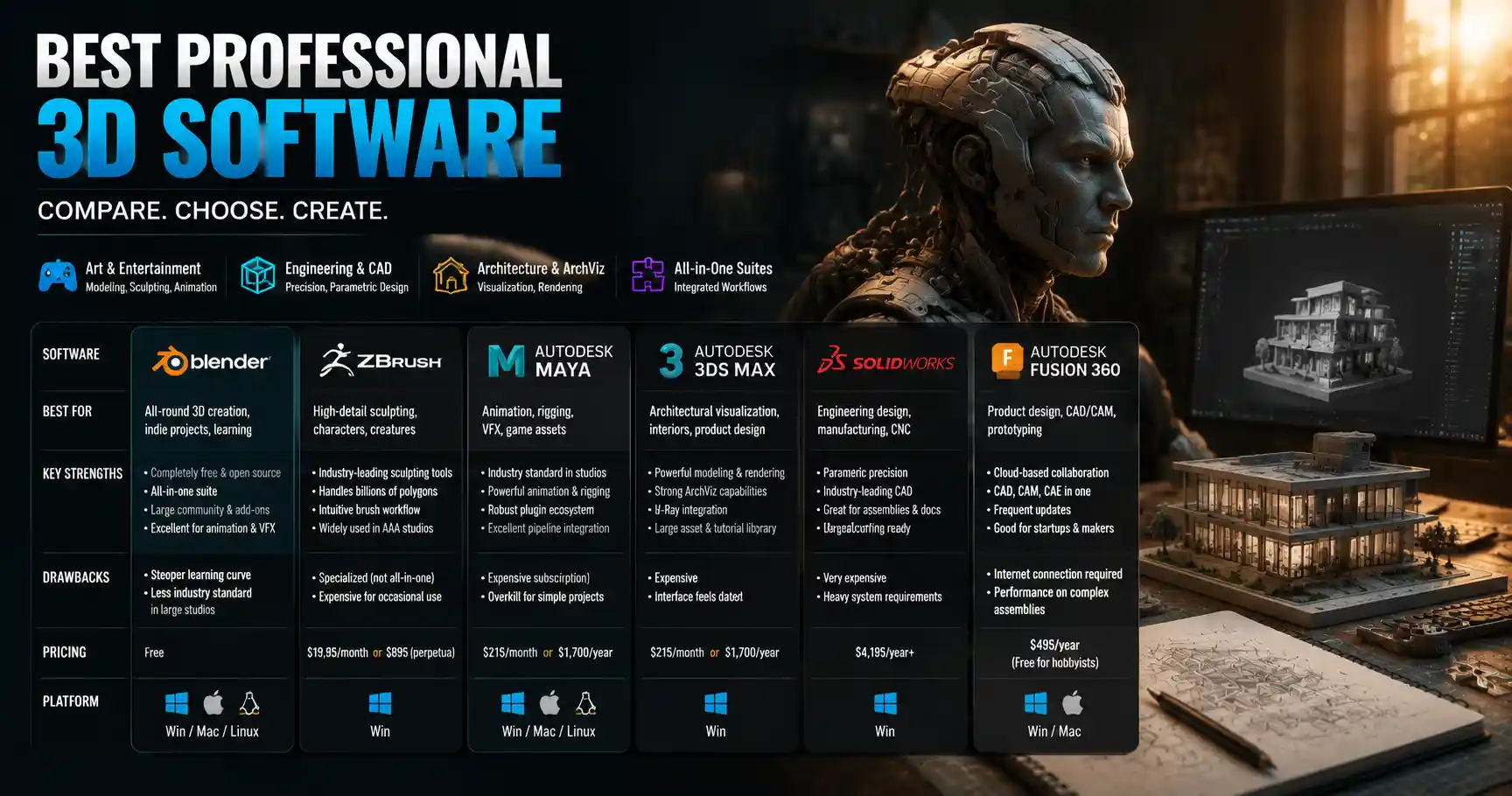
To make this comparison practical, we’ve selected the six most widely used professional 3D tools across core industries, breaking down their pricing, key features, ideal use cases, and drawbacks. This covers everything from free open-source options to enterprise-level CAD suites.
Blender
Blender has exploded in popularity over the last decade, evolving from a niche open-source hobbyist tool to a fully professional-grade solution used by major studios like Netflix and Ubisoft. It’s a completely free all-in-one 3D suite, with built-in tools for modeling, sculpting, rigging, animation, rendering, VFX, video editing, and even 2D animation. Its open-source nature means there’s a huge global community creating free add-ons, tutorials, and assets, and updates are released every few months with major new features.
For freelancers, students, and small studios, Blender’s price point is unbeatable. It’s also surprisingly powerful for organic sculpting and character animation, with a built-in Cycles ray-tracing renderer that produces photorealistic results comparable to paid tools like V-Ray. That said, Blender has drawbacks for professional use: it’s less standardized than Autodesk tools, so large studios with established pipelines often prefer industry-standard options for team compatibility. It also lacks the precision and parametric tools required for professional CAD and manufacturing work, so it’s not a good fit for engineering teams.
Ideal for: Freelance artists, indie game studios, student projects, 3D printing hobbyists, small VFX teams. Pricing: Free, no subscriptions or licensing fees.
ZBrush
ZBrush from Maxon is the industry standard for high-resolution organic sculpting. Used by almost every major VFX and game studio for creating detailed characters, creatures, and hard-surface assets, ZBrush’s dynamic subdivision workflow lets artists sculpt intricate details with billions of polygons that would crash other tools. It’s particularly beloved for its intuitive brush-based system, which feels closer to traditional sculpting than any other tool on the market.
The biggest downside of ZBrush is that it’s a specialized tool, not an all-in-one solution. Most artists use ZBrush for high-detail sculpting, then export the model to another tool like Maya or Blender for retopology, rigging, and animation. It’s also one of the pricier options on the market, with a perpetual license costing more than $800, or a $19.95 monthly subscription. For artists who only do occasional sculpting, that cost is hard to justify. But for character and creature artists who work at a professional level, there’s still no tool that matches ZBrush’s speed and detail.
Ideal for: Professional character sculptors, VFX artists, game asset creators. Pricing: $19.95/month subscription, or $895 perpetual license.
Autodesk Maya
Maya has been the industry standard for 3D animation and VFX for decades, and it’s still the go-to tool for large film and game studios. It has robust tools for modeling, rigging, animation, rendering, and particle effects, with a deep set of features for complex character animation and large-scale VFX shots. Because it’s been around so long, almost every 3D pipeline is built to support Maya, and it integrates seamlessly with other Autodesk tools like 3ds Max and Arnold renderer.
One of Maya’s biggest strengths is its customizable node-based workflow, which lets professional artists automate complex tasks and build custom tools for specific projects. It also has industry-leading dynamic simulation tools for hair, cloth, and fluid effects that are still unmatched by many competitors. The downsides are significant, though: Maya has a steep learning curve, and its subscription model is expensive for individual users, costing $225 per month or $1,785 per year. Many artists also complain that Maya is bloated with unused features, and it can be slow to load and unstable on large projects. For small teams and freelancers, the cost is often hard to justify when Blender offers many of the same core features for free.
Ideal for: Large VFX studios, AAA game studios, professional character animators. Pricing: $225/month, $1,785/year subscription.
SolidWorks
SolidWorks, owned by Dassault Systèmes, is the gold standard for parametric 3D CAD in mechanical engineering and manufacturing. It’s built from the ground up for precision, with tools for part modeling, assembly design, drawing generation, and simulation of stress, heat transfer, and fluid dynamics. For manufacturing teams, SolidWorks integrates seamlessly with CNC machining, 3D printing, and product lifecycle management (PLM) tools, making it easy to go from a 3D model to a finished physical product.
The biggest advantage of SolidWorks is its user-friendly interface compared to other enterprise CAD tools like CATIA. It’s relatively easy for new engineering students to learn, and its large community means there are thousands of pre-built parts and tutorials available online. The downside is cost: a professional license of SolidWorks costs around $4,000 for a perpetual license, plus annual maintenance fees of around $1,200. It’s also optimized for Windows only, which is a problem for Mac-based design teams. For small product design teams, the cost is often prohibitive, and many turn to more affordable alternatives like Fusion 360.
Ideal for: Mechanical engineering teams, manufacturing companies, industrial designers producing physical products. Pricing: ~$4,000 perpetual license + $1,200/year maintenance, or $150/month subscription.
Autodesk Fusion 360
Fusion 360 is a cloud-based all-in-one CAD, CAM, and CAE tool that has become extremely popular with small product design teams, startups, and freelance industrial designers. It combines parametric modeling, assembly design, drawing generation, toolpath creation for CNC machining, and basic simulation into a single interface, with cloud-based collaboration that lets multiple team members work on the same project at the same time.
Fusion 360’s biggest draw is its affordable pricing: for individual hobbyists, it’s free, and for professional users, it costs only $60 per month or $480 per year, a fraction of the cost of SolidWorks. It’s also cloud-native, so you can access your projects from any device, and it automatically saves version history, eliminating the risk of losing work to a hard drive failure. The drawbacks are that it’s less powerful than SolidWorks for extremely large, complex assemblies, and some users complain about performance issues with very detailed projects. Because it’s cloud-based, you also can’t work offline for extended periods, which is a problem for teams with unreliable internet connections. For small teams and freelance product designers, though, it strikes an almost perfect balance between cost and functionality.
Ideal for: Freelance industrial designers, startups, small product development teams, hobbyist makers. Pricing: Free for hobbyists, $60/month for professional use.
SketchUp Pro
SketchUp Pro, owned by Trimble, is the most popular 3D tool for architectural visualization, interior design, and quick conceptual modeling. It’s famous for its intuitive push-pull modeling workflow, which lets even beginners create 3D models of buildings and interiors in minutes, compared to hours in more complex tools like Revit. It also has a huge 3D Warehouse of pre-built models of furniture, windows, doors, and building materials, which speeds up conceptual work dramatically.
For architects and interior designers who need to create quick concepts or client presentations, SketchUp is unbeatable for speed and ease of use. It also integrates seamlessly with popular rendering tools like V-Ray and Enscape, making it easy to turn a basic model into a photorealistic presentation. The downside is that it lacks the precision and BIM (Building Information Modeling) features that large architectural firms need for full construction documentation. It’s also not suitable for organic modeling or animation, so it’s strictly limited to architectural and design visualization work. For independent interior designers and small architecture firms, though, it’s a cost-effective, fast tool that fits most workflow needs.
Ideal for: Independent architects, interior designers, conceptual design, quick client presentations. Pricing: $349/year subscription.
Key Factors to Compare When Choosing Your Tool
Beyond core features and industry focus, there are several practical factors that will have a huge impact on your day-to-day work. Many users overlook these when choosing a tool, only to run into frustrating limitations months into a project. Below are the most important factors to evaluate before making a decision.
Pricing & Licensing Model
The shift from perpetual licenses to subscription-based pricing over the last decade has dramatically changed the cost of professional 3D software for individuals and small teams. For large enterprises, subscriptions make it easier to budget for software, but for freelancers and small studios, ongoing monthly costs can add up quickly. When comparing pricing, consider:
- Do you need a perpetual license to avoid ongoing subscription costs, or is a monthly subscription manageable for your business?
- Are you eligible for free or discounted licensing for students, educators, or non-commercial use? Most major vendors offer significant discounts in these categories.
- Does the pricing scale with the size of your team, or do you pay per-seat regardless of usage?
For example, Blender’s free perpetual license is a game-changer for new freelancers who can’t afford hundreds of dollars in monthly subscription fees, while large manufacturing firms often prefer SolidWorks’ perpetual license with maintenance for long-term project stability.
Workflow Compatibility & Collaboration
If you’re working as part of a team, compatibility with your studio’s existing pipeline is non-negotiable. If every other artist at your company uses Maya, switching to Blender will create constant file export issues and slow down the entire team. For CAD teams, if your manufacturing partner requires SolidWorks files, using Fusion 360 can create extra work to convert files that may lose precision in the process.
Cloud-based tools like Fusion 360 and Blender’s cloud collaboration features have made it easier for distributed teams to work together, but enterprise teams often still prefer on-premise tools with local file storage for security. If you work with external clients or contractors, make sure your chosen tool can export files in common formats like FBX, OBJ, STEP, or IGES without losing data.
Learning Curve & Community Support
Even the most powerful 3D software is useless if you can’t learn how to use it effectively. Blender, for example, has a massive global community that creates thousands of free tutorials, courses, and add-ons, making it much easier for beginners to learn than more obscure paid tools. More specialized tools like ZBrush or SolidWorks also have large communities and plenty of training resources, but niche CAD tools can be much harder to learn with limited online content.
The biggest mistake new 3D artists make is chasing the "best" tool instead of mastering the one that fits their budget and goals. A skilled artist can make great work in Blender; a beginner can make garbage in Maya. Tool choice matters, but mastery matters more.
If you’re new to professional 3D, starting with a tool with extensive free learning resources will save you months of frustration. Blender, for example, has free complete tutorials from beginner to professional level on YouTube, while many enterprise CAD tools require paid training to get up to speed.
Hardware Requirements
Professional 3D work is demanding on your hardware, and different tools have different requirements. High-resolution sculpting in ZBrush or rendering in Blender’s Cycles engine requires a powerful GPU with lots of VRAM, while CAD tools like SolidWorks can often run on more modest hardware as long as your processor is fast. Cloud-based tools like Fusion 360 offload a lot of processing to remote servers, so they can run better on older laptops than desktop-based tools.
If you’re working on a laptop rather than a desktop workstation, make sure your chosen tool is optimized for mobile hardware. Some enterprise tools like CATIA require high-end workstation GPUs that aren’t available on most consumer laptops, so that’s a key consideration for freelancers who work on the go.
Common Use Case Recommendations
To make this comparison even more practical, we’ve put together targeted recommendations for the most common professional 3D use cases, based on team size and budget.
Indie Game Development & Character Art
For small indie teams and freelance character artists, the best combination is almost always Blender for base modeling and animation, plus ZBrush for high-resolution sculpting. Blender’s free price point eliminates a huge cost for cash-strapped indie studios, and it has all the tools you need to create game assets, animate characters, and export files directly to Unity or Unreal Engine. ZBrush adds the high-detail sculpting power you need for realistic characters, and the subscription model is affordable for most freelancers. For teams on an extremely tight budget, Blender’s built-in sculpting tools have improved dramatically in recent years, so you can even avoid the cost of ZBrush entirely.
Mechanical Engineering & Manufacturing
For large manufacturing companies with established pipelines, SolidWorks is still the best choice for most use cases. It’s the industry standard, so most engineers already know how to use it, and it integrates with every major manufacturing and PLM tool on the market. For startups and small product design teams, Fusion 360 is the clear winner: it offers almost all the core CAD and CAM features you need for a fraction of the cost, and its cloud collaboration tools make it easy for distributed teams to work together. If you need to work on extremely large assemblies or aerospace-grade projects, CATIA is still the industry standard, but its high cost makes it impractical for most small teams.
Architectural Visualization & Interior Design
For large architectural firms working on full construction projects, Autodesk Revit is the industry standard for BIM, and 3ds Max is the go-to for rendering high-quality visualizations. For independent architects and interior designers, SketchUp Pro + Enscape is an unbeatable combination: SketchUp’s fast push-pull workflow lets you create models quickly, and Enscape lets you render real-time walkthroughs for clients in minutes. If you need more advanced rendering, V-Ray for SketchUp produces photorealistic results at a fraction of the cost of enterprise ArchViz suites.
VFX & Film Animation
For large VFX and film studios, Maya is still the industry standard, and it’s unlikely to be dethroned any time soon. Its robust animation and simulation tools, plus wide industry compatibility, make it the safest choice for large-scale productions. That said, more and more large studios are integrating Blender into their pipelines for certain tasks, thanks to its low cost and improving features. Netflix, for example, has used Blender for several original animated projects, and the trend is growing as Blender’s professional features continue to improve. For small independent VFX studios and animators, Blender is now a fully viable alternative to Maya, with a much lower cost barrier.
- Always test a tool before committing: Most paid professional 3D tools offer 30-day free trials, so take advantage of that to test the workflow before buying.
- Don’t overbuy for your needs: You don’t need a $4,000 SolidWorks license if you’re only designing small 3D-printed products as a freelancer.
- Prioritize compatibility: If you work with other teams or clients, choose a tool that matches their workflow to avoid extra conversion work.
- Leverage free resources: Even for paid tools, there are dozens of free tutorials and communities online that can help you master the software without paying for expensive training.
Conclusion
There is no single "best" professional 3D software that works for every user and every project. The right tool for you depends entirely on your industry, team size, budget, and specific workflow needs. For freelancers and small teams, Blender and Fusion 360 have disrupted the market in recent years, offering professional-grade features at a fraction of the cost of traditional enterprise tools. For large established studios and manufacturing firms, industry standards like Maya, SolidWorks, and Revit still offer the reliability, compatibility, and advanced features that large-scale projects require.
The most important takeaway is to match your tool to your specific use case, rather than chasing the most popular or expensive option on the market. A tool that excels at character animation will be a poor fit for mechanical engineering, just as a precision CAD tool will feel clunky and limiting for sculpting fantasy creatures. By evaluating your needs against the core factors we’ve covered here – pricing, compatibility, learning curve, and industry focus – you can choose a tool that will support your work for years to come, rather than forcing you to switch workflows mid-project and lose valuable time and money.