
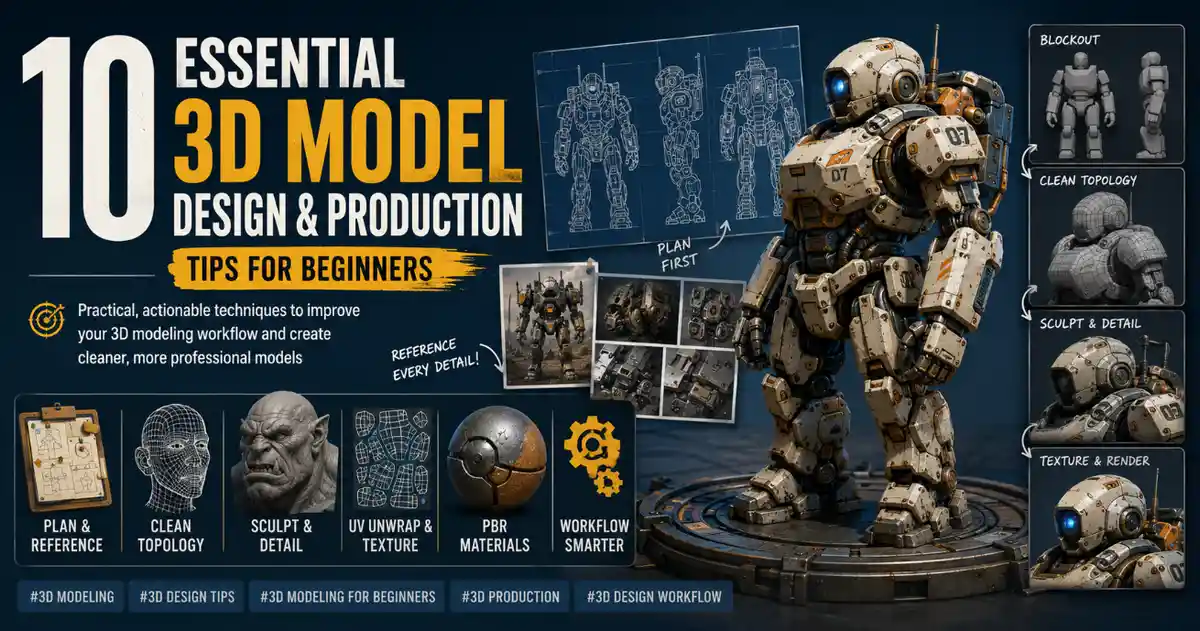
Whether you’re designing 3D assets for video games, 3D printing, product prototyping, or animated films, mastering the fundamentals of 3D modeling can mean the difference between a clunky, inefficient file and a polished, production-ready design that works seamlessly across every use case. Many new artists dive straight into complex software without learning small, intentional habits that speed up workflows and improve final results, while even experienced creators often stick to outdated routines that hold back their creativity. In this guide, we’ll break down actionable 3D model design and production tips that work for every skill level, from beginners testing their first sculpt to professionals looking to refine their process.
Planning and Reference Gathering: Lay a Solid Foundation
One of the most common mistakes new 3D artists make is jumping straight into modeling without a clear plan or accurate reference materials. Unlike 2D art, where you can adjust proportions and shapes easily as you go, 3D modeling builds on a base mesh that becomes harder to modify once you add details, textures, and rigging. Taking time to plan and gather references before you open your 3D software cuts down on rework and ensures your final design matches the vision you started with.
Build a Structured Reference Board
Not all references are created equal. A random collection of photos pulled from a search engine won’t give you the context you need to model accurate, believable shapes. Instead, organize your references by category to cover every detail of your design:
- Orthographic references: Front, side, top, and back views aligned to the same scale are critical for matching exact proportions. For product designs or character models, these can be blueprints, technical drawings, or custom photos you take yourself aligned to a grid.
- Detail close-ups: Close-up photos of textures, surface features, small parts, and wear and tear help you add realistic detail later without guessing what a specific component should look like. For example, if you’re modeling a vintage camera, close-ups of the dials, lens threading, and leather texture will make your final model far more convincing.
- Contextual references: Photos of your object in use, or in the environment it will appear in, help you match scale and style. If you’re designing a 3D tree for a game level, reference photos of how other trees fit into the same art style and lighting conditions will help your asset blend in seamlessly.
Tools like PureRef, Blender’s built-in reference manager, or even a simple Pinterest board let you arrange all your references in one window that you can keep open alongside your modeling software, so you don’t have to alt-tab between different apps to check details.
Block Out Your Shape First
Before you add any fine details, create a low-poly blockout (also called a base mesh) to test proportions, scale, and overall composition. A blockout is a rough, simplified version of your final model that only captures the main volumes and shapes, no small features or textures. This step lets you catch major proportion errors early when they’re easy to fix, instead of after you’ve spent hours adding detailed topology.
For example, if you’re modeling a character, your blockout might be just a handful of primitive shapes: a cube for the torso, spheres for the head and joints, and cylinders for the arms and legs. You can adjust the size of each primitive to get the overall body shape right before you start sculpting or adding edge loops to define muscle and bone structure. For architectural models, block out the overall footprint of the building and the placement of major rooms before adding windows, doors, or decorative trim. This approach saves hours of rework and keeps your project focused on the big picture first.
Topology and Geometry Optimization: Keep Your Models Clean and Functional
Topology — the arrangement of vertices, edges, and faces that make up a 3D mesh — is one of the most important skills to master for production-ready 3D models. A model with messy, inefficient topology will cause problems down the line: it won’t subdivide smoothly, it’s hard to rig for animation, it increases file sizes unnecessarily, and it can cause errors when 3D printing or exporting to different platforms. Clean topology doesn’t just make your model work better — it makes it easier to edit and adjust as you work.
Follow Core Topology Best Practices
For most organic and hard-surface models, a few simple rules will keep your topology clean and functional:
- Stick to quads (four-sided faces) wherever possible. Triangles (three-sided faces) and n-gons (faces with more than four sides) can cause issues when subdividing, rendering, or exporting to game engines. While triangles are sometimes unavoidable in small areas or around hard edges, most of your mesh should be made of evenly sized quads.
- Add edge loops only where you need them. Adding too many unnecessary edge loops increases your polygon count and makes your model harder to edit. For hard-surface models, add an edge loop 1-2 centimeters from a sharp edge to create a clean bevel instead of adding multiple extra loops along the entire face of an object.
- Match edge flow to the shape of your model. For organic models like characters, edge flow should follow the muscle and bone structure of the body, which makes the model deform correctly when rigged and animated. For hard-surface models, edge flow should follow the lines of the object’s design to create clean, predictable shapes when you add bevels and Boolean operations.
- Eliminate overlapping and unseen geometry. If part of your model is hidden inside another component, or behind a camera view that will never show it in the final render, delete that extra geometry. It adds unnecessary polygons and can cause rendering errors when overlapping faces confuse rendering software.
Even experienced artists can benefit from running a topology check with built-in software tools: Blender has a 3D Print Toolbox add-on that highlights non-manifold geometry, flipped normals, and overlapping faces, while Autodesk Maya and ZBrush have similar built-in inspection tools. Catching these small errors early prevents them from turning into big problems later in production.
Optimize Polygon Count for Your Use Case
There’s no one “right” polygon count for a 3D model — it all depends on what you’re using the model for. A 3D model for a 3D-printed figurine needs far fewer polygons than a high-resolution character model for a feature film, while a game asset for a mobile game needs a much lower polygon count than an asset for a high-end PC game. Learning to match your polygon count to your final use case keeps files small, speeds up render times, and avoids performance issues.
For example, mobile game assets typically cap out at a few thousand polygons per model, while high-end AAA game characters range from 15,000 to 100,000 polygons. For film VFX, high-resolution sculpts can hit millions of polygons, but these are almost always converted to displacement maps or normal maps for rendering to keep performance manageable. A common technique for balancing detail and performance is retopology: you create a high-resolution sculpt with all the fine detail, then build a clean, low-poly version of the mesh over the top, and bake the high-resolution detail into a normal map or displacement map that adds the detail back when rendering without the extra polygon cost. This technique is used for everything from game characters to product visualizations, and it’s a core skill for any professional 3D artist.
“The best 3D models aren’t the ones with the most polygons — they’re the ones that use exactly as many polygons as they need to get the job done. Every extra vertex is a wasted opportunity that slows down your workflow and causes problems later.”
Sculpting and Detailing: Add Realism Without Sacrificing Functionality
Once you have your clean base mesh, it’s time to add detail that brings your model to life. Whether you’re working on an organic character, a piece of furniture, or a mechanical part, intentional detailing makes the difference between a generic model and a convincing, professional design. The key is to build detail from large shapes to small, instead of adding fine detail first and working your way out.
Work From Large to Small
Most sculpting software works with dynamic levels of detail that let you focus on one size of shape at a time, and following the large-to-small rule keeps your proportions consistent as you add detail. Start with the largest volumes: for a character, that means defining the overall shape of the skeleton, muscle groups, and major fat deposits before you add anything smaller. For a coffee mug, that means defining the overall curve of the body, the shape of the handle, and the thickness of the rim before you add the logo or scratches on the surface.
This approach works because changing a large shape after you add small detail requires you to redo all that fine detail work. For example, if you sculpt the wrinkles on a character’s face before you adjust the overall size of the jaw, you’ll have to resculpt all the wrinkles to match the new jaw shape. By locking in large shapes first, you only work on small detail once, when you know the overall shape is correct.
Leverage Alphas and Tileable Textures for Repeat Detail
You don’t have to sculpt every single detail by hand to get a realistic result. Pre-made alphas (greyscale image files that define the shape of a sculpting brush stroke) let you add complex, consistent detail like skin pores, wood grain, chain links, or brick textures in a single click. For organic models, alphas for skin pores, wrinkles, and hair follicles can cut hours off your sculpting time, while for hard-surface models, alphas for bolts, panel lines, and screw heads add consistent detail across large areas.
For repeating surface details like fabric patterns, stone textures, or asphalt, create a tileable texture that can be repeated seamlessly across any size of surface. This is especially useful for large environment assets like walls, floors, or terrain, where sculpting every detail by hand would result in an unmanageably large file. Many artists make the mistake of using too many high-resolution tileable textures, which can make a model look busy or repetitive. The best practice is to add a few unique hand-sculpted details over the top of a tileable base texture to break up repetition and add visual interest.
Don’t Overdo It: Negative Space Is Your Friend
One of the most common mistakes intermediate 3D artists make is adding too much detail to every surface of their model. Every crack, scratch, and logo adds visual weight, and if every part of the model is screaming for attention, the viewer can’t tell what’s important. Leaving some areas simple creates visual contrast that makes your detailed areas stand out more. For example, if you’re modeling a character wearing a plain cotton t-shirt, you don’t need to add every single stitch and wrinkle across the entire shirt. Add subtle wrinkles around the joints and where the fabric fits tight to the body, and leave the large, flat areas of the shirt smoother to draw the eye to the character’s face and hands.
For hard-surface models, this rule also applies: if you’re modeling a modern kitchen cabinet, you don’t need to add scratches, dents, and dust to every surface unless the design calls for a worn, vintage look. Minimal, clean detail often looks more professional than over-detailing, especially for product design and architectural visualization where clarity is key.
UV Unwrapping and Texturing: Bring Your Model to Life
UV unwrapping is the process of unfolding a 3D mesh into a flat 2D plane so you can apply 2D texture maps to it. It’s often seen as a tedious, unglamorous step by new artists, but bad UVs can ruin even the most well-modeled 3D design. Seams that are in obvious places, distorted texture stretching, or wasted texture space make textures look blurry or unnatural, even if you started with a high-resolution texture file.
Hide Seams Where No One Will See Them
When you cut seams to unwrap your UVs, place them in areas that are naturally hidden or less visible to the viewer. For a character model, place seams along the back of the neck, under the arms, inside the legs, and along the hairline — areas that are rarely in sharp focus and naturally shadowed. For a table, place the seam under the table top where it meets the legs, where it will never be seen. The goal of good UV unwrapping is to make the seams invisible, so the viewer doesn’t notice that the texture was wrapped around a 3D object.
Maximize Texture Space for Important Details
Texture resolution is limited: a 4K texture file only has so many pixels to work with, so you want to assign more pixels to the areas that need more detail, and less to areas that don’t. For example, a character’s face is almost always the focal point of a render or animation, so you should assign more UV space to the face than to the sole of the shoe, which is rarely seen. For a car model, assign more UV space to the front grille and headlights than to the undercarriage, which is hidden from view.
Most 3D software has a UV packing tool that automatically arranges UV islands to maximize available space, but you should still adjust the packs manually to prioritize important areas. Packing smaller UV islands more tightly and giving larger areas of low detail less space gives you more resolution for the details that matter, resulting in sharper, clearer textures even with the same overall texture file size.
Use PBR Workflows for Consistent Realism
Physically Based Rendering (PBR) has become the industry standard for texturing 3D models across games, film, and product visualization because it creates consistent, realistic results across any lighting conditions. PBR textures are based on real physical properties of materials: instead of guessing how shiny a material should look, you define its base albedo color, roughness, metallicness, and normal (or displacement) for detail, and the rendering engine calculates how light interacts with the material automatically.
For new artists, learning PBR workflows removes a lot of the guesswork from texturing, because you can reference free PBR texture libraries (like Poly Haven or TexturingXYZ) that are calibrated to real-world materials. Some key PBR tips to keep in mind:
- Don’t make pure black or pure white roughness values: almost no real-world material is perfectly smooth or perfectly rough. Adding even 5-10% of variation to roughness values makes materials look more natural.
- Metallic values are either 0 (non-metal) or 1 (metal) for most real materials, with very few exceptions. Avoid grey metallic values for most materials, as this creates unrealistic results.
- Add subtle ambient occlusion to crevices and overlapping parts to add depth, but don’t overdo it — too much dark ambient occlusion makes a model look fake and dated.
Common Workflow Mistakes and How to Fix Them
Even with solid planning and clean topology, small habits in your workflow can slow you down or create avoidable errors. Being aware of these common mistakes helps you catch them early and build more efficient habits that save time over the long run.
Not Saving Versions of Your Work
It’s a cliché, but it’s still one of the most common mistakes: new (and even experienced) artists often save over the same file every time they work, which means if the file gets corrupted, or you decide you liked an earlier version of your design better, you have no way to go back. The fix is simple: save incremental versions of your file at major milestones: character_v01.blend for the blockout, character_v02.blend for the base mesh, character_v03.blend for the sculpt, and so on. If you’re working with large files, you can also use external version control software like Git or Plastic SCM to track changes without saving multiple full copies of the file, but even incremental naming is better than no versioning at all.
Ignoring Export Requirements for Your Final Platform
Different platforms and use cases have different requirements for 3D model exports: game engines have strict polygon and texture size limits, 3D printers require closed, manifold meshes with no holes, and AR/VR applications have specific poly count and origin point requirements. Many artists finish a model, export it with default settings, and only discover it doesn’t work for their intended use when it’s too late to make easy changes.
The fix is to check the export requirements before you start modeling, so you can build your model to match those requirements from the start. If you’re 3D printing, confirm the maximum build volume and required file format (most 3D printers use STL or OBJ) before you start, and check for non-manifold geometry as you work, not just at the end. If you’re exporting to a game engine, confirm the maximum polygon count and texture resolution your engine can handle, so you can optimize as you go instead of having to retopologize the entire model at the end.
Overcomplicating the Base Mesh
New artists often try to add every detail to the base mesh, instead of using normal maps, displacement maps, or texture maps to add detail later. This results in overly high polygon counts that are slow to work with and hard to edit. The rule of thumb is: if you can add the detail with a texture map, add it with a texture map, not with geometry. Only add detail as geometry if it needs to deform with the model, or it will be visible in the silhouette of the model. For example, a small logo on the side of a mug doesn’t need to be modeled as geometry — you can add it as a texture or a bump map, which keeps your mesh clean and simple.
Conclusion
Mastering 3D model design and production isn’t about learning every single feature of the most expensive software, or creating models with millions of polygons that take days to render. It’s about building intentional, consistent habits that start with solid planning, keep your geometry clean and functional, and add detail strategically to serve the final purpose of your model. The small habits — taking time to gather references, checking for bad topology early, prioritizing texture space for focal points, and saving versioned copies of your work — add up to far better results than rushing through the early steps to get to the “fun” part of detailing. Whether you’re a beginner working on your first 3D print or a professional looking to refine your workflow, these tips will help you create better 3D models faster, with fewer errors and more room for creativity.