

Whether you are visualizing a modern living room, a boutique hotel lobby, or a minimalist office layout, the furniture models you place in the scene often make the difference between a passable render and a portfolio-worthy image. Realistic 3D furniture models do not just fill empty space — they ground the environment, provide scale, and tell a story about how the space is used. But with thousands of assets available across different marketplaces and libraries, knowing which models to trust for interior rendering can save hours of cleanup and rework later.
This article walks through what to look for when selecting 3d furniture models, how different settings demand different types of assets, and where platforms like Relebook fit into a reliable workflow. The goal is not to push one source over another, but to help you make informed decisions before you hit download.
What Makes a 3D Furniture Model Suitable for Rendering?
Not every 3D chair or table you find online is ready for a high-quality interior render. Even well-known asset libraries sometimes host models that look decent in a preview but fail under close inspection. The following criteria are worth checking before you integrate any furniture 3d model download into your scene.
Geometry & Topology — Look for clean quad-based topology. Models with all triangles may work fine for games, but for subdivision rendering and close-up shots, quad geometry gives you cleaner smoothing and easier UV editing. Avoid models with obvious n-gons on curved surfaces. Also, a reasonable polygon count matters: a dining chair with two million faces may be overkill if it is only visible from a medium distance, while a detailed sofa in the foreground can justify high resolution.
UV Mapping & Texture Quality — Good UV layout ensures your textures map correctly without stretching or seams. Check whether the model ships with PBR textures — albedo, roughness, normal, and sometimes displacement. Even a well-modeled piece will look flat if its texture sets are missing or poorly compressed. Actual texture resolutions (e.g., 2K vs 4K) depend on your final render size and zoom level.
Scale & Real-World Dimensions — A 3D chair that is off by a few centimeters may cause problems when you arrange a whole room. Reliable models come with real-world scale metadata (usually in millimeters or centimeters). Always confirm that the model reports its dimensions so you can drop it into your scene without manually rescaling every piece.
File Format Compatibility — Interior rendering is still dominated by 3ds Max and V-Ray, with Blender, Cinema 4D, and SketchUp also popular. A model that only ships as a .max file may be useless if you work in Blender. Many platforms now provide multi-format downloads (FBX, OBJ, GLTF, etc.). Check compatibility before committing to a purchase or download.
License & Usage Rights — This point cannot be overstated. Some assets labeled as free for personal use may not be used in client projects, while commercially licensed models often cost extra. Always read the license terms on the asset page. Platforms differ widely; do not assume that just because a model is listed as free, it is royalty-free or unrestricted.
Selecting Furniture Models for Different Interior Settings
Different interior scenarios demand different levels of detail, style consistency, and even file structure. Here is a breakdown by common project types.
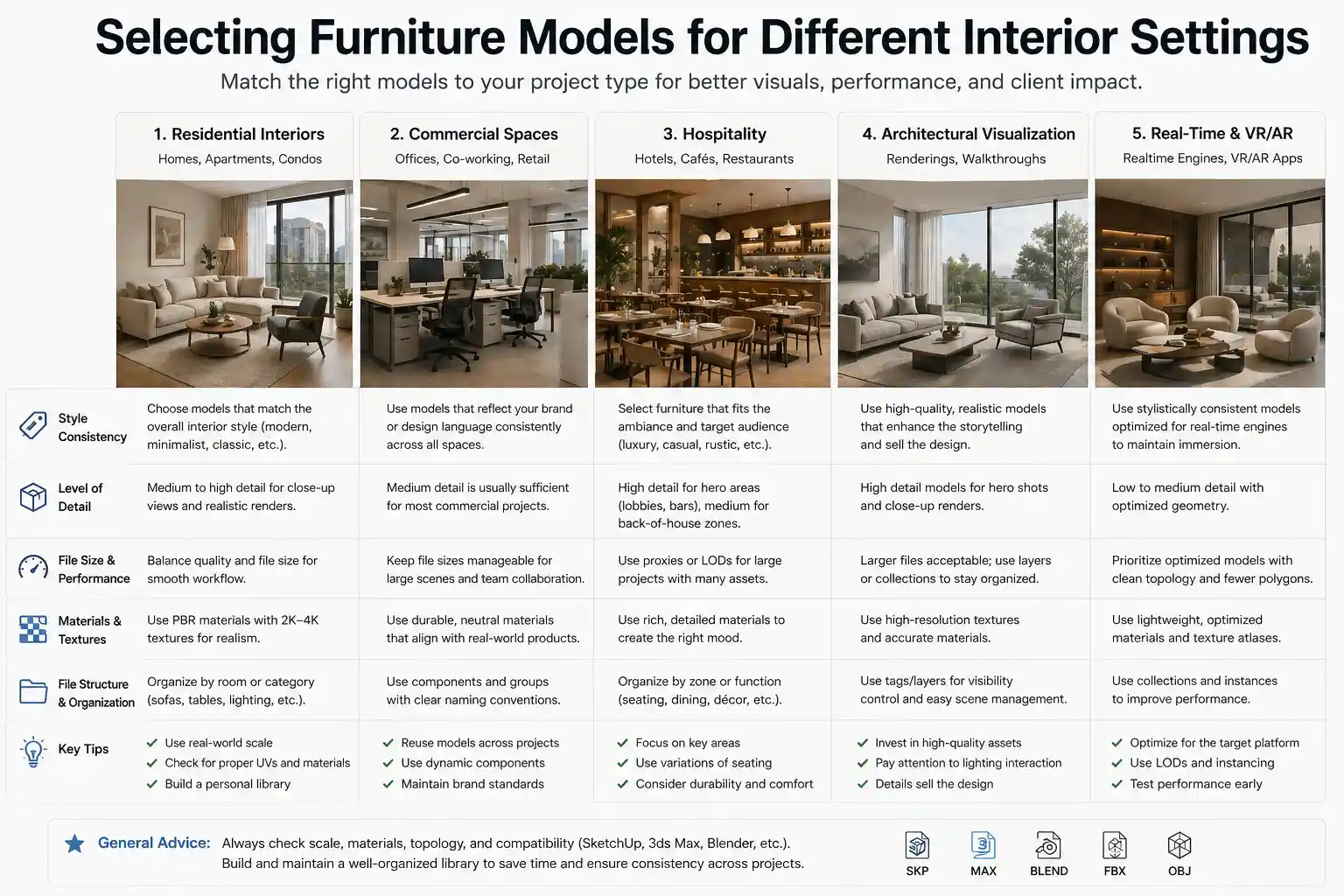
Living Room & Residential Interiors
Residential renders usually call for comfortable, lived-in furniture with soft textiles, wood finishes, and natural imperfections. Sofas, armchairs, coffee tables, and media units should have realistic fabric draping or leather wrinkling. For a modern living room scene, consider clean-lined sofas with high-resolution fabric textures, and wooden side tables with visible grain. Models with pre-applied dirt maps or subtle wear can add realism without extra work.
Bedroom Visualization
Bedrooms require mattresses with correct sag simulation, pillows with soft body physics, and nightstands with small props. Many 3d furniture models for bedrooms come with subdivisions already applied, making them ready for close-up beauty shots. Pay special attention to bedding — a model with separate top sheet and duvet layers gives you more flexibility in composition.
Office & Coworking Spaces
Office interiors need functional furniture: ergonomic chairs, desks with cable management details, shelving systems, and meeting tables. The style leans toward clean, modular, and uniform. For these scenes, it is often efficient to use collections or sets of furniture where multiple pieces share the same material IDs and color schemes. This saves time when rendering large floor plans.
Hospitality — Hotels & Restaurants
Hospitality renders demand elegant, often custom-looking pieces: banquet chairs, lounge seating, barstools, decorative tables. These models should have high visual impact but should also be optimized for scenes with many instances (e.g., a hotel ballroom with 200 identical chairs). Check if the model offers LOD (level-of-detail) options or proxy representation to keep viewport performance manageable.
Commercial & Retail
Retail interiors (showrooms, stores, cafes) usually feature modular display units, shelving, and specialist fixtures. Accuracy of brand-specific furniture may matter. In these projects, file format and scale consistency are critical because you may combine assets from multiple sources. A single mis-scaled shelving unit can throw off an entire product layout.
Practical Workflow Tips for Using 3D Furniture Models
Finding good models is only half the task. Integrating them efficiently into your rendering pipeline saves time and reduces frustration.
Start with a curated platform. Rather than hopping between random downloads, many 3D artists rely on a consistent source that they trust for quality and format consistency. Relebook, for example, offers a collection of 3d furniture models alongside textures, HDRI maps, and CG resources — all in one ecosystem. This can simplify the workflow because you are not chasing down missing texture files or converting formats from obscure sources. Of course, always verify format and license details on each asset page before you start your project.
Organize your asset library early. Create folders by furniture category (seating, tables, storage, lighting) and keep a simple spreadsheet with columns for scale, format, license type, and any special notes. When you are rendering under a tight deadline, this discipline pays off immediately.
Test a single model before committing to a full scene. Import one chair or table, apply your scene lighting, and see how the materials react. Sometimes a model that looked perfect in the marketplace preview reveals shading issues due to flipped normals or mismatched texture maps. Catch these early.
Check texture paths and file names. Many downloaded assets have long, messy texture names or absolute paths. It is good practice to re-link textures or pack them into your project. If the asset comes with a material library, test it on your render engine to see if the roughness/glossiness settings match your expectations.
Use proxies or instances for large scenes. If you are populating a hotel lobby with fifty identical armchairs, use instancing or proxy objects to keep the viewport responsive. Most modern rendering engines support V-Ray Proxy, Corona Proxy, or Blender instances. This keeps polygon counts manageable while preserving full detail in the final render.
Where to Look for 3D Furniture Models Today
There are many places to find furniture 3d model download options, from free community-driven repositories to high-end paid collections. Free and paid resources exist side by side, and availability and licensing can vary significantly between platforms. Some platforms offer selected free assets with limited formats or resolutions, while premium assets often include multiple detail levels and full PBR texture sets.
If you are looking for a single platform that bundles models with supporting assets like HDRIs and textures, Relebook is worth exploring. It provides a curated selection of interior 3d models that aim to reduce the time spent hunting for matching resources. That said, always review each asset page for format, license, and usage details before downloading. No platform is perfect for every project, and a well-chosen model from any source will outperform a careless import from a premium library.
Frequently Asked Questions
Q: What file formats are most common for 3D furniture models in interior rendering?
A: The most widely supported formats include .max (3ds Max), .fbx, .obj, .gltf/.glb, .blend (Blender), and .c4d (Cinema 4D). Which one you need depends on your primary DCC application. Many platforms now offer multiple format options per model.
Q: Are free 3D furniture models reliable for commercial projects?
A: Free models can be a great starting point, but reliability varies. Always check the license: some free assets are only for personal use, others allow commercial use with attribution. Also inspect geometry and texture quality — free models sometimes have imperfections that require manual cleanup.
Q: How do I choose the right 3D furniture model for a specific visual style?
A: Start by defining your render style (photorealistic, stylized, mid-century modern, etc.). Look for models that match that style in both form and material setup. Reading user reviews and looking at multiple render examples of the same model can help you judge how it performs under different lighting.
Q: Why does my downloaded model look different in my scene than in the preview?
A: Differences often come from mismatched lighting, gamma settings, or missing texture files. Make sure your scene gamma and color space match the asset's expected settings (usually linear or sRGB). Also check that all required texture maps are linked correctly.
Q: Can I modify a downloaded 3D furniture model?
A: Modification rights depend on the license. Many commercial licenses allow you to resize, retexture, or even remodel parts of the asset for use in your projects. Free models may restrict modifications. When in doubt, contact the creator or read the license terms carefully.
Final Thoughts
High-quality 3d furniture models can elevate an interior render from generic to striking, but choosing them wisely requires attention to detail — geometry, textures, scale, and licensing all matter. By building a consistent workflow for evaluating and integrating assets, you save time and produce better results. Whether you pull from a dedicated platform like Relebook, a community library, or a specialized marketplace, the key is to know what you are getting before you commit. Keep your scene organized, verify licenses, and always test assets early. With the right models in place, your interior visualizations will speak for themselves.
FAQ
What file formats are most common for 3D furniture models in interior rendering?
The most widely supported formats include .max (3ds Max), .fbx, .obj, .gltf/.glb, .blend (Blender), and .c4d (Cinema 4D). Which one you need depends on your primary DCC application. Many platforms now offer multiple format options per model.
Are free 3D furniture models reliable for commercial projects?
Free models can be a great starting point, but reliability varies. Always check the license: some free assets are only for personal use, others allow commercial use with attribution. Also inspect geometry and texture quality — free models sometimes have imperfections that require manual cleanup.
How do I choose the right 3D furniture model for a specific visual style?
Start by defining your render style (photorealistic, stylized, mid-century modern, etc.). Look for models that match that style in both form and material setup. Reading user reviews and looking at multiple render examples of the same model can help you judge how it performs under different lighting.
Why does my downloaded model look different in my scene than in the preview?
Differences often come from mismatched lighting, gamma settings, or missing texture files. Make sure your scene gamma and color space match the asset's expected settings (usually linear or sRGB). Also check that all required texture maps are linked correctly.
Can I modify a downloaded 3D furniture model?
Modification rights depend on the license. Many commercial licenses allow you to resize, retexture, or even remodel parts of the asset for use in your projects. Free models may restrict modifications. When in doubt, contact the creator or read the license terms carefully.