
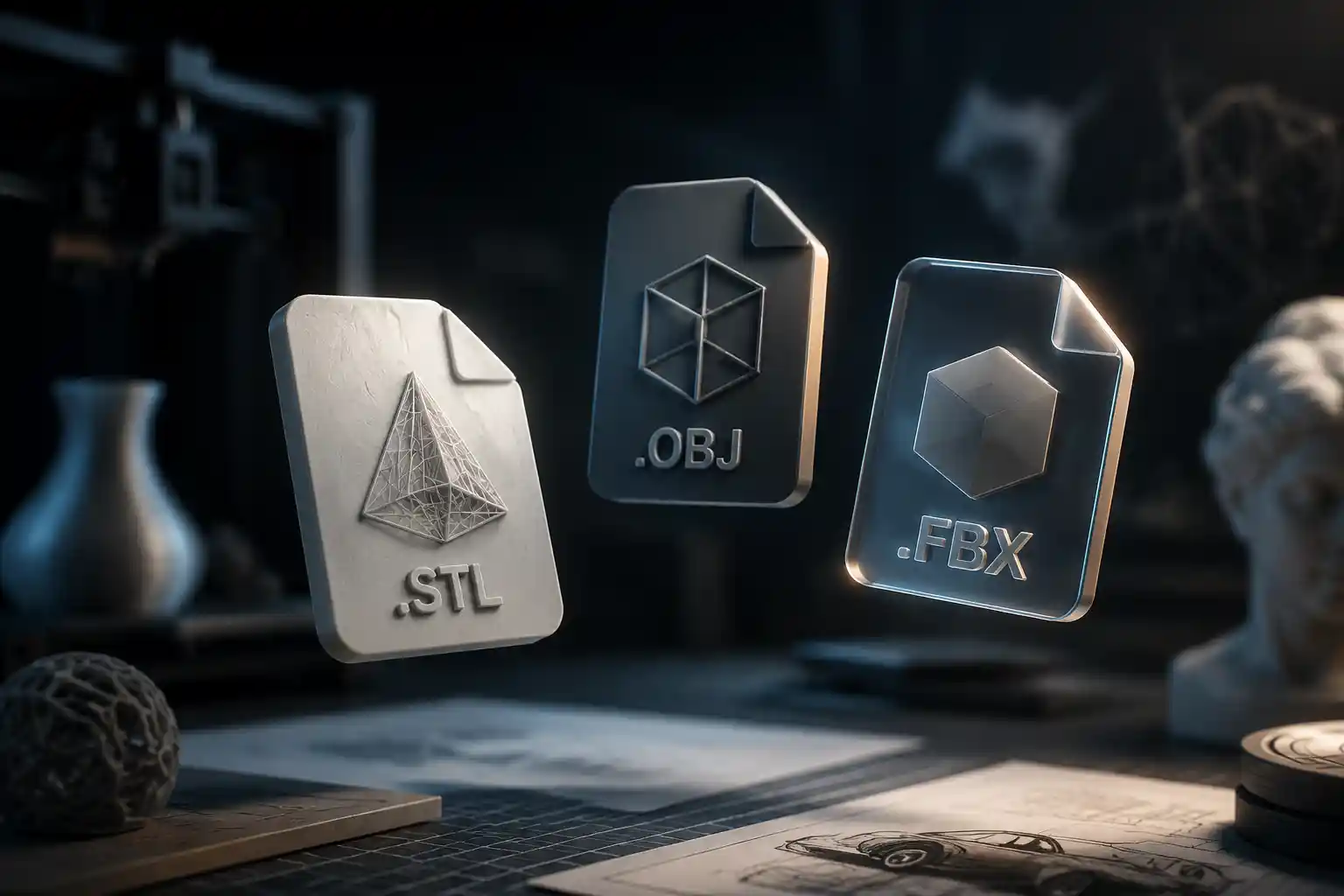
Whether you’re a freelance 3D artist, a product designer preparing assets for 3D printing, or a game developer building an open-world environment, the file format you choose for your 3D model can make or break your project. A format that works perfectly for a fast 3D render might bloat your game file or be incompatible with industrial 3D printing tools, while a lightweight format optimized for web embedding could lose critical detail needed for manufacturing. With dozens of 3D file formats in use today, each built for a specific use case, picking the right one saves hours of rework, prevents data loss, and ensures your model works as intended across every platform.
Understanding the Two Main Categories of 3D File Formats
Before diving into specific formats, it helps to separate all 3D files into two core categories: source files and export/neutral files. Knowing the difference between these two groups is the first step to choosing the right format for your work.
Source 3D File FormatsSource files are the editable, proprietary files you create and work with in a specific 3D modeling software like Blender, Autodesk Maya, or ZBrush. These files store every layer of your project, including modeling history, materials, textures, animation timelines, lighting setups, and modifier stacks that let you go back and edit individual components of your model later. The downside of source files is that they’re almost always software-specific: a Blender source file can’t be natively opened in Maya, and opening it in another program usually requires exporting to a neutral format first, which erases editable project data. Source files are best for your own working projects, where you need to retain full editing access, and for archiving your work for future revisions.
Neutral/Export 3D File FormatsNeutral, or export, formats are designed to share 3D model data between different software programs and platforms. They don’t store full editing history or software-specific project settings, but they’re compatible with most 3D tools, making them ideal for sharing assets with other artists, embedding models on websites, or preparing files for 3D printing, game engines, or rendering. Some neutral formats are even open-source, meaning they’re maintained by public communities rather than a single private company, which reduces long-term compatibility risks.
Best 3D Formats for Common Use Cases
Below we break down the most popular, reliable 3D formats by use case, highlighting their strengths, weaknesses, and ideal scenarios to use them.
General Purpose 3D Modeling & Archiving: STL, OBJ, FBXFor everyday use where you need a reliable format that works almost everywhere, three options stand out. STL (Stereolithography) is one of the oldest and most widely recognized 3D formats, originally developed for 3D printing in the 1980s. It only stores raw 3D surface geometry (no textures, materials, or color information), which makes it extremely lightweight and compatible with every 3D printing tool and most 3D modeling software. STL is the default format for 3D printing, but its simplicity means it’s not ideal for models that require color or complex materials. For most basic 3D prints, it remains the gold standard.
OBJ (Wavefront Object) is another long-standing general-purpose format that improves on STL by adding support for texture coordinates, color, and simple material definitions. Unlike STL, it can store both polygonal geometry and surface mapping data, making it suitable for sharing static models between different modeling programs. OBJ is plain text-based (or can be compressed into a small binary), so it’s easy to parse and works well for archiving static models that don’t include animation. Many 3D asset marketplaces like TurboSquid use OBJ as a universal download option because almost any 3D tool can open it.
FBX (Filmbox) originated as a proprietary format from Autodesk, and it’s now the most common format for animated 3D assets. It supports complex data including skeletal animation, blend shapes, cameras, lighting, and rigging, making it the go-to choice for game developers and animators importing assets into game engines like Unity or Unreal Engine. While it is proprietary, it’s supported by almost every major 3D tool, and its ability to pack all animation and material data into a single file makes it extremely convenient for sharing animated assets. The biggest downside is that older versions of FBX can have compatibility issues with newer software, so it’s best to export using a mid-range version (like FBX 2020) for maximum compatibility.
3D Printing & Manufacturing: 3MF, AMF, STEPWhen you’re preparing a model for industrial 3D printing or manufacturing, you need a format that can store more than just basic surface geometry. For consumer and small-batch 3D printing, 3MF (3D Manufacturing Format) has emerged as a modern replacement for STL. Unlike STL, which can only store raw triangles and often creates gaps or errors in complex geometry, 3MF supports full-color textures, multiple materials, metadata, and precise unit information, all while remaining compatible with most modern 3D slicing software. It’s an open-source format maintained by the 3MF Consortium, which includes major 3D printer manufacturers like Prusa, Formlabs, and Ultimaker, so it’s built to work with the latest printing technology.
For multi-material 3D printing, AMF (Additive Manufacturing File Format) is another open-source option that supports advanced features like curved triangles (which reduce file size for smooth surfaces), multiple materials, and hierarchical model structure. It’s less widely adopted than 3MF by consumer printer brands, but it remains popular for industrial additive manufacturing. For CNC machining and traditional manufacturing, STEP (Standard for the Exchange of Product Data) is the industry standard. STEP can store full parametric 3D model data, which means it preserves the design intent and editable dimensions of a mechanical part, unlike mesh-based formats that only store surface geometry. This makes it ideal for sharing mechanical designs between CAD (computer-aided design) programs for engineering and manufacturing.
Game Development & Real-Time Rendering: GLB/GLTF, USDZGame development and real-time applications require formats that are lightweight, load quickly, and support all the material, animation, and rigging data needed for interactive use. Two formats have become the standard for modern real-time use: GLTF (Graphics Language Transmission Format) and its binary counterpart GLB. GLTF is an open-source format developed by the Khronos Group, the same organization that maintains OpenGL and Vulkan, and it’s designed specifically for efficient transmission and loading of 3D assets. GLB is the binary version of GLTF, which packs all geometry, textures, materials, and animation data into a single small file, avoiding the separate texture and material files that come with a standard GLTF export. For that reason, GLB is usually the preferred choice for most users.
Key benefits of GLB/GLTF include:
- Small file sizes that load quickly in web browsers and game engines, making them ideal for AR (augmented reality) and VR (virtual reality) applications
- Full support for PBR (physically based rendering) materials, animation, rigging, and multiple scenes
- Native support in all major game engines including Unity, Unreal Engine, and Godot, as well as all modern web browsers
- Open-source and royalty-free, with no proprietary restrictions on use
For Apple ecosystem AR applications and 3D product previews, USDZ is the go-to format. Developed by Apple and Pixar, USDZ is a compressed format designed specifically for sharing interactive 3D models in iOS, iPadOS, and macOS. It’s natively supported by Safari, Messages, and AR Quick Look, so users can view and interact with 3D models directly on their Apple device without downloading a separate app. Many e-commerce platforms now use USDZ for 3D product previews that let customers place a product in their home using AR before buying. It supports complex materials and animation, and it’s optimized for fast loading on mobile devices.
CAD & Mechanical Engineering: STEP, IGES, SLDPRTMechanical design and CAD work have very different requirements than artistic 3D modeling, because they rely on precise parametric data rather than just visual surface geometry. As mentioned earlier, STEP (also called STP) is the universal neutral format for CAD data. It supports both boundary representation (BREP) and parametric data, so it can be used to exchange editable mechanical part designs between different CAD programs like SolidWorks, AutoCAD, Fusion 360, and FreeCAD. Most engineering firms require STEP files for manufacturing because they preserve the exact dimensions and design intent of a part, unlike mesh formats that only approximate the surface.
IGES (Initial Graphics Exchange Specification) is an older neutral CAD format that preceded STEP, and it’s still used in some legacy industrial systems. While STEP has largely replaced it for most modern use cases, many older CNC machines and CAD programs still rely on IGES, so it’s still worth knowing. For users working natively in specific CAD tools, proprietary source formats like SolidWorks’ SLDPRT (for parts) and SLDASM (for assemblies), Autodesk’s DWG for 2D/3D CAD, or Fusion 360’s F3D are the best choice for active projects, as they retain full editing history, constraints, and assembly relationships. When sharing with external manufacturers or other engineers, exporting to STEP is almost always the best practice.
Web Embedding & AR: GLB/GLTF, USDZ, glTFIf you want to embed a 3D model on a website, let users interact with it in a browser, or create an AR experience, the only formats you need to consider are GLB/GLTF and USDZ. GLB works on all desktop and Android browsers, while USDZ works on Apple devices. Many modern web platforms will automatically serve the correct format to the user’s device, but GLB is the most universally compatible for web embedding. The small file size of GLB means it won’t slow down your website, and it works with all popular 3D web libraries like Three.js and React Three Fiber.
"The biggest mistake new 3D artists make is sharing their proprietary source file when a small, neutral export would work just fine. Not only does this bloat file sizes, it also gives away your full editable project when you only intended to share the final model. For sharing, always prioritize an open neutral format that preserves only the data the end user needs."
Key Factors to Choose the Right Format
Even with the recommendations above, you might still need to weigh multiple factors to pick the best format for your specific project. Here are the most important criteria to consider before exporting your 3D model:
End Use of the ModelThe first question to answer is: what will the model be used for? A model for 3D printing needs a completely different format than a model for a web AR preview, which in turn is different from a mechanical part for manufacturing. Always start with the end use and work backward: if you’re sending a file to a 3D printing service, check their recommended format first—most still accept STL, but many now prefer 3MF for higher quality prints. If you’re sending an asset to a game developer, ask which format they prefer; most will ask for FBX or GLB.
File Size & CompressionFile size matters more for web, AR, and game development than it does for archiving or manufacturing. If you’re embedding a model on a website or including it in a mobile game, a 100MB FBX will create long load times and hurt performance, while a compressed GLB of the same model might be only 5MB. For applications where load time is critical, always prioritize a format that supports efficient compression like GLB or USDZ. For archiving or manufacturing, file size is usually less of a concern than data accuracy, so a larger STEP or 3MF file is perfectly acceptable.
Compatibility With Other ToolsAlways check what formats the people or tools you’re sharing with can open. A STEP file is useless to a web developer who only works with GLB, just as a GLB is useless to an engineer who needs parametric data for manufacturing. Open-source formats like GLTF, 3MF, and STEP are generally more compatible long-term than proprietary formats, because they don’t rely on a single company to maintain them. For example, if a company discontinues a 3D modeling tool, its proprietary source format could become unreadable in a decade, but an open neutral format will remain accessible.
Data RequirementsWhat data do you need to preserve? If you only need the geometry of a model for 3D printing, STL is more than enough. If you need to preserve textures and materials, OBJ or GLB is necessary. If you need animation and rigging, FBX or GLB is required. If you need parametric dimensions for engineering, STEP is non-negotiable. Including unnecessary data just bloats your file, while leaving out critical data renders the file useless. A quick checklist of data you might need to preserve includes:
- Raw surface geometry (required for almost all 3D models)
- Texture coordinates, color, and material definitions
- Animation, rigging, and skeletal data
- Multiple materials or multi-color data for 3D printing
- Parametric dimensions and design constraints for CAD
- Lighting, camera, and scene setup data
Match your format to the data you need: don’t use a simple format like STL if you need to preserve materials, and don’t use a complex format like FBX if you only need raw geometry.
Common Mistakes to Avoid
Even experienced 3D artists sometimes pick the wrong format or make simple mistakes that cause compatibility issues. Here are the most common mistakes and how to avoid them:
First, sharing proprietary source files when a neutral export is sufficient. As the quote from Jayna Albright mentioned earlier, sharing a native Blender or SolidWorks file when the end user only needs the final model not only bloats the file size, it also gives away your full editable project, which can be a problem for intellectual property. Always export a neutral file for sharing, and keep the source file for your own archive.
Second, using an old format for advanced use cases. STL is still great for basic 3D printing, but if you’re printing a multi-color or multi-material part, using STL when you could use 3MF will force you to work around unnecessary limitations. Similarly, using OBJ for animated assets when GLB or FBX is available will mean losing your animation data in the export.
Third, not checking version compatibility for proprietary formats. FBX is a great example: Autodesk updates the FBX format regularly, and exporting a 2024 version FBX for a user who’s using a 2018 version of Unity will often cause import errors. When exporting FBX, always use a version that’s two to three years older than the current release to maximize compatibility.
Fourth, re-exporting between formats multiple times, which causes data loss. Every time you export a 3D model from one format to another, you lose some data—whether that’s editable history, precision in geometry, or quality in textures. Avoid exporting your model through multiple formats (for example, exporting from Blender to OBJ, then importing to Maya and exporting to STL, then importing to Cura) if you can go directly from your source file to the final format. This reduces the risk of geometric errors and data loss.
Fifth, not archiving your source file. It’s common to only save the exported neutral file after finishing a project, but if you need to edit the model a year later, you’ll regret not saving the editable source file. Always keep your original source file archived, even after you export the final version for delivery. This saves hours of rework if you need to make changes later.
Conclusion
There’s no single “best” 3D file format that works for every project—instead, the right format depends entirely on what you’re creating and who you’re sharing it with. For 3D printing, STL remains reliable for basic use, while 3MF is the modern choice for advanced multi-material prints. For sharing animated assets and game assets, FBX and GLB are the clear leaders, with GLB being the preferred choice for web and AR applications. For CAD and mechanical engineering, STEP is the universal neutral format that preserves the precise data needed for manufacturing. By matching your format to your end use, checking compatibility, and avoiding common mistakes like re-exporting multiple times or sharing source files unnecessarily, you can ensure your 3D models work as intended every time. Keeping your source files archived and using open, well-maintained formats for sharing also ensures your work remains accessible for years to come.